
Are you tired of the same old themes on your WordPress site? Do you want your website to stand out and reflect your unique personality or brand?
Adding a customized theme to your WordPress site can be the game-changer you’ve been looking for. Imagine the thrill of turning your creative ideas into reality, where every color, font, and layout aligns perfectly with your vision. But how do you get started without feeling overwhelmed?
Don’t worry, you’ve come to the right place. In this guide, we’ll walk you through the simple steps to add a customized theme to your WordPress site, making it as easy as a few clicks. Get ready to transform your website into something truly remarkable, all while keeping things straightforward and stress-free. Curious to find out how? Keep reading, and unlock the potential of your WordPress site today!
Understanding WordPress Themes
WordPress themes change how your site looks. They are like clothes for your website. Each theme has its own style. Some are simple, others are fancy. You can choose what fits your site best. Themes also add features to your site. Some themes help with pictures, others with text. Choosing the right theme is important. It makes your site unique and special.
Themes can be customized. You can change colors, fonts, and layouts. This makes your site look just how you want. You might need some tools. WordPress gives you many options. You can use these tools to make your site beautiful. Experiment with different themes and find the perfect look for your site.
Choosing The Right Theme
Free themes are cost-effective and easy to find. They offer basic features. Premium themes often have advanced options. These might include unique designs and extra support. Consider your needs before choosing. The best theme will fit your site’s purpose. Review options carefully.
Features are important for your site’s success. Look for responsive design. Ensure it works well on mobile devices. Check for SEO optimization. This helps in getting more visitors. Review customization options. Can you change colors and fonts? Choose a theme with user-friendly features. This makes updates easy.
Compatibility is crucial for smooth operation. Verify theme works with your plugins. Check if it supports the latest WordPress version. Look at reviews from other users. They reveal issues with compatibility. Ensure theme matches your site’s goals. This helps avoid problems later.
Installing A WordPress Theme
Open your WordPress dashboard. Click on Appearance and then Themes. You’ll see the option ‘Add New’. Use the search bar to find a theme you like. Preview it by clicking on the Preview button. If satisfied, click Install and then Activate it. Your new theme is now live on your site!
Download a theme as a .zip file from a third-party site. Go to your dashboard and click on Appearance, then Themes. Click ‘Add New’ and then ‘Upload Theme’. Choose the .zip file from your computer. Click Install Now, and once done, hit Activate.
Use an FTP client to connect to your server. Go to the /wp-content/themes/ directory. Upload the unzipped theme folder here. After uploading, go back to your dashboard. Click on Appearance, then Themes. You will see your new theme. Click Activate to use it.
Customizing Your Theme
The WordPress Customizer is a simple tool. It helps you change your theme’s look. You can find it in the dashboard. Click on Appearance then Customize. Here, you can change colors and fonts. You can also upload new logos. See changes in real-time. This makes it easy to decide what looks best. No coding is needed. Just click and change. It’s that simple.
Editing theme code gives more control. Access it through the theme editor. Go to Appearance and then Theme Editor. Be careful here. A small mistake can break your site. Always back up before changes. Edit HTML, CSS, or PHP files. This helps you make deeper changes. It’s for advanced users. Beginners should learn first.
Add Custom CSS for style tweaks. It’s easier than editing code. Go to Customize and then Additional CSS. Here, you can add your CSS code. Change colors or fonts. Adjust spacing if needed. This does not affect the main code. Safe for beginners. Test your changes as you go. Simple and effective for small changes.
Using Page Builders For Customization
Page builders help in creating unique designs. They offer drag-and-drop features. Popular builders include Elementor and Divi. These tools are user-friendly. They require no coding skills. You can create pages easily. They have many templates. Choose one and customize it.
Themes and page builders work together. Many themes support builders. This means easy integration. Simply install the builder plugin. Then activate it on your theme. You get greater control over design. Adjust colors and fonts. Change layout as needed. Make your site look special.
Custom layouts are simple to make. Use the builder’s tools. Create sections and columns. Add images and text. Use widgets for extra features. Builders offer many options. Experiment with different styles. You can save layouts for later. This saves time and effort.

Credit: wpmarmite.com
Creating A Child Theme
A child theme helps keep your changes safe. Updates won’t erase your customizations. It is a safer way to edit WordPress themes. You can try new designs without fear. Mistakes won’t break your site. This method is beginner-friendly. You can learn and explore.
First, create a new folder in the themes directory. Name it after your parent theme with “-child” added. Inside, make a file named style.css. This file needs some special code. Copy the code from your parent theme’s style.css. Change the Template line to match your parent theme’s folder name.
You can add new CSS rules in style.css. These rules change how your site looks. To change functions, create a functions.php file. You can write new PHP code here. This file is like a toolbox. You can add or change features. Always test changes before they go live. This keeps your site safe.
Importing And Exporting Theme Settings
Exporting your theme customizations is easy. First, go to your WordPress dashboard. Click on Appearance, then Customize. Find the option to export your settings. Save the exported file to your computer. This file keeps your design choices. It is useful if you change themes or websites. Always keep a copy of this file. It can save time and effort.
Importing your settings is simple too. Go back to the WordPress dashboard. Again, click on Appearance and then Customize. Look for the import option. Choose the file you saved earlier. Import the file to apply your customizations. Your website will look just like before. Make sure to check everything is correct. Sometimes small tweaks are needed. Enjoy your customized theme!
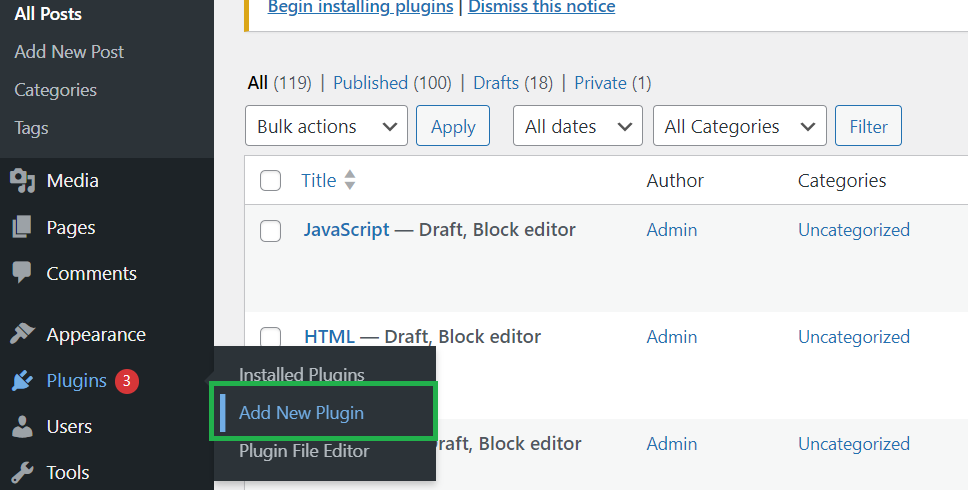
Credit: www.geeksforgeeks.org
Testing Your Customized Theme
Ensuring Responsive Design is key. Your theme should work on all devices. Try it on phones, tablets, and computers. Check if images fit well. Make sure text is easy to read. Buttons should be clickable on small screens. Responsive design makes users happy.
Testing Cross-Browser Compatibility is important. Your theme should work on different browsers. Test it on Chrome, Firefox, and Safari. Check for any design changes. Make sure all features work. This helps reach more users.
Optimizing Theme Performance keeps your site fast. Check load time. Remove unnecessary elements. Compress images for speed. Use caching tools. A quick site improves user experience.
Troubleshooting Common Issues
Easily add a customized theme in WordPress by uploading your theme file via the dashboard. Check compatibility issues with plugins to ensure a smooth installation. Adjust settings and preview changes to perfect your website’s appearance.
Fixing Display Problems
Themes may not show up right. Check your theme settings first. Sometimes, wrong settings can cause display issues. Clear the browser cache. This helps to see updates. If the problem stays, switch to the default theme. See if the issue is with the theme.
Resolving Compatibility Conflicts
Plugins can cause conflicts with themes. Deactivate all plugins. Then, activate them one by one. This helps find the plugin causing the issue. Some plugins need updates to work well. Always keep plugins updated. This ensures better compatibility.
Handling Update Issues
Updates might break the theme. Always backup your site before updates. This saves your work. If an update causes issues, restore the site from backup. Check the theme developer’s site for solutions. They often have guides for fixing update problems.

Credit: qodeinteractive.com
Maintaining Your Customized Theme
Themes need regular updates to stay fresh. Check for new features and fixes. Updates can improve theme performance. They can also add new features. Keep your theme up-to-date for best results. Regular updates keep your site safe from bugs.
Always make a backup of your theme. Backing up prevents data loss. Use plugins for easy backups. Save copies before making changes. A backup is your safety net. It helps restore your theme if needed. Never skip this step.
Security is key for your theme. Check for security threats regularly. Use security plugins for help. They scan your site for malware. Protect your theme from hackers. Staying secure is important for theme health. Regular checks keep your theme safe.
Frequently Asked Questions
How Do I Install A Custom Theme In WordPress?
To install a custom theme, navigate to the WordPress dashboard. Click on “Appearance,” then “Themes,” and select “Add New. ” Upload your theme’s ZIP file and activate it. Ensure your theme is compatible with your WordPress version for seamless integration.
Can I Customize A WordPress Theme Myself?
Yes, you can customize themes using the WordPress Customizer. Access it via “Appearance” in the dashboard. Make changes to colors, fonts, and layouts. Use child themes for advanced customization without affecting updates.
What Are Child Themes In WordPress?
Child themes inherit properties from parent themes. They allow you to make changes without altering the original theme files. This ensures your customizations remain intact during theme updates.
How Do I Choose A WordPress Theme?
Choose a theme based on your website’s purpose and audience. Consider design, responsiveness, and customization options. Check reviews and ratings for reliability. Test the theme’s speed and compatibility with plugins.
Conclusion
Adding a customized theme in WordPress is easier than it seems. Follow steps carefully to create a unique site design. This enhances user experience and boosts engagement. Remember to test your theme for functionality. Regular updates keep your theme fresh and secure.
Explore different design options to match your brand. Custom themes allow creativity and flexibility. With patience, your WordPress site can stand out. Enjoy the process and make your site truly yours. Customizing themes is a rewarding skill to learn. Happy designing!


