
Are you tired of the same old WordPress themes and ready to give your website a fresh, unique look? Adding a custom theme to your WordPress site can transform its appearance, making it stand out from the crowd.
Imagine having a website that not only reflects your brand perfectly but also captivates your visitors from the first click. In this guide, you’ll discover how simple it is to add custom themes to WordPress, unlocking endless design possibilities. You’ll learn step-by-step how to breathe new life into your site, ensuring it’s not only visually appealing but also tailored to your exact needs.
Stay with us, and by the end of this article, you’ll have the knowledge to turn your WordPress site into a stunning digital masterpiece.
Why Customize WordPress Themes
Customizing WordPress themes makes your site unique. A unique site stands out. It grabs attention. Default themes are common. Many sites use them. Custom themes show your style. They reflect your brand. A branded site builds trust. Visitors feel connected. They remember your site. This can increase traffic. More traffic can lead to more sales. Custom themes also improve user experience. A good experience keeps visitors. They stay longer and explore more. This helps your site’s growth. Themes can also be optimized for speed. Fast sites are preferred by users. Slow sites frustrate visitors. They might leave and not return. Custom themes give you control. Control over layout and design.
Choosing The Right Theme
Free themes are good for beginners. They cost nothing and offer basic features. Paid themes have more advanced options. They often come with better support. Paid themes can be more reliable. Check your budget before picking one. Free themes can be limited. Paid themes may offer unique designs.
Functionality is key. Themes should be easy to use. They must work well on phones and tablets. Choose themes with customizable options. Some themes allow drag and drop features. Others might offer built-in SEO tools. Make sure the theme is compatible with plugins you use. Check the loading speed of the theme.
Design matters. It makes your site look good. Choose colors that match your brand. Fonts should be easy to read. Images must be high quality. Layouts should be clean and not cluttered. Visual appeal attracts visitors. Ensure your theme reflects your style. Good design keeps users on your site.
Preparing For Theme Installation
Always backup your website before changes. Use a plugin like UpdraftPlus. This saves your files and database. You can restore them if needed. Backing up prevents data loss. It keeps your site safe during theme changes.
Child themes keep your edits safe. They protect your changes when updates happen. To create one, use the child theme plugin. Activate the plugin, then follow the steps. This way, your site stays unique.

Credit: stackoverflow.com
Installing A Custom Theme
First, log into your WordPress Dashboard. Find the Appearance tab on the left. Click on it, then choose Themes. You will see an Add New button. Click it to browse themes. Use the search bar to find a theme. Click Install when you find one you like. After installation, click Activate to use it.
Begin by downloading your theme’s ZIP file. Extract the files on your computer. Open your FTP client and connect to your website. Navigate to the /wp-content/themes/ directory. Upload the extracted theme folder here. Return to your WordPress Dashboard. Go to Appearance, then Themes. Find your new theme and click Activate. Your custom theme is now live!
Customizing Your Theme
The Customizer Tool helps you change your theme easily. You can adjust colors, fonts, and layouts. It gives you a live preview. See changes as you make them. It’s a simple way to make your site look unique.
Editing code gives you more control. You can change HTML, CSS, and JavaScript. This helps you create special features. Make sure you understand coding basics. Otherwise, you might break your site.
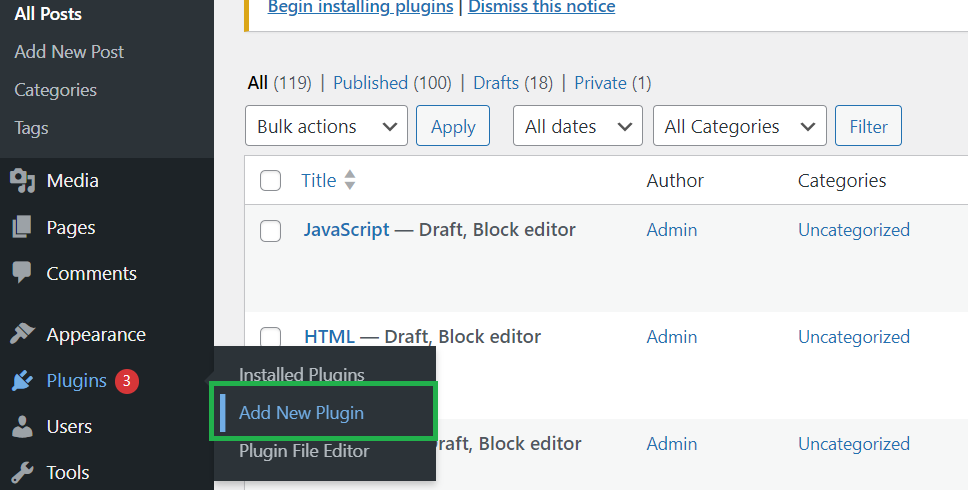
Plugins are helpful for adding features. They offer extra customization options. You can find plugins for almost anything. Some plugins let you change headers. Others help with footers and sidebars. Choose plugins that suit your needs.
Credit: www.geeksforgeeks.org
Testing Your Custom Theme
Make sure your theme looks good on all devices. Use a phone and a tablet. Is the text easy to read? Can you click all the buttons? Responsive design is important. It helps all users enjoy your site. You want everyone to have a good experience. Test it well.
Open your site in different browsers. Try Chrome, Firefox, and Safari. Check if everything looks the same. Some features might not work in all browsers. Fix any problems you find. This makes sure everyone can see your site clearly.
Speed is important for your site. Use tools to check how fast your site loads. Slow sites can lose visitors. Optimize images and scripts. Remove anything that slows down the site. A fast site keeps users happy and engaged.
Troubleshooting Common Issues
Adding custom themes to WordPress can sometimes be tricky. Users often face issues with theme compatibility or installation errors. Understanding these common problems helps in smoothly integrating new themes.
Dealing With Theme Conflicts
Theme conflicts can create problems. It’s important to check compatibility. Themes may have similar code. This can cause issues. Always test new themes in a safe environment. This prevents website errors. Consider using a plugin for testing. It helps find conflicts before going live. Regular updates can also reduce conflicts. Themes should be up-to-date. This improves stability and reduces bugs.
Restoring A Backup
Backups are important. They save your website’s data. If themes cause problems, restore a backup. This brings your site back to a safe state. Make sure to store backups safely. Use cloud storage or external drives. Restore backups carefully. This avoids losing current changes. Regular backups protect your site. They ensure you can recover easily.
Seeking Help From The Community
WordPress has a helpful community. They offer support for issues. Online forums are a great resource. Many users share solutions there. You can ask questions and get advice. Community members often have similar experiences. They can provide valuable insights. Search for discussions about themes. You might find answers to your problems. Don’t hesitate to reach out for help.

Credit: www.namecheap.com
Maintaining Your Custom Theme
Discover the process of adding custom themes to WordPress effortlessly. Navigate through the theme settings to install and personalize your site. Enhance your website’s appearance and functionality with ease, making it uniquely yours.
Updating Your Theme Safely
Keep your theme updated to fix bugs. Always back up before updates. This prevents losing data if something goes wrong. Check for compatibility with plugins before updating. This ensures your site runs smoothly after updates. Read reviews before updating. They help you decide if an update is good.
Regular Backups
Backups keep your site safe. Regular backups protect your site from data loss. Use plugins for easy backups. Store backups in different locations. This adds extra safety. Test your backups to make sure they work. This ensures you can restore your site quickly.
Monitoring Theme Performance
Check your theme’s speed often. Fast themes keep visitors happy. Use tools to test theme speed. Slow themes can lose visitors. Monitor how your theme behaves. Check for errors in your theme. Fix errors quickly to keep your site working well.
Frequently Asked Questions
How To Install A WordPress Theme?
To install a WordPress theme, navigate to ‘Appearance’ in your dashboard. Click ‘Themes’, then ‘Add New’. You can search for themes or upload a custom theme by clicking ‘Upload Theme’ and selecting a. zip file. After uploading, activate the theme to apply it to your site.
Can I Customize A WordPress Theme?
Yes, WordPress themes can be customized. Use the ‘Customize’ option under ‘Appearance’ in your dashboard. This tool allows you to change colors, fonts, layouts, and more. For advanced customization, consider modifying theme files or using a child theme to preserve changes during updates.
Where To Find Custom WordPress Themes?
Custom WordPress themes can be found on various online marketplaces. Popular sites include ThemeForest, Elegant Themes, and TemplateMonster. You can also find free themes in the WordPress theme repository. Always ensure themes are compatible with your WordPress version and meet your design needs.
Is It Safe To Use Third-party Themes?
Using third-party themes can be safe if sourced from reputable providers. Check for positive reviews, regular updates, and compatibility with your WordPress version. Ensure themes are well-coded and secure. Avoid downloading from unverified sources to prevent security risks and potential site vulnerabilities.
Conclusion
Adding custom themes to WordPress is simple and rewarding. It lets your site stand out. Personalization boosts visitor engagement and satisfaction. Follow the steps and make your site unique. Experiment with colors, layouts, and fonts. Explore different themes and find what suits your brand.
Keep your design clean and user-friendly. Regular updates ensure compatibility and security. Start customizing today and watch your site transform. It’s a straightforward process. You’ll gain confidence as you tweak and adjust. Enjoy the creative journey. Your site will reflect your style and vision.


