
Are you looking to make your WordPress site stand out from the crowd? Adding custom pages to your WordPress theme is a powerful way to tailor your website to your exact needs.
Whether you want a personalized contact form, a unique landing page, or an exclusive gallery, customizing your pages can help you achieve your vision. In this guide, you’ll learn how to effortlessly integrate custom pages into your WordPress theme, unlocking endless possibilities for creativity and functionality.
Imagine having the freedom to shape your website just the way you want it. Ready to dive in and make your site truly yours? Let’s get started!
Choosing The Right Theme
Check if the theme is compatible with the latest WordPress version. Compatibility is important for smooth operation. Some themes might not work well with certain plugins. Always read user reviews for any compatibility issues. This helps avoid unwanted surprises later. Remember, a compatible theme makes your website run efficiently.
Look for themes with customization options. Customization allows you to change the look of your site. Check if you can alter colors, fonts, and layouts. A flexible theme lets you add custom pages easily. Try using themes with a built-in customizer tool. This tool makes editing simple and fun. Customization options help you create a unique and engaging website.
Credit: savvy.co.il
Setting Up A Child Theme
Child themes help keep changes safe. They protect your custom edits. Updates won’t touch your changes. You keep your custom look. Safety for your website style. Flexibility to tweak without worry. Feel free to experiment. Your original theme stays the same. It’s the best way to customize safely. Kids can do it too. Easy and secure.
Start by making a new folder. Name it my-child-theme. Place it in the themes directory. Inside, create a style.css file. Add the necessary details: theme name, author, and template. Write a line to import styles from the parent theme. Activate your new child theme in WordPress. Check if it looks right. Simple steps for a child theme.
Creating Custom Page Templates
WordPress uses a template hierarchy to decide which file to use. Each page or post can have different templates. The most specific template is chosen first. Start with the page-{slug}.php file. If not found, it looks for page-{id}.php. Finally, it uses page.php. This order helps you create unique designs. Use it to make your site special. Pick the right template to match your needs.
Start with a simple template. First, create a new file in your theme folder. Name it custom-template.php.
Add a header comment at the top. This tells WordPress about the template.
Add the code: php / Template Name: Custom Template / ?.
This code shows the template name in WordPress. Next, add basic HTML structure. Include header and footer functions.
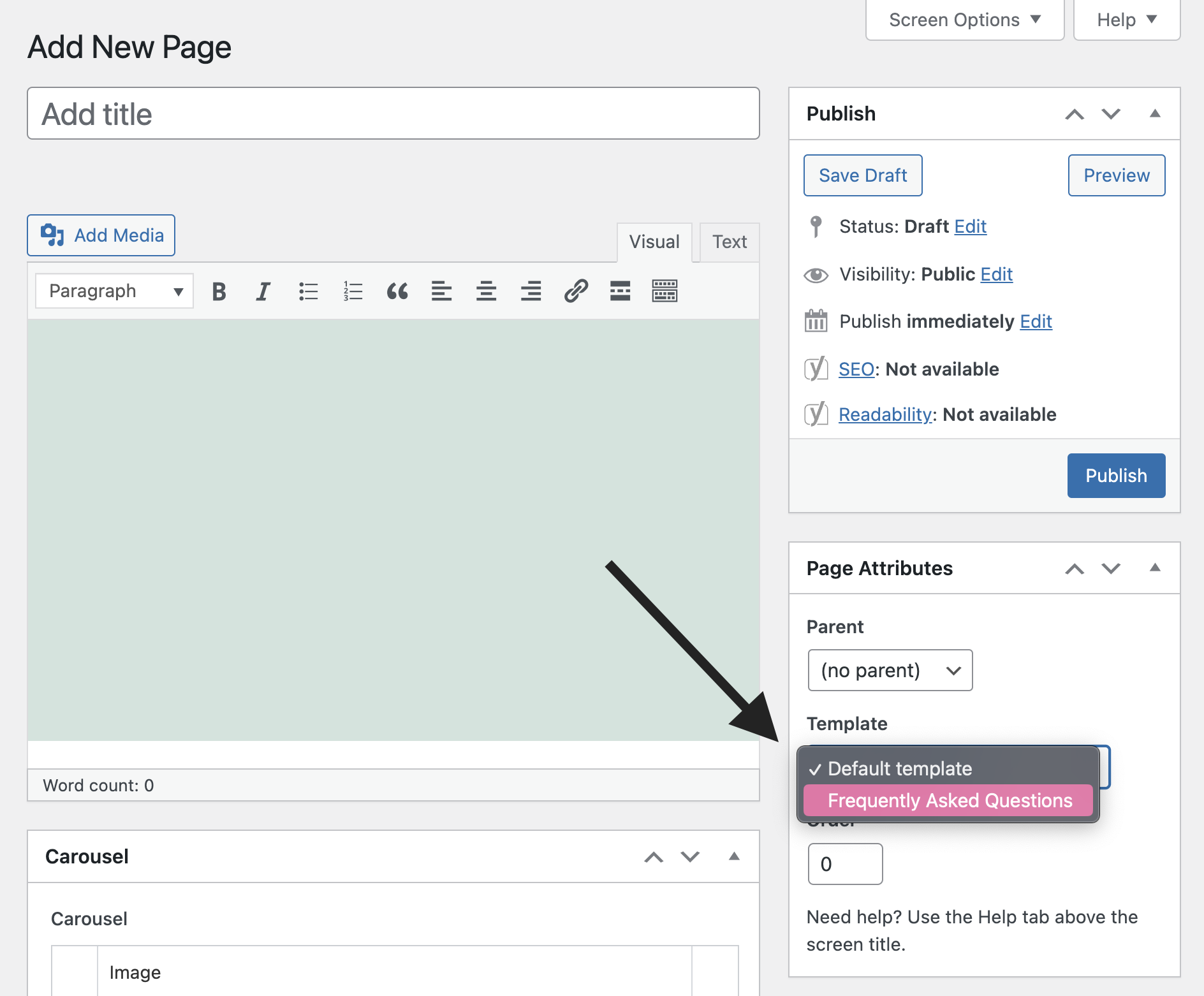
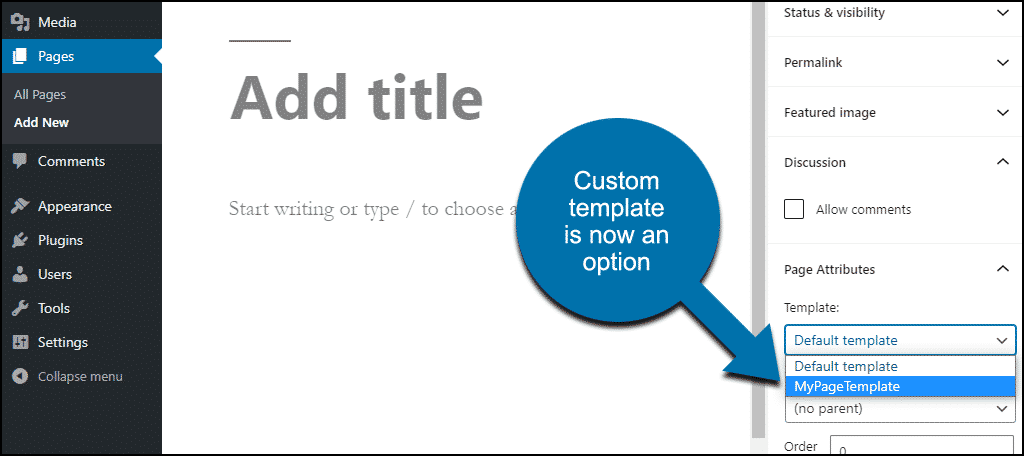
Save the file and go to your WordPress dashboard. You can now use this template for your pages.
Adding Custom Page Content
The WordPress Editor makes it easy to add custom pages. Open your dashboard first. Then, go to Pages and click Add New. Write your page title at the top. Below, you can add text, images, and videos. Use the blocks to format your content. This editor helps you make beautiful pages fast. Remember to click Publish when done.
Adding HTML and CSS makes your page unique. Click on the HTML block in the editor. Here, you can type your code. For styling, go to Appearance and then Customize. Click on Additional CSS. Add your CSS code here. This helps change how your page looks. Always save changes to see the results.
Utilizing Page Builders
Adding custom pages to a WordPress theme becomes straightforward with page builders. These tools offer drag-and-drop features, helping users design pages without coding skills. Customize layouts and elements effortlessly to match your website’s unique style.
Popular Page Builder Plugins
Page builders are tools to create unique WordPress pages easily. They allow users to design pages without coding. Elementor is a popular choice. It offers drag-and-drop features. Divi is another favorite. It provides many design options. Beaver Builder is known for its simplicity. It is beginner-friendly.
Designing With Drag-and-drop Tools
Drag-and-drop tools make designing easy. Users can add text, images, and buttons quickly. These tools help in customizing layouts. They provide real-time editing. You can see changes instantly. They save time and effort. Drag-and-drop tools are interactive. They make designing fun.
Credit: www.wpbeginner.com
Implementing Advanced Features
Discover the simplicity of adding custom pages to your WordPress theme. Enhance site functionality by using template files or page builders. Transform your website with personalized content, ensuring a unique user experience.
Integrating Custom Widgets
Custom widgets make your website unique. They can show text, images, or videos. Widgets can be added to sidebars or footers. First, find the widget area in your theme. Then, drag your widget there. This is how you can easily place it on your website. Plugins can also help add more widgets. Just search and install from the WordPress plugin directory. This adds more functionality to your site.
Adding Custom Fields
Custom fields help add extra information to posts. They are not shown by default. You must enable them in screen options first. Once enabled, find the custom fields box below the post editor. Click ‘Add New’ to create a new field. Name your field and add a value. This value can be text, numbers, or links. Custom fields are great for storing unique data. Plugins like Advanced Custom Fields can also help. They make adding fields easier.
Testing And Tweaking
Adding custom pages to a WordPress theme involves testing and tweaking for desired results. Create a child theme, then craft your page template. Finally, adjust settings and preview changes to ensure everything fits your needs.
Checking For Responsiveness
Check if your custom page looks good on phones and tablets. Use the browser’s developer tools to resize the window. Make sure everything fits well. Buttons and text should be easy to tap and read. Test on different devices if you can. Ask friends or family to help check on their phones. A responsive page keeps visitors happy.
Ensuring Cross-browser Compatibility
Browsers show web pages a bit differently. Test your page on Chrome, Firefox, Safari, and Edge. Make sure it looks the same on each one. Look out for broken images or misplaced text. Fix any issues you find. Use online tools to check more browsers. A compatible page reaches more people. It helps everyone enjoy your site without problems.
Deploying Custom Pages
Adding a custom page in WordPress is simple. First, log into the WordPress dashboard. Go to the “Pages” section. Click “Add New” to create a new page. Use the editor to add your content. Save your changes. You can preview the page before publishing.
Go to “Appearance” and then “Menus.” Choose a menu location. Add your new page to the menu. Click “Save Menu” to activate it. Now, your custom page is live on your website.
Sometimes, the page might not display. Check your theme settings. Ensure the page is assigned correctly. Clear your browser cache if changes don’t show. Update permalinks in settings. These steps solve most common problems.
Credit: www.greengeeks.com
Frequently Asked Questions
How To Create Custom Pages In WordPress?
Creating custom pages in WordPress involves editing your theme’s files. You should navigate to your theme directory. Create a new file, like `page-custom. php`. Add your custom HTML and PHP code. Finally, use the WordPress admin to assign this template to your desired page.
Can I Add Plugins For Custom Pages?
Yes, you can add plugins to enhance custom pages. Plugins like “Page Builder” offer drag-and-drop features. They provide widgets and modules to customize pages. Use the WordPress admin panel to install and activate them. They simplify the process, especially for non-developers.
What Is A WordPress Page Template?
A WordPress page template is a PHP file. It dictates the layout and design of a page. You can create and customize templates. Assign them to specific pages via the WordPress admin. This helps maintain consistent styling across your site.
How Do I Modify A WordPress Theme?
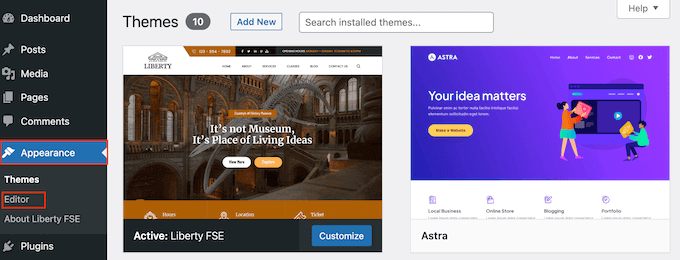
To modify a WordPress theme, access the theme editor. Navigate through Appearance > Theme Editor in the admin panel. Edit PHP, CSS, or HTML files there. Ensure to backup files before changes. Consider using a child theme to preserve modifications.
Conclusion
Custom pages in WordPress enhance your site’s uniqueness. They give you control over design and content. Tailor your pages to fit your brand’s needs. Follow the steps for seamless integration. Customize with plugins or coding for more options. Your website becomes more engaging and user-friendly.
Visitors enjoy a personalized experience, boosting satisfaction. Keep experimenting with design elements. Stay updated with WordPress features to improve functionality. Crafting custom pages can be simple and rewarding. Dive into creativity and watch your site flourish. Happy customizing!


