
Are you looking to give your WordPress site a unique touch? Adding a custom page to your WordPress theme can set your website apart and enhance user experience.
Whether you want to showcase a portfolio, create a landing page, or simply add a personal flair, customizing a page allows you to tailor content exactly to your needs. Imagine having the freedom to design a page that aligns perfectly with your brand’s identity and captivates your audience from the first click.
In this guide, we’ll demystify the process, making it accessible even if you’re not a tech wizard. Ready to take control and elevate your website’s appeal? Let’s dive into the steps to add a custom page to your WordPress theme. Your creative vision is about to become a digital reality.

Credit: www.cloudways.com
Choosing The Right Theme
Picking a theme is important. It shapes your website’s look. Choose a theme that fits your style. Responsive themes work on any device. They make sites look good on phones and computers. Look for themes with good reviews. People share their experiences online. This can help you decide. Check if the theme has updates. Updates keep the theme fresh and secure.
Simple themes load faster. Fast websites make visitors happy. Avoid themes with too many features. They might slow down your site. Choose a theme that supports plugins. Plugins add extra features to your site. Test the theme before using it. Most themes offer demos. Demos show how your site will look.
Credit: www.wpbeginner.com
Setting Up A Child Theme
First, create a new folder inside the themes folder. Name it after your new child theme. This folder is your child theme directory. It will hold all your custom files. Keep the name simple and clear.
Inside your child theme directory, create a style.css file. This file will hold all the styles for your child theme. At the top, add a comment with details like Theme Name and Template. Don’t forget to include the parent theme name in the Template.
Open your functions.php file. Add a function to enqueue the parent theme styles. Use wp_enqueue_style function to link the parent style.css. Ensure it’s done properly to keep the original styles intact.
Creating A Custom Page Template
Start by naming your template file. Use a unique name. For example, page-custom.php. This helps WordPress recognize it. Save this file in your theme folder. Naming is important. It must be clear and simple.
Open your named file. Add the PHP code at the top. Use this line: php / Template Name: Custom Page / ?. This tells WordPress about your template. Ensure there are no errors. Save the changes you make.
Begin adding HTML structure. Use the basic HTML tags. Start with and tags. Add content inside these tags. You can add headings, paragraphs, or images. Keep the structure clean and organized. Save your file once done.
Integrating Custom Page Into WordPress
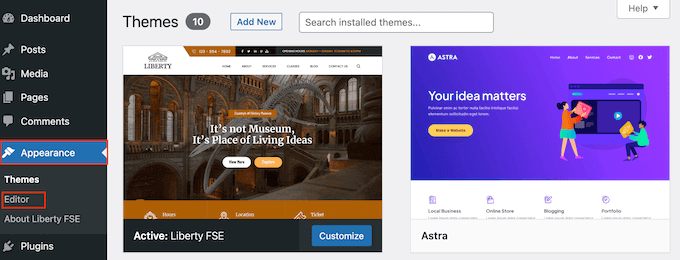
First, open your WordPress dashboard. Click on Appearance and then Theme Editor. Find the folder named Templates. Now, upload your custom page file. This file should have a .php extension. Use a unique name for this file. This helps in identifying it easily later. Always double-check your file name for errors. Errors can cause issues later on.
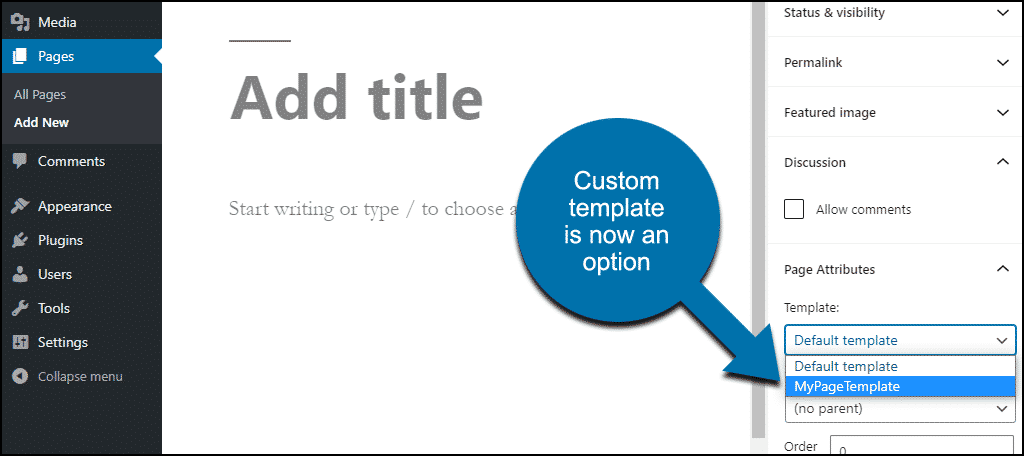
Next, go to the Pages section in the dashboard. Click Add New to create a new page. On the right, you’ll see a section called Page Attributes. From the dropdown menu, select your custom template. Make sure to save your page. This makes it live on your site. Preview your page to see the changes. Ensure everything looks as expected.
Adding Custom Styles And Scripts
Custom styles make your page look unique. Use the wp_register_style function. It helps to register your style. Write the code in your theme’s functions.php file. Use a unique name for your style. This name is called a handle. The handle helps to identify your style later. After registering, enqueue the style using wp_enqueue_style. It loads the style onto your page.
Scripts add features to your page. Use wp_enqueue_script to add them. First, register the script with wp_register_script. This step is like registering styles. Always use a handle to name your script. Choose your script source carefully. Ensure it works well with your theme. Once registered, enqueue it to load on your page.
Testing The Custom Page
Ensure your custom page fits well with your theme. Open the page on different browsers. Check if all elements display correctly. Sometimes, themes have quirks. Observe if the fonts look nice. Do images load properly? It’s crucial to test these. Compare the page with other theme pages. Spot any differences? Fix them early. This saves time later. A compatible page looks good everywhere.
Responsive design is important today. Open the page on a phone. Does it look good? Try it on a tablet. Check if text is readable. Are buttons easy to tap? Images should resize nicely. Adjust the browser size on a computer. Watch how the page adapts. A responsive page pleases users. They stay longer and enjoy the site. This helps your site’s success.
Troubleshooting Common Issues
Adding a custom page to a WordPress theme often faces challenges. Check file permissions and template hierarchy first. Ensure the correct template file name to avoid display issues.
Template Not Showing Up
Sometimes, the custom template may not appear in the list. This can be frustrating. Ensure the template file is in the correct folder. It should be inside the theme folder. Check the file name. Make sure it ends with .php. Open the template file and look at the top. There should be a comment with the template name. Example: / Template Name: My Custom Page /. This tells WordPress about your template. Save changes and refresh the WordPress admin.
Css And Js Conflicts
Custom pages may have style or script issues. Check the console for errors. This is in your browser’s developer tools. Look for red messages. These are errors. Disable plugins one by one to find conflicts. Sometimes, plugins load extra scripts. Load scripts and styles only when needed. Use WordPress functions like wp_enqueue_script. This helps to prevent conflicts.
Credit: www.greengeeks.com
Frequently Asked Questions
How To Create A Custom Page Template?
To create a custom page template, use your theme folder. Create a new file named `page-custom. php`. Add your custom HTML, CSS, and PHP code. Include the template header comment at the top. Then, select this template when creating or editing a page in WordPress.
Can I Add Custom Pages Without Coding?
Yes, you can add custom pages without coding using page builder plugins. Plugins like Elementor or Beaver Builder allow you to drag and drop elements to design pages. They provide pre-designed templates and customization options. You can easily create unique pages without any coding knowledge.
What Is The Role Of Functions.php?
The `functions. php` file adds custom functionality to your WordPress theme. It allows you to register new page templates, enqueue scripts, and stylesheets. You can define custom functions and hooks here. It plays a crucial role in extending theme capabilities and adding unique features to your pages.
How Do I Assign A Template To A Page?
To assign a template to a page, go to the WordPress editor. In the Page Attributes box, find the Template dropdown. Select your desired template from the list. Save or update your page. Your page will now use the selected template for its layout and design.
Conclusion
Creating custom pages in WordPress enhances your site’s functionality. It allows you to tailor content to fit your specific needs. Using simple steps can make a big impact. Start by selecting a theme that supports customization. Use WordPress’s built-in tools or coding for advanced options.
Keep your pages clear and accessible to improve user experience. Regular updates ensure your site remains relevant. Experiment with different layouts to find what works best. Custom pages offer flexibility, helping your site stand out. Keep learning and adapting to make the most of WordPress’s features.
Happy customizing!


