
Are you looking to enhance your WordPress website by creating a unique browsing experience for your visitors? Adding a custom menu to your WordPress theme is a simple yet powerful way to do just that.
Imagine guiding your users smoothly through your content, highlighting your most important pages, and ensuring they find exactly what they need. It’s like having a personalized roadmap for your website, crafted with your audience in mind. But how do you create a menu that stands out and serves your visitors effectively?
This guide will walk you through each step, ensuring you can add a custom menu with ease. You’ll gain the skills to transform your site’s navigation, making it not only functional but also visually appealing. Get ready to captivate your visitors and keep them engaged as they explore everything you have to offer. Dive in and discover how to make your WordPress theme truly your own!
Setting Up A Child Theme
First, make a new folder in the themes directory. Name it after your theme with “-child” at the end. This folder holds all the child theme files. It is important for keeping your changes safe during updates.
Inside your new folder, create a file named style.css. This file tells WordPress about your child theme. At the top, add a few lines of code. These lines include the theme name, description, and template. Ensure the template name matches your parent theme.
Create a file named functions.php in the child theme folder. This file allows you to add custom features. Copy the parent theme’s functions into this file. Be careful not to duplicate functions. This keeps your site running smoothly.
Registering The Custom Menu
Registering a custom menu in a WordPress theme involves editing the functions. php file. This process allows theme developers to enhance navigation options. By adding specific code, users can create unique menus tailored to their website’s needs.
Using Register_nav_menus Function
The register_nav_menus function helps add menus. It makes menus easy to manage. Use it in the WordPress theme. This function allows multiple menus. Developers use it often. It keeps code clean and organized. The function needs two things. A unique key and a description. The key must be different for each menu. This helps WordPress know which menu is which.
Adding Code To Functions.php
Functions.php is important. It holds theme functions. Adding code here registers menus. Copy and paste the code. Use the register_nav_menus function. This will set up the menu. Keep code neat and tidy. Always save changes. Check the site to see the menu. It should appear now. If not, check the code again. Make sure everything is correct.
Displaying The Custom Menu
Open your theme files first. Find the file named header.php or footer.php. These files hold your menu code. Always make a backup before changes. This keeps your site safe. Use a text editor to open the file.
Find the spot for your menu. Add the wp_nav_menu function here. This is a special code. It tells WordPress to show your menu. Use this code snippet:
php wp_nav_menu(array('theme_location' = 'my_custom_menu')); ?>
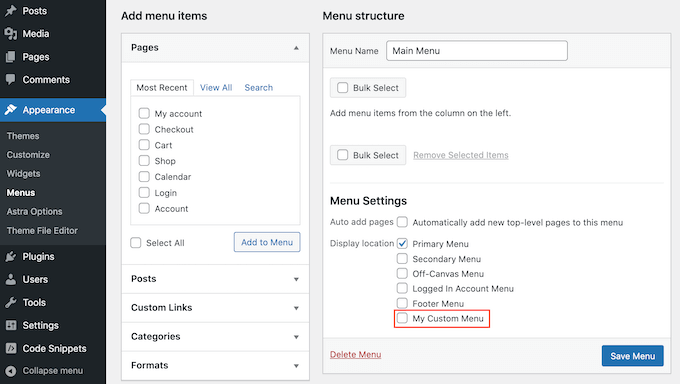
Replace ‘my_custom_menu’ with your menu name. Save the file. Check your website. Your custom menu should now appear. If not, check your steps.
Credit: www.wpbeginner.com
Styling The Custom Menu
CSS can change your menu’s look. Make it unique. Start by accessing your style.css file. This file controls design. Add CSS rules to style your menu. You can change colors, fonts, and sizes. Use background-color to change menu colors. Make text bold with font-weight. Increase font size for better readability. Use margin and padding for spacing.
Test changes in your browser. See how they look. Tweak until perfect. CSS allows for creative freedom. Your menu can reflect your brand. It can look professional. Or fun and colorful. The choice is yours. Enjoy the process.
Menu appearance matters. It affects user experience. Use CSS to add hover effects. Change link color when hovered. Use transition for smooth changes. Add borders for emphasis. Use border-radius for rounded edges. Make menus stand out. Align text to center or left. Create a visual hierarchy.
Consider accessibility. Ensure text is readable. Use contrasting colors. Ensure it works on all devices. Responsive design is key. Test on mobile and desktop. Keep it simple and clean. Users will appreciate it.
Testing The Menu
Ensure your new menu works. First, check the menu items. Make sure they show up. Click each item. They should lead to the right pages. Look at the menu on different devices. It should look good on phones and computers. If it does not fit, adjust the menu size. Try different browsers too. The menu must work everywhere. If links are broken, fix them in the menu settings. This step is key. A broken menu confuses users.
Verifying Menu Functionality
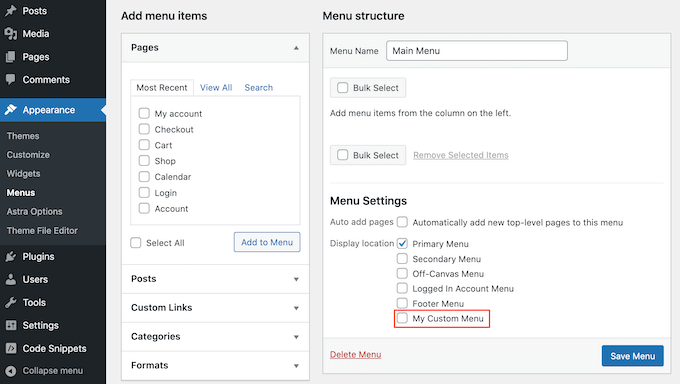
Test the menu settings. Open your WordPress dashboard. Go to the menu section. Check if the correct menu is selected. Look at the menu structure. Are all items in order? If items are missing, add them back. Save the changes. Refresh your website. See if the menu updates. This checks if changes are live. If nothing changes, there is an issue. Fix it quickly. Users need a smooth experience.
Troubleshooting Common Issues
Sometimes menus act up. If the menu does not appear, check the theme settings. Ensure the menu location is correct. If the menu looks odd, look at the CSS. Maybe a style is wrong. Clear the browser cache. Sometimes old data causes issues. If links do not work, check the URL paths. Ensure they point to the right places. These steps help solve most menu problems.
Credit: www.seedprod.com
Advanced Menu Customizations
Icons make menus look fun and easy to use. First, find an icon library like FontAwesome. Download and add it to your WordPress. Next, go to the menu you want to edit. Click on the menu item where you want an icon. Add the icon code before the menu name. Now, save your changes. Refresh your page. You will see the icon next to the menu name. Adding icons helps users find things faster.
Dropdown menus keep your site neat and organized. Start by going to the menu page in WordPress. Add items under the main menu. Drag them slightly to the right. This action creates a dropdown. Save your changes. Check your site. Hover over the main menu item. You will see the dropdown items appear. Dropdowns are great for showing many choices under one menu.

Credit: www.youtube.com
Frequently Asked Questions
How Do I Customize A WordPress Menu?
To customize a WordPress menu, navigate to Appearance > Menus. From there, you can add, remove, or rearrange menu items. Use the drag-and-drop feature to organize your menu. You can also assign menus to different locations in your theme, like header or footer, for better navigation.
Can I Add A Custom Menu Without Coding?
Yes, you can add a custom menu without coding by using the WordPress Customizer. Go to Appearance > Customize > Menus. Here, you can create new menus, add items, and choose menu locations. This user-friendly interface allows you to customize your site’s navigation easily.
How Do I Add A Menu To My Theme?
To add a menu to your WordPress theme, go to Appearance > Menus. Create a new menu and add items to it. Next, assign the menu to a location provided by your theme. If needed, use widgets or theme options to display the menu in specific areas.
Can I Use Plugins For Custom Menus?
Yes, you can use plugins to enhance custom menus in WordPress. Plugins like Max Mega Menu or WP Mega Menu offer advanced features. They allow you to create responsive, interactive menus without coding. These plugins offer customization options, improving the navigation experience for users.
Conclusion
Adding a custom menu to your WordPress theme enhances user experience. It allows visitors to find content quickly. A well-designed menu strengthens site navigation. It helps organize your content efficiently. Custom menus are easy to set up. They provide flexibility and control over your site’s structure.
With these steps, your site can look professional. A simple menu makes a big difference. It boosts engagement and keeps users on your site longer. Try creating your custom menu today. Your WordPress site will surely benefit. Enjoy exploring the possibilities in your theme.


