

Are you looking to make your WordPress menu more useful and personalized? Adding a custom link to your menu is a simple way to guide your visitors exactly where you want them to go.
Whether it’s linking to an important page, an external website, or a special offer, this small change can make a big difference in how people navigate your site. In this post, you’ll learn exactly how to add custom links to your WordPress menu—step by step.
Keep reading, and you’ll have your menu working smarter for you in no time.

Credit: docs.presscustomizr.com
Access WordPress Menu Settings
Accessing the WordPress menu settings is the first step to add a custom link. This area controls your site’s navigation menus. You can change menus, add items, or remove them here.
Menus guide visitors through your website. Custom links let you add any URL to your menu. This can be a page, an external site, or a special landing page.
Open The WordPress Dashboard
Start by logging into your WordPress dashboard. This is the control center for your website. You need admin access to change menu settings.
Navigate To The Appearance Menu
Find the “Appearance” option on the left sidebar. Click it to reveal more settings. This section controls how your site looks.
Select Menus From The Appearance Options
Click on “Menus” under Appearance. This opens the menu editor. Here, you can view and change your site menus.
Choose The Menu To Edit
Pick the menu you want to edit from the dropdown list. Common menus include “Primary” or “Footer.” Select the right one for your changes.
Locate Custom Links Option
Finding the Custom Links option in WordPress is the first step to adding your own links. This option lets you put any URL in your menu. It is simple to find and use. This section guides you through locating it quickly.
Open The WordPress Dashboard
Start by logging into your WordPress dashboard. This is the main control area for your website. From here, you manage all your site’s content and settings.
Go To The Menus Section
In the dashboard, look for the “Appearance” tab on the left. Click it, then select “Menus” from the dropdown list. This opens the menu editor where you can manage navigation links.
Find The Custom Links Panel
On the left side of the Menus page, you will see several panels. Look for the one labeled “Custom Links.” It is usually below the Pages and Categories panels.
Expand The Custom Links Panel
Click the arrow or title of the Custom Links panel to open it. Inside, you will find fields to enter a URL and link text. This is where you create your custom menu link.
Add Url And Link Text
Adding a custom link to your WordPress menu starts with entering the URL and link text. These two elements are essential for creating a clickable menu item. The URL directs visitors to the desired web page. The link text shows up in the menu and tells users where the link leads.
Choosing the right URL is important. It can be an external website, a page on your own site, or even a file to download. The link text should be clear and short. It helps visitors understand what to expect from the link.
Add The Url
Find the custom links section in your WordPress menu editor. Enter the full web address in the URL field. Start with http:// or https:// for external sites. For pages inside your site, use the full URL or a relative path. Double-check the URL to avoid broken links.
Enter The Link Text
Type the name for your menu item in the Link Text box. Keep it simple and descriptive. Use words visitors easily recognize. The link text appears as the clickable part in your menu. Make sure it fits well with your site’s style and tone.
Insert Custom Link Into Menu
Inserting a custom link into your WordPress menu helps you guide visitors to specific pages or external sites. This feature allows you to create menus that fit your needs perfectly. It gives you control over navigation and improves user experience.
Custom links are useful for linking to social profiles, partner websites, or special offers. WordPress makes it simple to add these links without coding. The steps are clear and easy to follow.
Access The WordPress Menu Settings
First, log in to your WordPress dashboard. Find the “Appearance” option in the sidebar. Click on “Menus” to open the menu editor. This area controls all your site’s navigation menus.
Choose Or Create A Menu
Select an existing menu from the dropdown list. Or click “create a new menu” to start fresh. Give your new menu a name. This helps you organize menus for different site areas.
Insert The Custom Link
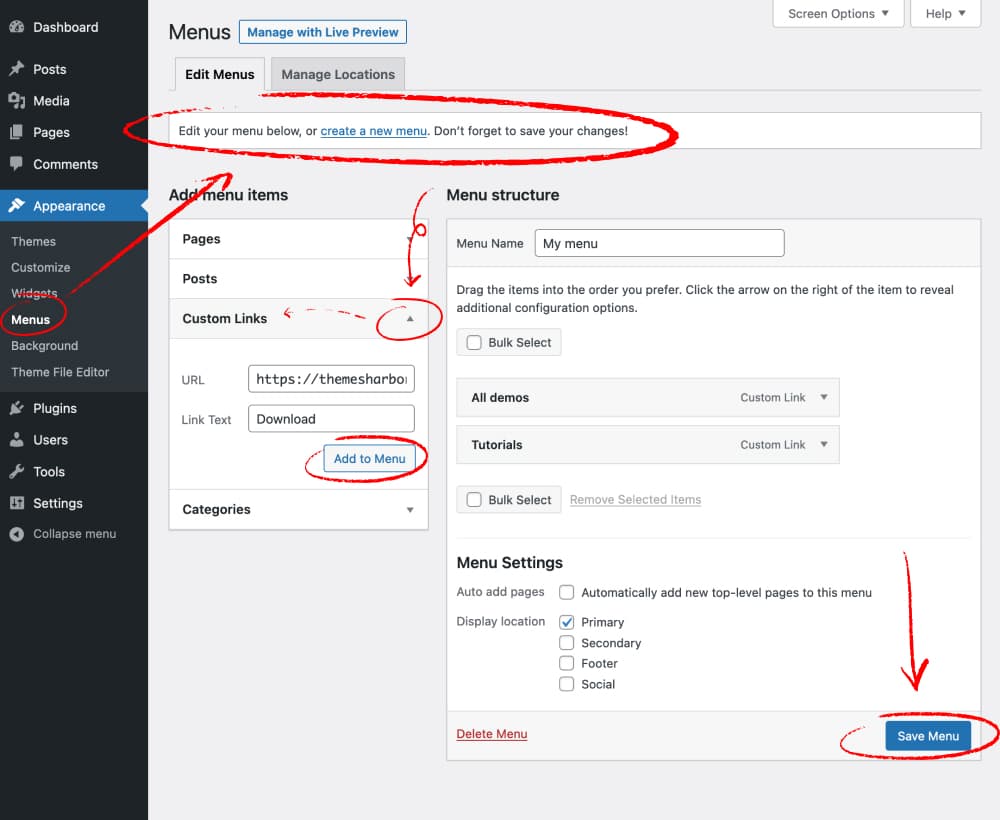
Look for the “Custom Links” box on the left side. Enter the URL you want to link to in the “URL” field. Add the text you want visitors to see in the “Link Text” field.
Add The Link To The Menu
Click the “Add to Menu” button. The custom link will appear in the menu structure on the right. Drag and drop it to position the link where you want.
Save Your Menu
Press the “Save Menu” button to keep your changes. Your custom link will now show on your website’s menu. Visitors can click it to reach the new destination easily.
Arrange Menu Order
Arranging the menu order in WordPress helps visitors find pages easily. A well-ordered menu improves navigation and user experience.
You can change the order by dragging and dropping items in the menu editor. This process is simple and quick.
Access The Menu Settings
Go to your WordPress dashboard. Click on Appearance, then select Menus. This opens the menu editor where you manage links.
Drag And Drop Menu Items
Click on a menu item and hold it. Move it up or down to change its position. Drop it where you want.
This way, you control which links appear first or last. Repeat for other items.
Save Your Menu Changes
Once the order looks right, click the Save Menu button. Your new menu order updates immediately on your site.
Use Submenus For Better Structure
Drag a menu item slightly to the right below another item. This creates a submenu or dropdown link.
Submenus organize related links under a main menu item. They keep the menu clean and neat.
Save And Preview Changes
Saving and previewing changes is a vital step after adding a custom link to your WordPress menu. This step ensures your new link appears correctly and works as expected. It helps avoid mistakes and keeps your website user-friendly.
Taking time to save prevents losing your work. Previewing shows how visitors will see the menu. Both actions improve your website’s navigation.
Save Your Menu Changes
Click the “Save Menu” button to keep your changes. WordPress saves the new custom link immediately. Avoid closing the page before saving. Unsaved changes will be lost.
Preview The Updated Menu
Open a new browser tab to view your site. Check the menu for the new custom link. Click the link to test if it leads to the correct page.
Fix Issues Quickly
If the link does not work, return to the menu editor. Edit the URL or link text as needed. Save and preview again until it looks right.
Troubleshoot Common Issues
Adding a custom link to a WordPress menu is simple but problems can occur. Troubleshooting common issues helps keep your menu working well. This section guides you through easy fixes to common problems. Follow these steps to solve menu link errors fast and keep your site user-friendly.
Incorrect Url Or Link Format
Check the URL you enter for your custom link. It must start with “http://” or “https://”. A missing prefix can stop the link from working. Use the full web address to avoid errors. Double-check for typos or extra spaces in the URL.
Menu Item Not Showing
Sometimes, the new link does not appear in the menu. Refresh the menu page to see updates. Clear your browser cache to remove old data. Make sure you saved the menu after adding the custom link. Confirm the menu is active in your theme settings.
Link Not Clickable On Mobile
Mobile users might find the custom link unclickable. Check if other menu items work on mobile devices. Disable any conflicting plugins that affect menus. Test the link on different devices and browsers. Update WordPress and your theme to fix compatibility issues.
Credit: themesharbor.com
Use Plugins For Advanced Links
Plugins offer extra features for WordPress menus. They help create custom links with more options. These tools make your menu more useful and interactive. Many plugins are easy to use for beginners. They bring special link types, icons, and styling choices.
Choose The Right Plugin
Search for plugins that focus on menu links. Check user ratings and reviews. Look for updates and active support. Pick a plugin that fits your needs. Avoid complex tools if you want simplicity.
Install And Activate The Plugin
Go to your WordPress dashboard. Select “Plugins” then “Add New.” Type the plugin name in the search box. Click “Install Now” and then “Activate.” Follow any setup instructions provided.
Create Advanced Custom Links
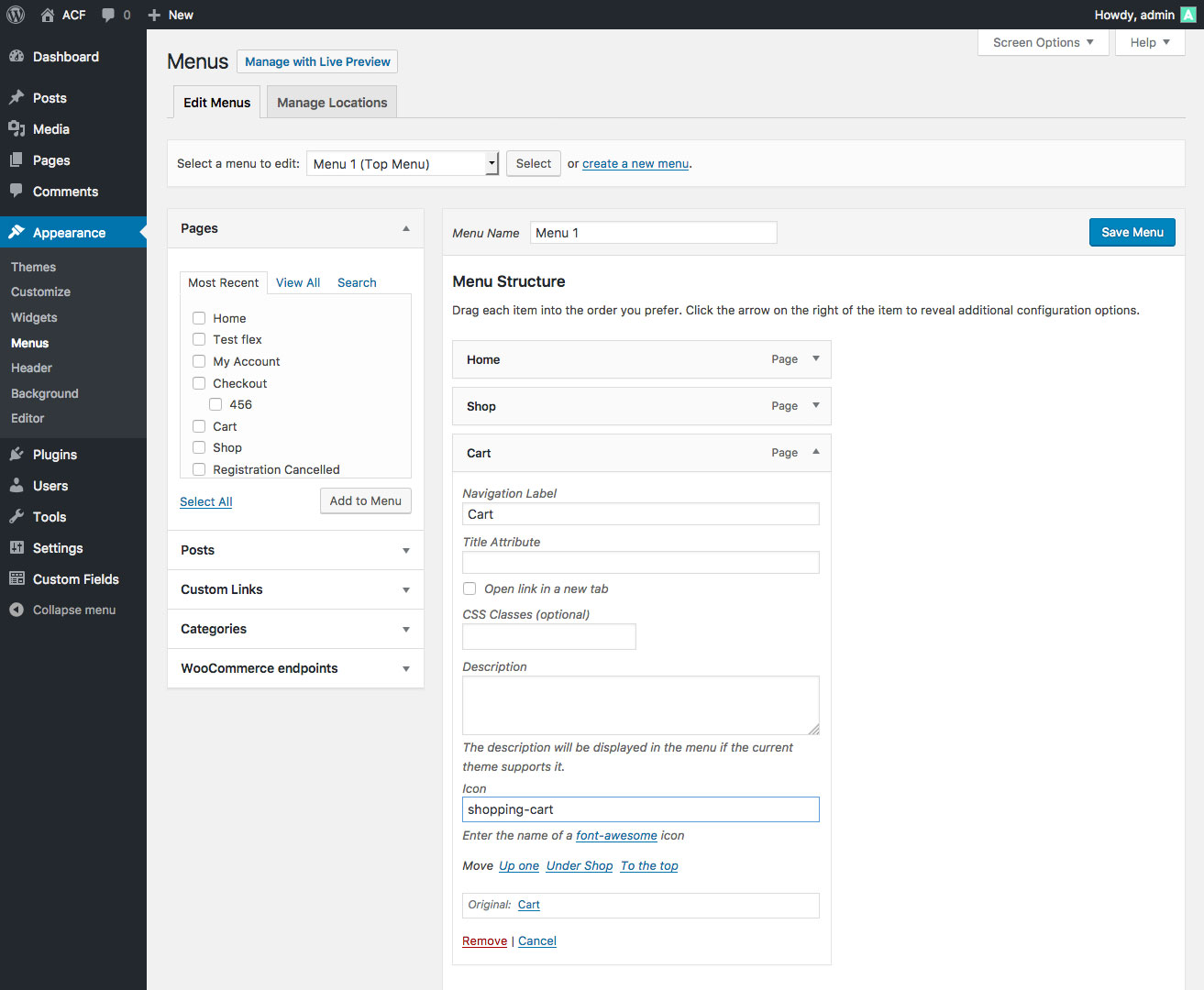
Open your menu editor after activation. Find the new options added by the plugin. Add custom links with extra features like icons or tooltips. Adjust link behavior such as opening in new tabs.
Style And Organize Links Easily
Many plugins allow styling directly in the menu. Change colors, fonts, or add badges to links. Drag and drop links to reorder them. Make your menu clear and attractive for visitors.
Credit: www.advancedcustomfields.com
Frequently Asked Questions
How Do I Add A Custom Link To A WordPress Menu?
Go to Appearance > Menus in your dashboard. Select Custom Links, enter the URL and link text, then click Add to Menu. Finally, save the menu to apply changes.
Can I Add External Website Links To WordPress Menus?
Yes, WordPress allows adding external links via Custom Links. Just enter the full URL and label, then add it to your menu.
How To Edit Or Remove A Custom Menu Link In WordPress?
In the Menus section, find the custom link under menu structure. Click the down arrow to edit or click Remove to delete. Don’t forget to save.
Is It Possible To Open Custom Menu Links In New Tabs?
Yes, enable “Link Target” under Screen Options on the Menus page. Then check “Open link in a new tab” for your custom link.
Conclusion
Adding a custom link to your WordPress menu is quick and simple. You control where visitors go with just a few clicks. This helps make your site easier to use and more helpful. Keep practicing these steps to feel more confident.
Your website will look better and work smarter. Try adding different links to see what fits best. Enjoy creating menus that guide your visitors well.


