
Are you looking to enhance your WordPress site by adding custom functionality? Incorporating a custom JavaScript file into your WordPress theme can open up a world of possibilities, from improving user interaction to boosting site performance.
But where do you start? It might sound daunting, especially if you’re not a coding expert, but it’s simpler than you think. Imagine having the power to tailor your site precisely to your needs. In this guide, we’ll walk you through the straightforward steps to seamlessly integrate a custom JS file into your WordPress theme.
By the end of this article, you’ll have the tools and confidence to elevate your website’s capabilities. Ready to take control of your WordPress experience? Let’s dive in and unlock the full potential of your site.
Importance Of Custom Javascript In WordPress
Custom JavaScript brings new features to your WordPress website. It helps in creating interactive elements. You can improve user experience with it. Custom scripts can make your site look unique. They help in solving specific problems. It is like adding a personal touch. Custom JavaScript is not hard to add. It gives you control over your site’s behavior.
Adding custom scripts can also enhance site performance. Use it for animations or special effects. It can make forms more user-friendly. Custom JavaScript can also boost site speed. Use it to track user actions. It helps in understanding user needs better. Custom scripts can make your site more engaging.
Setting Up Your WordPress Environment
Pick a theme that fits your style. Check if it supports customization. Some themes may limit changes. Read reviews for user feedback. A good theme is responsive. It should work on phones and computers. Do not choose a theme that is hard to manage. Simple themes are better for beginners. Make sure the theme is updated often. This keeps your site secure.
A child theme lets you change things safely. It keeps your main theme intact. First, create a new folder. Name it anything you like. Inside, make a style.css file. Add some basic information. Include the parent theme name. Next, make a functions.php file. Use this file to add custom code. Always test changes on a local server. This helps avoid mistakes.
Creating A Custom Javascript File
Always use clear and simple names for your files. The name should say what the file does. If the file is for a slider, name it slider.js. Use lowercase letters and avoid spaces. This keeps things tidy and prevents errors. Use hyphens or underscores to separate words. Like this: my-custom-file.js. This makes the names easy to read. Consistent naming helps you find files faster.
Keep your code neat and tidy. Use comments to explain what your code does. This helps others understand your work. It also helps you when you look back later. Group related code together. This makes it easier to find things. If your code is long, break it into smaller parts. This helps keep it clear. Indent your code to show structure. This makes it easy to see which parts belong together.
Adding Javascript To WordPress Theme
To add a custom JS file, use the wp_enqueue_script function. This function helps in linking your JavaScript file with your WordPress theme. It ensures the script loads correctly and doesn’t conflict with others. First, create a function in your theme’s functions.php file. Use this function to register your script.
Hooks are very important in WordPress. They help in attaching your custom script at the right time. Use the wp_enqueue_scripts action hook. This ensures your script loads at the right time. Always place your hook in the functions.php file. This makes sure it’s active.
Common Errors And Troubleshooting
Debugging JavaScript Errors can be tricky. Sometimes, the script doesn’t run. Check your code for typos. Look for missing semicolons or brackets. Console logs help find errors. Open the browser console. See if there are red error messages. Fix the errors one by one. Test the code again. Use alerts to track script behavior. These show if code parts run correctly.
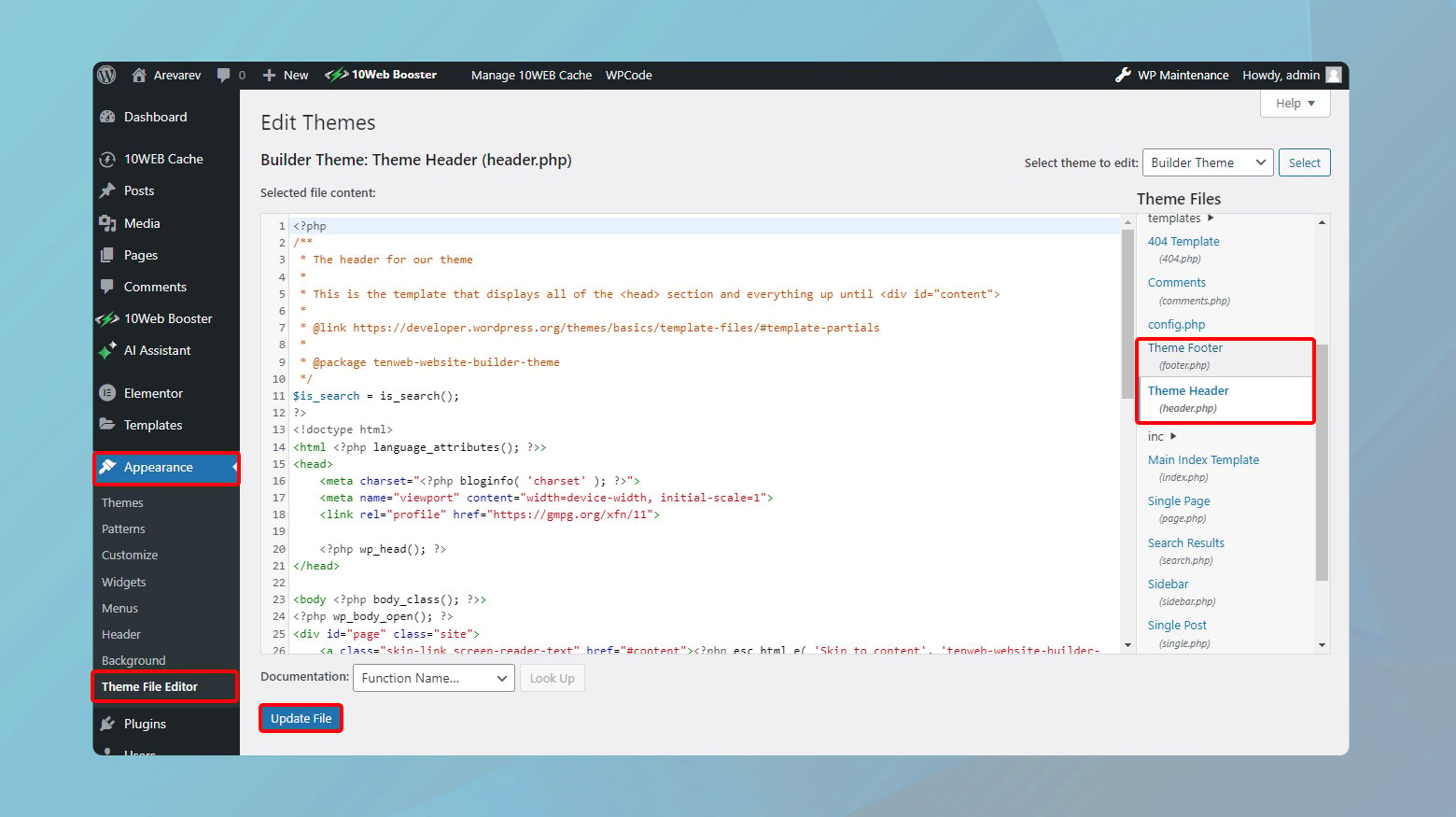
WordPress Specific Issues often occur. Scripts may conflict with plugins. Use wp_enqueue_script correctly. Make sure script dependencies are loaded. Check the order of scripts. Sometimes, scripts load too early or too late. This causes errors. Verify script paths are correct. Broken paths lead to missing scripts.
Credit: 10web.io
Best Practices For Javascript In WordPress
To add a custom JavaScript file to your WordPress theme, use the `wp_enqueue_script` function. Place your JavaScript file in the theme’s directory and call it in the `functions. php` file. This method ensures the script loads properly and maintains theme functionality.
Minification And Compression
Minification makes JavaScript files smaller. It removes spaces and comments. This helps pages load faster. Compression makes files even smaller. It reduces file size on the server. Users get content faster.
Both methods improve website speed. Faster sites keep visitors happy. They also rank better in search engines. Use tools like Gulp or Grunt for this task. These tools automate minification and compression. Always keep a backup of original files.
Version Control Management
Version control tracks changes in files. It is useful for managing JavaScript files. Use Git for version control. Git saves each file change. You can go back to old versions if needed. This helps in fixing mistakes. It also helps in team projects.
GitHub is a popular platform for Git. Many developers use it. It helps in sharing code with others. Proper version control keeps your work organized. It makes collaboration easier.
Testing And Verifying Javascript Integration
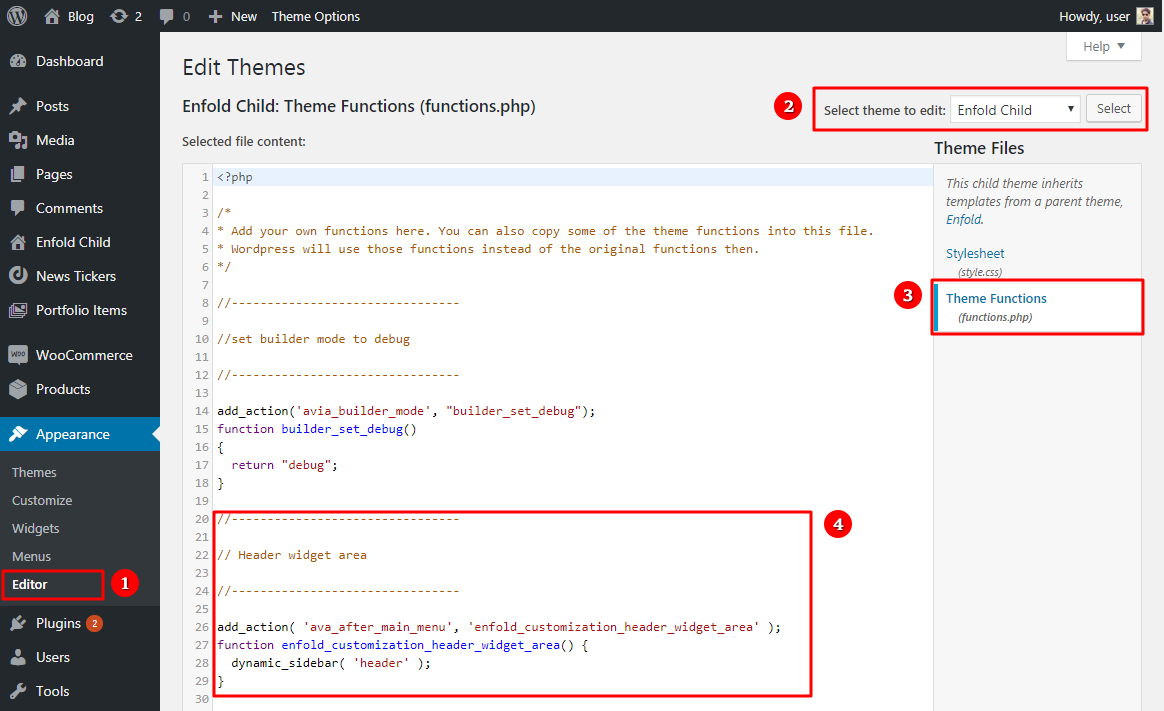
Integrating a custom JavaScript file into a WordPress theme enhances functionality. Start by accessing the theme’s directory via FTP. Use the functions. php file to enqueue your script properly, ensuring compatibility and efficient loading.
Cross-browser Compatibility
Different browsers can show web pages differently. Test your JavaScript on Chrome, Firefox, and Safari. Each browser might have its own quirks. Ensure JavaScript works well on all of them. Look for errors or bugs. Use tools like BrowserStack. It helps in checking many browsers. Fix any issues quickly. Smooth performance is key. Happy users mean good results.
Performance Testing
JavaScript should not slow down your site. Check speed with tools like Google Lighthouse. Fast sites are liked by visitors. Test how quickly pages load. Optimize code to make it faster. Remove unnecessary parts. Keep it clean and efficient. Fast JavaScript means better user experience. Speed matters for happy users. Make sure everything runs smoothly.
Credit: kriesi.at
Resources For Further Learning
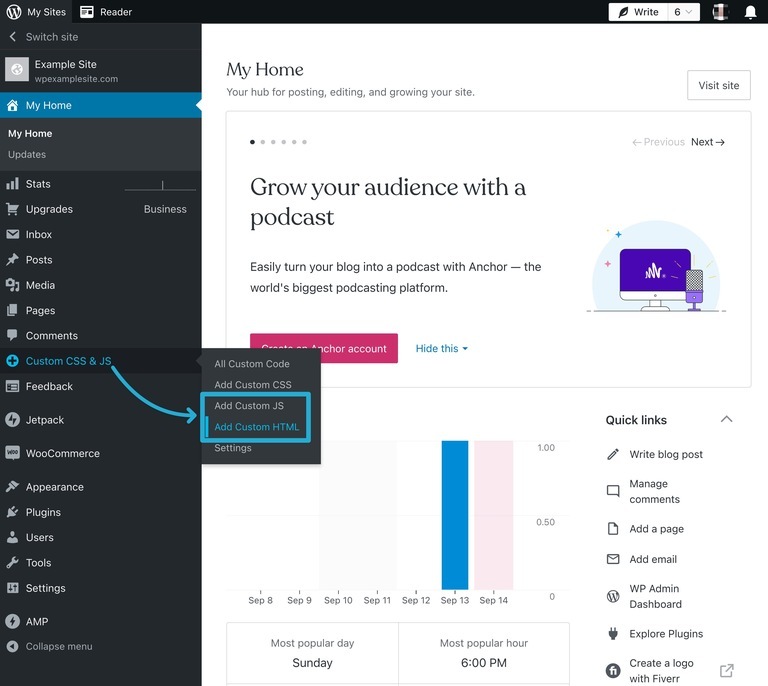
Discover essential resources for adding custom JS files to WordPress themes. These guides simplify the process. Enhance your skills with step-by-step tutorials and expert tips. Perfect for beginners.
Online Tutorials
Online tutorials help you learn to add custom JS files to WordPress. Many websites offer step-by-step guides. YouTube has videos to watch and learn. These tutorials explain each step clearly. Some websites offer free tutorials. Others may ask for payment. Choose tutorials that fit your learning style. Forums often have helpful tips from other learners. Reading comments can provide extra insights. Try different sources to find the best fit for you.
WordPress Documentation
WordPress Documentation is a useful resource. It provides detailed information on adding JS files. The documentation is easy to access online. It is organized with clear sections. You can find specific instructions quickly. It covers many topics about WordPress themes. The documentation is regularly updated. This ensures the information is current. Reading the documentation helps you understand WordPress better. It is a reliable source for learning.
Credit: wordpress.com
Frequently Asked Questions
How To Enqueue Custom Js In WordPress?
To enqueue a custom JS file, use the `wp_enqueue_script()` function in your theme’s `functions. php`. Add the file’s path and dependencies. This ensures your script loads correctly with WordPress. Always enqueue scripts to maintain compatibility and avoid conflicts with other themes or plugins.
Can I Add Js Without Plugins?
Yes, you can add JS without plugins by editing your theme’s `functions. php` file. Use `wp_enqueue_script()` to include your custom JavaScript file. This method is efficient and keeps your WordPress site lightweight, avoiding unnecessary plugins that might slow down your website.
Why Is My Custom Js Not Working?
If your custom JS isn’t working, check your script’s path and ensure it’s enqueued properly. Verify there’s no conflict with other scripts. Use WordPress’s `wp_enqueue_script()` function correctly. Also, ensure your JS file is loaded after jQuery if it depends on it.
Where Should I Place My Js File?
Place your JS file in your theme’s `js` directory for better organization. Reference this path in your `functions. php` file when using `wp_enqueue_script()`. This keeps your files organized and makes management easier, especially when updating or debugging your theme.
Conclusion
Adding custom JavaScript to your WordPress theme is straightforward. Start by accessing your theme’s functions file. This file allows you to enqueue scripts effectively. Ensure your JS file is stored correctly. Use WordPress functions to integrate your script. Test your changes thoroughly.
This ensures everything works as planned. Your website can now have added functionality. This customization enhances user experience. Keep experimenting and learning. WordPress offers flexibility for personalization. Explore different scripts for unique features. Remember, always back up your site. This keeps your data safe.
Enjoy your optimized WordPress experience!


