
Have you ever wanted to tweak your WordPress theme to make it truly yours? Adding custom HTML is a powerful way to personalize your website and make it stand out.
Whether you’re looking to add a unique feature, change the layout, or enhance the visual appeal, understanding how to incorporate custom HTML can transform your site from generic to extraordinary. But where do you start? The thought of diving into code might seem daunting, but don’t worry—you’re not alone.
In this guide, you’ll discover simple, step-by-step instructions that will empower you to add custom HTML to your WordPress theme with confidence. Imagine the satisfaction of having a website that not only functions flawlessly but also resonates with your unique style and vision. Ready to unlock the potential of your WordPress site and captivate your audience? Let’s dive in and transform your digital presence together.

Credit: wordpress.com
Choosing The Right Theme
Picking a theme is important. Some themes are better for custom HTML. Check if your theme is lightweight and fast. This helps your site load quickly. A theme with good documentation is helpful. It shows you how to add your HTML. Make sure your theme is responsive. This means it looks good on phones and tablets. A theme with customizable options is great. It gives you more control. Avoid themes with too many features. They can slow your site down. Look for a theme that is SEO-friendly. It helps your site rank better in search engines.
Credit: kinsta.com
Setting Up A Child Theme
Create a child theme to keep your changes safe. This way, updates won’t erase them. First, make a new folder in your theme directory. Name it like your parent theme but add “-child” at the end.
Inside the folder, create a style.css file. Use this file to tell WordPress it’s a child theme. Add details like theme name and template. These details help WordPress understand your theme.
Next, create a functions.php file. This file is important. It lets your child theme use the parent theme’s features. Add code to link your child theme’s styles with the parent theme’s styles.
After setting up, activate your child theme. Go to your WordPress dashboard. Find the themes section. Click on your child theme and activate it.
Accessing Theme Files
WordPress has a built-in editor. It lets you edit theme files. Find this editor under Appearance > Theme Editor. You will see theme files on the right. Click on the file you want to edit. Add your custom HTML. Be careful. Editing wrong files can break your site. Always backup before you change anything.
FTP Clients help you access theme files. FileZilla is a popular choice. First, download and install the client. Connect to your site using FTP credentials. Navigate to your theme’s folder. Find the file you want to change. Open it and add your custom HTML. Always save your changes. FTP clients give you more control over your files.
Locating The Correct File
WordPress themes have a template hierarchy. This is like a map. It helps you understand the theme’s structure. Each page has its own file. For example, the home page uses home.php. The blog page uses single.php.
Finding the right file is important. This is where you add custom HTML. Check the theme folder. Look for files like header.php or footer.php. These files are common in most themes.
Template hierarchy is a set of rules. These rules tell WordPress which file to use. It starts from specific to general. For example, a page template is more specific than a single post.
Key files are part of every theme. These include index.php, style.css, and functions.php. These files control how your site looks. They also control how it behaves. Make sure you know these files well.
Adding Custom Html
Customizing your WordPress theme can be fun. Begin by editing the header and footer. Navigate to the theme editor. Find header.php and footer.php files. Add your HTML code here. This changes the top and bottom of your website. Use this area for branding. Add logos or important links.
You can insert HTML directly in posts and pages. Open a post or page. Switch to the HTML view. Place your code where needed. This can include forms or embedded videos. Always preview changes. Ensure everything looks good. Check if links work properly. HTML can make your site unique.
Using WordPress Hooks
Action hooks are a great way to add custom HTML to your WordPress theme. They let you insert code at specific points. This is done during the loading of the page. You can use action hooks to add scripts, styles, or any HTML content. Action hooks make it easy to change themes without touching the core files. This keeps your theme updates safe and smooth.
Filter hooks let you change or modify data before it is displayed. They work by accepting inputs, modifying them, and then sending them back. This is useful for changing content without altering the theme’s main code. With filter hooks, you can customize text, images, or other data. They are essential for tweaking the look of your site. This helps in maintaining a clean and efficient codebase.
Testing And Debugging
Test your custom HTML on different browsers. Each browser displays HTML a bit differently. Start with popular ones like Chrome, Firefox, and Safari. Look for any odd gaps or misaligned text. Fix these issues to ensure your page looks great everywhere. Cross-browser testing is key for a uniform user experience.
Use an HTML validator to check your code. This tool finds mistakes in your HTML. Fixing these errors improves your site’s performance. A clean code is easier for search engines to read. It also helps with loading speed. Good HTML ensures your site runs smoothly and efficiently.

Credit: www.youtube.com
Maintaining Customizations
Enhancing your WordPress theme with custom HTML can personalize your website. Access the WordPress dashboard, navigate to “Appearance,” then “Theme Editor. ” Carefully insert your HTML code within the theme files, ensuring you save changes. This approach allows for tailored design elements, improving user experience.
Updating Themes Safely
Updating themes can remove custom changes. Always check update notes first. Some updates may not affect your changes. Use a child theme to keep your custom HTML safe. This way, updates won’t erase your work. Test updates on a staging site first. This helps find issues before making changes live. If errors occur, you can fix them safely without affecting the main site. Always keep a backup before updating.
Backing Up Custom Changes
Backups are very important. They save you from losing work. Back up your custom HTML before any big changes. Use plugins like UpdraftPlus for easy backups. Store backups in multiple places. Try using both cloud and local storage. This way, you can access them anytime. Regular backups ensure your site is always safe. Restoring from a backup is easy and quick. You can get your site back in minutes.
Frequently Asked Questions
How Do I Add Custom Html In WordPress?
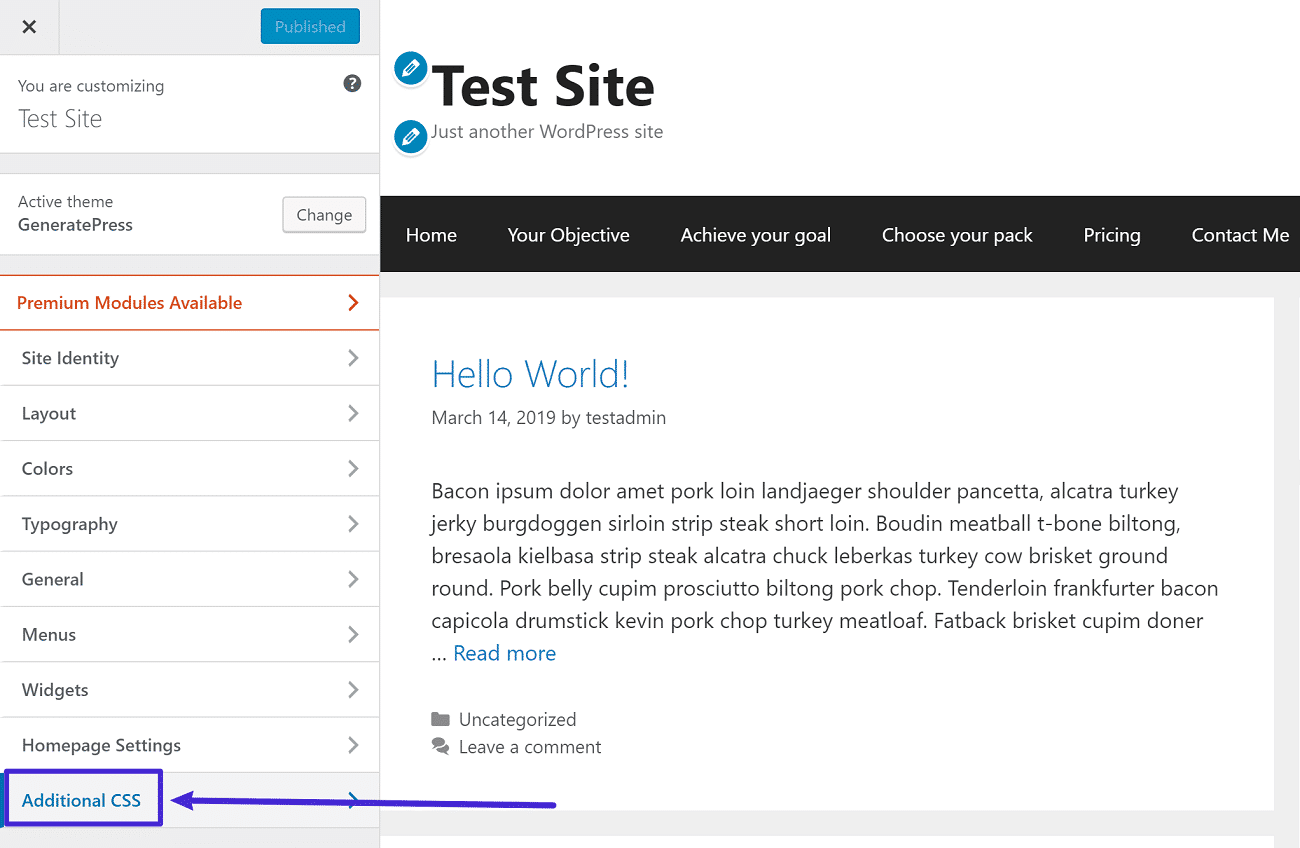
To add custom HTML in WordPress, use the Customizer or a child theme. You can also use the HTML block in the Block Editor. Alternatively, consider using plugins like “Insert Headers and Footers” for easier management. Always back up your theme before making changes to avoid data loss.
Can I Edit WordPress Theme Html Directly?
Yes, you can edit WordPress theme HTML directly via the Theme Editor. Navigate to Appearance > Theme Editor in the dashboard. However, it’s safer to use a child theme to prevent losing changes during updates. Always back up your site before editing theme files to ensure safety.
Is It Safe To Add Custom Html In WordPress?
Adding custom HTML is safe when done correctly. Always use a child theme to prevent loss during updates. Ensure your code is clean and error-free to avoid breaking the site. Regularly back up your site before making changes. Consider using a staging environment for testing.
Do I Need Coding Skills For Custom Html?
Basic coding skills are helpful for adding custom HTML. Understanding HTML structure and syntax ensures error-free implementation. However, WordPress offers user-friendly tools and plugins for beginners. These tools can simplify the process without needing extensive coding knowledge. Practice in a safe environment enhances learning.
Conclusion
Adding custom HTML to your WordPress theme can enhance your site. It allows for personalized design and unique features. Follow these steps for a seamless integration. Start by accessing your theme editor. Carefully insert your HTML code. Preview changes to ensure everything looks perfect.
Make sure to save your work. Regular updates keep your site fresh and functional. Remember, practice makes perfect. With time, you’ll gain confidence in customizing your site. Your visitors will appreciate the personalized touch. Enjoy crafting your unique web experience.
Keep learning and improving your skills.


