

Are you looking to add a custom form to your WordPress site but don’t know where to start? You’re in the right place.
A well-designed form can boost your website’s interaction, gather important information, and even help grow your business. You’ll discover simple steps to create and add a custom form without any technical hassle. By the end, you’ll have a clear, easy-to-follow process that saves you time and makes your site more powerful.
Ready to make your WordPress site work harder for you? Let’s dive in.
Choosing The Right Form Plugin
Choosing the right form plugin is key for your WordPress site. It affects how easily visitors can contact you or submit information. The plugin should be simple to use and fit your needs perfectly. Some plugins work better for small sites, while others suit complex forms. Picking the right one saves time and effort later.
Popular WordPress Form Plugins
Several form plugins stand out for WordPress users. Contact Form 7 is free and widely used. It offers basic features and easy setup. WPForms provides a drag-and-drop builder, making form creation simple. Gravity Forms suits advanced users who want more control and options. Ninja Forms balances ease of use with powerful features. Each has a free version and paid upgrades.
Plugin Features To Consider
Look for a plugin that offers a user-friendly interface. The form builder should allow easy customization. Check if the plugin supports multiple field types like text, email, and dropdowns. Email notifications are important to alert you when someone submits a form. Consider spam protection features to avoid junk entries. Integration with other tools like email marketing helps grow your audience. Mobile responsiveness ensures forms work well on phones and tablets. Finally, check if the plugin receives regular updates for security and new features.
Installing And Activating A Form Plugin
Installing and activating a form plugin is the first step to add custom forms in WordPress. This process helps you create contact forms, surveys, or any type of form without coding. Plugins make building forms simple and fast. Follow these steps to get your form plugin ready.
Accessing The WordPress Plugin Directory
Start by logging into your WordPress dashboard. On the left menu, find and click “Plugins.” Then select “Add New.” This opens the WordPress Plugin Directory. It contains thousands of free plugins.
Use the search bar to find form plugins. Popular choices include WPForms, Contact Form 7, and Ninja Forms. Pick one that suits your needs. Check ratings and reviews to help decide.
Steps To Install And Activate
After finding your desired plugin, click the “Install Now” button next to it. WordPress will download and install the plugin automatically. Wait for the process to finish.
Next, click “Activate.” Activation enables the plugin on your site. You can now start creating your custom form. The plugin will add a new menu or option in the dashboard for form setup.
Creating A New Custom Form
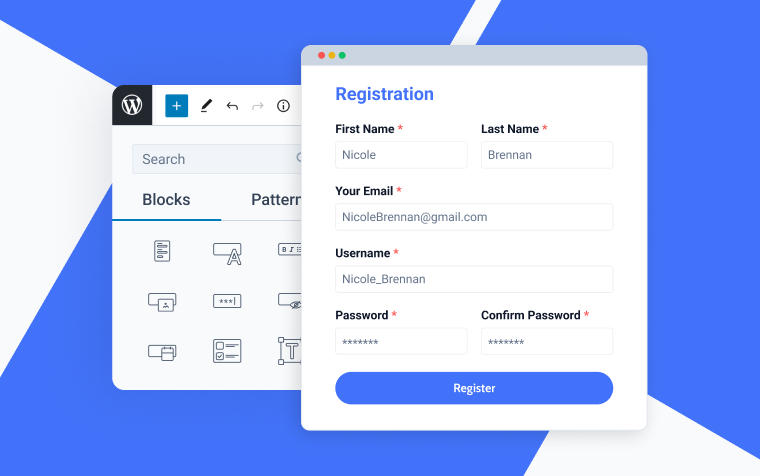
Creating a new custom form in WordPress is simple and quick. It lets you collect exactly the information you need from your visitors. You start by choosing the right form fields and then adjust their settings to fit your purpose.
This process helps you build forms that work well on your site and improve user experience. Custom forms can be contact forms, surveys, or registration forms. Each type needs different fields and settings.
Selecting Form Fields
Begin by picking form fields that match your goal. Common options include text boxes, checkboxes, radio buttons, and dropdown menus. Use text boxes for short answers like names or emails.
Checkboxes and radio buttons work well for choices. Dropdown menus save space and keep forms neat. Choose fields that make it easy for users to respond.
Customizing Field Settings
After selecting fields, customize their settings to fit your needs. Set fields as required to ensure users provide essential information. Add placeholder text to guide users on what to enter.
Adjust the size of text fields to match the expected answer length. Use labels that clearly describe each field. These small details make forms easier to use and understand.
Configuring Form Settings
Configuring form settings is a key step in creating a custom form in WordPress. This process helps control how your form works and looks. Proper settings make the form easy to use and effective. You can decide where notifications go and how the form appears to visitors. These details improve user experience and save time managing responses.
Setting Up Notifications
Notifications alert you when someone submits the form. You can set the email address to receive these alerts. Choose clear subject lines to recognize form messages quickly. Customize the message content with user input or fixed text. This helps you track submissions without opening the form every time. Enable notifications to keep communication smooth and timely.
Adjusting Form Appearance
Form appearance affects how visitors see and interact with it. Use simple colors that match your website style. Adjust font size and style for easy reading. Add spacing between fields to avoid clutter. You can also change button text to guide users better. A neat form design encourages more people to fill it out.
Embedding The Form On Your Website
Embedding a custom form on your WordPress site helps visitors interact with you easily. This step allows users to fill out forms directly on your pages. You can collect information, feedback, or inquiries without redirecting visitors elsewhere.
WordPress makes embedding forms simple. Most form plugins offer built-in ways to place forms exactly where you want. The most common method is using shortcodes. These codes act like placeholders that display your form.
Using Shortcodes
Shortcodes are small pieces of code generated by your form plugin. They look like this: [form-id=”123″]. Copy the shortcode from the plugin’s form list. Paste it into any post, page, or widget area.
Shortcodes let WordPress know where to show your form. You do not need to write any HTML or PHP. Just place the shortcode exactly where you want the form to appear. WordPress will handle the rest.
Adding Forms To Pages Or Posts
Open the page or post editor in WordPress. Click on the spot where you want the form. Paste the shortcode into a shortcode block or a text block.
Update or publish your page to save changes. Visit the page to see the form live. Visitors can fill out the form without leaving the page.
You can add multiple forms on different pages using this method. This flexibility helps tailor user experience on your website.

Credit: creativeminds.helpscoutdocs.com
Testing Your Custom Form
Testing your custom form is a key step after creating it. It ensures the form works as expected and collects data correctly. Testing helps find mistakes before visitors use the form. This way, you keep a smooth experience for users. Follow the steps below to test your form effectively.
Submitting Test Entries
Start by filling out the form yourself. Enter sample data for every field. Click the submit button to send the form. Check if the confirmation message appears. This shows the form processed your entry.
Next, look at where the data is saved. Check your email or database, based on your form setup. Make sure all information is correct and complete. Test multiple entries to be sure the form handles them all. Try using different browsers and devices. This reveals any compatibility issues.
Troubleshooting Common Issues
Watch for common problems like missing fields or error messages. If the form does not submit, check your plugin settings. Confirm your email notifications are turned on and correct.
Clear your website cache to avoid old form versions. Disable other plugins to find conflicts. Fix any validation errors by adjusting field rules. Test again after each change to see if it works. Keep testing until the form works smoothly every time.
Advanced Form Customization Tips
Advanced form customization helps create better user experiences. It allows forms to respond to user actions. You can make forms smarter and more useful. This section shows how to add smart features.
Adding Conditional Logic
Conditional logic changes form fields based on user choices. It shows or hides questions to keep forms simple. Users only see what matters to them. For example, show a text box only if a user selects “Other.”
To add conditional logic, use a form plugin with this feature. Set rules that control which fields appear. This makes forms shorter and easier to complete. It reduces confusion and improves form completion rates.
Integrating With Third-party Services
Connecting forms to other tools saves time and effort. You can send form data to email marketing services or CRMs automatically. This keeps your workflow smooth and organized.
Many form plugins support popular services like Mailchimp, Google Sheets, and Zapier. Choose the service and enter API keys to link them. This lets you collect leads, manage contacts, or create tasks without manual work.
Credit: jetformbuilder.com
Credit: affiliatewp.com
Frequently Asked Questions
What Are The Best Plugins For Adding Custom Forms In WordPress?
Popular plugins include WPForms, Gravity Forms, and Contact Form 7. They offer easy drag-and-drop builders. These plugins support customization, spam protection, and responsive design, ensuring user-friendly form creation.
How Can I Create A Custom Form Without Coding In WordPress?
Use form builder plugins like WPForms or Ninja Forms. These tools provide drag-and-drop interfaces. You don’t need coding skills to add fields, customize styles, or publish forms on your site.
How Do I Embed A Custom Form On A WordPress Page?
Copy the shortcode provided by your form plugin. Paste it into the WordPress page or post editor. Update or publish the page to display the custom form seamlessly.
Can I Customize Form Styles In WordPress Easily?
Yes, most form plugins allow style customization through their settings. You can change colors, fonts, and layouts. For advanced styling, custom CSS can be added to match your website design.
Conclusion
Adding a custom form in WordPress is easier than it seems. Choose a plugin that fits your needs. Follow the steps carefully, and test your form before publishing. Custom forms help you collect important information from visitors. They improve communication and user experience on your site.
Keep your form simple and clear for best results. Practice a few times to get comfortable. Soon, you will create forms that work well for your WordPress site.


