
Are you looking to give your WordPress site a personal touch? Adding a custom footer to your WordPress theme is a simple yet effective way to make your site stand out.
Imagine the impact of having a footer that not only aligns with your brand but also provides visitors with the right information at the right time. You might be wondering how to get started, especially if coding isn’t your forte.
Don’t worry! You’re about to discover how easy it can be to create a footer that reflects your unique style and meets your needs. By the end of this article, you’ll have the skills to transform your site’s footer from generic to extraordinary. Ready to take control and enhance your website’s professionalism? Let’s dive in!
Choosing A WordPress Theme
Check if the theme supports custom footers. Many themes offer this. Some themes might not have this feature. Research themes before choosing one. Read user reviews. Look for themes with good ratings. Ensure the theme is updated often. This keeps your site secure. Test the theme on different devices. Make sure it looks good everywhere. Choose themes that match your website’s purpose. This helps with branding.
Creating a child theme is important. It allows for custom changes. Preserve the original theme files. This is useful during updates. Copy the footer file to the child theme. Add your custom code here. Activate the child theme once done. This ensures changes are live. Practice backing up your site first. It prevents data loss. Explore online tutorials if needed. Many guides are available.
Understanding The Footer Structure
Default Footer Elements include widgets, copyright text, and social links. These elements can be found in many WordPress themes. Widgets display small bits of content like recent posts or a search bar. Copyright text shows who owns the website. Social links connect users to social media pages. Each element helps make the footer useful.
Location in Theme Files is important for editing. Footer code is often in the footer.php file. This file is part of the theme’s folder. You can access it through the WordPress dashboard or via FTP. Knowing where to find the file helps you customize the footer. Always back up files before making changes. This protects your work from errors.
Setting Up A Child Theme
Child themes are very important. They keep your main theme safe. Changes can be made without losing them during updates. This is very helpful. Beginners can try new designs. Mistakes can be fixed easily. No risk to the main theme. Customizing becomes simple. Perfect for learning how things work.
Create a folder in the theme directory. Name it after your child theme. Add a style.css file inside. Write a small code in it. Parent theme’s name should be included. Then, add a functions.php file. Use it to enqueue the parent and child styles. Activate the child theme in WordPress. Done! Now, customize without worry.
Credit: 10web.io
Creating A Custom Footer
Start by learning HTML. It helps create the structure. Then, use CSS to style it. HTML builds the bones of your footer. CSS adds color and shape. Together, they make your footer look nice. Try simple tags like and for structure. Use color and background-color for design. Play with padding and margin to space things out. Practice makes perfect. Soon, you’ll have a cool footer.
JavaScript makes footers smart. Add it to make things move. For example, you can create animations. Buttons can show more content on click. It’s like magic for your footer. JavaScript can change colors and sizes too. It brings life to your footer. Use it carefully. Too much can slow your site. Balance is key. A lively footer is just a few lines of code away.
Editing Footer Php File
First, go to your WordPress dashboard. Find the Appearance tab and click it. Look for Theme Editor in the list. Click it to open the editor. You might see a warning. This is normal. It says editing can be risky. Be careful while editing. Always backup your files first.
Find the footer.php file on the right. Click to open it. You will see code inside. Look for the part you want to change. Add your custom code. Save changes by clicking the Update File button. Check your site to see changes. If something breaks, restore your backup.
Using WordPress Customizer
The WordPress Customizer is easy to use. It’s found in your dashboard. It lets you make changes to your site. You can see changes live. This makes it simple to try things. You can change colors and fonts. You can also add images and videos. All this without touching code. This is great for beginners.
Customizer Features
The Customizer has many tools. You can change your site’s layout. You can add a logo or tagline. It’s also possible to change your site title. Want to make it unique? Change the background color. Add a background image too. These features help make your site special.
Adding Widgets And Menus
Widgets add more to your site. They can be placed in the footer. You can add a search bar or recent posts. Menus help with navigation. They guide visitors to important pages. You can add menus to the footer too. This makes it easy for visitors. Customize your footer as you like. Make it useful and neat.
Installing Plugins For Footer Customization
Enhance your WordPress theme by adding a custom footer using plugins. Choose from numerous options to match your style. Transform your site’s look and feel with easy-to-install footer customization plugins.
Recommended Plugins
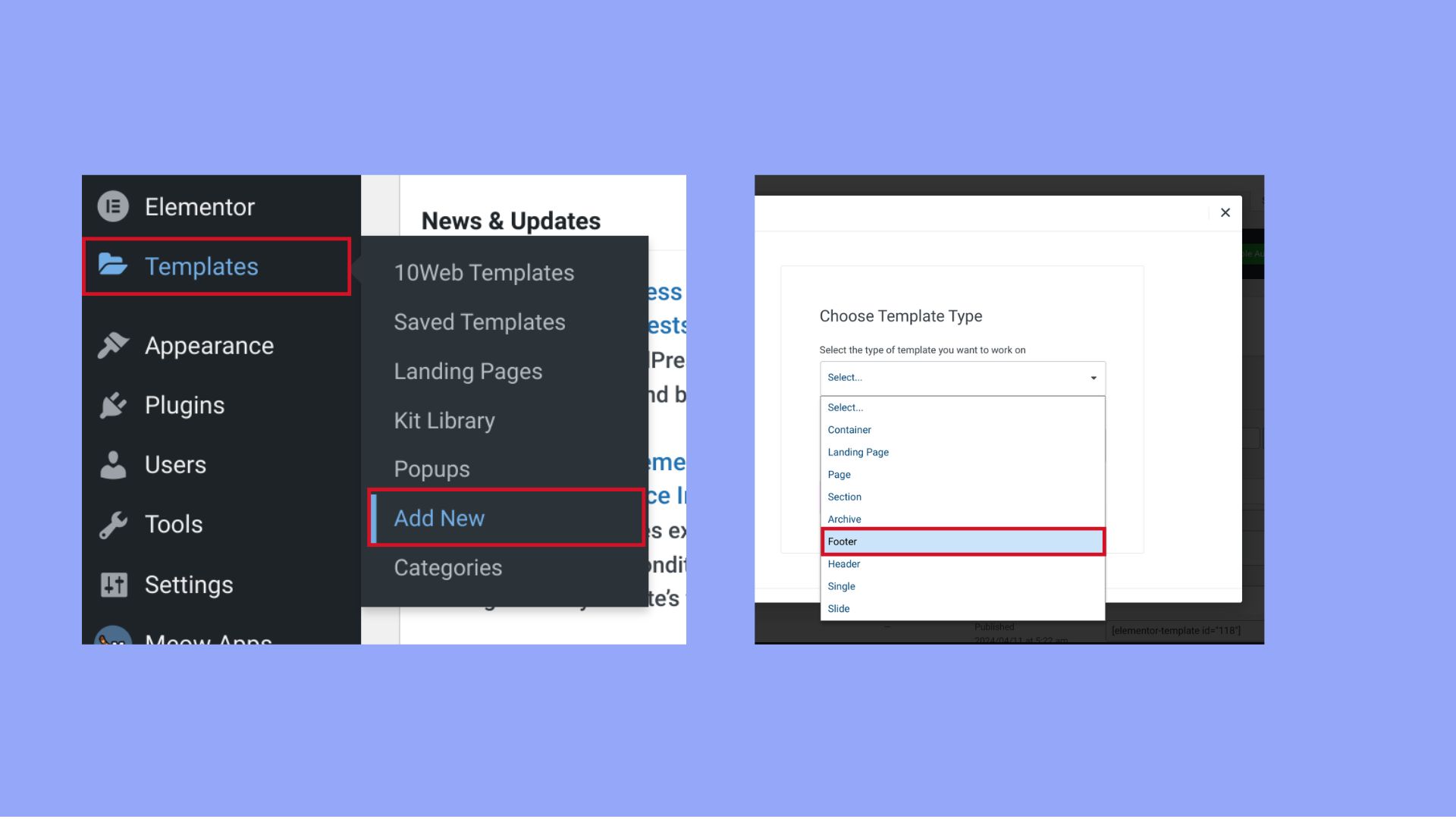
Customizing your WordPress footer is easy with plugins. Elementor is a popular choice. It offers drag-and-drop features. Footer Mega Grid Columns is great for adding multiple columns. Widget Options lets you control widget visibility. These plugins are free and easy to use. Most have good reviews. They are safe and reliable.
Plugin Configuration
Configuring plugins is simple. First, install your chosen plugin. Next, go to settings. Look for footer options. Choose your layout and style. Some plugins have advanced settings. You can adjust colors, fonts, and links. Always save your changes. Check your footer on different devices. Make sure it looks good everywhere. If needed, tweak the settings. A well-configured footer improves your site.
Credit: www.wpbeginner.com
Testing And Debugging
Ensuring your custom footer works in all browsers is key. Test on popular browsers like Chrome, Firefox, and Safari. Each browser may show your footer differently. Check for font size and style differences. Look for missing images or broken links. Fix any issues you find. This will make your footer look good everywhere.
Browser Compatibility
Your footer should look great on all devices. Tablets, phones, and computers should show your footer correctly. Use online tools to test your footer. These tools show how your footer looks on different devices. Make changes if needed. This helps users have a good experience.
Responsive Design Checks
Your footer should fit different screen sizes. Test how it looks on small and large screens. Adjust settings for better visibility. Ensure text is readable and images are clear. This makes your footer easy to see and use. A good footer is important for your site.
Maintaining The Custom Footer
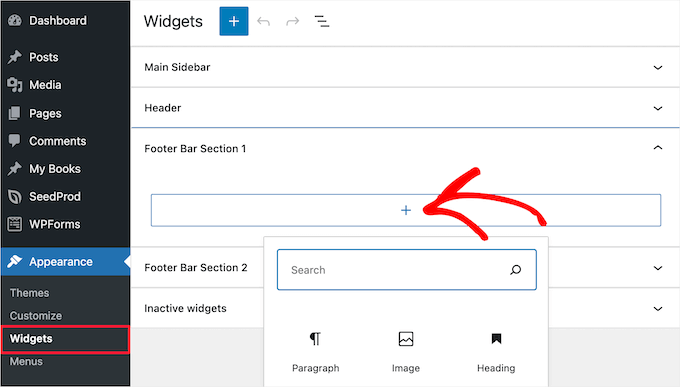
Customize your WordPress theme by adding a unique footer. Navigate to the Appearance menu, select Widgets, and drag the desired widget to the footer area. This process personalizes your site’s look, enhancing user experience and engagement. Keep it simple and informative for best results.
Updating Themes Safely
Updating themes can change or remove your custom footer. Before any update, save your footer code. Keep a copy on your computer. This helps restore it later if needed.
Always use a child theme for custom footers. This keeps changes safe from updates. Child themes let you update without losing your work.
Regular Backups
Backups are important. They keep your site safe. Make a habit of backing up your site regularly. Use plugins for easy backups. This saves your content and custom footers.
Some hosting services offer automatic backups. Check with your host if they provide it. If yes, schedule them often. This ensures your work is always safe.
Credit: www.crazyegg.com
Frequently Asked Questions
How Do I Customize My WordPress Footer?
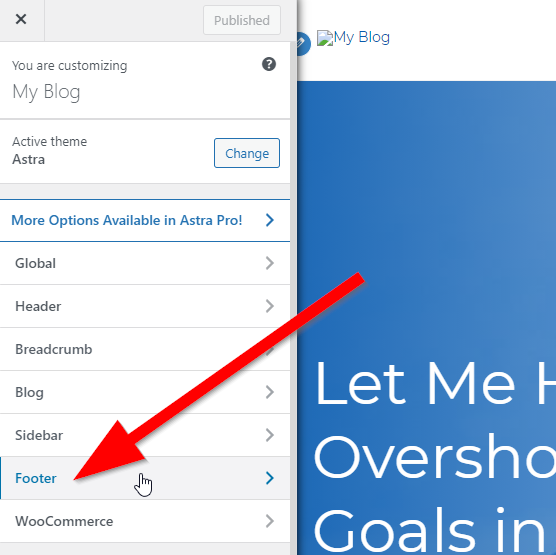
To customize your WordPress footer, go to Appearance > Customize. Select Footer settings and adjust options like widgets, text, or colors. Use custom HTML or CSS for advanced modifications. Save changes to update your site’s footer design instantly. Plugins can offer more customization options.
Can I Add Widgets To My Footer?
Yes, WordPress allows adding widgets to your footer. Navigate to Appearance > Widgets and drag desired widgets into footer areas. Customize each widget’s settings as needed. This enhances functionality and design. Widgets can include social media links, recent posts, or custom text.
How Do I Use Custom Css For Footers?
To apply custom CSS, go to Appearance > Customize > Additional CSS. Enter your CSS code targeting footer elements. Save changes to see updates instantly. Custom CSS allows precise control over footer styling, including colors, fonts, and layout adjustments.
Are Plugins Useful For Footer Customization?
Plugins are very useful for footer customization. They offer additional features and flexibility. Search for footer-specific plugins in the WordPress plugin directory. Install and activate them to enhance your footer’s design and functionality. Popular plugins include Elementor and WP Footer Designer.
Conclusion
Adding a custom footer to your WordPress theme enhances website uniqueness. It also boosts user experience and brand visibility. You now know the steps to create and customize footers. Practice makes perfect. So, don’t hesitate to experiment with designs. Always preview changes before publishing.
This ensures everything looks great on all devices. A well-designed footer can leave a lasting impression. So, invest time and creativity in this crucial part of your site. Happy customizing, and watch your website shine with a personalized touch!


