
Are you tired of the same old fonts on your WordPress site? Do you want your website to stand out with a unique and eye-catching look?
Adding a custom font to your WordPress theme can transform your site’s appearance, making it more engaging and memorable for your visitors. Imagine the impact of a font that perfectly aligns with your brand’s identity, creating a cohesive and inviting experience for every user.
In this guide, you’ll discover how to easily add a custom font to your WordPress theme. No more settling for default options or feeling limited by standard choices. With just a few steps, you can inject personality and style into your website, enhancing readability and visual appeal. Don’t worry if you’re not a tech wizard; we’ll walk you through the process so you can confidently make this change and enjoy the results. Ready to give your WordPress site a fresh, professional look? Let’s dive in!
Credit: www.hostinger.com
Why Use Custom Fonts
Custom fonts make your website look special. They can show your brand’s style. Unique fonts help your site stand out. Your site will look different from others. This attracts visitors. They like new and interesting designs. Readability improves with the right font. People find it easier to read. User experience gets better. Happy visitors stay longer. They explore more pages. This is good for your site.
Search engines notice when people stay longer. Your rank can improve. Custom fonts help in many ways. They are simple to use. You just need to choose the right one. Make sure it fits your brand. Then, add it to your WordPress theme. Enjoy the new look and feel.
Credit: themelooks.com
Choosing The Right Font
Your brand’s font says a lot about your identity. Fonts can make your brand look fun or serious. Think about what message you want to send. Do you want to be playful or professional? Choose fonts that match your brand’s personality.
Fonts should be easy to read for everyone. Some fonts are hard to see on screens. Choose clear fonts that work well on different devices. Make sure people with vision problems can read them too. Test your font on small screens and large screens.
Always check the licensing for your font. Some fonts are free, but others cost money. You might need permission to use a font. Look for fonts that allow commercial use. Read the rules before you download and use a font.
Preparing Font Files
Many fonts come in different formats. Each browser supports different font formats. The most common formats are TTF, OTF, WOFF, and WOFF2. TTF and OTF are older formats. They are not always the best for web use. WOFF and WOFF2 are better for websites. They load faster and are compressed.
| Font Format | Supported Browsers |
|---|---|
| TTF | Older Browsers |
| OTF | Limited Support |
| WOFF | Most Modern Browsers |
| WOFF2 | Latest Browsers |
Sometimes, fonts need conversion to be web-ready. Use online tools to convert TTF or OTF to WOFF or WOFF2. These tools are easy and free. Upload your font file. Choose the desired format. Download the converted file. Now, your font is ready for the web.

Credit: www.youtube.com
Uploading Font To WordPress
Start by downloading an FTP client like FileZilla. Open it and connect to your WordPress site. Use your login details. Find the folder named “wp-content/themes”. Inside, locate your theme folder. Upload your font file here. Ensure the font is in a web-friendly format like .woff or .ttf.
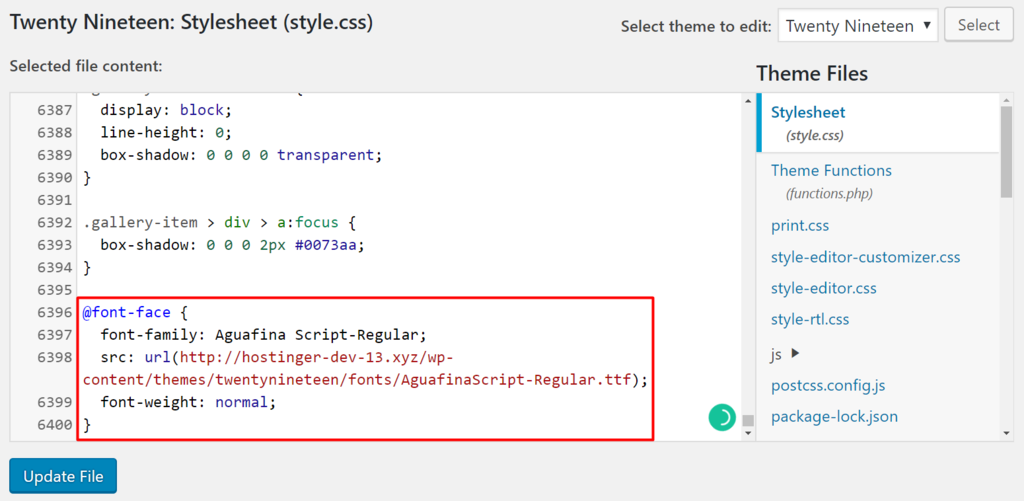
After uploading, edit the CSS file in the theme. Add a new font-face rule. Specify the font path. Save your changes. Refresh your website to see the new font in action.
Access the WordPress dashboard. Go to the Appearance section. Click on Customize. Look for the Additional CSS option. Use the @font-face rule here. Upload your font file in the Media Library. Copy the font URL. Paste it in the CSS rule.
Save changes to apply the font. Check the site to see the custom font live. This method is easier for beginners. No need for FTP knowledge.
Adding Font Using Css
Discover how to enhance your WordPress theme with custom fonts using CSS. Upload your font files to your theme directory, then update the CSS file to utilize the font. This process transforms the visual appeal of your site, offering a personalized touch that captivates visitors.
Editing Theme’s Css File
Start by opening your WordPress theme folder. Find the style.css file. This file controls your site’s look. You need to add a new line in this file. This line will link to your custom font.
Upload the font file to your server. Use @font-face to make the link. This rule helps browsers find and use your font.
Using @font-face Rule
The @font-face rule is very useful. It allows you to use any font. Write the rule like this:
@font-face {
  font-family: 'MyCustomFont';
  src: url('mycustomfont.woff') format('woff');
}
Replace ‘MyCustomFont’ with your font’s name. Use the correct file format. Common formats are woff and ttf. This code tells browsers where the font is stored.
Now, use font-family: ‘MyCustomFont’; in CSS. Apply it to headings or body text. Enjoy your new look!
Implementing Font With WordPress Customizer
Adding a custom font can make your site unique. Start by accessing the WordPress Customizer. You’ll find it under the ‘Appearance’ menu in your dashboard. Look for the ‘Fonts’ or ‘Typography’ option. This is where you can add new fonts. You may need to install a plugin if the option isn’t available.
Choose a font from Google Fonts or upload your own. Copy the font link from Google Fonts. Paste this link in the ‘Additional CSS’ section in the Customizer. Use the CSS to apply the font to your site. This step might need some CSS knowledge. Test the font to ensure it displays correctly.
Using Plugins For Font Customization
Plugins offer a simple way to add custom fonts to a WordPress theme. Choose the right plugin, install it, and select your desired fonts. This customization improves your site’s design and readability effortlessly.
Popular Font Plugins
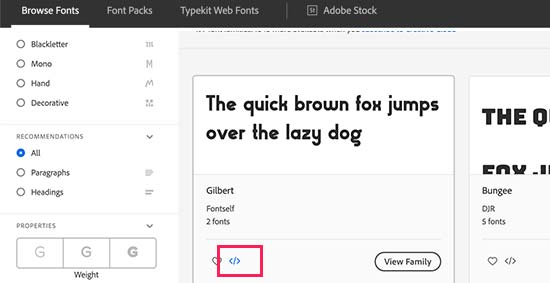
WordPress has many font plugins. These plugins help you change fonts easily. Easy Google Fonts is a popular choice. It offers many fonts. FontPress lets you use Google Fonts and Adobe Fonts. Typekit Fonts is another option. It works with Adobe Fonts.
Benefits And Drawbacks
Plugins save time. They are user-friendly. They don’t need coding skills. Some plugins slow down your site. Too many plugins can cause problems. Check reviews before choosing a plugin. Pick a plugin with good ratings. Always update plugins regularly. This keeps your site safe.
Testing And Troubleshooting
Checking cross-browser compatibility is important for a website. Different browsers display fonts differently. Open your site in Chrome, Firefox, and Safari. Look at how the custom font appears. Is it the same in each browser? If not, you might need to adjust your CSS. Use online tools to test your site. This helps in finding any browser issues.
Next, let’s focus on fixing common issues. Sometimes fonts don’t load properly. Check the file path in your code. Make sure it’s correct. Also, clear your browser cache. This often resolves loading problems. If the font still doesn’t show, verify your CSS rules. Ensure they are not overridden by other styles. Lastly, check your WordPress theme settings. Some themes have special font options. Adjust them if needed.
Optimizing Font Performance
Adding custom fonts in a WordPress theme enhances visual appeal and improves performance. Start by downloading your desired font and uploading it to your theme’s directory. Use CSS to integrate the font into your website design, ensuring faster load times and a better user experience.
Reducing Font File Size
Use fewer styles and weights. This helps in keeping the font file size small. You can also convert fonts to woff or woff2. These formats are lighter and load faster. Subsetting is another trick. It means using only the needed characters. A smaller font file loads quicker.
Improving Loading Speed
Loading speed affects user experience. Use a Content Delivery Network (CDN). It serves fonts from a nearby server. This makes them load faster. Asynchronous loading helps too. It loads the font without blocking the page.
Preloading is another method. It tells the browser to load the font early. This improves speed. Remember, faster loading means happier users.
Frequently Asked Questions
How Can I Add Fonts To My WordPress Theme?
To add custom fonts to your WordPress theme, use the @font-face rule in CSS. First, upload the font files to your server. Then, link the files in your theme’s stylesheet using the @font-face rule. Ensure to specify the font-family name for easy use in your theme.
Are Custom Fonts Slowing Down My Website?
Custom fonts can impact website speed if not optimized. Use web-friendly formats like WOFF or WOFF2 for faster loading. Reduce font file sizes if possible. Consider loading fonts asynchronously to minimize delays. Tools like Google Fonts offer optimized fonts for web use, enhancing both performance and aesthetics.
Can I Use Google Fonts In WordPress Themes?
Yes, Google Fonts can be easily integrated into WordPress themes. Navigate to Google Fonts, select desired fonts, and copy the provided link. Paste this link into your theme’s header. php file. Then, apply the font-family in your CSS stylesheet to style your website’s elements accordingly.
What Is The Best Way To Test Custom Fonts?
Use browser developer tools to preview custom fonts effectively. Apply temporary CSS changes to test fonts on different elements. Ensure readability and aesthetics across devices. Verify loading times and compatibility with various browsers. Testing helps ensure fonts enhance your site’s design without affecting performance.
Conclusion
Custom fonts make your WordPress site unique. They enhance your brand’s identity. Adding them is simple. Follow the steps. Upload your font files. Use CSS to integrate them. Check your site’s look. Ensure fonts display properly. Test on different devices.
Troubleshoot any issues. Custom fonts should improve readability. They also enhance user experience. Always choose fonts that suit your theme. Avoid fonts that clash with your design. Make sure your site remains fast. Large fonts can slow it down. Your site should look professional.
Custom fonts help achieve this goal. Enjoy your improved WordPress theme!


