
Are you looking to make your WordPress site truly stand out? Adding custom CSS is the secret weapon that lets you personalize your website exactly the way you want.
Whether you want to change colors, adjust fonts, or tweak layouts, knowing how to add custom CSS puts the power in your hands. In this guide, you’ll discover simple, step-by-step methods to add custom CSS to your WordPress site—no coding wizardry needed.
Keep reading to unlock the easy tricks that will transform your site’s look and feel instantly.
Credit: www.elmastudio.de
Why Use Custom Css In WordPress
Custom CSS lets you change your WordPress site’s look without changing the theme files. It helps you make your site unique and match your brand style. Small changes can make a big difference in design and user experience.
Using custom CSS is simple and does not require deep coding skills. You can control colors, fonts, spacing, and more. This flexibility helps your site stand out and stay consistent.
Benefits Of Custom Css
Custom CSS improves your site’s design without extra plugins. It keeps your site fast and clean. You avoid cluttering your site with many tools.
It also allows quick fixes. Change one line and see the update immediately. This saves time and effort.
Custom CSS helps keep your branding strong. Use your colors and fonts everywhere. Your visitors recognize your style easily.
When To Add Custom Css
Add custom CSS when you want small design changes. For example, change a button color or text size. These tweaks improve the look and feel.
Use it when your theme does not offer the style you want. You can override default styles safely.
Also, use custom CSS to fix layout problems. For instance, adjust spacing or alignment issues on your pages.
Preparing For Custom Css
Before adding custom CSS to WordPress, some steps make the process safer and easier. Preparing your site helps avoid problems later. It also keeps your site design changes organized and secure.
Backup Your Site
Backing up your site saves a copy of all files and data. This copy helps restore your site if something goes wrong. Use a reliable plugin or your hosting service to create backups. Do it before any changes. Regular backups keep your site safe over time.
Choose A Child Theme
A child theme lets you change styles without altering the main theme. It keeps your custom CSS safe from theme updates. Create or activate a child theme before adding CSS. This method protects your work and keeps your site stable.
Methods To Add Custom Css
Adding custom CSS to your WordPress site helps you control its look and feel. You can change colors, fonts, spacing, and more. There are several ways to add CSS code. Each method suits different needs and skill levels. Choose the one that fits you best.
Using The WordPress Customizer
The WordPress Customizer is the easiest way to add CSS. It is built into WordPress and works on all themes. Go to Appearance > Customize > Additional CSS. You can type your CSS code here and see changes live. This method keeps your code safe during theme updates.
Adding Css Via A Plugin
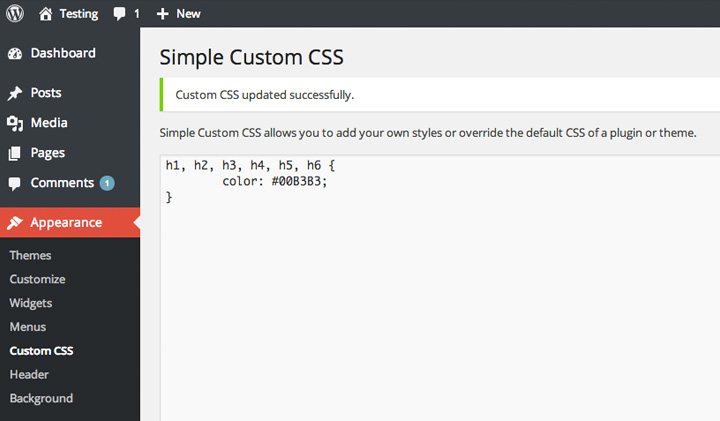
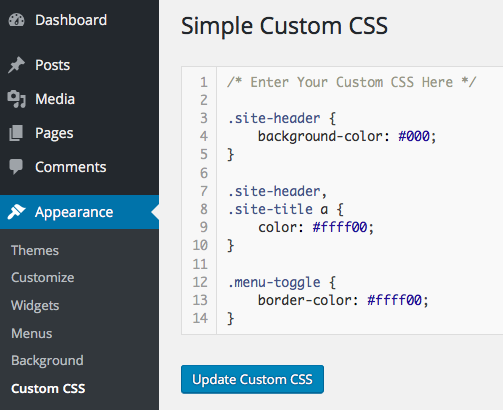
Plugins let you add custom CSS without touching theme files. Some popular plugins are Simple Custom CSS and Custom CSS Pro. Install and activate the plugin, then add your CSS in its settings. This method keeps your styles even if you change themes.
Editing The Style.css File
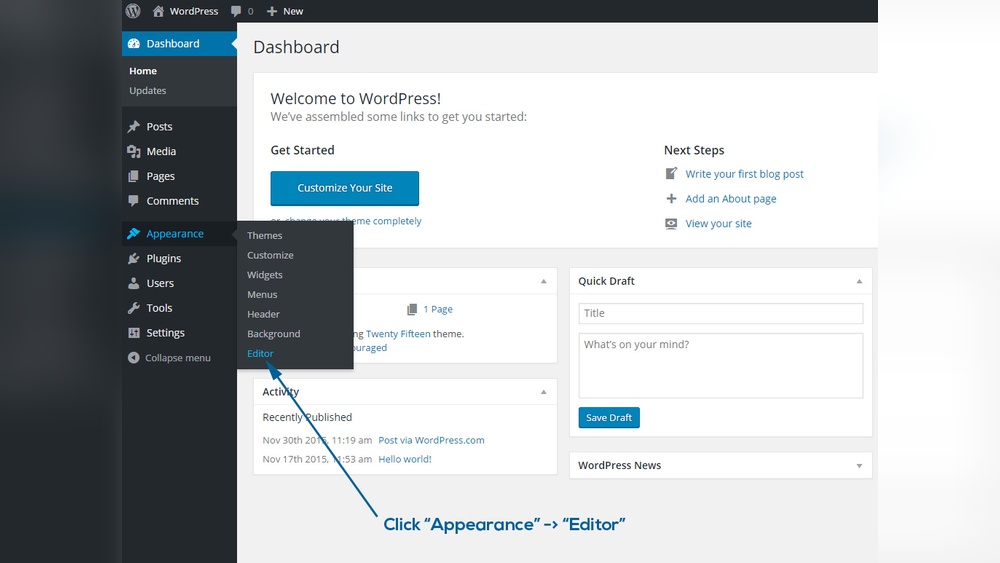
The style.css file holds your theme’s main CSS. You can edit this file through Appearance > Theme Editor or using FTP. Add your custom CSS at the end of the file. Be careful: direct edits might be lost after theme updates. Use a child theme to save changes safely.
Credit: themetry.com
Writing Effective Custom Css
Writing effective custom CSS helps your WordPress site stand out. It changes the look and feel of your pages. Good CSS makes your site clean and easy to read. It also improves user experience by styling elements clearly.
Understanding the basics of CSS lets you create styles that work well. Targeting the right parts of your site ensures your changes appear exactly where you want. Knowing common CSS properties helps you control colors, fonts, and layouts easily.
Basic Css Syntax
CSS uses simple rules. Each rule has a selector and a declaration block. The selector points to HTML elements. The declaration block contains property and value pairs.
Example: p { color: blue; } changes all paragraphs to blue. Curly braces hold the properties. Each property ends with a semicolon.
Targeting Elements
Selectors choose which parts of the site to style. Use element selectors like h1 or p to style headings or paragraphs. Classes and IDs target specific items.
Example: .menu { font-size: 16px; } styles all elements with class “menu”. Use header to style an element with the ID “header”.
Common Css Properties
Colors, fonts, and spacing change the site’s look. Use color for text color. Use background-color for backgrounds.
font-size adjusts text size. margin and padding control space around elements. border adds lines around items.
Testing And Troubleshooting
Testing and troubleshooting are key steps after adding custom CSS to WordPress. They help ensure your styles look right and work well. Without testing, errors can break your site’s design or functionality.
Careful checking allows you to catch mistakes early. Troubleshooting helps fix issues quickly. This saves time and keeps your website professional and clean.
Preview Changes Safely
Always preview CSS changes before making them live. Use the WordPress Customizer to see styles in real-time. This lets you view changes without affecting site visitors.
Try different screen sizes to check responsiveness. Make sure fonts, colors, and layouts appear correctly. Use browser developer tools to test and adjust CSS quickly.
Fixing Common Issues
Clear browser cache if changes don’t show. Old styles may still load from cache memory. Disable caching plugins temporarily during testing.
Check for CSS syntax errors like missing brackets or semicolons. These errors stop styles from applying. Use online CSS validators to find mistakes fast.
Look for conflicts with theme or plugin styles. Sometimes custom CSS gets overridden. Use more specific CSS selectors or add !important carefully.
Credit: wordpress.org
Tips For Stunning Designs
Creating stunning designs with custom CSS in WordPress makes your site stand out. Good design keeps visitors interested and improves user experience. Follow simple tips to make your style clear, responsive, and lively. These ideas help your website look professional and work well on all devices.
Consistency In Style
Keep your design uniform across all pages. Use the same fonts, colors, and spacing. This creates a neat and easy-to-follow look. Avoid mixing too many styles. Consistency helps visitors focus on your content, not the design.
Using Responsive Css
Design must work on phones, tablets, and computers. Use CSS media queries to adjust layout based on screen size. This makes your site easy to read and use everywhere. Responsive design lowers bounce rates and boosts visitor satisfaction.
Incorporating Animations
Animations add life to your website without distraction. Use simple effects like fades, slides, or color changes. Keep animations smooth and fast. Avoid too many moving parts to maintain focus on content. Animations guide users and highlight key areas.
Frequently Asked Questions
How Do I Add Custom Css In WordPress?
To add custom CSS in WordPress, go to Appearance > Customize > Additional CSS. Paste your CSS code there and save changes. This method is simple and keeps your styles safe during theme updates.
Can I Use Plugins To Add Custom Css?
Yes, plugins like Simple Custom CSS or Custom CSS Pro let you add CSS easily. These plugins offer advanced features and keep your code organized without editing theme files.
Will Custom Css Affect My Website Speed?
Properly written custom CSS has minimal impact on speed. Avoid excessive or complex code to maintain fast loading times. Always test your site after adding new CSS to ensure performance.
Is It Safe To Edit Theme Files For Css?
Editing theme files directly is risky; updates may overwrite your CSS. Use the Additional CSS section or a child theme to keep custom styles safe and update-proof.
Conclusion
Adding custom CSS to WordPress helps you change your site’s look easily. You can make small style tweaks or big design changes quickly. Using the right method keeps your site safe and fast. Try different styles to see what fits your brand best.
Keep your CSS simple to avoid errors. This skill gives you more control over your website’s appearance. Start adding custom CSS today to make your WordPress site stand out.


