
Are you tired of your WordPress theme looking just like everyone else’s? Do you want to add a personal touch and make your website stand out?
Adding custom CSS to your WordPress theme is the key to unlocking unlimited design possibilities. Imagine having the power to change colors, adjust fonts, and tweak layouts to perfectly match your vision. With just a few lines of code, you can transform your site into a unique digital masterpiece that truly reflects your brand.
In this guide, we’ll walk you through the simple steps to add custom CSS to your WordPress theme, even if you’re not a coding expert. Get ready to captivate your visitors and keep them coming back for more, as you turn your website into an unforgettable experience. Dive in and discover how easy it is to elevate your WordPress site with custom CSS.

Credit: www.youtube.com
Benefits Of Custom Css
Custom CSS makes your website unique. It changes colors, fonts, and layouts. Stand out from other sites. Make your site look how you want.
Better design means happy visitors. Custom CSS helps users find things easily. Navigation and readability improve with good CSS. Users stay longer on your site.
CSS can make your site load faster. Faster sites keep users happy. Simple CSS rules can reduce load time. Fast loading boosts user satisfaction.
Accessing Theme Customizer
Open your WordPress dashboard first. Look for the Appearance option in the menu. Click on it. Then, select Customize. This opens the Theme Customizer. The Customizer lets you make changes. You can see these changes live. Find the Additional CSS section. This is where you add your custom CSS. Type your CSS code here. Be sure to save your changes. Check if the changes appear on your site. You can always edit or remove CSS from here.
Using Additional Css Section
Customizing WordPress themes becomes simple with the Additional CSS section. Easily add unique styles without altering theme files. Access this feature through the WordPress dashboard to enhance design flexibility and personalize your site’s appearance effortlessly.
Locating The Additional Css Option
The Additional CSS option is in the WordPress dashboard. Start by logging in. Go to the Appearance tab. Click on Customize. Look for the Additional CSS section. It is usually at the bottom. This section lets you add custom styles. It is very useful for small changes. You can preview your changes live. This helps in seeing immediate effects. Make sure you save your work. This prevents losing your changes.
Writing And Saving Css Code
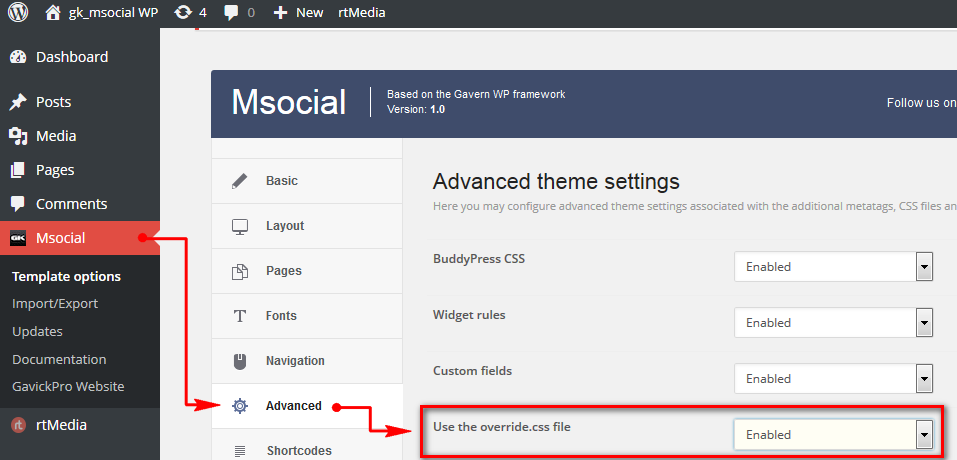
Write your CSS code in the box provided. Use simple codes for easy changes. For example, change text color or size. Type your CSS code carefully. Small errors can cause big problems. You can see changes immediately. Always check the preview. It’s important for accuracy. After writing, press the Publish button. This saves your changes. Your website will now show the new styles. Remember to refresh your page. This ensures you see the latest changes.
Credit: www.gavick.com
Editing Style.css File
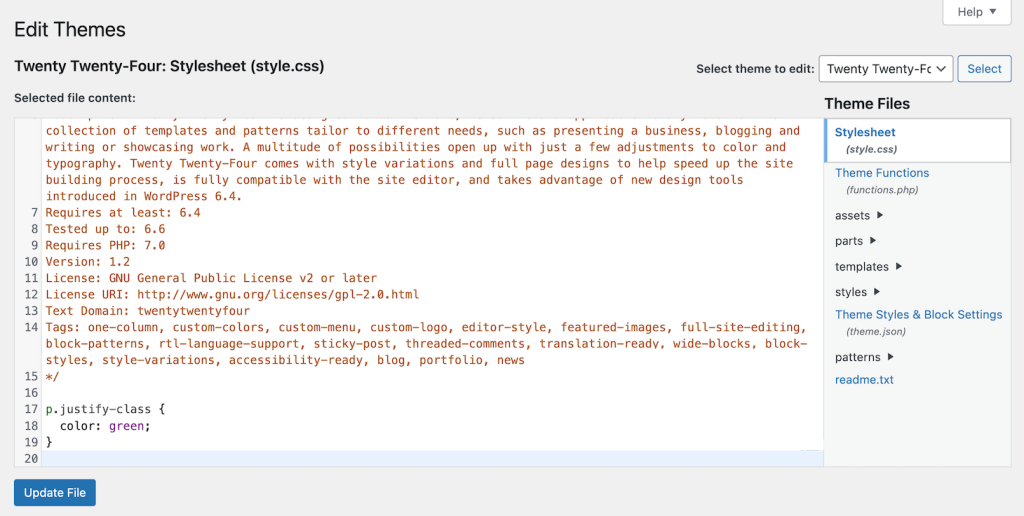
The Style.css file holds all the design rules. Locate it using the WordPress dashboard. First, go to Appearance, then click on Theme Editor. A list of files appears on the right side. Look for the Style.css file. It usually has a description at the top. This file controls your site’s look. Always be careful while editing. One wrong change can mess up your site’s design.
Direct edits to the Style.css file are simple. But risky. Start by scrolling to find the styles you want to change. Add your custom CSS at the end of the file. Save changes to see the effects. Always make a backup before editing. Restoring a backup is easier than fixing errors. Avoid making too many changes at once. Small steps help track what works or fails.
Using Child Themes
Child themes help customize WordPress safely. They protect your changes. First, make a new folder. Name it after your theme. Add “-child” to the name. Next, create a style.css file. This file is important. It tells WordPress you have a child theme. Inside, add a few lines. Start with Theme Name. Then add Template. Write your parent theme name. Your child theme is ready!
Custom CSS changes how your site looks. Use the style.css file. Write your CSS there. Want to change font size? Write font-size: 16px;. Need a new color? Add color: blue;. Save your changes. Look at your site. See the new style. Simple and easy!
Leveraging Plugins
Explore plugins to easily add custom CSS to WordPress themes. These tools simplify the process, allowing theme customization without altering core files. Enhance your site’s look by modifying styles directly through intuitive plugin interfaces.
Popular Css Plugins
Many plugins help with adding custom CSS. Some are very popular. They make it easy to change your theme’s look. SiteOrigin CSS is one such plugin. It offers a live editor. This means you see changes instantly. Another is Simple Custom CSS. It is beginner-friendly. You just paste your CSS code. Then, save it.
Installing And Using Plugins
Plugins are easy to install. Go to your WordPress dashboard. Click on “Plugins”. Then, “Add New”. Type the name of the plugin. Click “Install Now”. After installation, click “Activate”. Now, you can start using it. Add your CSS code in the plugin’s settings. Save changes to apply them. Always make a backup first. This prevents loss of work.
Best Practices For Custom Css
Organize your CSS files by sections. Use comments to explain blocks of code. This helps others understand your work. Avoid duplicate styles. They make your file messy. Group related styles together. It makes finding code easier later.
Use consistent naming for classes and IDs. This keeps things clear. Indent your code properly. It makes your CSS neat. Remove unused styles. They clutter your file. Keep CSS simple and clean.
Test your CSS in different browsers. Each browser may render styles differently. Check for compatibility issues. Fix them before going live. Use browser developer tools. They help spot problems quickly.
Test on mobile devices too. Many users browse on phones. Make sure styles look good everywhere. Consistency is key. Keep your design uniform across all platforms. Regular testing ensures a smooth user experience.
Credit: www.hostinger.com
Troubleshooting Common Issues
Adding custom CSS to WordPress themes can sometimes lead to issues. Common problems include incorrect CSS file paths and theme updates overwriting changes. Easily fix these by using a child theme or a customizer plugin, ensuring your modifications remain intact and functional.
Identifying Css Conflicts
CSS conflicts happen when different styles clash. This can change your site’s look. First, check if two styles affect the same element. Look in your theme’s CSS files. Use browser tools to find conflicts. Inspect the elements on the page. See which styles are applied. If two styles are fighting, pick one to keep. Remove or change the others. This will help your site look right. Always save a backup before making changes.
Reverting Unwanted Changes
Unwanted changes can happen after edits. Always backup your CSS first. This helps if things go wrong. Use the “undo” function in your editor. It can quickly fix mistakes. Restore from backup if needed. You can also use a version control plugin. This keeps track of all changes. It allows you to go back to the old version. Check your site after changes. Make sure everything looks good. This keeps your site looking the way you want.
Frequently Asked Questions
How Do I Add Custom Css In WordPress?
To add custom CSS in WordPress, navigate to Appearance > Customize. Click on Additional CSS, then enter your custom code. Save changes to apply. This method ensures your CSS is theme-independent and safe from updates.
Can I Use A Plugin For Custom Css?
Yes, you can use plugins like Simple Custom CSS. They allow you to easily add and manage CSS without editing theme files. Plugins offer a user-friendly interface, making it accessible for beginners.
Will Custom Css Affect My Site’s Performance?
Custom CSS generally has minimal impact on performance. However, excessive or poorly coded CSS can slow your site. Ensure CSS is clean and efficient to maintain optimal loading speeds.
Is It Safe To Edit Theme Css Directly?
Editing theme CSS directly can be risky. Updates might overwrite your changes, leading to loss of customizations. Always use child themes or the Additional CSS feature for safer modifications.
Conclusion
Custom CSS in WordPress themes is simple and rewarding. Tailor your site’s look with ease. Explore various styles and personalize your design. Start by accessing the theme editor or using plugins. Experiment with colors, fonts, and layouts. Remember to save changes and preview results.
Practice makes perfect. Don’t hesitate to try new ideas. Enhance your site’s appeal and user experience. With patience, your WordPress theme will shine uniquely. Keep learning and stay creative. Enjoy the process. Your site reflects your vision. Happy designing!


