
Are you looking to give your WordPress website a unique touch without diving deep into the complexities of code? Adding custom CSS to your WordPress theme options can be the perfect solution for you.
Whether you’re aiming to change the color scheme, tweak font sizes, or add a personal flair to your site, custom CSS allows you to make these changes effortlessly. Imagine having the power to transform your website’s appearance, making it stand out in a sea of sameness, all while maintaining full control over each detail.
In this guide, you’ll discover the simple steps to seamlessly integrate custom CSS into your WordPress theme, enhancing both the aesthetics and functionality of your site. Ready to unlock the potential to personalize your website like never before? Let’s dive in and explore how you can make your WordPress site truly yours.
Benefits Of Custom Css In WordPress
Custom CSS helps make your website look unique. You can change colors, fonts, and layouts easily. It gives your site a personal touch. Custom CSS is easy to update. There’s no need to change the entire theme. Just tweak the CSS code. This saves time and effort.
With custom CSS, your site can load faster. Use simple styles and reduce code size. This improves user experience. Visitors will enjoy a faster site. SEO can also improve with custom CSS. Proper styles make your site clear and organized. Search engines like clear sites.
Custom CSS helps fix design problems. Sometimes, themes don’t look right. Custom CSS can adjust them. It lets you solve these issues fast. Your website can look exactly how you want it to.

Credit: www.divithemeexamples.com
Locating Theme Options Panel
Accessing WordPress Dashboard is simple. First, open your browser. Type your site URL followed by “/wp-admin”. This brings you to the login page. Enter your username and password. Click “Log In”. You now see the WordPress dashboard.
Next, let’s find the Appearance Settings. Look at the left menu. Click “Appearance”. A dropdown menu appears. Find “Theme Options” here. Click it. The Theme Options Panel opens. You can now add custom CSS. Remember, changes affect your site look. Be careful with your CSS code.
Adding Custom Css Through Theme Options
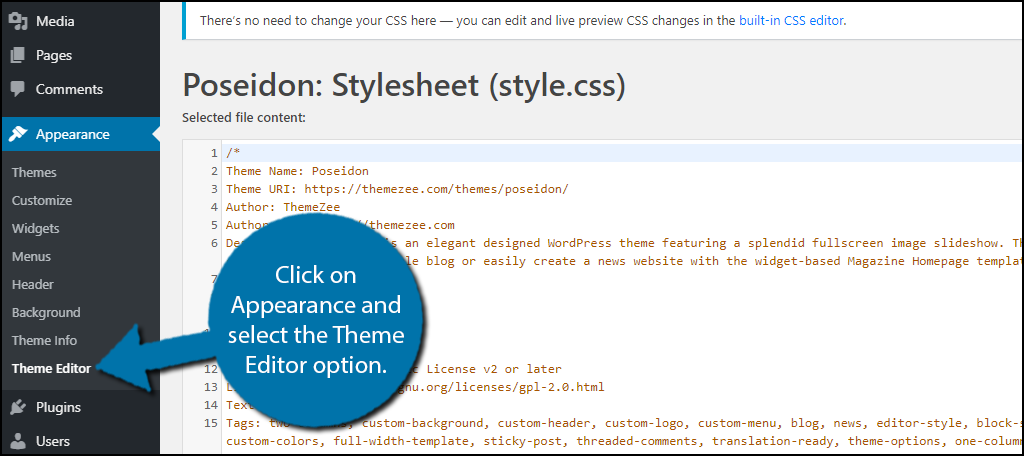
WordPress themes have a special place for custom CSS. Look in the dashboard. Find the Appearance tab. Click on Customize. Now, search for Additional CSS. This is where you can add your styles. Some themes call it Custom CSS. Once you find it, you’re ready.
Start by opening the CSS section. Click inside the box. Type your CSS code. Make sure your code is correct. Small mistakes can cause problems. Use simple codes at first. Save your changes after typing. Preview them to see results. If you don’t like it, you can change it. Keep trying until it’s perfect.
Credit: www.greengeeks.com
Using Additional Css Editor
Start by logging into your WordPress dashboard. Find the Appearance menu on the left side. Click on it. Look for the Customize option. Click it to open the Customizer. This is where you make changes to your site. It’s simple and easy to use.
Inside the Customizer, find the Additional CSS section. Click on it. A big box appears. This is where you type your custom CSS. Type the CSS code you want to add. Once done, click the Publish button. This saves your changes. Your site will now reflect these new styles.
Utilizing Custom Css Plugins
Popular CSS Plugins are helpful for adding styles to WordPress. Some well-known plugins include Simple Custom CSS, WP Add Custom CSS, and Custom CSS Pro. These plugins make it easy to change how your site looks. They are user-friendly and suitable for beginners. Each plugin offers unique features to enhance your site’s design.
Installing and Activating Plugins is simple. Go to your WordPress dashboard. Click on “Plugins” and then “Add New.” Search for the plugin you want. Once found, click “Install Now” and then “Activate.” The plugin will be ready to use. No need for coding skills.
Adding CSS through Plugins is straightforward. After activation, find the plugin settings. There is usually a box for custom CSS. Type your CSS code there. Save changes. Your new styles will appear on the website. Easy to test and update.
Best Practices For Custom Css
Organizing code is important. Write comments to explain sections. Use a clean layout. Keep similar styles together. This helps in finding and fixing errors. It makes your work easier. An organized code is easy to read. It saves time in the long run. Use consistent naming for classes and IDs. This helps in understanding the code better. It also helps others who might work on it. A neat code looks professional.
Test changes on a staging site first. This prevents breaking the live site. After testing, apply changes to the live site. Always keep a backup. This ensures you can restore if things go wrong. Check your site on different devices. This makes sure it looks good everywhere. Be careful with each change. Small errors can cause big problems.
Troubleshooting Common Issues
Custom CSS can enhance your WordPress theme’s appearance. Navigate to Theme Options and locate the Custom CSS section. Paste your CSS code, then save changes to see instant effects on your site.
Identifying Css Conflicts
CSS conflicts happen when styles clash. Your theme might have default styles. These can override your custom CSS. Check if your CSS is working. Look for unwanted changes on your site. Use browser developer tools. Inspect elements to find conflicting styles. Make sure your custom CSS has higher priority. Use specific selectors or !important to fix conflicts. Test changes to see results.
Resolving Loading Problems
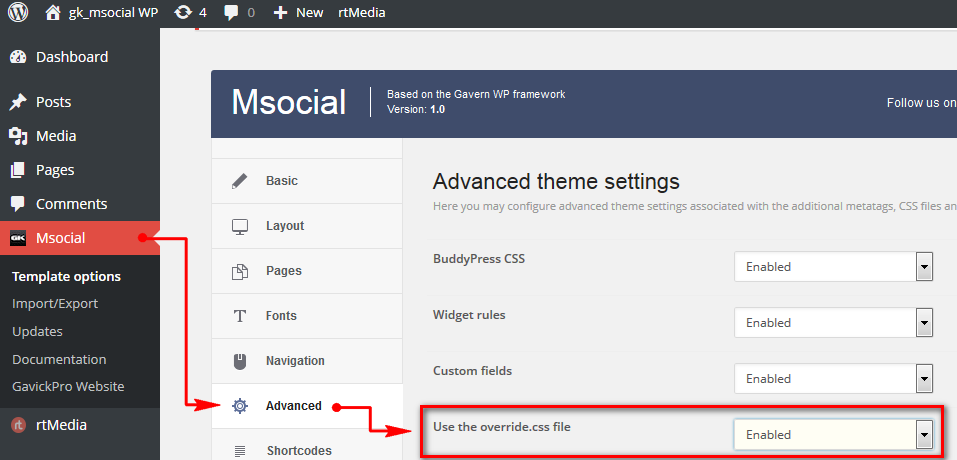
Loading problems can occur with your custom CSS. Ensure your stylesheet is linked correctly. Check the file path and name. Clear browser cache to see updates. Sometimes, plugins can affect loading. Try disabling plugins one by one. See if the problem resolves. Keep your CSS file size small. Large files can slow down loading. Group similar styles together. This makes the CSS easier to read and load.
Credit: www.gavick.com
Frequently Asked Questions
How Do I Add Custom Css In WordPress?
To add custom CSS in WordPress, navigate to Appearance > Customize. Select Additional CSS and input your custom code. This method doesn’t require editing theme files and keeps your changes safe during updates. Always preview your changes before publishing to ensure they display correctly across your site.
Can I Add Css Without Plugins In WordPress?
Yes, you can add CSS without plugins using the WordPress Customizer. Go to Appearance > Customize and select Additional CSS. This built-in feature allows you to input custom styles directly. It’s a straightforward method that helps keep your site lightweight and reduces dependency on external plugins.
Does Custom Css Affect WordPress Performance?
Generally, custom CSS has minimal impact on performance. However, excessive or inefficient CSS can slow down loading times. It’s crucial to write optimized, clean code. Ensure your CSS is specific to your needs and regularly review it for efficiency to maintain optimal site performance.
Can Custom Css Break My Theme?
Yes, incorrect CSS can break your theme’s layout or functionality. Always test changes in a staging environment before applying them live. Use browser developer tools to debug issues. Backup your site before making significant changes to ensure you can restore it if problems occur.
Conclusion
Adding custom CSS to your WordPress theme is quite simple. It enhances your site’s appearance and functionality. Follow the steps to make your site unique. Tailor the design to reflect your brand’s style. Customize elements like colors, fonts, and layouts.
Make sure to preview changes before saving them. This ensures everything looks perfect. Experiment with different styles. Keep the code organized for easy updates. Your WordPress theme should now look and feel personal. Enjoy the improved aesthetics of your website.
Happy customizing!


