

Do you want to make your WordPress site stand out by customizing just one page? Adding CSS to a specific page lets you do that without changing the entire website’s look.
Imagine having full control over the design of a single page—making it unique, eye-catching, and exactly how you want it. In this guide, you’ll learn simple, step-by-step ways to add CSS to a specific page in WordPress. Keep reading, and you’ll discover how easy it is to give your pages that perfect, personalized touch.
Why Add Css To A Specific Page
Adding CSS to a specific page in WordPress helps control the look of that page only. This approach keeps other pages safe from unwanted style changes. It allows you to make unique designs for different pages without affecting the whole site.
Custom styles can highlight important pages like sales or contact pages. You can fix layout issues or add special effects on one page easily. This makes your website more flexible and user-friendly.
Why Target Specific Pages?
Targeting specific pages lets you keep styles organized. It stops styles from overlapping or breaking on other pages. This method helps maintain a clean and simple code base.
Improving User Experience
Unique styles for each page guide visitors better. It improves readability and focus on that page’s content. This makes navigation smoother and the site more enjoyable.
Boosting Website Performance
Loading CSS only on needed pages reduces extra code. This speeds up page loading times. Faster sites keep visitors happy and reduce bounce rates.
Credit: diviextended.com
Methods To Add Page-specific Css
Adding CSS to a specific page in WordPress helps you customize its look. It changes only one page without affecting others. Several methods exist to add page-specific CSS. Choose the one that fits your skills and needs.
Using WordPress Customizer
The WordPress Customizer lets you add CSS easily. Go to Appearance > Customize > Additional CSS. Write your CSS code here. To target a specific page, use the page ID or class. For example, .page-id-2 { color: red; } changes text color on page ID 2 only. Preview your changes live and save when done.
Using Theme Functions File
Add page-specific CSS by editing your theme’s functions.php file. Use the wp_enqueue_scripts action to load CSS for a page. Write a small function to check the page ID. Then, enqueue a CSS file or add inline styles. This method needs basic PHP knowledge. Always back up your site before editing files.
Using A Page Builder Plugin
Page builder plugins like Elementor or Beaver Builder often include custom CSS options. Open the page in your builder editor. Find the section for custom CSS or advanced settings. Add your CSS rules here. This method is user-friendly and does not require coding skills. It applies styles only to the current page being edited.
Using A Css Plugin
CSS plugins help add styles easily without touching code files. Install a plugin like Simple Custom CSS or SiteOrigin CSS. Use its interface to write CSS and assign it to specific pages. Some plugins allow you to select pages by ID or slug. This method suits users who want control without coding.
Adding Css Via WordPress Customizer
Adding CSS via the WordPress Customizer is a simple way to change styles on your site. It lets you write CSS code without editing theme files. This method keeps your changes safe during updates. It also allows live preview before saving. Perfect for small tweaks on specific pages.
Locating The Additional Css Section
First, log in to your WordPress dashboard. Then, go to Appearance > Customize. This opens the WordPress Customizer panel. Scroll down to find the “Additional CSS” section. Click on it to open a blank box. Here, you can type your custom CSS code. The changes will show live on your site preview.
Targeting The Specific Page With Css Selectors
Every WordPress page has a unique body class. Use this class to target a specific page. For example, a page with ID 42 uses .page-id-42. Write your CSS inside this class to affect only that page. This avoids changes on other pages. Example:
.page-id-42 h1 { color: blue; }This code changes the heading color only on page 42. Find the page ID by editing the page or checking the body classes in the browser’s developer tools. This method helps keep your site neat and organized.

Credit: www.youtube.com
Using Theme Functions For Page-specific Css
Using theme functions to add CSS to a specific page in WordPress is a clean and efficient method. It helps you keep your styles organized and avoid loading unnecessary CSS on other pages. This approach uses WordPress’s built-in hooks and conditional tags to target exact pages.
By adding code to your theme’s functions.php file, you can control when and where the CSS loads. This method works well for developers and site owners who want to keep their site fast and easy to maintain.
Editing The Functions.php File
To start, open your theme’s functions.php file. You can find it in your WordPress dashboard under Appearance > Theme Editor or use an FTP client. Be careful when editing this file. A small error can break your site.
Inside functions.php, you will add a custom function. This function will load your CSS only on the page you want. Use clear and simple code to avoid mistakes.
Enqueueing Css Conditionally
Use the wp_enqueue_style function to add your CSS file. Wrap it inside a conditional statement like is_page(). This checks if the user is on a specific page.
For example, use is_page('about') to load CSS only on the About page. This way, your CSS file loads only when needed, improving site speed and performance.
Applying Css With Page Builder Plugins
Applying CSS with page builder plugins makes styling specific pages easy. These plugins let you write custom CSS directly inside the page editor. This avoids changing your theme files or adding code to your entire site.
Page builders like Elementor and Divi have built-in options for adding CSS. You can target a single page without affecting others. This method saves time and keeps your design clean.
Using Elementor Custom Css
Elementor allows you to add custom CSS on any page you build. Open the page in Elementor editor. Select the widget or section you want to style. Go to the “Advanced” tab and click “Custom CSS”.
Write your CSS code here. It only applies to the current page and element. This option works for Elementor Pro users. It gives you full control over styles without extra plugins.
Using Divi Theme Options
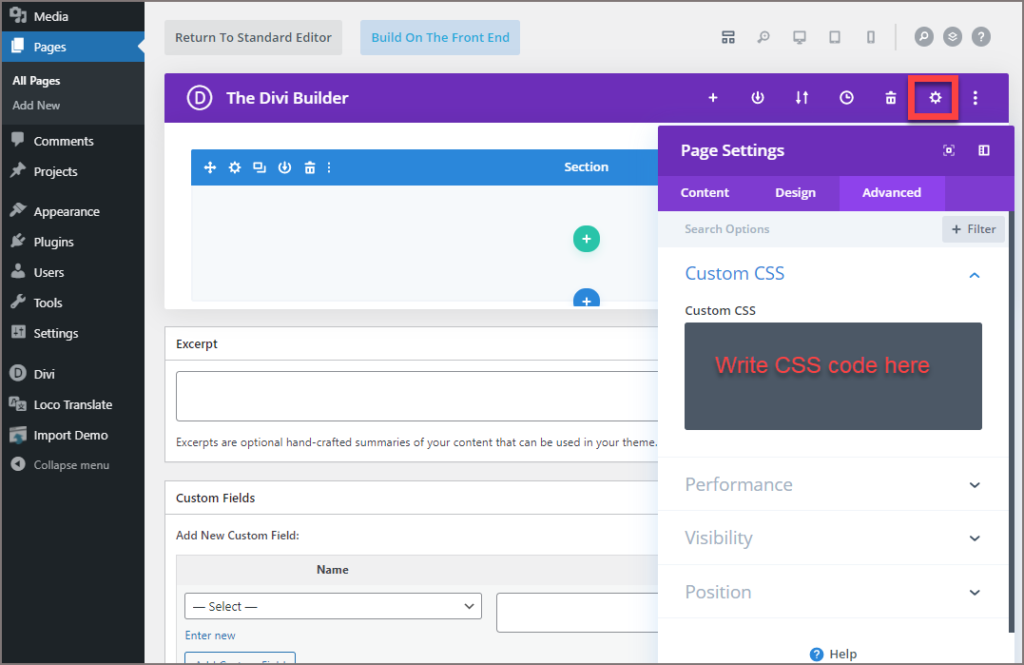
Divi lets you add CSS for each page easily. Open the page in Divi Builder. Click the settings icon at the bottom of the builder. Find the “Advanced” tab and select “Custom CSS”.
Enter your CSS code in the box. This code applies only to the page you edit. Divi also supports adding CSS to specific modules. This method keeps your styles organized and page-specific.

Credit: www.youtube.com
Adding Css Using Dedicated Plugins
Adding CSS to specific pages in WordPress is simple with dedicated plugins. These tools help you control styles without changing theme files. They keep your custom code safe during updates. Plugins also offer an easy interface to write CSS for chosen pages.
Installing A Css Plugin
Start by logging into your WordPress dashboard. Go to the “Plugins” section and click “Add New.” Search for CSS plugins like “Simple Custom CSS” or “SiteOrigin CSS.” Click “Install Now” and then “Activate.” The plugin is ready to use after activation.
Assigning Css To Specific Pages
Open the plugin’s settings in your dashboard. Find the option to add custom CSS code. To target a specific page, use the page’s unique ID or class. You can find this ID by inspecting the page’s HTML source. Write your CSS code with the page selector to apply styles only there. Save your changes and check the page to see the new style.
Tips For Writing Efficient Page-specific Css
Writing efficient page-specific CSS helps keep your WordPress site fast and clean. Targeting only one page reduces unnecessary code on other pages. This method improves site speed and makes maintenance easier. Clear and simple CSS also avoids styling errors that confuse browsers.
Focus on unique selectors and avoid global styles. Test your changes on multiple devices to ensure consistent appearance. Small, precise CSS blocks work best. These tips help create neat and effective styles for each page.
Using Unique Page Ids And Classes
Every WordPress page has a unique ID or class in the body tag. Use this ID to write CSS that applies only to that page. For example, use .page-id-12 in your CSS to style page 12 only. This prevents your styles from affecting other pages.
Identify the correct page ID by inspecting the page source in your browser. Keep your CSS selectors specific to avoid overlap. Unique IDs and classes make your styles precise and easy to find.
Avoiding Css Conflicts
Conflicts happen when different styles clash or override each other. Use clear and unique selectors for your page CSS. Avoid using general tags like h1 or p without page-specific classes.
Use prefixes or namespaces to separate your CSS rules. Write CSS rules that only apply inside your page’s unique ID or class. This stops your page styles from breaking site-wide styles.
Testing Changes Across Devices
Check your page on desktops, tablets, and phones. Different screen sizes can show CSS issues. Use browser developer tools to simulate various devices quickly.
Look for layout problems, font sizes, and color changes. Fix any issues to keep your page looking good everywhere. Testing ensures your CSS works well for all visitors.
Frequently Asked Questions
How Do I Add Css To Only One WordPress Page?
You can add CSS to a specific page by using the page ID or slug in your theme’s style. css file or via a plugin. Use conditional tags like is_page() in your functions. php to load CSS only on that page, ensuring styles don’t affect other pages.
Can I Use Plugins To Add Css To A Single Page?
Yes, plugins like “Simple Custom CSS and JS” or “WP Add Custom CSS” allow you to add CSS to individual pages. They offer easy interfaces to target specific pages without editing theme files, making it safe and beginner-friendly to customize page styles.
What Is The Easiest Method To Target One WordPress Page?
The easiest method is using the page’s unique CSS class or ID in your theme’s stylesheet. WordPress automatically adds page-specific classes to the body tag, which you can use to write CSS that applies only to that page.
Does Adding Css To One Page Affect Website Speed?
Adding CSS to a single page minimally impacts speed if done correctly. Using conditional loading or page-specific selectors prevents unnecessary CSS from loading globally, keeping your site fast and optimized.
Conclusion
Adding CSS to a specific WordPress page helps you customize easily. You keep your site clean and organized this way. Small changes can make your page look unique and neat. Use simple methods like page ID or plugins to add styles.
Test your changes to see if they work well. This approach saves time and avoids site-wide issues. Try adding CSS yourself and watch your pages improve. It’s a smart way to control your site’s design.


