
Are you looking to add a personal touch to your WordPress theme without diving too deep into complex code? Adding CSS inline styles might just be the quick solution you need.
Imagine having the power to tweak designs on the fly, ensuring your website looks exactly the way you envision. Whether it’s changing colors, adjusting fonts, or customizing layouts, inline styles offer a straightforward way to make those changes. In this guide, you’ll discover how to seamlessly incorporate these styles into your WordPress theme, giving you the freedom to enhance your site’s appearance with ease.
Keep reading to unlock simple techniques that can transform your website’s look, all while maintaining full control over the design process.
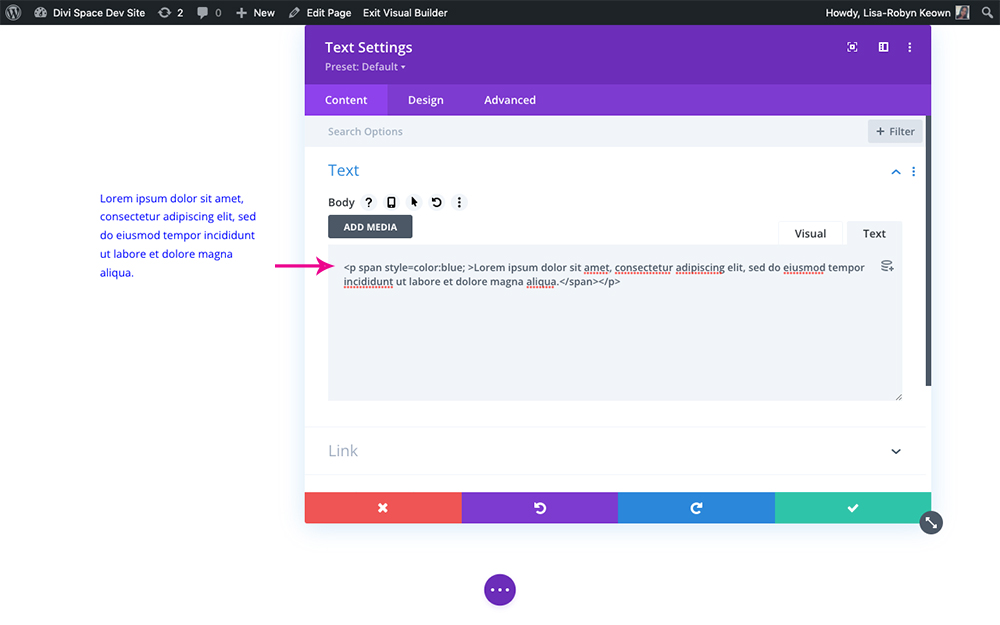
Credit: wpzone.co
What Are Inline Styles?
Inline styles are a way to add CSS directly to an HTML element. You use the style attribute to do this. This is different from using a CSS file. Inline styles are used for quick changes or small tasks. They can make your web page look unique.
You can change colors, fonts, and sizes. This is done by writing CSS rules in the style attribute. This method is not for big projects. It can make your code messy and hard to read. But it’s easy for small tweaks.
Benefits Of Using Inline Styles
Inline styles make changes easy. Place them directly in HTML. No need for external files. This saves time. Quick adjustments are possible. Only edit one line to change a style.
Inline styles are great for unique elements. Use them for special parts of your page. They help you stand out. They give you control over specific items.
Less code means faster loading times. Pages load quicker without extra CSS files. Inline styles help with speed. Users enjoy fast websites.
Easy testing is another benefit. Try different styles quickly. See changes immediately. This helps you find the best look. Inline styles make testing simple.
When To Use Inline Styles
Inline styles help when you need quick changes. They are useful for small style tweaks. For example, changing a button color. Inline styles don’t affect other elements. This makes them great for one-time changes.
Use inline styles when testing a new design. They are easy to add and remove. This saves time in the process. Inline styles are good for email templates too. Emails often need specific styles.
Remember, inline styles are not for big projects. They can make the code messy. It’s better to use CSS files for complex designs. This keeps everything neat and organized.
Accessing WordPress Theme Editor
First, log in to your WordPress dashboard. It’s the place where you control everything. Next, find the Appearance tab on the left side. Click on it. A menu will appear. Now select Theme Editor from the list. It might warn you about making changes. Don’t worry. Just press Proceed.
The Theme Editor will open. On the right side, you’ll see a list of files. These are your theme’s files. Look for a file named style.css. Click on it to open. This is where you can add your CSS inline styles.
Locating The Right Template File
Finding the correct template file is key. Each template serves a different purpose. Templates control how pages look. The homepage, post pages, and category pages have different files. These files are in the theme folder. You need to know the right file for the right page. For example, single.php is for posts. index.php is for the homepage. Use FTP or the WordPress editor to access them.
Changes in these files affect the website. Be careful while editing. Always back up your files before changes. Mistakes can cause issues. Try making small changes first. This helps you understand what happens. Once you know the right file, adding inline styles becomes easy. Inline styles are added directly to HTML tags. They change how elements look. For example, use style="color:red;" to change text color.
Adding Inline Styles To Html Elements
Inline styles are easy and quick. They change how your page looks. Use the This is blue textstyle attribute inside the HTML tag. Write the CSS styles you want. For example, , , or . They make elements look different. But use them wisely. Too many inline styles can make your code messy. Keep it simple. Use them for small changes.
Ensuring Compatibility With WordPress
Adding CSS inline styles can be easy. But make sure they work well with WordPress. First, use the WordPress theme editor. It helps you see changes quickly. This is good for testing. Next, check your theme’s documentation. It often has important tips. These tips help avoid mistakes. Be careful with plugin conflicts. Some plugins may override your styles. Always test your site after changes. This ensures everything looks right. If something breaks, you can fix it fast. Remember, too many inline styles can slow down your site. Keep styles simple and clean. This makes your site load faster. Fast sites are happy sites!
Credit: www.wpexplorer.com
Testing And Previewing Changes
Test changes on a local server first. This helps avoid errors on your live site. Use tools like WAMP or MAMP. These tools let you see how your site looks. Check every style change you make. Preview changes before going live. It is safe.
Previewing lets you catch mistakes early. This saves time. It prevents broken pages. Always check your theme on different devices. Phones, tablets, and computers. This ensures your site looks good everywhere. Use browser developer tools for testing. They help see how your CSS behaves.
Best Practices For Inline Styles
Keeping styles minimal is key. Add only necessary styles. This helps keep your code clean. Avoid using too many styles in one place. It can make reading difficult. Stick to the basics for better results.
To avoid conflicts with CSS files, check your theme’s styles. Be sure your inline styles don’t clash. Test on different pages. This ensures everything looks right. Conflicts can break your site’s design.
Ensuring responsive design is crucial. Use percentages instead of fixed sizes. This helps your site look good on all devices. Mobile, tablet, or desktop—everything fits well. Responsive design makes users happy.
Common Mistakes To Avoid
Inline styles can make your site look messy. Too many styles slow down your page. This happens because the browser reads them one by one. CSS files are faster. They keep styles in one place. This makes the page load quickly.
Using !important can cause problems. It overrides all other styles. Be careful when using it. Only use it if absolutely necessary. Forget about using it for every style. It makes future changes hard.
Forgetting to check for mobile responsiveness is common. Always test how your site looks on small screens. Styles that look good on a computer might not work on a phone. Use media queries to fix this issue.
Tools For Managing Inline Styles
Using tools for managing inline styles can make your job easier. Many developers use WordPress plugins to handle styles. Custom CSS plugins are popular choices. They help you add styles without touching theme files. Theme Customizer is another tool. It lets you add CSS directly. You can see changes in real time. Code Editors like Notepad++ or Atom are useful too. They highlight CSS errors. This makes fixing mistakes simple. Online CSS generators can also help. They create CSS code for you. Just select styles and copy the code. Choosing the right tool saves time. It also reduces errors.

Credit: themes.zone
Frequently Asked Questions
How Do I Add Inline Css In WordPress?
To add inline CSS in WordPress, use the style attribute within HTML tags in your theme’s template files. Inline CSS directly modifies elements, offering precise control over styles. Be cautious; excessive inline styling can clutter your code and affect performance.
Can Inline Css Affect WordPress Performance?
Yes, excessive inline CSS can negatively impact WordPress performance. It increases page load times and makes maintenance harder. For better optimization, use external or internal stylesheets. These methods enhance code readability and improve loading efficiency.
Is Inline Css Seo-friendly For WordPress?
Inline CSS is not ideal for SEO. It complicates HTML structure and increases page size, affecting load speed. Fast-loading pages are crucial for SEO. Opt for external stylesheets to maintain clean code and improve SEO performance.
What Are The Benefits Of Inline Css?
Inline CSS offers quick and specific styling for HTML elements. It’s useful for small, unique adjustments without altering global styles. However, it can lead to code duplication and should be used sparingly for best practices.
Conclusion
Adding CSS inline styles to a WordPress theme is straightforward. It enhances design flexibility without complex coding. You can customize elements directly. This method allows quick changes. It’s ideal for small adjustments and testing designs. Inline styles offer control over specific page sections.
Remember to balance inline styles with external stylesheets. Avoid excessive use to maintain page speed. Experiment with different styles to find what works best. Keep your site visually appealing and user-friendly. With practice, you’ll manage your WordPress theme effectively. Enjoy the creative process and make your website stand out.


