
Are you looking to customize your WordPress site and make it truly yours? Adding a CSS file can transform your website’s look and feel, giving you full control over colors, fonts, layouts, and more.
But if you’re not sure where to start, don’t worry—you’re in the right place. This guide will walk you through simple, clear steps to add a CSS file to your WordPress site without any hassle. By the end, you’ll have the power to style your site exactly how you want.
Ready to make your WordPress site stand out? Let’s dive in!

Credit: kb.hosting.com
Why Add A Css File
Adding a CSS file to WordPress allows you to control the style of your website. It helps change colors, fonts, and layouts easily. Custom styles make your site unique and improve user experience. Using a separate CSS file keeps your website organized and faster to load.
Benefits Of Custom Styles
Custom styles let you design your site exactly how you want. They help fix small style issues that themes do not cover. You can change parts of your site without touching theme files. This way, updates to your theme will not erase your work.
Impact On Website Appearance
A CSS file changes how your website looks to visitors. It controls colors, spacing, and fonts on every page. Good styles make your site easier to read and navigate. A neat design keeps visitors on your site longer. It shows professionalism and builds trust with users.

Credit: wpadminify.com
Methods To Add Css In WordPress
Adding CSS to WordPress allows you to change the look of your website. There are several ways to add CSS. Each method suits different needs and skill levels. Choose the method that works best for your site and comfort with coding.
Using Theme Customizer
The Theme Customizer is the easiest way to add CSS. It is built into WordPress and does not require coding skills. Go to Appearance > Customize > Additional CSS. Type your CSS code in the box. You will see the changes live before saving. This method keeps your CSS safe during theme updates.
Adding Css Via Child Theme
A child theme lets you add CSS without changing the main theme files. Create a child theme folder and add a style.css file. Write your CSS inside this file. The child theme loads your CSS after the parent theme. This keeps your changes safe after theme updates.
Enqueueing Css In Functions.php
You can add CSS by loading a file through the functions.php file. This method needs basic coding knowledge. Use the wp_enqueue_style function to add your CSS file. Place the code inside your child theme’s functions.php. This keeps your CSS organized and easy to manage.
Using A Plugin
Several plugins let you add CSS without coding. Plugins like Simple Custom CSS and Custom CSS Pro are popular choices. Install and activate the plugin. Add your CSS in the plugin’s settings area. This method is user-friendly and works well for beginners.
Creating A Child Theme
Creating a child theme is a smart way to customize your WordPress site safely. It lets you change the design without touching the original theme files. This keeps your changes safe during updates. Follow simple steps to set up a child theme and add your CSS file.
Setting Up Child Theme Folder
First, create a new folder inside the wp-content/themes directory. Name it clearly, like yourtheme-child. This folder will hold all files for your child theme. Make sure the folder name has no spaces or special characters.
Creating Style.css File
Inside your child theme folder, create a file called style.css. Start with a comment block that tells WordPress about the child theme. Include details like the theme name and the parent theme.
/ Theme Name: YourTheme Child Template: yourtheme /After this, add your custom CSS code. This file will load your styles and override the parent theme’s styles.
Activating The Child Theme
Go to your WordPress dashboard and open the Appearance > Themes section. Find your child theme and click “Activate.” WordPress will now use your child theme. Any CSS changes you make will apply safely.
Enqueue Css Properly
Adding CSS files to WordPress sites needs to be done carefully. The best way is to enqueue CSS properly. This method helps WordPress load styles in the right order. It prevents conflicts and improves site speed. Enqueueing also keeps your code clean and easy to manage.
Editing Functions.php
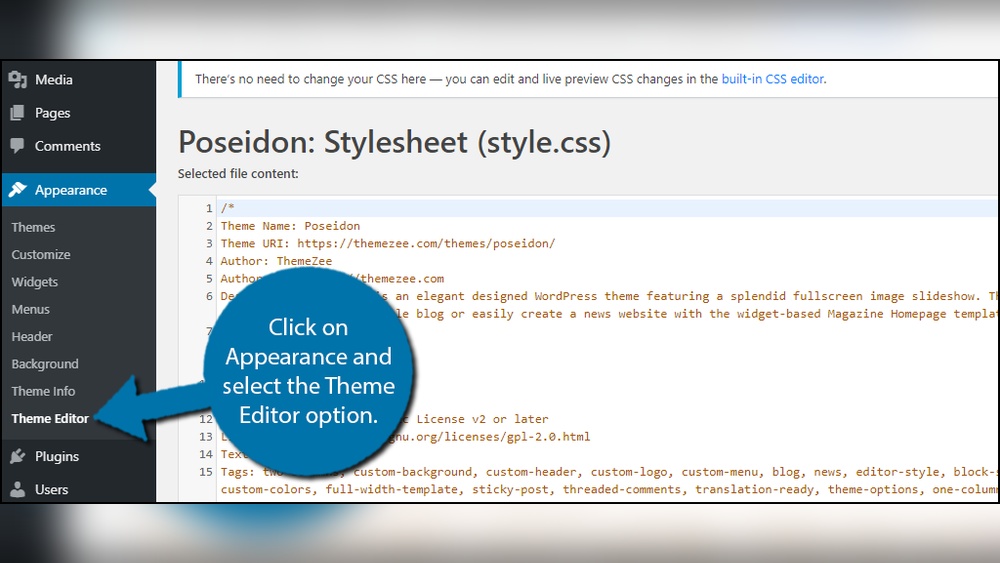
The functions.php file controls your WordPress theme’s behavior. You can add code here to load your CSS files. Open your theme folder and find functions.php. Use a code editor or the WordPress dashboard to edit it. Be careful not to break your site. Always back up before making changes.
Using Wp_enqueue_style Function
The wp_enqueue_style function loads CSS files safely. It tells WordPress to add your style in the right place. Use this function inside a custom function hooked to wp_enqueue_scripts. Example code looks like this:
function my_theme_styles() { wp_enqueue_style('custom-style', get_template_directory_uri() . '/css/custom-style.css'); } add_action('wp_enqueue_scripts', 'my_theme_styles');This code loads the custom-style.css file from your theme’s CSS folder. WordPress ensures it loads only once and in the correct order.
Best Practices For Enqueueing
Always use unique handles for your styles. This avoids conflicts with other plugins or themes. Load styles only on pages where needed. Avoid hardcoding CSS links in header.php. Use version numbers to control browser caching. Test your site after adding new styles. This prevents errors and style breaks.
Adding Css With Plugins
Adding CSS with plugins is a simple way to customize your WordPress site. Plugins let you add styles without touching your theme files. This keeps your changes safe from theme updates. You can write custom CSS code and see the changes live. Plugins also help organize your CSS in one place.
Popular Css Plugins
Several plugins help add CSS easily. “Simple Custom CSS” is user-friendly and lightweight. “SiteOrigin CSS” provides a visual editor to change styles. “Custom CSS Pro” offers advanced features for bigger sites. These plugins are free and widely used. Choose one that fits your needs and skill level.
How To Use Css Plugins
First, install your chosen CSS plugin from the WordPress dashboard. Activate the plugin after installation. Go to the plugin’s settings or CSS editor. Write your CSS code in the provided box. Save your changes to see them on your site. Some plugins show a live preview to check styles instantly. You can edit or remove CSS anytime through the plugin.
Advantages And Limitations
Using plugins avoids direct theme edits. Your styles stay intact after theme updates. Plugins offer a simple interface for beginners. You do not need coding knowledge to start. However, plugins can slow down your site if overused. Some plugins lack advanced CSS features. Also, too many plugins may cause conflicts. Keep CSS plugins updated for best performance.
Troubleshooting Common Issues
Troubleshooting common issues helps keep your WordPress site looking great. Adding a CSS file can sometimes cause problems. These issues stop your styles from showing or work incorrectly. Understanding these problems saves time and effort.
Css Not Loading
Sometimes the CSS file does not load on your site. Check the file path carefully. A wrong path means the browser cannot find the file. Make sure the file name and folder are correct. Also, confirm the CSS file is uploaded to the right theme folder. Use browser tools to see if the file loads or shows an error.
Conflicts With Other Styles
Different styles can clash and cause display problems. WordPress themes and plugins use their own CSS. Your added CSS might override or be overridden by them. Use specific selectors to target elements clearly. Avoid generic class names to reduce conflicts. Testing changes step-by-step helps find the cause.
Clearing Cache
Cached files can stop new CSS from showing. Browsers save old files to load sites faster. Clear your browser cache to see recent changes. Use caching plugins carefully and clear their cache too. This ensures your CSS updates appear correctly on the live site.
Tips For Writing Effective Css
Writing effective CSS is essential for a clean and easy-to-manage WordPress site. Good CSS helps your website load faster and look better on all devices. It also makes future edits easier. Follow these simple tips to write CSS that works well and stays organized.
Organizing Css Rules
Group similar styles together. For example, place all header styles in one section. Use a consistent order, like from general to specific. This makes your CSS easier to read and update. Avoid repeating the same styles in different places. Use classes and IDs wisely to keep your code clean.
Using Comments
Comments explain what each part of your CSS does. They help you and others understand the code later. Use short, clear notes before sections or tricky styles. For example, write / Header styles / before header rules. Avoid writing too many comments. Just enough to guide readers.
Optimizing For Performance
Keep your CSS files small to speed up your site. Remove unused styles and duplicate rules. Combine CSS files if possible to reduce loading time. Use simple selectors to make the browser work faster. Minify your CSS before uploading to WordPress to save space and improve speed.

Credit: www.peeayecreative.com
Frequently Asked Questions
How Do I Properly Enqueue A Css File In WordPress?
To enqueue a CSS file, use the wp_enqueue_style() function in your theme’s functions. php. This ensures the stylesheet loads correctly and avoids conflicts.
Where Should I Place My Css File In WordPress?
Place your CSS file in your theme’s folder, commonly inside a “css” directory. This keeps your files organized and easy to manage.
Can I Add Css Files Using A WordPress Plugin?
Yes, many plugins allow you to add custom CSS files without editing code. They offer a user-friendly way to include styles safely.
Is It Better To Use Child Themes For Custom Css?
Using child themes is best for adding custom CSS. It preserves your changes during theme updates and keeps the original theme intact.
Conclusion
Adding a CSS file to WordPress helps you control your site’s look. It keeps styles organized and easy to update. You can change colors, fonts, and layouts quickly. Using the right method keeps your site fast and safe. Try adding CSS with a child theme or plugin for best results.
This small step makes your website stand out. Keep practicing to improve your design skills. Simple changes can make a big difference.



