
Are you looking to customize your WordPress website without losing your changes during updates? Adding a CSS file to a WordPress child theme is the perfect solution for you.
This simple step can help you give your website a unique look and feel, while keeping it safe from future updates that might otherwise overwrite your customizations. Imagine the power of having complete control over your site’s design, with the freedom to experiment and personalize it as much as you want.
In this guide, you’ll discover how easy it is to enhance your WordPress child theme with custom CSS, ensuring your site stands out from the crowd. Ready to unlock the full potential of your website’s appearance? Let’s dive in and make your design dreams a reality!
What Is A Child Theme?
A child theme is a theme that inherits features from a parent theme. It allows you to change your website’s design without altering the main theme files. This keeps your customizations safe, even during theme updates.
Creating a child theme is important for developers. It helps them maintain clean code. You can make changes to styles, layouts, and more. This makes it a great tool for web designers.
Using a child theme means you can experiment. Try different styles and features. Always keep the original theme intact. This adds flexibility and safety to your website design process.

Credit: jetpack.com
Benefits Of Using Child Themes
Child themes help keep your website safe. They make updates easy. The main theme stays untouched. Changes remain even after updates. Customizations don’t get lost.
Child themes are great for learning. Kids can play with code safely. Mistakes don’t harm the main theme. Experimenting is fun and safe.
Design flexibility comes with child themes. Change looks without worry. Make themes unique. Add special features easily.
Performance stays strong with child themes. Sites run smooth and fast. No heavy code to slow things down.
Child themes are cost-effective. No need to buy many themes. One purchase can lead to many designs.
Creating A Child Theme
Adding a CSS file to a WordPress child theme enhances customization. First, create a style. css file in your child theme’s directory. Then, use the functions. php file to enqueue the stylesheet properly. This method ensures your styles are applied without overriding parent theme updates.
Essential Files
Begin with a new folder in the themes directory. Name it with your desired theme name followed by -child. For example, if your parent theme is “twentytwenty,” name your folder “twentytwenty-child.”
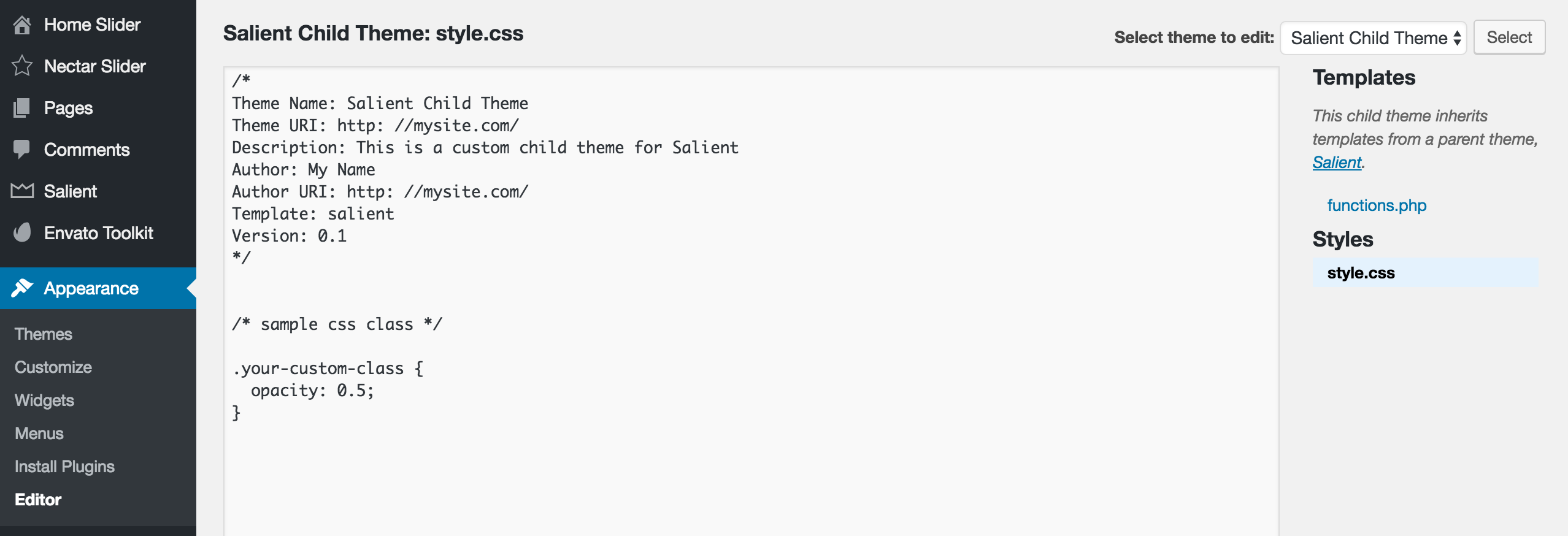
Inside this folder, create a file named style.css. This file will hold the child theme’s CSS. Add the following code at the top:
/
 Theme Name: Twentytwenty Child
 Template: twentytwenty
/
Another necessary file is functions.php. It helps load the parent theme’s styles. Add this code inside it:
php
function my_theme_enqueue_styles() {
    wp_enqueue_style('parent-style', get_template_directory_uri() . '/style.css');
}
add_action('wp_enqueue_scripts', 'my_theme_enqueue_styles');
?
Directory Structure
Your child theme’s folder should look like this:
| Folder/File | Description |
|---|---|
| twentytwenty-child | The main child theme folder |
| style.css | Holds the child theme’s CSS |
| functions.php | Loads parent theme styles |
Adding A Css File To A Child Theme
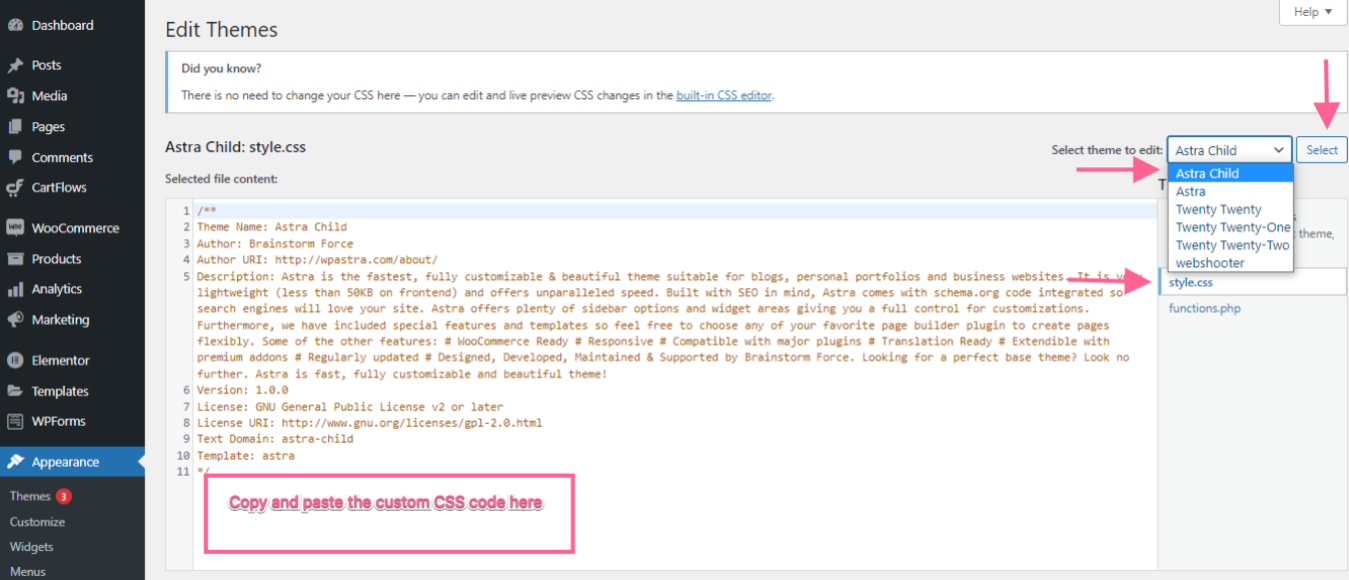
To add a CSS file to a WordPress child theme, first locate the child theme’s directory. Create a new CSS file and name it, for example, “custom-style. css. ” Then, use the functions. php file to enqueue the new CSS file, ensuring it loads after the parent theme’s styles.
Locating The Stylesheet
Find the main stylesheet for your child theme. This file is usually named style.css. It’s in the child theme folder. Open the WordPress dashboard. Click on Appearance. Then, click on Theme Editor. You will see a list of files on the right. Look for style.css in this list. Click on it to open. You can view or edit the CSS here.
Creating A New Css File
Create a new CSS file using a text editor. Name it something unique, like custom-style.css. Save it in your child theme folder. Open the functions.php file in your child theme. You need to enqueue the new CSS file here. Use the wp_enqueue_style function. This will link your new CSS file. Now, your custom styles will be applied.
Enqueueing The Css File
To add a CSS file in a WordPress child theme, use the functions.php file. Open this file in your child theme folder. Write a function to enqueue your CSS file. Use wp_enqueue_style() to add the CSS file. Give your style a name. Provide the file path. Ensure the parent theme’s styles load before yours. This keeps things neat and tidy.
WordPress uses hooks and actions to manage themes. Use wp_enqueue_scripts action. This action allows adding styles and scripts. It is a simple and effective method. Place your enqueue function inside this action. This ensures your CSS file loads correctly. Hooks make your theme more flexible and customizable.
Credit: wpastra.com
Testing The Child Theme Css
Enhancing your WordPress site with custom styles? Easily add a CSS file to your child theme. Modify the `functions. php` file, enqueue your stylesheet, and test its effects. This approach ensures your customizations remain intact after theme updates, providing a seamless design experience.
Browser Inspection Tools
Browser inspection tools help you check your CSS changes. Open your website in a browser. Right-click on the page and choose “Inspect” or “Inspect Element.” This opens a panel with code details. Use the “Elements” tab to see HTML and CSS. Look for your child theme CSS file. Check if it is loaded correctly.
These tools also let you test CSS changes live. Click on any element to see its styles. Try changing some CSS properties in the panel. The page will update instantly. This helps in checking your CSS work.
Common Issues
Sometimes, the child theme CSS does not show. It might be due to file path errors. Ensure the CSS file is in the right folder. Also, check if the file name is correct. Another issue can be CSS conflicts. Parent theme CSS may override child CSS. Use specific selectors to fix this.
Best Practices For Styling
Enhance your website’s design by integrating a CSS file into your WordPress child theme. First, create a style. css file in the child theme directory. Then, enqueue it using functions. php to ensure it loads correctly. This method maintains your custom styles even after updates.
Organizing Css Code
Keep CSS code neat and tidy. Group similar styles together. Use comments to explain complex parts. This helps others understand your code. It also makes updates easier. Use descriptive class names. Avoid using vague names like “box” or “thing”. This helps you know what each style does.
Keeping The Stylesheet Clean
A clean stylesheet is important. Remove any unused code. This makes the file smaller and faster. Minimize the number of styles you use. This keeps the code easy to read. Use CSS variables for repeated values. This saves time and prevents mistakes. Always test your styles on different devices. Make sure they look good everywhere.
Troubleshooting Common Problems
Adding a CSS file to a WordPress child theme can solve style issues. First, locate the child theme’s directory. Next, include the CSS file using the “functions. php” file. This ensures styles are applied correctly without affecting the parent theme.
Css Not Loading
Sometimes, the CSS file doesn’t load in a child theme. First, check if the file path is correct. The path must point to the right location. Also, ensure the file name is spelled correctly. Any small mistake can stop the CSS from loading.
Another reason might be a missing enqueue function. This function helps load the CSS. Use wp_enqueue_style in your theme’s functions.php file. This will tell WordPress to load the CSS.
Overriding Parent Styles
Overriding parent styles can be tricky. The child theme’s CSS must be loaded after the parent. This ensures changes take effect. Use the parent theme’s handle in the enqueue function. This will load the child CSS correctly.
Make sure to use specific selectors in your CSS. Specific selectors help override the parent styles. If a style isn’t changing, try using !important. This forces the style to apply. But use it sparingly to keep your CSS clean.
Credit: themenectar.com
Frequently Asked Questions
How Do I Add Css To A Child Theme?
To add CSS to a WordPress child theme, create a new CSS file in your child theme’s directory. Then, enqueue this file using the `functions. php` file in your child theme. This ensures the styles are applied correctly without affecting the parent theme.
Why Use A Child Theme For Css?
Using a child theme for CSS allows you to modify your site’s styling without affecting the original parent theme. This ensures that your custom styles remain intact even if the parent theme is updated. It provides a safe way to implement customizations.
Can I Customize Css Without Losing Changes?
Yes, customizing CSS in a child theme prevents loss during theme updates. By separating your custom styles in a child theme, updates to the parent theme won’t overwrite your changes. This approach keeps your modifications safe and preserves your design.
What Is Enqueuing In WordPress?
Enqueuing is the process of loading scripts and styles in WordPress. It ensures files are added to your site in a controlled way. By enqueuing your CSS in a child theme, you maintain order and avoid conflicts with existing styles or scripts.
Conclusion
Adding a CSS file to a WordPress child theme is simple. Follow the steps carefully, and customize your site easily. Child themes offer safe customization without affecting the parent theme. Use them to maintain updates while personalizing your design. Always remember to test changes before going live.
This ensures everything works smoothly. Your site’s appearance can greatly impact user experience. So, make it look good. With practice, these skills become second nature. Keep experimenting and learning. Your WordPress site will thank you for it. Happy designing!


