

Are you looking to protect your website and make it look professional at the same time? Adding a copyright notice to your WordPress footer is a simple step that can do both.
It not only shows that your content is yours but also builds trust with your visitors. You’ll learn exactly how to add a clear and attractive copyright message to your WordPress footer—no complicated coding needed. Keep reading, and you’ll have your site’s footer working for you in no time.
Why Add Copyright To Footer
Adding a copyright notice to your WordPress footer is a simple yet important step. It shows that you own the content on your website. This small detail protects your work and builds trust with visitors. The footer is visible on every page, making it a great spot for copyright information.
Legal Benefits
A copyright notice informs others that your content is protected by law. It helps prevent unauthorized copying or use. This notice can support your rights in legal cases. It signals that you take your content seriously. Without it, some people might think your work is free to use.
Brand Protection
Copyright in the footer strengthens your brand identity. It links your content directly to your business or name. This makes it harder for others to claim your work as theirs. It also shows professionalism and care for your site. Visitors see that your content is original and owned.
Credit: wpcode.com
Preparing Your Copyright Text
Preparing your copyright text is the first step to protect your website content. It tells visitors who owns the rights to the site material. A clear copyright notice also adds professionalism and trust. Keep the text simple but complete. Think about what information your site needs.
Essential Elements
Every copyright text needs key parts. Start with the © symbol or the word “Copyright.” Add the year or range of years the site was created or updated. Include the name of the website owner or company. These parts show ownership and the time frame clearly.
Example: © 2024 Your Website Name. This format is easy to read and understand. Avoid long legal jargon. Keep it direct and simple.
Customizing For Your Site
Make your copyright text fit your website style. Use your brand name exactly as it appears on your site. Update the year regularly, especially if you add new content often. Consider adding a short phrase like “All rights reserved” for extra clarity.
You can also add a link to your privacy policy or terms of use. This helps users find important information quickly. Keep the footer neat and not crowded with too much text.
Using WordPress Customizer
The WordPress Customizer offers a simple way to change your website’s look. You can edit many parts of your site, including the footer area. Adding a copyright notice here helps protect your content and shows professionalism.
This method does not require coding skills. It is perfect for beginners and saves time. Follow the steps below to add copyright text using the Customizer.
Accessing The Footer Settings
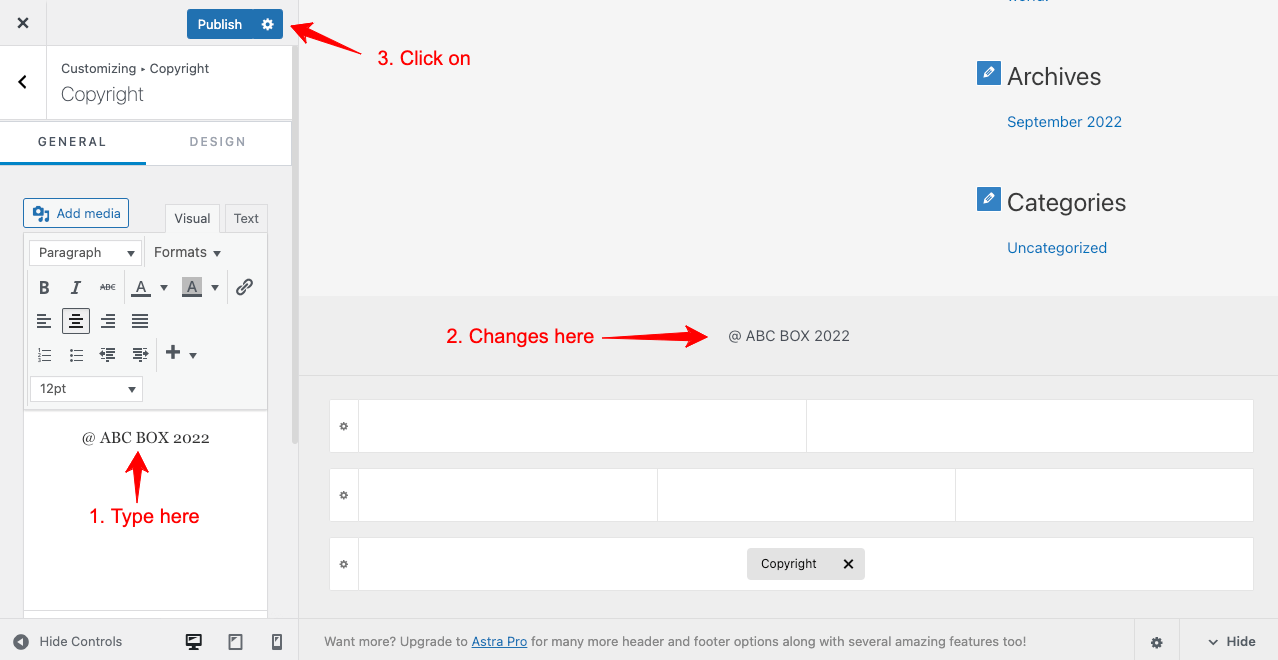
First, log in to your WordPress dashboard. Find the “Appearance” menu on the left side. Click on “Customize” to open the Customizer panel.
Look for the “Footer” section in the menu. Some themes may name it “Widgets” or “Layout.” Click on the footer option to see its settings.
Inserting Copyright Text
Inside the footer settings, find the field for text or copyright. It might be labeled “Footer Text” or “Copyright Notice.”
Type your copyright message here. For example: © 2024 Your Website Name. Save your changes by clicking “Publish.” Check your website footer to see the new text.

Credit: qodeinteractive.com
Editing Footer.php File
Editing the footer.php file is a direct way to add a copyright notice to your WordPress footer. This file controls the content shown at the bottom of your website. Changing it lets you place custom text exactly where you want.
Before editing, always create a backup. This step keeps your site safe if anything goes wrong. Using a child theme is also recommended. It prevents your changes from being lost after theme updates.
Locating Footer.php
To find the footer.php file, log in to your WordPress dashboard. Go to Appearance > Theme Editor. Look for the file list on the right side. Scroll down and click on footer.php. This opens the footer code for editing.
If the Theme Editor is disabled, use an FTP client or your hosting file manager. Navigate to /wp-content/themes/your-theme/. Find and open footer.php in a text editor.
Adding Copyright Code Safely
Inside footer.php, find the spot where you want the copyright text. Usually, it is near the bottom before the closing tag.
Use a simple HTML line like this:
©
php echo date("Y"); ? Your Site Name. All rights reserved.This code shows the current year automatically. It saves you from updating the year manually every time.
After adding your code, click “Update File” to save changes. Visit your site to confirm the copyright appears correctly.
Adding Copyright With Plugins
Adding a copyright notice to your WordPress footer helps protect your content. Plugins make this task quick and easy. They let you customize the text without touching code. This method fits well for beginners and saves time.
Recommended Plugins
Several plugins work well for adding copyright in WordPress footers. “WP Copyright” is simple and popular. It lets you add text and symbols easily. “Footer Putter” is another option with extra features. It allows legal links and updates automatically. “Insert Headers and Footers” is good for adding custom code or text. Choose a plugin that fits your needs and skill level.
Step-by-step Plugin Setup
Start by logging into your WordPress dashboard. Go to “Plugins” and click “Add New.” Type the plugin name in the search bar. Click “Install Now” and then “Activate.”
After activation, find the plugin’s settings in the sidebar. Enter your copyright text in the provided field. You can add the year, your site name, and a copyright symbol.
Save the changes. Visit your site’s footer to check the copyright display. Adjust the text or style if needed. The plugin keeps your footer updated automatically.
Making Copyright Dynamic
Making your copyright notice dynamic keeps it always up to date. It saves time and effort. You do not need to change it every year. Your website will look more professional with a current year displayed.
Using simple code, you can show the current year automatically. This method works well in WordPress footer areas. It ensures visitors see the right year without manual updates.
Using Php For Current Year
PHP is a powerful tool for dynamic content. Add the following code in your footer.php file:
php echo date('Y'); ?This code displays the current year automatically. Combine it with your copyright text like this:
© php echo date('Y'); ? Your Website Name. All rights reserved.
This method updates the year every January 1st. No need to edit the code again.
Automating Updates
WordPress themes often use widgets or customizer options for footers. Check if your theme supports dynamic text areas.
Use plugins that insert PHP or shortcodes in footer widgets. These tools automate the year update without coding.
Back up your site before editing theme files. Test changes on a staging site to avoid errors.
Automated copyright gives your site a polished, current look. It builds trust and shows professionalism.
Best Practices For Footer Copyright
Adding a copyright notice to your WordPress footer protects your content legally. It also informs visitors about your ownership. Using best practices ensures the copyright is clear and professional. This builds trust and improves site credibility. Follow the tips below for effective footer copyright.
Design And Visibility
Keep the copyright text simple and easy to read. Use a font size that matches your footer style. Choose colors that contrast well with the background. Avoid bright colors that distract visitors. Place the copyright in a consistent spot across all pages. This helps users find it quickly. Make sure it does not overpower other footer content.
Keeping It Updated
Update the copyright year regularly to show your site is active. Use a dynamic code snippet to update the year automatically. Check the footer after updates to ensure it displays correctly. Keep the copyright text accurate if ownership changes. A current copyright notice signals professionalism and care.
Credit: happyaddons.com
Frequently Asked Questions
How Do I Add Copyright Text To WordPress Footer?
To add copyright text, go to Appearance > Customize > Footer. Use the footer text box or add code in the footer. php file. Save changes to display your copyright in the footer area.
Can I Update Copyright Year Automatically In WordPress?
Yes, use PHP code like in footer. php. This code updates the year dynamically, ensuring your copyright year is always current.
Is A Plugin Needed To Add Copyright In WordPress Footer?
No, a plugin is not necessary. You can add copyright manually via the Customizer or by editing footer. php. Plugins offer ease but are optional for this task.
Where Is The Copyright Section In WordPress Footer?
The copyright section is usually in the footer. php file or under Appearance > Customize > Footer. It varies by theme but is commonly editable within these areas.
Conclusion
Adding a copyright to your WordPress footer protects your content easily. It shows visitors you own your work. You can update it anytime to keep information current. Simple code or plugins make the task quick. A clear copyright helps avoid legal issues later.
Take a few minutes to add it today. Your site looks more professional and trustworthy. Small steps like this build a strong online presence. Don’t forget to check your footer after changes. Keep your website safe and well-branded.


