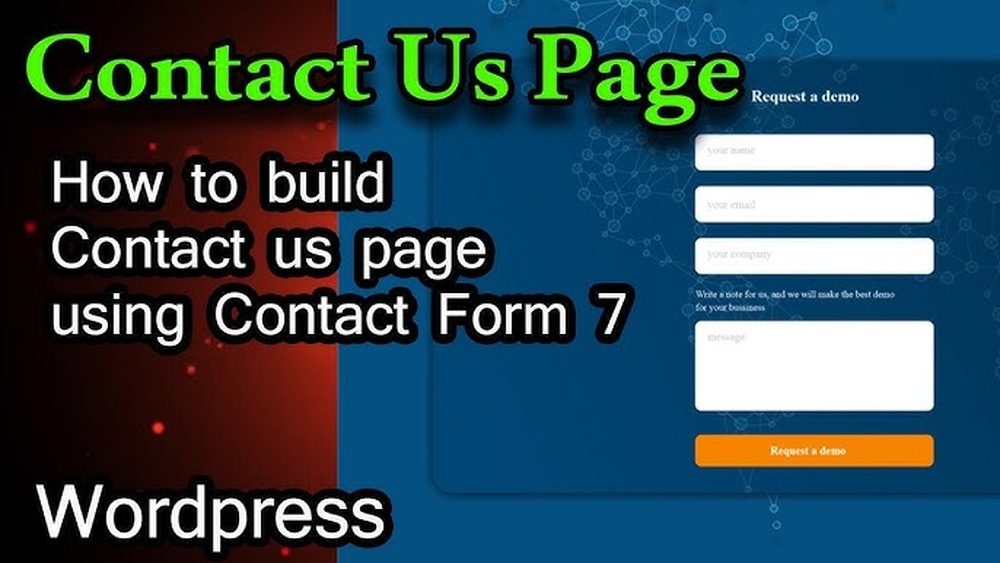
Are you looking to make it easy for visitors to reach out to you? Adding a Contact Us page to your WordPress site is one of the smartest moves you can make.
It builds trust, boosts engagement, and opens the door for new opportunities. But if you’re not sure how to set it up, don’t worry—you’re in the right place. You’ll discover simple, step-by-step instructions to create a Contact Us page that works perfectly for your site.
Ready to connect better with your audience? Let’s dive in!
Choose A Contact Form Plugin
Choosing the right contact form plugin is key to building an effective Contact Us page in WordPress. The plugin controls how visitors send messages and how you receive them. A good plugin should be simple to use and reliable.
Many plugins offer different features. Some focus on basic forms while others provide advanced options like file uploads or spam protection. Selecting the right one depends on your site’s needs.
Popular Plugin Options
Contact Form 7 is one of the oldest and most used plugins. It is free and easy to set up. WPForms offers a drag-and-drop builder for beginners. It has a free version with basic features. Gravity Forms is a paid option with many powerful tools. Ninja Forms provides a good balance of free and paid features. Each plugin has a large user base and regular updates.
Criteria For Selection
Look for a plugin that is easy to install and use. Check if it supports the fields you need, such as name, email, and message. Make sure it works well on mobile devices. See if it has spam protection features like CAPTCHA. Consider plugins that integrate with email marketing services. Also, check how often the plugin is updated and supported. A well-supported plugin ensures security and compatibility with WordPress updates.
Install And Activate The Plugin
Adding a contact form to your WordPress site starts with installing the right plugin. Plugins help you create forms easily without coding. This section explains how to install and activate a plugin for your Contact Us page.
Accessing The Plugin Directory
Log in to your WordPress dashboard. Look for the “Plugins” menu on the left side. Click “Add New” to open the plugin directory. This directory has many free plugins. You can search for the one you need here.
Plugin Installation Process
Type the plugin name in the search box. Find a plugin with good ratings and reviews. Click the “Install Now” button next to the plugin. Wait a few seconds for the installation to finish. Do not close the page during this process.
Activating The Plugin
After installation, the “Install Now” button changes to “Activate.” Click “Activate” to enable the plugin on your site. Once activated, the plugin appears in your dashboard menu. Now you can start setting up your contact form.
Create A New Contact Form
Creating a new contact form is the first step to make your Contact Us page functional. A form helps visitors send messages directly from your website. WordPress offers simple tools to build this form quickly. You do not need coding skills. Just follow easy steps to design a form that fits your needs.
Using The Plugin Interface
Start by opening the contact form plugin in your WordPress dashboard. Most plugins have a clear “Add New” button. Click it to open a blank form builder. The interface shows drag-and-drop options. You can add fields and adjust settings here. This visual tool makes form creation simple and fast.
Adding Essential Fields
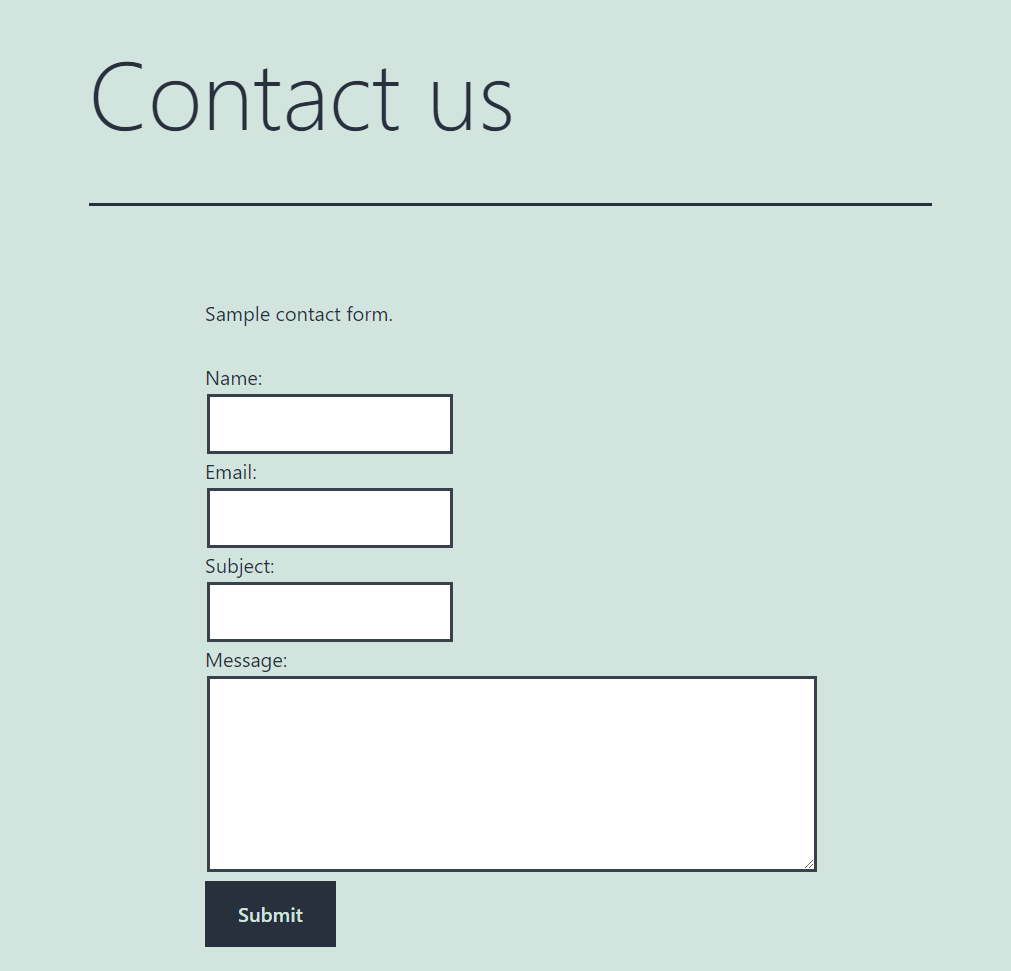
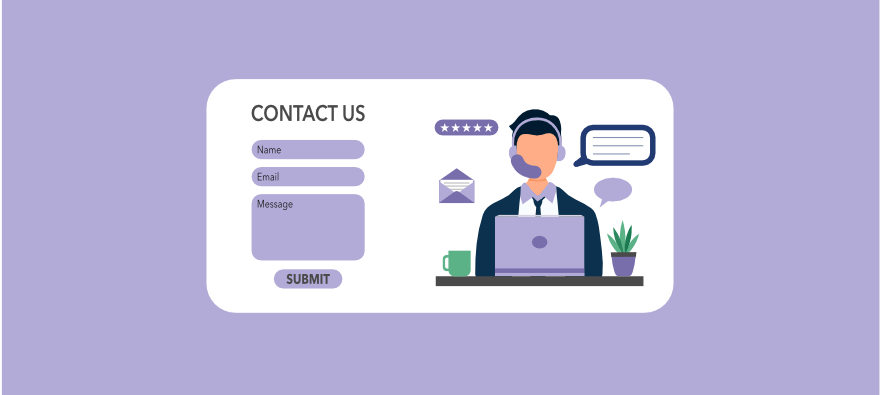
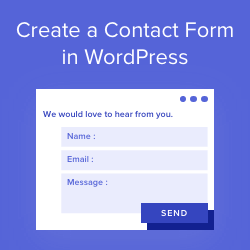
Include important fields like Name, Email, and Message. These fields help you get necessary details from visitors. Use the plugin’s default field options. Add a phone number or subject line if needed. Make sure fields are easy to fill out. Avoid asking for too much information.
Customizing The Form Layout
Arrange fields to create a clean, easy-to-read form. Most plugins allow you to move fields by dragging. Add spacing to avoid clutter. Change labels to be clear and direct. Some plugins offer style settings to match your website look. Keep the layout simple and user-friendly.
Credit: phppot.com
Configure Form Settings
Configuring form settings is an important step in creating a Contact Us page. It helps ensure messages reach the right place and users get clear feedback. Adjusting these settings improves user experience and keeps your site secure.
Set Email Notifications
Set up email notifications to receive messages from your form. Enter the email address where you want to get these messages. This way, you won’t miss any contact requests from visitors. Some plugins also allow customizing the email subject and sender name.
Adjust Spam Protection
Spam can fill your inbox with unwanted messages. Use built-in spam protection tools like CAPTCHA or reCAPTCHA. These tools ask users to prove they are human. It helps stop automated spam bots from submitting your form.
Enable Confirmation Messages
Show a confirmation message after users submit the form. This tells visitors their message was sent successfully. You can write a simple thank you note or instructions for next steps. Clear feedback makes your site more user-friendly.
Add The Contact Form To A Page
Adding a contact form to a page helps visitors reach you easily. It makes your website more user-friendly. This section explains how to put the contact form on a WordPress page. Follow these steps to get the form live fast.
Creating A New Page
First, log in to your WordPress dashboard. Go to the Pages menu and click “Add New.”
Give your page a clear title, like “Contact Us.” This helps visitors find it quickly. Then, save the page as a draft or publish it right away.
Embedding The Form Shortcode
Next, find the shortcode for your contact form. This code looks like [contact-form-7 id=”123″ title=”Contact form 1″].
Copy this shortcode to your clipboard. You will paste it into the page you just created. The shortcode makes the form show up on your page.
Using Block Editor Or Classic Editor
If you use the Block Editor, add a “Shortcode” block. Paste your shortcode inside this block. The form appears when you publish or preview the page.
For the Classic Editor, paste the shortcode directly into the text editor. Place it where you want the form to appear. Save or update the page to see the form live.
Customize The Contact Us Page
Customizing the Contact Us page makes it more useful and welcoming. Visitors find it easier to reach you with the right information. You can create a page that fits your brand and style. This helps build trust and improves user experience.
Add Additional Information
Include extra details like phone numbers, email addresses, or office hours. Add a map to show your location clearly. You can also add social media links to connect with visitors. Offering multiple contact options helps visitors choose what suits them best.
Style The Page For Consistency
Match the page’s colors, fonts, and layout with your website design. Use the same header and footer to keep a uniform look. Consistent styling makes your site look professional and easy to navigate. Adjust spacing and alignment for a clean, neat appearance.
Test The Contact Form
Testing your contact form is a key step after creating it. It ensures the form works correctly and messages reach you. This step helps avoid missing important messages from visitors. Follow these simple steps to test your contact form effectively.
Submit A Test Message
Fill out the form with your name, email, and a short message. Use a real email address you can check. Click the submit button to send the message. Watch for any errors or confirmation messages on the screen. This shows if the form submits properly.
Verify Email Delivery
Check the inbox of the email address used for the form. Look for the test message you just sent. If the message is missing, check the spam or junk folder. Confirm the email address in the form settings is correct. Fix any delivery problems before sharing the form with users.
Credit: wp101.com
Troubleshoot Common Issues
Adding a Contact Us page in WordPress should be simple. Sometimes, issues appear that stop the form from working right. Knowing how to fix these common problems saves time and keeps your site professional.
Form Not Sending Emails
Many users face the problem of forms not sending emails. Check the email address in the form settings first. Make sure it is correct and active. Use an SMTP plugin to improve email delivery. SMTP helps send emails through a trusted server. Test the form after setup to confirm emails arrive. Look in your spam folder if emails do not appear. Clear cache or disable caching plugins to avoid conflicts.
Plugin Conflicts
Plugin conflicts can stop your contact form from working. Deactivate all plugins except the contact form plugin. Check if the form works now. If it does, activate plugins one by one. This helps find the plugin causing the problem. Update all plugins to their latest versions. Older plugins may not work well with WordPress updates.
Styling Problems
Sometimes the form looks broken or not aligned well. This happens due to theme or CSS conflicts. Inspect the form with browser tools to find CSS errors. Add custom CSS to fix layout and colors. Use simple styles that match your website theme. Avoid complex code that may cause more issues. Refresh the page after changes to see the updates.
Credit: www.wpbeginner.com
Frequently Asked Questions
How Do I Create A Contact Us Page In WordPress?
To create a Contact Us page, go to Pages > Add New in WordPress. Name it “Contact Us” and add a contact form using a plugin like Contact Form 7. Publish the page and link it to your menu for easy access.
Which Plugin Is Best For WordPress Contact Forms?
Contact Form 7 is popular for its simplicity and free features. WPForms offers drag-and-drop and advanced options. Both plugins are SEO-friendly and easy to customize for your Contact Us page.
How To Add A Contact Form Without Plugins In WordPress?
You can add a contact form using custom HTML and PHP code. However, this requires coding skills. Plugins are recommended for easy setup and better form management without coding.
Can I Customize My WordPress Contact Us Page Design?
Yes, you can customize the design using your theme’s options or page builders like Elementor. Most contact form plugins also allow style adjustments to match your website’s look.
Conclusion
Adding a Contact Us page helps visitors reach you easily. It builds trust and improves user experience. WordPress makes this task simple and quick. Use plugins or the built-in editor to create the page. Keep the form clear and ask only needed information.
Test the page to ensure it works well on all devices. A good Contact Us page supports your site’s goals. Start today and connect better with your audience.