

If you want to make it easy for visitors to reach you, adding a contact form to your WordPress page is a smart move. It’s simple, effective, and can boost your site’s professionalism.
Imagine turning casual visitors into real connections without sharing your email openly. In this guide, you’ll learn exactly how to add a contact form step-by-step. By the end, you’ll have a seamless way for your audience to get in touch—and that can open new doors for your website or business.
Keep reading, because this quick change could make a big difference for you.
Credit: wpliveforms.com
Choosing The Right Contact Form Plugin
Choosing the right contact form plugin is crucial for your WordPress site. It affects how visitors communicate with you. A good plugin must be easy to use and meet your needs. You want a tool that works well and looks good on your page.
Many plugins offer various features. Some are free, while others require payment. Picking the right one saves time and avoids headaches later. It also helps keep your site fast and secure.
Popular WordPress Contact Form Plugins
Several contact form plugins stand out. Contact Form 7 is simple and free. It works for basic forms with ease. WPForms offers a drag-and-drop builder. It suits beginners and has many templates. Gravity Forms is powerful but paid. It fits complex forms and advanced users. Ninja Forms provides flexibility with free and paid options. Each plugin has its strengths. Choose one that fits your skill level and needs.
Factors To Consider When Selecting A Plugin
First, check ease of use. Pick a plugin with a clear interface. Next, look at features. Decide if you need simple forms or complex ones. Also, consider mobile responsiveness. Forms must look good on phones and tablets. Security is key. Choose a plugin that protects against spam and hacking. Performance matters too. Avoid plugins that slow your site. Finally, check support and updates. Regular updates keep your plugin safe and working well.
Credit: www.wpbeginner.com
Installing And Activating The Plugin
Installing and activating a contact form plugin is the first step to add a form on your WordPress page. Plugins extend your website’s features without coding. This process is simple and quick.
You can install the plugin directly from the WordPress dashboard or manually upload it. Both methods work well. Choose the one that suits your needs.
Using The WordPress Dashboard
Log in to your WordPress admin panel. Find the “Plugins” menu on the left side. Click “Add New” to open the plugin directory. Use the search bar to type the plugin name, like “Contact Form 7” or “WPForms.”
Once you find the plugin, click “Install Now.” Wait a few seconds for the installation to finish. Then, click “Activate” to enable the plugin on your website. The plugin is now ready to use.
Manual Plugin Installation
Download the plugin file in .zip format from the official website or WordPress.org. Go to your WordPress admin panel and open the “Plugins” section. Click “Add New” and then select “Upload Plugin.”
Click “Choose File” and find the plugin .zip file on your computer. Select the file and click “Install Now.” After the upload, click “Activate Plugin” to start using it. This method is useful if the plugin is not available in the WordPress directory.
Creating Your Contact Form
Creating your contact form is the first step to connect with your website visitors. A well-built form lets visitors send messages easily. It also helps collect important information.
Focus on simplicity and clarity. This makes the form user-friendly and effective. Follow these steps to build a contact form that fits your needs.
Setting Up Basic Form Fields
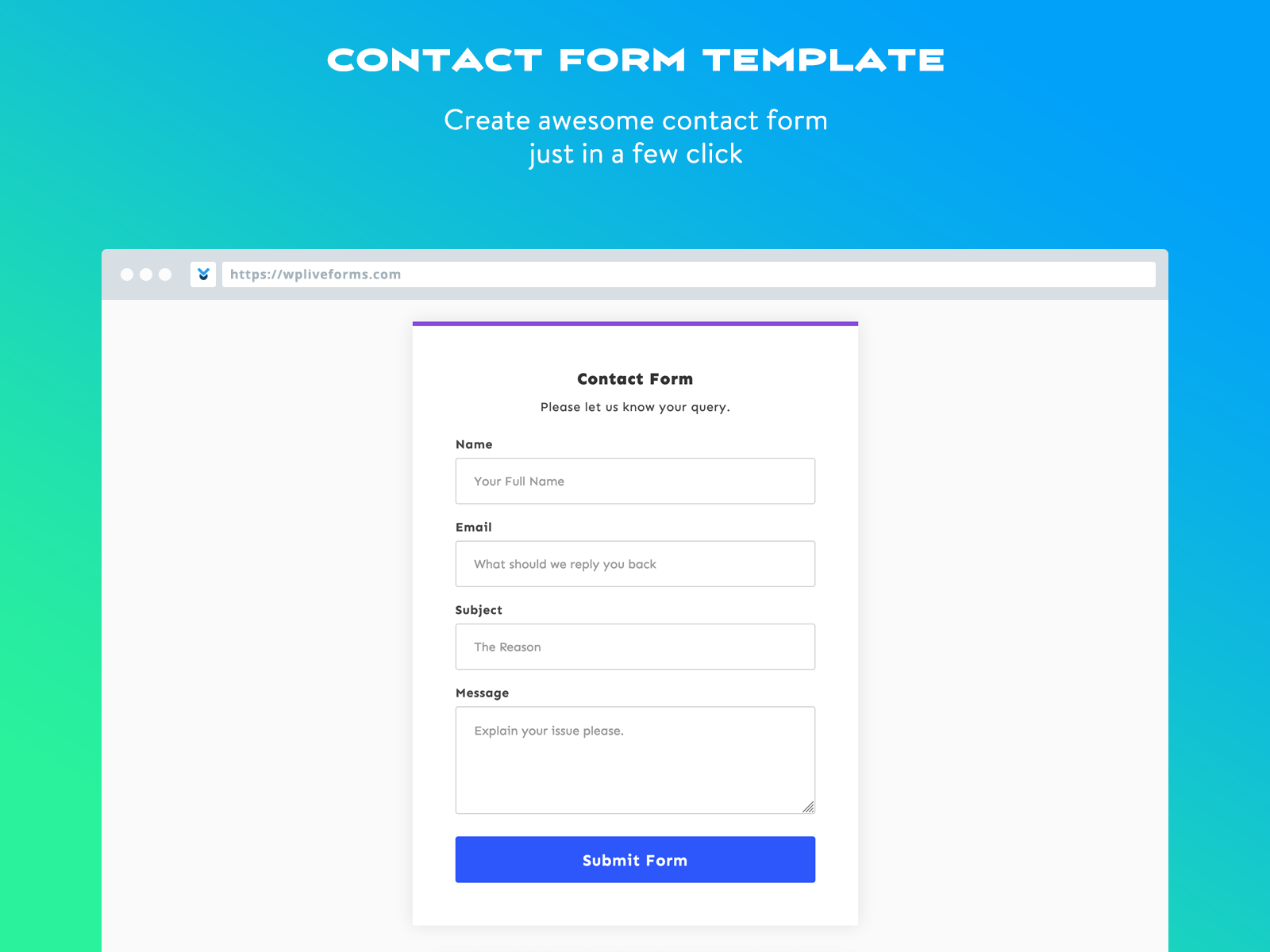
Start by adding essential fields. Name, email, and message are the most common. These fields collect the visitor’s contact details and their inquiry.
Use clear labels for each field. Make sure the email field checks for a valid address. This prevents errors and improves communication.
Customizing Form Appearance
Adjust the look of your form to match your website style. Change colors, fonts, and spacing to fit your brand. A clean design makes the form inviting and easy to use.
Use simple layouts. Avoid clutter. Keep the form short to encourage completion. A neat form keeps visitors focused on filling it out.
Adding Advanced Features
Add features that improve user experience and security. Captcha protects against spam. File upload fields let visitors send documents or images.
Use conditional logic to show or hide fields based on answers. This keeps the form relevant and shorter. Notifications alert you when someone submits the form.
Adding The Form To A WordPress Page
Adding a contact form to a WordPress page helps visitors reach you easily. This step is simple and does not require coding skills. Different methods allow you to place the form exactly where you want it. Choose the best option based on your page layout and needs.
Using Shortcodes
Shortcodes are small code snippets that show the form on any page or post. Find the shortcode in your contact form plugin settings. Copy the code and paste it into the WordPress editor where the form should appear. Update or publish the page. The form will display automatically.
Embedding Via Gutenberg Blocks
The Gutenberg editor has a block for many plugins, including contact forms. Open the page in the editor. Click the plus (+) icon to add a new block. Search for your form plugin block by name. Select it, then pick the form you want to insert. Save the changes to see the form live.
Placing The Form In Widgets
Widgets let you add forms to sidebars or footers. Go to the WordPress dashboard and open Appearance > Widgets. Find the widget area where you want the form. Add a text or custom HTML widget. Paste the form shortcode inside and save. The form appears in the chosen widget area.
Configuring Form Notifications And Settings
Configuring form notifications and settings is key to making your contact form effective. Proper setup ensures you get messages without delay. It also helps keep your form safe from spam and controls how it behaves after submission.
Setting Up Email Notifications
Start by entering the email address where you want to receive form submissions. Use an email you check often. Customize the subject line to quickly recognize form emails. Add a reply-to address so you can respond easily. Save changes to activate notifications.
Managing Spam Protection
Spam can fill your inbox with useless messages. Use built-in spam filters or plugins like reCAPTCHA. Enable honeypot features to trap bots silently. Regularly update your settings to block new spam types. This keeps your contact form clean and professional.
Adjusting Form Behavior
Decide what happens after users submit the form. Show a thank-you message or redirect to another page. Set up automatic form clearing to prepare for new entries. Control form animations to improve user experience. These tweaks make your form user-friendly and clear.
Testing And Troubleshooting The Contact Form
Testing and troubleshooting your contact form is crucial. It ensures the form works well and messages reach you. A broken form can frustrate visitors and lose potential leads. Testing helps find and fix problems early.
Performing Test Submissions
Start by filling out the form like a visitor would. Use real information for name, email, and message fields. Submit the form and check if you receive the notification email. Test with different browsers and devices to spot any issues.
Check if the form shows success messages after submission. Make sure error messages appear for empty or wrong inputs. Test required fields by leaving them blank and submitting the form. Confirm the form resets after a successful submission.
Common Issues And Fixes
Emails not arriving is a common problem. Check your spam or junk folder first. Use an SMTP plugin to improve email delivery. Another issue is the form not submitting. Clear your browser cache and try again.
Look for conflicts with other plugins or themes by disabling them one by one. If the form shows validation errors, review your input rules. Fix any broken links or missing fields in the form setup. Always update your contact form plugin to the latest version.
Tips To Enhance Form Usability
Improving the usability of your contact form helps visitors complete it quickly. A user-friendly form lowers frustration and increases responses. Small changes make a big difference in how people interact with your form.
Optimizing For Mobile Devices
Many users access websites through phones or tablets. A mobile-friendly form fits small screens without horizontal scrolling. Use large buttons and clear text fields. Avoid requiring too much typing on mobile devices. Test your form on different screen sizes to ensure easy use.
Improving Load Times
Slow-loading forms discourage visitors. Keep your form lightweight by limiting unnecessary scripts and images. Use fast hosting and caching tools to speed up loading. A quick form keeps users engaged and reduces bounce rates.
Ensuring Accessibility
Accessible forms work for all users, including those with disabilities. Use clear labels for each field and proper heading structure. Ensure keyboard navigation works smoothly. Include error messages that are easy to understand. Accessibility improves user experience for everyone.
Credit: wpforms.com
Frequently Asked Questions
How Do I Add A Contact Form To A WordPress Page?
To add a contact form, install a plugin like Contact Form 7 or WPForms. Then, create the form and embed its shortcode on your WordPress page.
What Is The Easiest Plugin For WordPress Contact Forms?
WPForms is user-friendly and beginner-friendly. It offers drag-and-drop features and pre-built templates for quick form creation without coding.
Can I Customize My WordPress Contact Form Fields?
Yes, most contact form plugins allow you to add, remove, or edit fields. Customization helps you collect specific information from visitors.
How Do I Make My WordPress Contact Form Spam-proof?
Use CAPTCHA or reCAPTCHA features provided by plugins. These tools prevent spam by verifying users are human before form submission.
Conclusion
Adding a contact form to your WordPress page is simple and useful. Visitors can easily reach you with questions or feedback. Choose a plugin that fits your needs and customize the form. Test the form to make sure it works well.
Keep it clear and short to get more responses. A good contact form helps build trust and grow your site. Start adding one today to connect with your audience better.


