
Do you ever wonder how to make it easy for your website visitors to reach out to you? Adding a contact form to your WordPress theme is a simple yet effective way to do just that.
Not only does it make communication seamless, but it also adds a professional touch to your site. Imagine the potential leads and connections you could be missing out on without one. In this guide, you’ll discover how to effortlessly add a contact form to your WordPress theme, enhancing both your website’s functionality and user experience.
By the end of this article, you’ll be equipped with the know-how to connect with your audience like never before. Ready to transform your website into an interactive platform? Let’s dive in!

Credit: wordpress.org
Choosing A Contact Form Plugin
Contact Form 7 is very popular. It’s free and easy to use. Many choose it for simplicity.
WPForms is another favorite. It has a drag-and-drop feature. This makes creating forms quick and fun.
Gravity Forms offers more features. It is good for advanced users. It supports payment forms and surveys.
Check if the plugin is mobile-friendly. Many visitors use phones. A form should work on all devices.
Look for easy customization. You should be able to change colors and fields.
Consider support and updates. Active plugins get regular updates. This keeps them safe from hacks.
Installing The Plugin
Start by installing the plugin for your WordPress theme. This plugin helps add a contact form easily. Follow the plugin instructions to activate and customize your form.
Accessing Plugin Directory
First, open your WordPress dashboard. Find the menu on the left. Click on Plugins. Then, select Add New. This opens the Plugin Directory. Search for a contact form plugin. Popular options include Contact Form 7 and WPForms. Choose one that suits your needs. Click on Install Now. Wait for the installation process to complete. Once done, click Activate. Your plugin is now ready for use.
Installation Steps
After activation, locate the plugin settings. Usually found under the Settings menu. Click to configure your contact form. Add fields like Name, Email, and Message. Customize the form layout if needed. Save changes and copy the shortcode. Place the shortcode in your desired page or post. Now, visitors can contact you easily. Ensure the form works properly. Test it by sending a message yourself.
Configuring The Plugin Settings
First, open your WordPress dashboard. Find the plugin settings there. Click on the plugin’s name. You will see basic options. Enter your email address. This is where messages will go. Set the subject line for emails. Choose a style for your form. Save your changes. Your form is now ready to use.
Advanced settings offer more choices. You can add a captcha. This helps stop spam. Choose a redirect page. This shows after form submission. Set up notifications. These alert you to new messages. Add custom fields if needed. This helps gather extra details. Don’t forget to save again. Your form is now fully configured.
Creating A Contact Form
Adding a contact form to your WordPress theme enhances user interaction. Install a plugin like WPForms or Contact Form 7, and easily create forms through their user-friendly interface. Customize fields and styles to suit your needs, offering visitors a seamless way to reach out.
Form Fields Setup
Start by choosing a good plugin. WPForms is popular and easy. Install and activate the plugin. Go to WPForms in your dashboard. Click on “Add New” to create a form. Name your form. Select a template or start from scratch. Add fields like name, email, and message. Drag and drop to arrange them. Make sure fields are easy to understand. Preview the form to check it.
Customizing Form Appearance
Go to the form builder. Click on the “Settings” tab. Look for “General” settings first. Change the form title if needed. Adjust the submit button text. Style the form under “Appearance”. Choose a color that matches your site. Make fields clear and readable. Save changes to keep your design. Preview the form on your site. Ensure everything looks neat and tidy.
Embedding The Form In A Page
Shortcodes make adding forms easy. Most form plugins offer shortcodes. Copy the shortcode from the plugin settings. Next, open the desired page in WordPress. Paste the shortcode where you want the form. Save your changes. The form appears on your page when viewed. This method requires little effort. Shortcodes are simple and effective.
Widgets add forms to sidebars or footers. Go to the WordPress dashboard. Select Appearance, then Widgets. Drag the form widget to the sidebar area. Configure settings as needed. Widgets keep forms visible on all pages. This helps visitors contact you easily. Widgets are helpful for maintaining contact. They make forms accessible throughout your site.
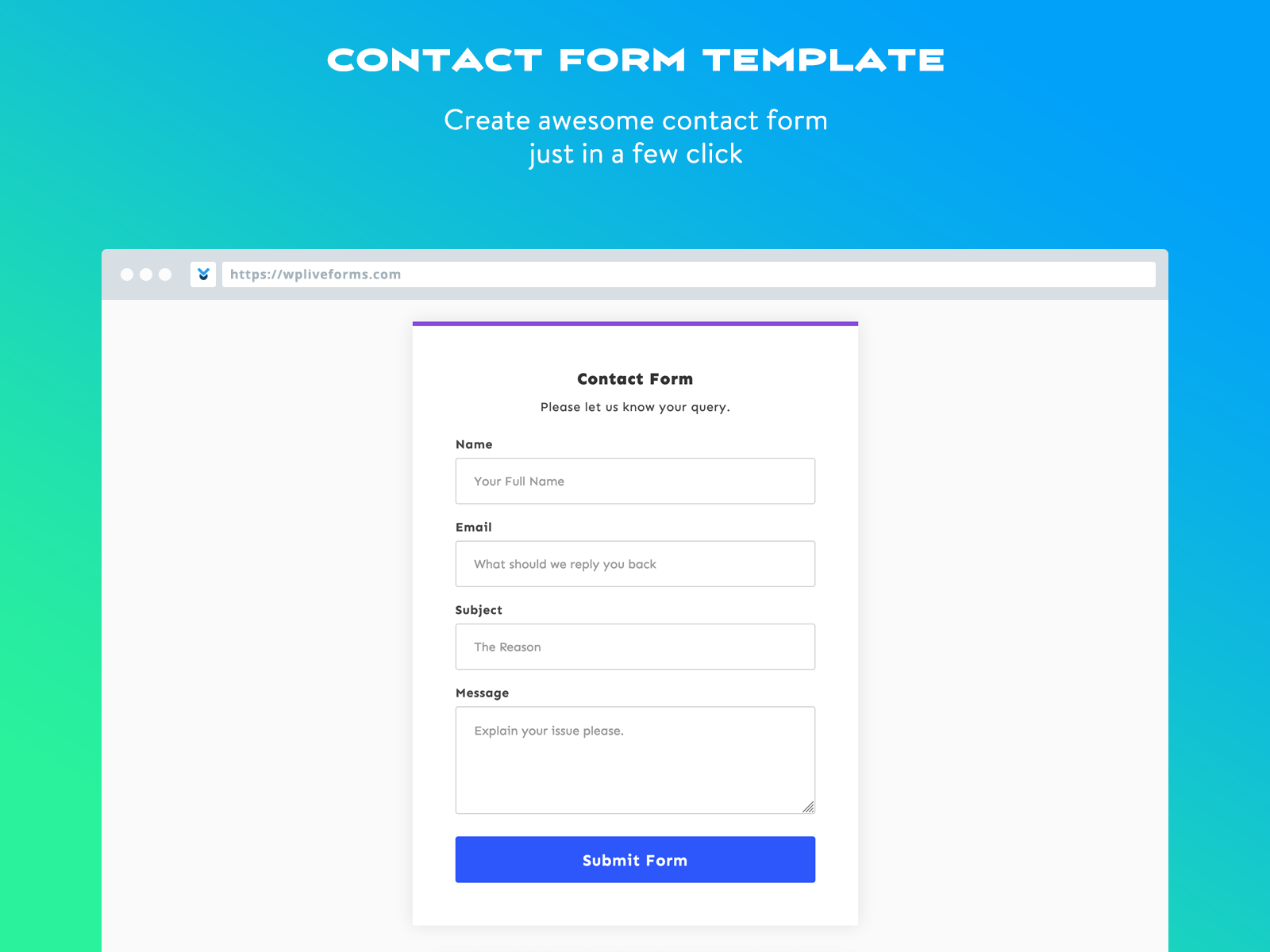
Credit: wpliveforms.com
Testing The Contact Form
Start by sending a test message. Check if it arrives. See if the email format is correct. Ensure all fields are filled. Sometimes messages go to spam. Always check the spam folder. If missing, verify settings. Adjust if needed. Look for errors in the setup.
If the form fails, check plugin settings. Verify the email address. Confirm the server settings. Sometimes plugins clash. Disable other plugins. Re-enable one by one. Check for updates. Update the theme if needed. Use simple themes. Some themes block forms. Choose themes wisely. Test the form often.
Enhancing Form Security
Secure your WordPress site’s contact form by integrating essential plugins. These tools help protect against spam and data theft. Enhance user trust while maintaining easy communication.
Spam Protection Methods
Spam can fill your inbox fast. Captcha is a strong tool to stop this. It makes sure a person, not a machine, fills the form. Another way is using a honeypot. This is a hidden field in the form. Real users can’t see it, but spam bots can. If the field is filled, the form is spam. Akismet is another useful plugin. It checks for spam and blocks it. Use these methods to keep forms clean and safe.
Ssl Encryption Importance
SSL keeps data safe between user and server. It’s like a secret code. Without SSL, hackers can see private data. Install an SSL certificate for security. This makes the website show HTTPS in the URL. It also helps improve trust. Users feel safe sharing information. Search engines like SSL too. They rank sites with SSL higher. Make sure your site is protected and trusted.
Customizing Email Notifications
Integrating a contact form into your WordPress theme enhances user interaction. Customize email notifications to stay updated on form submissions. This allows for timely responses, improving communication with your audience.
Setting Up Email Alerts
Email alerts keep you updated. They are sent every time someone fills your form. Go to your WordPress dashboard. Find the contact form plugin settings. Set the email address where alerts will be sent. Choose a reliable email to receive these alerts. This will ensure you don’t miss any important messages.
Personalizing Email Content
Change the email content to fit your needs. You can start with a friendly greeting. Add the person’s name if possible. Thank them for reaching out to you. Include the details they filled in the form. This helps in quick responses. Use simple words. Make sure your message is clear. A clear message builds trust with your users.

Credit: wp101.com
Frequently Asked Questions
How Do I Install A Contact Form Plugin?
To install a contact form plugin in WordPress, go to the dashboard. Click on “Plugins” > “Add New. ” Search for popular plugins like “Contact Form 7” or “WPForms. ” Click “Install” and then “Activate. ” Follow the plugin instructions to create and embed your contact form on your website.
What Is The Best Contact Form Plugin For WordPress?
The best contact form plugin depends on your needs. “Contact Form 7” is popular for its simplicity and flexibility. “WPForms” offers a user-friendly drag-and-drop builder. “Ninja Forms” provides extensive customization options. Evaluate your requirements to choose the best fit for your WordPress site.
How Do I Customize My Contact Form?
To customize your contact form, access the plugin settings in your WordPress dashboard. Most plugins, like WPForms, offer drag-and-drop builders. You can add fields, change styles, and customize email notifications. Use the plugin’s documentation for detailed instructions and additional customization options.
Can I Add A Contact Form Without A Plugin?
Yes, you can add a contact form without a plugin using custom code. However, it requires coding skills in PHP and HTML. Alternatively, use a third-party service like Google Forms or Formspree. These services generate embed codes that you can insert into your WordPress theme.
Conclusion
Adding a contact form to your WordPress theme is simple. It enhances user interaction on your site. Follow the steps outlined above. Choose plugins that best fit your needs. Customize the form to match your website’s design. Ensure the form is easy to find.
Test it to confirm functionality. Contact forms boost communication. They are crucial for feedback and inquiries. Keep them straightforward and user-friendly. Regular checks help maintain their performance. Your website becomes more engaging and approachable. Start today and improve your site’s user experience.
Reach out and connect with your audience effortlessly.


