

Are you looking to make it easy for visitors to get in touch with you on your WordPress site? Adding a contact form is one of the best ways to do that.
If you’re using Elementor for your website, you might think you need the paid version to create a form. But here’s the good news—you don’t. You’ll learn exactly how to add a contact form to your WordPress site using Elementor’s free tools.
By the end, you’ll have a simple, effective form ready to capture messages from your visitors. Let’s dive in and make your website more interactive and user-friendly!
Choosing The Right Contact Form Plugin
Choosing the right contact form plugin is important for your WordPress site. It affects how visitors send messages and how you receive them. A good plugin fits well with Elementor and offers the features you need without complicating your site.
Many free plugins work well with Elementor. They provide easy ways to create and customize contact forms. Picking the right one saves time and avoids problems later. Consider your site’s needs and how the plugin matches them.
Popular Free Plugins Compatible With Elementor
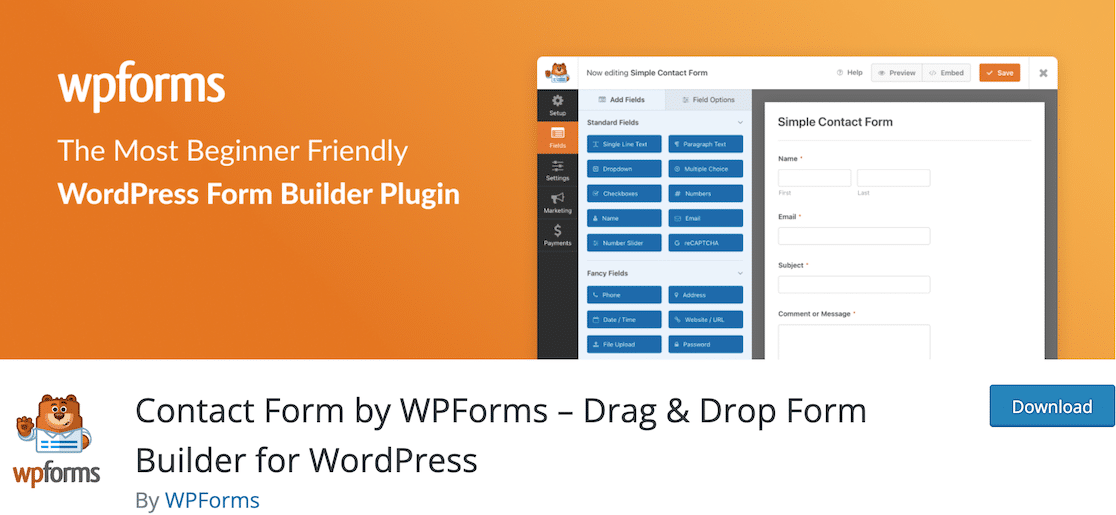
Contact Form 7 is a popular choice. It is simple and works with many themes. WPForms Lite offers a drag-and-drop builder. It is beginner-friendly and integrates with Elementor easily. Ninja Forms allows customization without coding. It also supports many add-ons for more features.
Criteria For Selecting A Plugin
Check if the plugin is easy to use. It should let you build forms without coding. Compatibility with Elementor is a must. Look for regular updates and good user reviews. The plugin should be lightweight to keep your site fast. Also, verify if it supports spam protection and notifications.
Credit: wpmailsmtp.com
Installing The Contact Form Plugin
Installing a contact form plugin is the first step to creating a form in WordPress Elementor Free. This plugin lets you build and manage forms easily. It also makes your website interactive and user-friendly.
The process is simple and quick. You do not need coding skills. Just follow the steps below to install the plugin and start building your contact form.
Accessing The WordPress Plugin Repository
Log in to your WordPress dashboard. On the left menu, find and click “Plugins.” Then select “Add New.”
The WordPress Plugin Repository will open. This is a large library of free plugins. You can search for contact form plugins here.
Type “contact form” in the search bar. A list of plugins will appear. Look for a plugin compatible with Elementor and free to use.
Step-by-step Plugin Installation
After finding the contact form plugin, click the “Install Now” button next to it. WordPress will download and install the plugin.
Once installed, the “Install Now” button changes to “Activate.” Click “Activate” to enable the plugin on your site.
After activation, the plugin appears in your dashboard menu. You can now create and manage contact forms easily.
Creating A Contact Form
Creating a contact form in WordPress using Elementor Free is simple and fast. It helps visitors send messages directly from your website. A well-made form improves communication and builds trust.
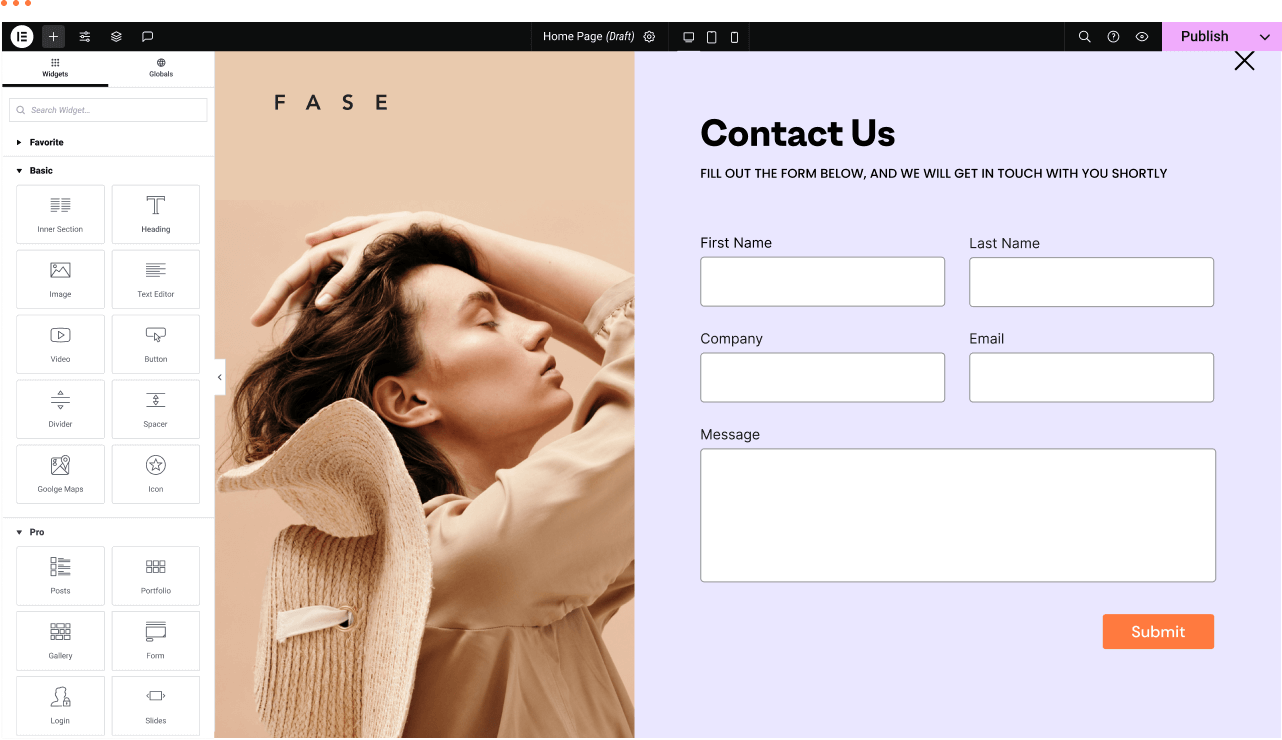
Elementor’s drag-and-drop interface makes form creation easy. You do not need coding skills. Just follow clear steps to set up fields and style the form to fit your site.
Setting Up Basic Form Fields
Start by adding a new section in Elementor and drag the “Form” widget. You will see default fields like Name, Email, and Message. These fields collect essential visitor information.
Click on each field to edit its label and placeholder text. Make sure the labels are clear and simple. You can add new fields like Phone or Subject by clicking “Add Item.”
Set fields as required if visitors must fill them before submitting. This helps get the right information. Keep the form short to encourage more submissions.
Customizing Form Appearance
Use Elementor’s style tab to change colors, fonts, and spacing. Match the form’s look to your website’s design for a smooth experience. Adjust the button color and text to make it stand out.
Change field sizes and borders to improve readability. Add padding to avoid crowding. Test the form on mobile devices to ensure it looks good everywhere.
Simple design keeps users focused on filling the form. Avoid too many colors or effects that distract visitors.
Adding The Form To Elementor
Adding a contact form to your Elementor page is simple and fast. You can easily place the form anywhere on your site. This helps visitors reach you quickly. Elementor works well with contact form plugins that provide shortcodes. Using these shortcodes makes the process smooth and efficient.
Using Shortcodes In Elementor
Most free contact form plugins generate a shortcode for your form. This shortcode is a small piece of code. It acts as a placeholder for your contact form. Copy this shortcode from your plugin’s settings.
Open the Elementor editor for the page where you want the form. Find the “Shortcode” widget in the Elementor panel. Drag and drop it to the desired section on your page.
Paste the copied shortcode into the widget’s text box. The form will appear in the preview area instantly. Save or update the page to keep your changes.
Positioning The Form On Your Page
Choosing the right place for your form matters. Position it where visitors can easily find it. Common spots include the contact page or the footer area.
Use Elementor’s drag-and-drop feature to move the form widget. Adjust the space around it with padding and margins. Make sure the form looks clean and fits well with other content.
Test the form on different devices to ensure it is responsive. A well-positioned form increases user interaction and improves site usability.
Configuring Form Settings
Configuring form settings is a key step in creating a contact form with Elementor Free. It controls how your form behaves after submission. Proper settings ensure you receive messages quickly and your visitors get a smooth experience.
Focus on email notifications and managing form submissions. These help keep your communication clear and organized.
Setting Up Email Notifications
Email notifications alert you when someone fills out your form. Set the recipient email address to your main inbox. This way, you never miss new messages.
Customize the email subject and message body. Include form field data so you know what the user submitted. Use simple tags like {field_id} to insert form info automatically.
Double-check that your site can send emails. Some hosts block outgoing emails, causing notifications to fail. Use plugins or tools to test email delivery if needed.
Managing Form Submission Settings
Control what happens after a user submits the form. You can show a thank-you message or redirect them to another page.
Keep your message short and polite. Confirm the form sent successfully to avoid confusion. Redirect users to a relevant page for further steps or offers.
Set limits on form submissions to prevent spam. Use reCAPTCHA or other tools to protect your form. This keeps your inbox clean and saves time.
Testing Your Contact Form
Testing your contact form is an important step after creating it in Elementor Free. It ensures that your visitors can send messages smoothly. Testing also helps you find any issues before visitors do. This makes your website look professional and trustworthy.
Submitting Test Entries
Start by filling out the form with sample information. Use your real email address to check if messages arrive. Submit the form several times to confirm it works every time. Check your email inbox and spam folder for the test messages. Make sure all the form fields send the correct information.
Troubleshooting Common Issues
If you do not receive emails, check your spam folder first. Confirm your email address is correct in the form settings. Sometimes, hosting servers block emails from forms. Try using a plugin like WP Mail SMTP to fix email delivery problems. Clear your website cache and try submitting the form again. Make sure the form fields are required and not empty. Review your form settings carefully to avoid errors.
Enhancing Form Functionality
Enhancing your contact form improves user experience and security. Basic forms collect information but adding features makes them more useful. Improved forms reduce spam and connect smoothly with other tools. These steps help you manage contacts better and keep your site safe.
Adding Captcha For Spam Protection
Captcha stops bots from sending fake messages. It asks users to prove they are human. This protects your form from spam and unwanted emails. Many free captcha options work well with Elementor forms. Simple captchas do not annoy real users but block bots effectively.
Integrating With Other Tools
Connecting your form to tools saves time and effort. You can link it to email marketing services or CRMs. This helps organize contacts and send automatic replies. Some free plugins support easy integration with popular tools. Integration keeps your workflow smooth and efficient.

Credit: www.youtube.com
Credit: elementor.com
Frequently Asked Questions
How To Add A Contact Form In Elementor Free Version?
You can add a contact form in Elementor free by using a third-party plugin like WPForms or Contact Form 7. Install the plugin, create your form, then embed it in your Elementor page using the shortcode widget.
Can I Customize The Contact Form In Elementor Free?
Yes, customization is possible by using form plugins compatible with Elementor free. These plugins allow you to adjust fields, styles, and notifications easily without coding.
Is It Necessary To Use Plugins For Contact Forms In Elementor Free?
Yes, Elementor free does not have a built-in form widget. Using plugins like WPForms or Contact Form 7 is essential to add functional contact forms.
How To Embed A Contact Form Shortcode In Elementor?
Copy the form shortcode from your chosen plugin. In Elementor editor, drag the Shortcode widget to your page and paste the shortcode. The form will appear on your page.
Conclusion
Adding a contact form in WordPress Elementor Free is simple and quick. You can connect with your visitors easily by following the steps shared. A contact form helps gather messages without hassle. No coding skills are needed to create one.
Keep your site user-friendly and professional with this tool. Start building better communication with your audience today. Your website will feel more complete and inviting. Just a few clicks, and you are done.


