
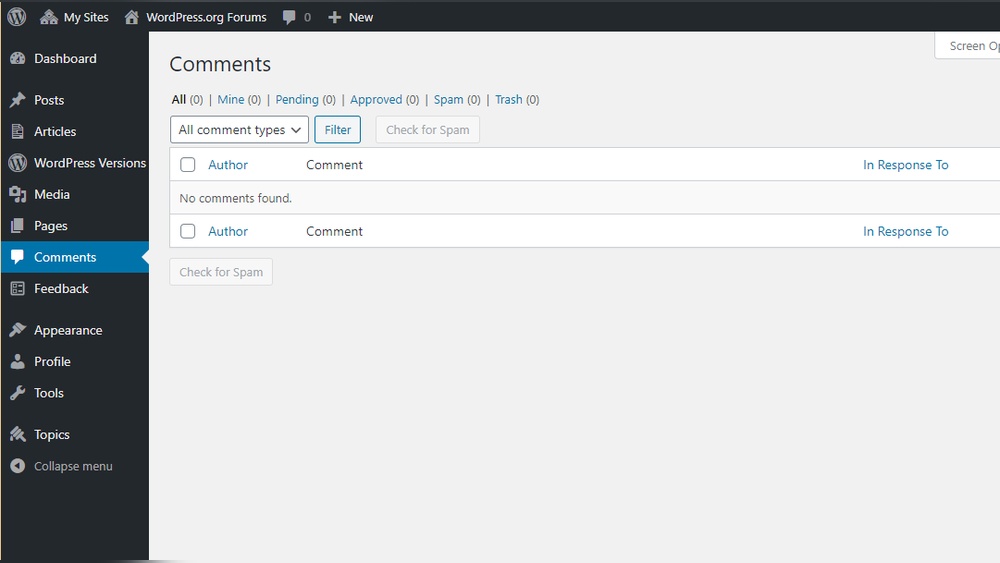
Are you looking to make your WordPress pages more interactive and engaging? Adding comments is a simple way to encourage your visitors to share their thoughts, ask questions, and connect with your content.
But how do you enable comments on a WordPress page, and what steps do you need to follow? You’ll discover easy, step-by-step instructions to add comments to your WordPress pages quickly. By the end, you’ll have the tools to boost engagement and create a community right on your site.
Keep reading—you don’t want to miss these helpful tips!

Credit: wordpress.org
Why Enable Comments
Enabling comments on your WordPress page invites visitors to share their thoughts. It creates a space for interaction and feedback. Comments make your site feel alive and active. They encourage readers to stay longer and engage more.
Benefits For Engagement
Comments boost user interaction directly on your page. Visitors can ask questions and share opinions. This interaction keeps the content fresh and interesting. It also helps you understand your audience better. Engaged users are more likely to return to your site.
Seo Advantages
Search engines notice pages with active comments. Fresh content from comments can improve your rankings. Keywords in comments add relevance to your page. This helps your page appear in more search results. More visibility means more visitors to your site.
Building Community
Comments create a sense of community around your site. Readers connect with each other through shared ideas. This builds trust and loyalty to your brand. A strong community encourages repeat visits. It turns visitors into long-term followers.
Types Of WordPress Comments
Comments help visitors share their thoughts on your WordPress page. They create interaction and build community around your content. WordPress offers different types of comment systems. Choosing the right one depends on your needs and audience.
Default Comment System
The default comment system comes built into WordPress. It is simple and easy to use. Visitors can leave text comments directly on your page. You can moderate comments to prevent spam. This system works well for small to medium websites.
Third-party Plugins
Plugins add extra features to the WordPress comment system. Popular plugins include Disqus and wpDiscuz. These provide better spam control and user engagement tools. They allow threaded comments and notifications. Plugins suit websites needing advanced comment features.
Social Media Integration
Social media comments let visitors use their Facebook or Twitter accounts. This reduces spam and makes commenting faster. Visitors feel comfortable using familiar platforms. It also helps spread your content on social networks. This type works well for sites with active social followers.
Preparing Your Page For Comments
Preparing your WordPress page for comments is an important step. It helps you control how visitors interact with your content. Setting up comments properly can boost engagement and build a community around your site.
This section guides you through key steps to prepare your page for comments. Each step ensures comments work smoothly and fit your website’s style.
Checking Theme Compatibility
Not all WordPress themes support comments on pages. Some themes only allow comments on posts. Check your theme’s documentation to see if it supports page comments.
Visit the Appearance section in your dashboard and open your theme details. Look for comment support or page options. If your theme does not support comments, consider switching to one that does.
Adjusting Discussion Settings
WordPress has built-in settings to manage comments globally. Go to Settings > Discussion in your dashboard. Here, you can allow or disable comments on new posts and pages.
Check the box that says “Allow people to post comments on new articles.” This setting affects pages too. You can also control comment moderation and notifications here.
Enabling Comments On Pages
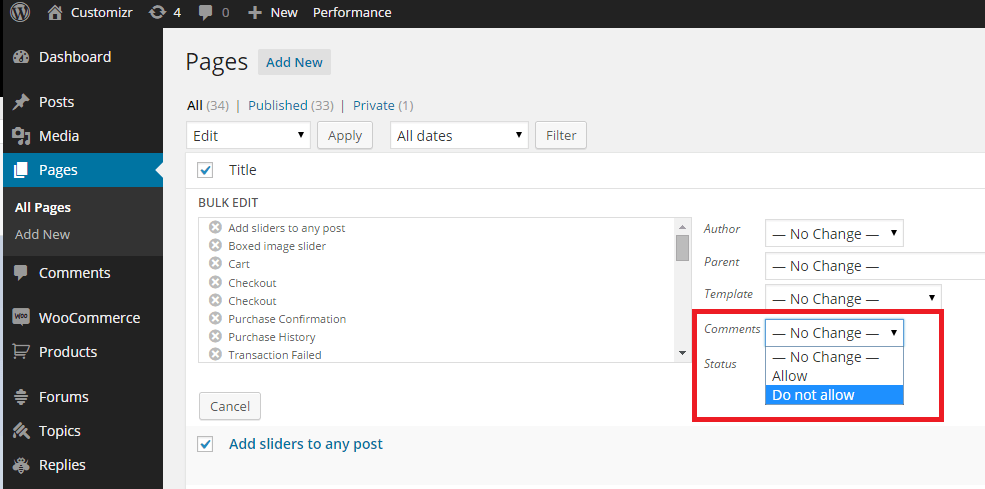
By default, comments might be disabled on pages. To enable them, open the page editor for the page you want to allow comments on. Look for the Discussion box below the editor.
If you don’t see the Discussion box, click on Screen Options at the top and enable it. Then, check the box “Allow comments” to turn on comments for that page.
Credit: docs.presscustomizr.com
Adding Comments Using WordPress Editor
Adding comments to your WordPress page helps visitors share their thoughts. It builds interaction and makes your content more lively. WordPress offers simple tools for enabling and managing comments through its editor interfaces.
This section explains how to add comments using the WordPress editor. Both the Classic Editor and the Block Editor have clear steps to follow. Choose the method that fits your setup and start engaging with your audience.
Classic Editor Steps
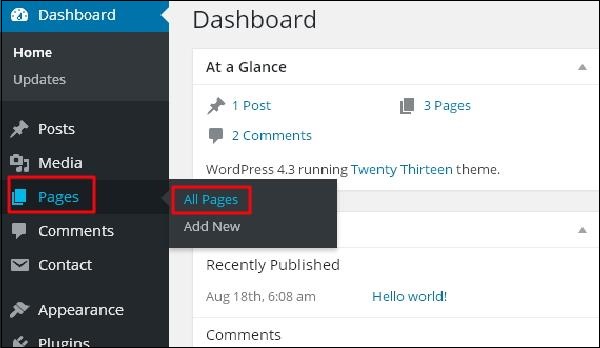
Open your WordPress dashboard and go to Pages. Select the page where you want to add comments. Scroll down to the “Discussion” box below the content area. Check the box labeled “Allow comments” to enable comments on that page. If you do not see the Discussion box, click on “Screen Options” at the top right and enable it. Save or update the page to apply the changes. Visitors can now leave comments on your page.
Block Editor (gutenberg) Steps
Open your WordPress dashboard and navigate to Pages. Edit the page where you want to allow comments. Click the gear icon to open the settings sidebar. Select the “Discussion” tab in the sidebar. Toggle on the option “Allow comments.” If you do not see the Discussion tab, click the three-dot menu in the upper right corner, then select “Options” to enable it. Update or publish the page to save your settings. Your visitors can post comments on this page now.
Using Plugins To Enhance Comments
Plugins help improve the comment section on your WordPress page. They add new features and make comments easier to manage. Plugins also help create a better experience for visitors who want to join the discussion.
Using plugins, you can add styles, control spam, and allow social logins. These tools make your comment section more interactive and secure. Choosing the right plugin can save time and keep your page clean.
Popular Comment Plugins
Several plugins are popular for enhancing WordPress comments. Disqus replaces the default system with a modern interface. wpDiscuz offers real-time comments and voting features. Jetpack Comments allows users to log in with social media accounts. These plugins are easy to install and use.
Customization Options
Plugins offer many ways to customize comments. You can change colors, fonts, and layout to match your site. Some plugins let you add emojis, images, or polls inside comments. Custom settings help create a unique look that fits your brand.
Spam Protection Features
Spam comments can harm your site’s reputation. Many plugins include spam filters to block unwanted messages. Features like CAPTCHA and blacklists stop bots from posting. This keeps your comment area clean and trustworthy for real users.
Managing And Moderating Comments
Managing and moderating comments on your WordPress page keeps your site safe and friendly. It helps maintain quality and stops bad content. Clear rules and quick actions make your comment section more useful. This way, visitors enjoy reading and joining the conversation.
Approving And Deleting Comments
Check new comments regularly to keep control. Approve comments that add value or ask good questions. Delete comments that are rude, irrelevant, or spammy. WordPress lets you approve or delete comments from the admin dashboard. This keeps your page clean and welcoming.
Setting Comment Rules
Create simple rules for comments to guide visitors. Tell them what is okay to post and what is not. Include rules about respect, no spam, and staying on topic. Display these rules near the comment box to remind users. Clear rules reduce problems and improve discussion quality.
Handling Spam And Trolls
Spam and trolls can harm your page’s reputation. Use plugins like Akismet to catch spam automatically. Delete spammy comments quickly to keep your page safe. For trolls, block or ban users who post harmful content. Respond calmly or ignore to avoid fueling conflicts.
Tips To Boost Comment Engagement
Boosting comment engagement on your WordPress page helps build a community. It invites readers to share thoughts and ask questions. Engaged visitors spend more time on your site. Here are simple tips to encourage more comments and keep the conversation alive.
Prompting Users To Comment
Ask clear questions at the end of your posts. Invite readers to share their opinions or experiences. Use simple language that encourages easy responses. Make your questions direct and relevant to the content. This creates a natural reason for visitors to write comments.
Responding To Comments
Reply quickly to comments on your posts. Show appreciation for every visitor’s input. Answer questions and add useful information. This makes readers feel valued and heard. It encourages them to return and comment again.
Incentivizing Participation
Offer small rewards for commenting, like shoutouts or exclusive tips. Run contests or giveaways that require comments to enter. Recognize active commenters to motivate others. Incentives create excitement and make commenting more attractive.
Credit: www.tutorialspoint.com
Frequently Asked Questions
How Do I Enable Comments On A WordPress Page?
To enable comments, go to your WordPress dashboard. Navigate to Pages, select the page, then click Screen Options. Enable the Discussion box and check “Allow comments” under the Discussion section. Finally, update the page to save changes.
Can I Add Comments To Specific WordPress Pages Only?
Yes, WordPress lets you enable or disable comments on individual pages. Simply edit the desired page, scroll to the Discussion section, and toggle the “Allow comments” option. This gives you control over which pages accept comments.
Why Are Comments Not Showing On My WordPress Page?
Comments may be disabled globally or on that specific page. Check Settings > Discussion to ensure comments are enabled site-wide. Also, verify the page’s Discussion settings allow comments. Clear caches if using caching plugins to reflect changes.
How Can I Manage WordPress Page Comments Efficiently?
Use the Comments menu in your dashboard to moderate all comments. Approve, reply, or delete comments easily. Consider using plugins for advanced moderation, spam filtering, and comment organization to keep discussions clean and relevant.
Conclusion
Adding comments to your WordPress page helps start conversations. Visitors can share ideas and feedback easily. It also makes your site feel more alive and friendly. You only need a few steps to turn comments on. Keep your page active by checking and replying to comments.
This simple feature connects you with your audience better. Try it today and see the difference.



