
Are you finding it tricky to add comments to your WordPress theme? You’re not alone.
Many WordPress users, from newbies to seasoned pros, often stumble upon this seemingly simple task. But why let a small technical hiccup hold you back from engaging with your audience? Imagine having a lively comment section buzzing with discussions, feedback, and interactions.
Sounds exciting, right? You’ll discover the step-by-step process to seamlessly integrate a comment section into your WordPress theme. You’ll find it’s easier than you think! By the end of this guide, you’ll not only enhance your website’s functionality but also boost your site’s engagement and SEO performance. So, let’s dive in and unlock the potential of your WordPress site today!
Benefits Of Adding Comments
Comments bring life to your blog. They help in creating a community. Visitors feel connected when they can share thoughts. This interaction boosts user engagement. Engaged users spend more time on your site. Search engines love active sites. More comments can improve your site’s SEO. This means more people find your site easily. Comments also provide valuable feedback. You get to know what your audience likes. Or dislikes. This helps in improving your content. Furthermore, comments offer fresh ideas. They might inspire your next blog post. Encourage your readers to comment. It builds trust and loyalty.
Credit: docs.presscustomizr.com
Choosing The Right File For Comment Code
Most themes have many files. Finding the right file is key. Look for files named comments.php or single.php. These files usually hold the comment code. Theme folders may differ. Sometimes, the comment code is in index.php.
Open the file with a code editor. Be careful when changing the code. Mistakes can break the site. Always save a backup before making changes. Check for comment functions like comment_form(). This function helps in adding comments.
Read the code carefully. Make sure not to delete important parts. Adding comments correctly will enhance user interaction. Test the changes to ensure everything works fine.
Using WordPress Built-in Functions
The comment form function is a handy tool in WordPress. It lets users add comments to your site. Use comment_form() in your theme files. This function shows a form for visitors. They can write and submit comments easily. Customizing the form is possible with arguments. This means you can change fields and labels. Make the form fit your site’s style. A simple tool to engage users.
Displaying comments on your site is simple. Use the list comments function. The wp_list_comments() function helps with this. It shows all the comments under a post. Comments appear in a neat list. Each comment shows the author’s name and message. Styling options are available too. This helps match your theme’s look. A perfect way to show user feedback.
Customizing Comment Form
Adding custom fields can make your comment section more interactive. You can add fields like age, location, or favorite color. This helps you know your audience better. First, open your theme’s functions.php file. Use the comment_form_default_fields filter. Add your new fields here. Each field should have a name and label. Save the changes and check your comment form. The new fields should appear. This makes your site more engaging.
Make your comment form look nice. Use CSS to change colors and fonts. Start by opening your theme’s style.css file. Find the section for comments. Add new styles for background and text. Use bright colors for a fun look. Keep it simple for easy reading. Test the changes in a browser. Good styling makes the form more inviting. A well-styled form can attract more comments. This helps build a strong community.
Implementing A Comment Section
Comments allow people to share thoughts. To add comments, first find the comments.php file in your theme. This file controls how comments show on the site. Copy the comment code from it. Paste this code into your single.php file. Place it where you want comments to appear. Ensure the code is within the loop. This helps comments relate to the right post.
Check if the comment section works. Visit your site and scroll to a post. Look for the comment box at the end. Type a comment to test it. Submit the comment and refresh the page. The comment should appear below the post. If it doesn’t, recheck your code placement. Correct code placement is crucial for function.

Credit: docs.presscustomizr.com
Enhancing Comment Features
Making comments better can be easy. Comment moderation helps control what is shared. It keeps bad words away. People can share good ideas. Moderation helps create a friendly space. Admins can see comments first. They decide if comments are good. This helps build a safe online community.
Enabling Comment Moderation
Moderation tools are useful. Admins can set rules. They can choose to approve comments. Bad comments are blocked. This stops mean words. Moderation keeps comments kind. It makes users happy.
Integrating Captcha For Spam Protection
Spam is not nice. It fills up comment sections. CAPTCHA stops spam bots. It asks users simple questions. Only humans can answer. Bots get confused and fail. This keeps comments clean. CAPTCHA is smart. It stops unwanted spam. Users enjoy reading real comments. This adds value to discussions.
Troubleshooting Common Issues
Adding comments to a WordPress theme can sometimes be challenging. Common issues include incorrect file placement and syntax errors. Ensure you use the right template tags and check your theme’s functions for compatibility.
Fixing Display Errors
Sometimes, comments may not show properly on your WordPress theme. This can confuse visitors. Check your theme settings first. Ensure the comment section is enabled. Also, verify that your theme supports comments. Update your theme to the latest version. This often fixes display problems. Use a different browser to test. Some browser settings may block comments. Clear your browser cache. This might solve visibility issues.
Resolving Submission Problems
There are times when comments do not submit correctly. This might frustrate users. Check your WordPress settings for submission rules. Make sure users can post comments. Look for any plugin conflicts. Some plugins may block comment submission. Disable plugins one by one to find the culprit. Inspect your site’s permissions. Incorrect settings may prevent submission. Adjust settings for easier user access. Consider using a dedicated comment plugin. They often improve functionality.
Credit: presscustomizr.com
Frequently Asked Questions
How Can I Add Comments To WordPress Themes?
To add comments in WordPress themes, locate the `comments. php` file in your theme directory. Use the `comments_template()` function in your theme’s `single. php` or `page. php` files. This function integrates the comment section into your posts and pages, allowing users to leave comments.
What Is A WordPress Comment Template?
A WordPress comment template is a file named `comments. php`. It controls how comments are displayed on your site. This file can be customized to change the appearance and functionality of the comment section. It enables you to create a unique commenting experience for your visitors.
How Do I Customize WordPress Comment Styles?
To customize WordPress comment styles, edit your theme’s CSS file. Locate the classes related to comments, such as `. comment-list` or `. comment-author`. Modify these styles to change fonts, colors, and layout. Customizing your comment styles enhances your site’s design and user engagement.
Can I Disable Comments On WordPress Pages?
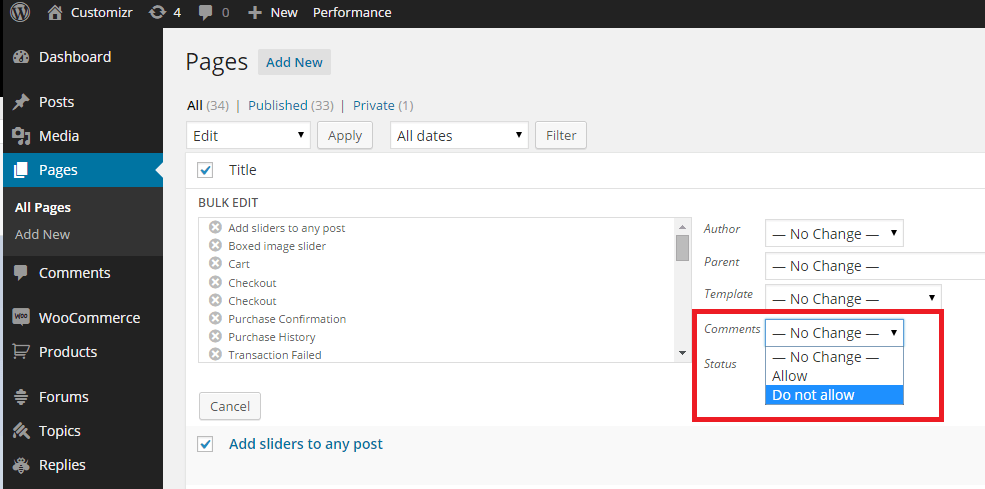
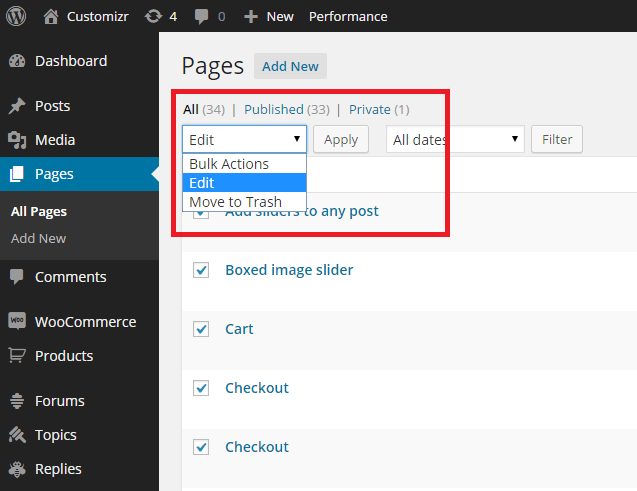
Yes, you can disable comments on WordPress pages. Go to the WordPress dashboard, select “Pages,” and edit the desired page. Locate the “Discussion” section and uncheck “Allow comments. ” This will prevent users from leaving comments on that specific page.
Conclusion
Adding comments in WordPress themes is simple yet effective. It enhances user interaction and boosts engagement. You can follow the steps outlined to add comments smoothly. Customize settings to fit your website needs. Ensure your comment section is user-friendly. This encourages more visitors to share thoughts.
Regularly monitor and respond to comments. It keeps the conversation alive. Remember, comments make your site dynamic and interactive. They offer valuable feedback from your audience. So, start today and transform your WordPress theme. Make it more engaging with comments.
Happy blogging!


