
Imagine landing on your WordPress site and feeling that something is missing. The content is there, the layout is perfect, but it lacks vibrancy and life.
Colors have the power to transform your website, leaving a lasting impression on your visitors. They can evoke emotions, convey messages, and even influence decisions. But how do you add those captivating colors to your WordPress theme without getting tangled in complex coding?
You’re not alone in this quest. Many website owners struggle to find that perfect balance between aesthetics and functionality. The good news? It’s easier than you think to breathe life into your site with the right colors. In this guide, you’ll discover simple, yet effective ways to infuse your WordPress theme with colors that resonate with your brand and captivate your audience. Ready to transform your website into a visual masterpiece? Keep reading to unlock the secrets of adding colors to your WordPress theme effortlessly.

Credit: doc.seatheme.net
Choosing The Right Color Palette
Colors make people feel different things. Red can mean love or anger. Blue feels calm and cool. Yellow is bright and happy. Think about your website. What feelings do you want? Pick colors that match those feelings. This helps tell your story. Makes your site feel just right.
Some colors look great together. Complementary colors are opposite on the color wheel. They stand out when together. Analogous colors sit next to each other on the wheel. They look soft and natural. Monochromatic colors are shades of one color. They look clean and simple. Choose a scheme that fits your theme. Make your site look nice and neat.
Using The WordPress Customizer
Open your WordPress dashboard. Find the “Appearance” tab. Click on “Customizer”. This opens the theme settings. You see different options. Look for the color settings. It’s easy to find. You can change many things here. It’s a fun process.
Choose an element to change. It can be the background. Or the header. You can change text colors too. Pick colors you like. Make sure they match. You can use a color picker. It helps you choose. Save changes when done. Always check how it looks. You can change it again.
Custom Css For Color Customization
First, go to your WordPress dashboard. Then click on Appearance. After that, click on Customize. Next, find the Additional CSS tab. It is usually at the bottom. Click on it. This opens a new box. Here, you can add your own CSS code.
To change colors, write your code in the box. Use the CSS language. For example, to change text color, write: color: blue;. To change background, write: background-color: yellow;. Always use a semicolon after each line. This keeps the code neat. Save changes when done. Look at your website to see the new colors.
Utilizing Theme Options
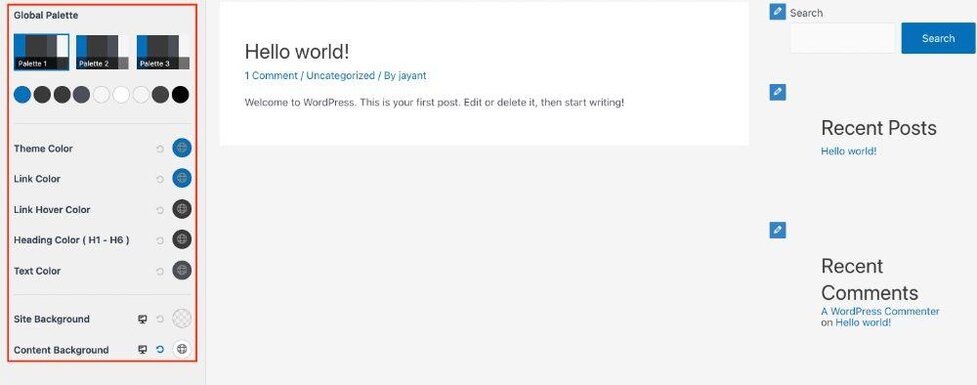
Many WordPress themes come with built-in color settings. These settings help change your site’s look. Find these options in the customization menu. This menu is under the “Appearance” tab. Click on it to explore your theme’s color choices. You can change background, text, and link colors. Choose colors that match your brand. Try different shades. Check how they look on your site.
Theme options give more control. They allow you to adjust colors. Open the theme options panel. Find the color settings section. Here, you can select new colors. Some themes even have a color picker tool. This tool makes choosing colors easy. Remember to save your changes. Preview your site after making changes. Make sure everything looks good.
Employing Color Plugins
Adding color plugins to WordPress is easy. Many popular plugins exist for color customization. Color Picker and Custom Colors are common choices. These plugins offer various tools. Users can choose from a wide range of colors. Some plugins also allow for custom palettes. This feature gives users more control. Live Preview is available in many plugins. It helps users see changes immediately. This saves time and effort.
Installing plugins is simple. Begin by going to the dashboard. Click on the Plugins menu. Select Add New. Search for the desired plugin. Install and Activate it. Configure settings in the plugin menu. Follow instructions carefully. Adjust colors and settings as needed. Save changes to apply them. Restart if necessary. Configuration may vary by plugin. Make sure to read the provided documentation. This ensures smooth setup and operation.
Testing And Previewing Color Changes
Explore how to add colors to your WordPress theme with ease. Testing and previewing color changes helps create a vibrant website. Customize your design to reflect your brand’s personality effectively.
Using Preview Mode
WordPress makes it easy to see changes. Preview Mode lets you view edits safely. It shows what your site will look like. This way, you won’t make a mistake live. Always check colors before saving. Try different shades and combinations. Find what fits your style best. Testing ensures a smooth design.
Ensuring Accessibility And Readability
Colors should be easy to see. Make sure text stands out. Use high contrast colors for clarity. This helps everyone read content better. Avoid using very bright colors together. They can hurt the eyes. Test with different people. Get feedback on readability. This helps make a better website for all.
Best Practices For Color Consistency
Ensure color consistency in your WordPress theme by using a limited color palette. Choose colors that complement each other to create a cohesive look. Implement custom CSS to maintain uniform colors across various elements, enhancing visual appeal and user experience.
Maintaining Brand Identity
A consistent color scheme helps your brand stand out. It builds trust with your audience. Choose colors that match your brand’s logo. Use these colors in all parts of your site. This includes headers, footers, and buttons. Consistency makes your site look professional. Avoid using too many colors. Stick to two or three main colors. This keeps your site clean and easy to read.
Ensuring Visual Harmony
Colors should work well together. This creates a pleasant experience for visitors. Use tools to find colors that match. Online color wheels are helpful. Try different shades of the same color. This adds depth without clashing. Always check if text is easy to read on your background. Good contrast is key. It helps users read content easily. Your site will look balanced and inviting.

Credit: qodeinteractive.com
Credit: wpastra.com
Frequently Asked Questions
How Can I Change Theme Colors In WordPress?
To change theme colors in WordPress, navigate to the Customizer. Find “Colors” or “Theme Options” and select your preferred palette. Some themes might offer advanced color settings for specific elements. Always preview changes before publishing to ensure visual consistency.
Which Plugin Helps Customize WordPress Theme Colors?
The “Advanced Custom Fields” plugin is a popular choice for customizing theme colors. It allows detailed color adjustments across your site. Another option is “YellowPencil” which offers visual editing capabilities. These plugins enhance the default customization options provided by your theme.
Can I Use Custom Css For Theme Colors?
Yes, you can use custom CSS to change theme colors. Access the “Additional CSS” section in the Customizer. Insert your CSS code to modify specific elements. This method provides more control over your site’s appearance, especially if your theme’s options are limited.
Do All WordPress Themes Support Color Changes?
Most WordPress themes support color changes through the Customizer. However, some free or basic themes might have limited options. Premium themes often offer extensive color customization features. Before selecting a theme, review its customization capabilities to ensure it meets your needs.
Conclusion
Adding colors to your WordPress theme can be simple. Follow the steps mentioned to enhance your site’s look. A good color scheme makes your website more appealing. It draws visitors’ attention. Try different color combinations. Experiment until you find the perfect match.
Keep your audience in mind. Choose colors that fit your brand. Regular updates help keep your site fresh. Practice makes perfect. With time, customizing colors becomes easier. Your website will stand out. Enjoy the creative process. Transform your site with vibrant colors.
Happy designing!


