
Feeling overwhelmed by the idea of adding code to your WordPress theme? You’re not alone.
Many WordPress users hesitate when it comes to tweaking their themes, fearing they might break something or cause a major glitch. But what if I told you that with the right guidance, you can confidently customize your theme and make your website truly unique?
Imagine the satisfaction of seeing your vision come to life with just a few lines of code. In this guide, you’ll discover simple, step-by-step instructions to safely add code to your WordPress theme, unlocking endless possibilities for your site. Ready to transform your WordPress experience and take control of your website’s design? Let’s dive in and demystify the process together.
Choosing The Right Approach
Child themes are great for making changes. They keep your main theme safe. Any updates to the parent theme won’t break your changes. With a child theme, you can add custom CSS or change the layout. Parent themes hold the main design. You should never change the parent theme directly. This can lead to problems when updates come. Always make a child theme for your edits. It is the safest way to work with WordPress themes.
Custom code allows for unique changes. It can be added to a theme’s functions file. This method requires some coding skills. On the other hand, plugins are easier to use. They add features without coding. Some plugins may slow down your site. Too many plugins can cause conflicts. Choose wisely between custom code and plugins. Keep your site fast and safe.
Preparing Your Environment
Start by installing WordPress locally. Use tools like XAMPP or MAMP. These tools help create a local server on your computer. Download WordPress from its official site. Follow the instructions to set it up. This step is crucial. It lets you test changes safely. No risk to your live site. Install a text editor like Atom or Sublime Text. It helps you write code easily. Local environment boosts learning. You can experiment freely.
Always back up your theme before making changes. Use plugins like UpdraftPlus or BackWPup. These tools save your work. Restore your site if something goes wrong. Download your theme files. Keep a copy in a safe place. Backup prevents data loss. Protects your website’s design. Never skip this step. Safety first.
Adding Code Via Theme Editor
First, open your WordPress dashboard. Find the Appearance tab on the left menu. Click it. Next, select Theme Editor. A new page will open. You will see your theme files here. The right side shows a list. These are your theme’s files. Clicking a file opens it in the editor.
Always make a backup before changing files. This keeps your site safe. Sometimes, changes can break things. Use a child theme if possible. It keeps changes separate. That way, updates won’t erase your work. Save your changes often. Test your site after editing. This ensures everything works fine. Never edit files directly on a live site. Use a staging site instead. This helps avoid errors on the main site.
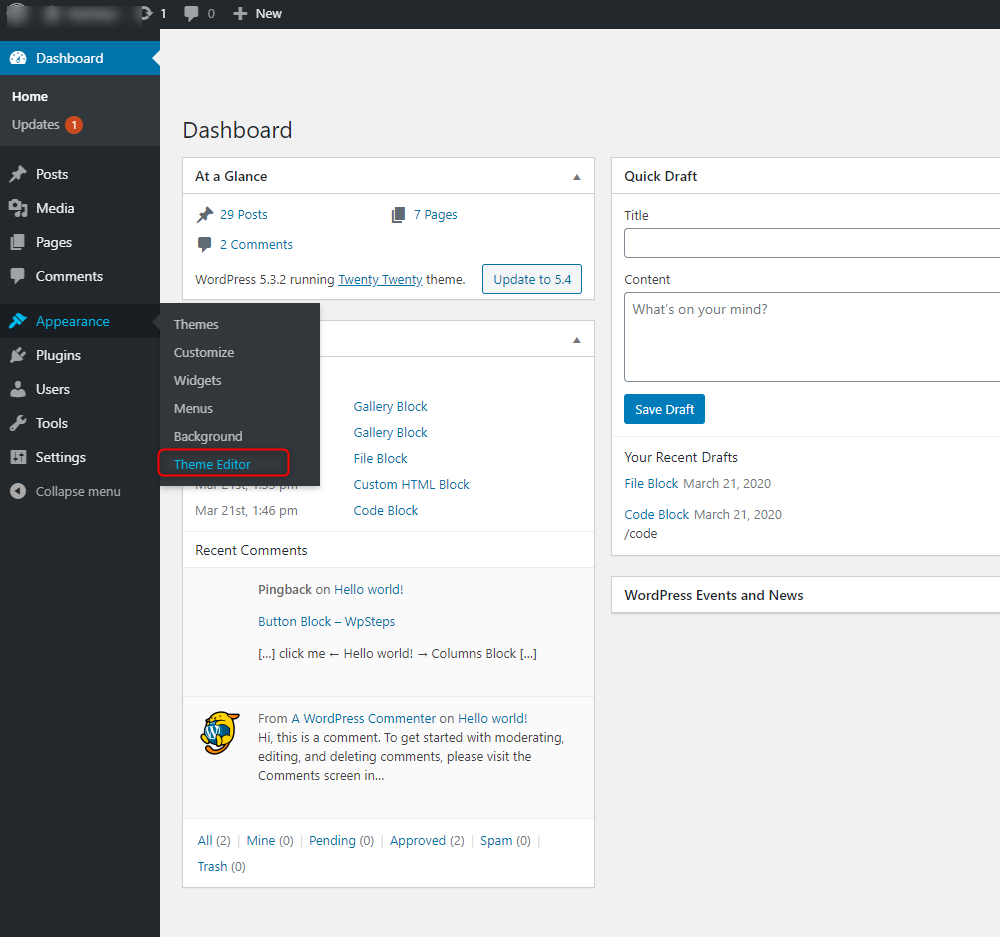
Credit: wpfactory.com
Using Ftp For Code Changes
First, open your FTP client. Enter your server’s address. You need a username and password. These come from your hosting provider. Click connect. You will see your website files. Be careful not to delete anything. Find the theme folder. It is often named wp-content/themes. Double-click to open it. You are now ready to add code.
Make changes to your files on your computer. Save them. In the FTP client, find the file you changed. Drag it from your computer to the server. This uploads the new file. Double-check the file name. It should match the one on the server. Refresh your website. Your new code should be live. If there are errors, check the file again. You can always upload a backup.
Incorporating Code With Custom Functions
Adding code to WordPress themes is simple. First, create a custom functions file. This file can hold your code snippets. Use a text editor to make the file. Name it custom-functions.php. Keep it in your theme folder. This helps organize your code. It also keeps code separate from the main theme files.
The functions.php file is important. It runs every time your theme loads. Open this file with a text editor. Add your custom code here. This file lets you add features to your site. Remember to save changes. Always back up the file before editing. This prevents loss of code. You can also use a child theme. It keeps changes safe during updates.
Adding Javascript And Css
To add JavaScript and CSS to a WordPress theme, use the functions.php file. This file helps you manage code. Use the wp_enqueue_script() function for JavaScript. Use wp_enqueue_style() for CSS. Always use these functions to add scripts and styles. This keeps your theme clean and organized.
Each script or style needs a unique name. This name is the handle. It helps identify the code. Enqueue them properly. This ensures they load at the right time. Avoid direct linking in the theme files. This can cause errors. Enqueuing is a safe way to include code.
Some scripts need other files to work. These are dependencies. Use the dependencies parameter in enqueue functions. This makes sure scripts load in the right order. For example, a script that needs jQuery should list jQuery as a dependency. This way, jQuery loads first. The script then runs smoothly. Manage dependencies carefully. It avoids conflicts and errors in your theme.
Testing And Debugging
Checking Code for Errors is an important step. A simple mistake can break your site. Use tools that find mistakes in code. These tools show where the problem is. They help fix it fast. This saves time and trouble.
Another way to check code is using Browser Developer Tools. These tools are inside the browser. They help view and change code. You can see how changes affect the site. This makes fixing easy. It’s like a window into the code’s world. You can find errors and see how code works. The tools show what each line does. This helps understand and solve problems quickly.

Credit: cyberchimps.com
Best Practices For Code Management
Organized code is easy to read and update. Group similar functions together. Use comments to explain complex parts. Keep files well-named. This helps locate specific code quickly. Consistent formatting is key. Keep styles uniform. Use spaces wisely. They improve readability. Indentation is important. It shows code hierarchy. Keep it consistent. Avoid clutter in your code. Remove unused lines. This keeps your theme clean. Backup your code often. This prevents loss.
Documenting changes is vital. It helps track updates. Record what you change and why. Keep a changelog. This log is a history of changes. Date each entry. Include version numbers. Explain the impact of changes. This helps others understand. Update documentation regularly. This ensures accuracy. Share documentation with team members. This keeps everyone informed. Use clear language. Avoid technical jargon. This helps non-experts understand.
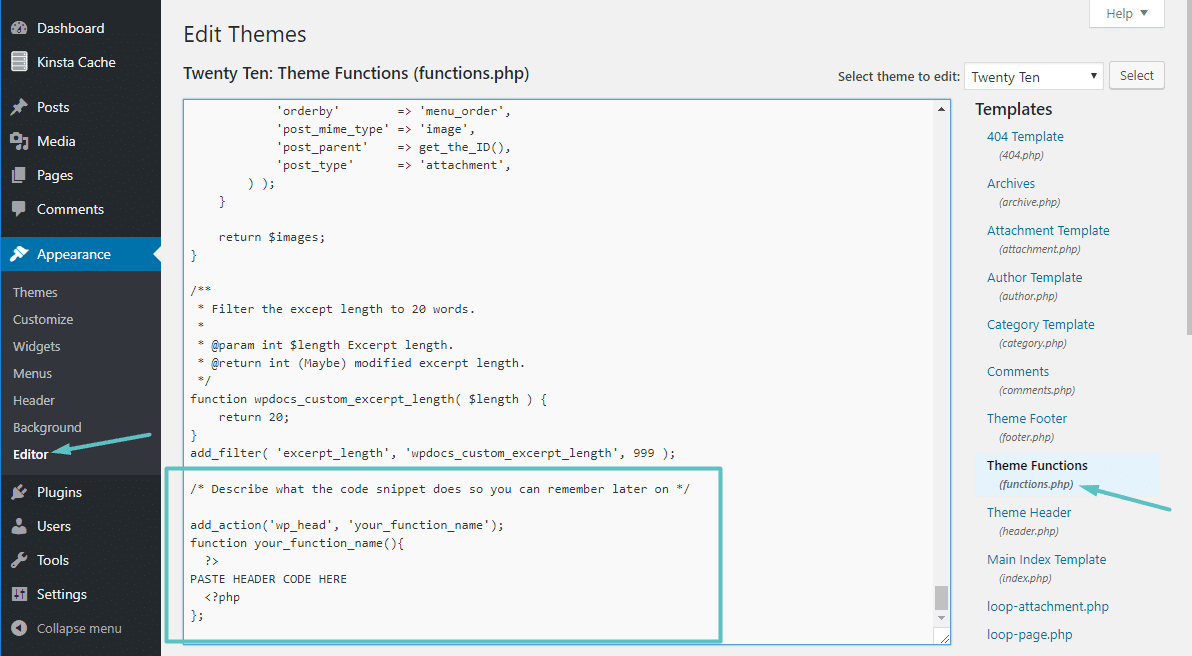
Credit: kinsta.com
Frequently Asked Questions
How Do I Add Custom Code In WordPress?
To add custom code in WordPress, use the theme editor or a child theme. Navigate to Appearance > Theme Editor, select the theme file, and paste your code. Ensure backup before editing. Alternatively, create a child theme to safely add code without affecting the parent theme’s updates.
Can I Add Code Without A Plugin?
Yes, you can add code directly to your theme files using the theme editor or FTP. Navigate to Appearance > Theme Editor and choose the relevant file. Alternatively, use FTP to access and edit theme files. Always ensure you have a backup before making changes.
Where Do I Insert Javascript In WordPress?
Insert JavaScript in WordPress by adding it to the header or footer. Use the theme editor to access header. php or footer. php files, then paste your script. Alternatively, enqueue scripts using the functions. php file for better management. Backup files before making changes.
Is Editing WordPress Theme Files Safe?
Editing theme files can be safe if done carefully. Always ensure you have a backup before making changes. Use a child theme to prevent losing modifications during theme updates. Test changes on a staging site to avoid errors on your live site.
Conclusion
Adding code to a WordPress theme is straightforward. Follow each step carefully. Use the WordPress editor to access theme files. Make a backup before editing. This prevents loss of work. Add code snippet in the right file. Double-check for errors.
Test changes on your site. Ensure everything looks good. Seek help if issues arise. Online forums are helpful. Remember to update your theme regularly. Keep security in mind. Your site stays safe and functional. Enjoy customizing your WordPress theme. Happy coding!


