
Are you looking to add custom code to the body tag of your WordPress site but not sure where to start? Whether you want to insert tracking scripts, custom styles, or other important code, placing it correctly inside the body tag can make a big difference.
In this guide, you’ll discover simple, step-by-step methods that anyone can follow—no coding expert needed. By the end, you’ll have the confidence to add code safely and improve your website’s functionality. Keep reading to unlock easy solutions that save you time and boost your site’s performance.
Why Add Code To Body Tag
Adding code to the body tag in WordPress lets you control how your website looks and works. This small change can make a big difference. It gives you a way to insert scripts, styles, or tracking tools that only work inside the body part of your site. This helps you change the user experience without touching the main theme files. Many site owners use this method to keep their site fast and easy to manage.
Benefits For Customization
Code inside the body tag can change page layout or style easily. You can add special effects or animations that start as soon as the page loads. It helps to run scripts that track visitor actions and show personalized content. This approach keeps your theme clean and safe from errors. You can also test new features without breaking your whole site.
Common Use Cases
Many use cases need code inside the body tag. Placing analytics scripts here helps track user behavior accurately. Custom chat widgets or pop-ups often require code in the body. Some plugins or tools ask for body tag code to work correctly. Also, you can add custom HTML or JavaScript to improve site interaction. These uses help enhance your website’s function and visitor experience.
Credit: coolplugins.net
Methods To Insert Code
Adding code to the body tag in WordPress can help customize your site. Different methods let you insert code safely and effectively. Choose the method that fits your skill level and site needs. Each method has its own steps and tools.
Using Theme Editor
The Theme Editor lets you directly edit your theme files. You can find the body tag in the header.php file. Open the file and add your code right before the closing body tag. Save changes carefully to avoid breaking your site. Always back up your site before editing theme files.
Employing Plugins
Plugins offer a simple way to add code to the body tag. Many plugins allow you to insert scripts without touching code. Install a trusted plugin and paste your code in the body section. This method keeps your changes safe during theme updates. Plugins are user-friendly and reduce the risk of errors.
Child Theme Approach
A child theme helps you customize without changing the original theme. Create a child theme and copy header.php from the parent theme. Edit the child theme’s header.php to add code inside the body tag. This method keeps your changes when updating the main theme. It’s ideal for developers or users who want control and safety.
Adding Code Via Theme Editor
Adding code directly to the body tag in WordPress can improve site functionality and tracking. The Theme Editor allows you to insert code inside your theme files without extra plugins. This method is quick and effective for simple code snippets.
Editing theme files requires caution. Always back up your site before making changes. Small mistakes can affect your website’s appearance or performance.
Locating Body Tag In Theme Files
Open the WordPress dashboard and go to Appearance > Theme Editor. Look for the file named header.php or similar. This file usually contains the
tag.Scroll through the header.php file to find the
tag. It often appears after the section.Inserting Code Safely
Place your code snippet right after the
tag opens. This ensures the code runs as the page loads.Use comments to mark where you added the code. It helps you find it later.
Save the changes and test your website. Check for any display or functionality issues.
Using Plugins For Body Code
Adding code to the body tag of your WordPress site can enhance functionality. Plugins make this process simple and safe. They avoid the need to edit theme files directly. This method is best for beginners and those who want quick results.
Plugins offer easy interfaces to insert scripts or codes. They also keep your site secure by managing the code safely. Using plugins ensures your code stays active even after theme updates.
Recommended Plugins
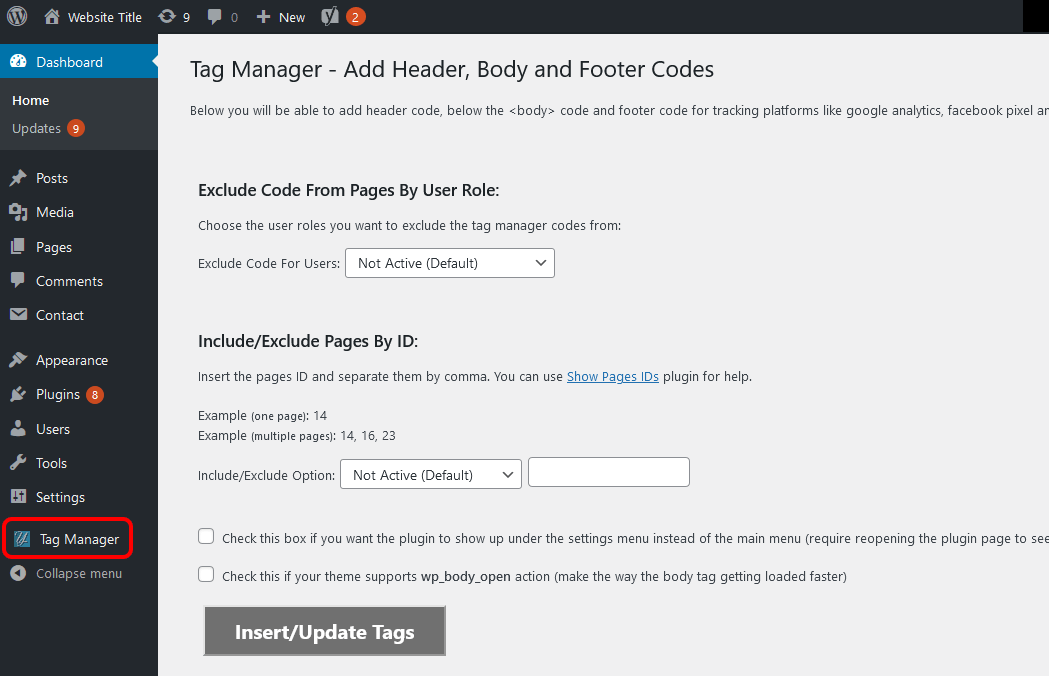
Several plugins help add code to the body tag. “Insert Headers and Footers” is a popular choice. It allows placing code in header, body, or footer areas. “Head & Footer Code” also works well for body scripts. Both plugins have simple interfaces and are free to use.
Another option is “WPCode – Insert Headers and Footers.” It supports various code types and offers a clean dashboard. These plugins provide reliable ways to add body code without coding skills.
Step-by-step Plugin Setup
Start by installing your chosen plugin from the WordPress dashboard. Go to Plugins > Add New, then search for the plugin name. Click “Install Now” and then “Activate.”
Next, find the plugin settings under the WordPress menu. Look for options to add code to the body section. Paste your code snippet into the body box or the relevant field.
Save your changes. Clear your site cache if you use caching plugins. Visit your website to confirm the code is working properly.
Creating A Child Theme
Creating a child theme in WordPress helps you make changes without affecting the original theme. It keeps your custom code safe during theme updates. A child theme acts as a layer on top of the main theme. This way, your edits stay intact and your site runs smoothly.
Using a child theme is a smart way to add code to the body tag. It gives full control over your site’s design and functionality. Let’s explore why a child theme is useful and how to modify the body tag within it.
Why Use A Child Theme
A child theme protects your changes from being lost. Updating the parent theme will not erase custom code. This keeps your site secure and up to date.
It also lets you test new features safely. You can experiment without breaking your live site. Plus, it helps organize your custom files clearly.
Modifying Body Tag In Child Theme
To change the body tag, copy the parent theme’s header.php file to the child theme. Edit the copied file to add your code inside the
tag.Use WordPress hooks like body_class() for extra flexibility. This function adds CSS classes to the body tag easily.
Save your changes and activate the child theme. Your code will now run inside the body tag without touching the parent theme.

Credit: coolplugins.net
Testing And Troubleshooting
Testing and troubleshooting are key steps after adding code to the body tag in WordPress. They ensure the code works properly and does not break your website. Careful checks help spot errors early and fix them fast. This saves time and prevents website issues.
Testing also confirms the code appears in the right place. Troubleshooting helps solve common problems that may arise from code conflicts or syntax mistakes. Proper testing and fixing improve site performance and user experience.
Verifying Code Placement
Check if the code is inside the body tag using your browser’s developer tools. Right-click the page and select “Inspect” or “View Page Source.” Look for the code snippet within the
tag.Reload the page after adding the code to see changes. Clear your browser cache if the code does not show up. Sometimes, caching plugins or server caching delay updates.
Test on different devices and browsers to ensure consistent results. Make sure the code does not affect page layout or functionality negatively.
Common Issues And Fixes
Code not appearing? Check for syntax errors in your code snippet. Even one missing character can stop the code from working.
Conflicts with plugins or themes can block your code. Disable other plugins one by one to find conflicts. Switch to a default theme to test compatibility.
Slow page loading may occur if the code is heavy. Optimize or remove unnecessary scripts to improve speed.
Backup your site before making changes. This helps restore your site if something goes wrong during testing.
Best Practices
Adding code to the body tag in WordPress requires care. Following best practices helps keep your site safe and fast. Small mistakes can cause big problems. Proper steps protect your work and improve site health.
Backup Before Changes
Create a full backup before editing any code. This saves your site if something breaks. Use plugins or your hosting service to back up files and database. Keep backups in a safe place. You can restore your site quickly after errors.
Maintaining Site Performance
Insert only necessary code snippets inside the body tag. Avoid heavy scripts that slow down loading. Test your site speed after adding code. Use lightweight code for better performance. Clean and simple code keeps your website fast and user-friendly.
Credit: wordpress.org
Frequently Asked Questions
How Can I Add Code To The Body Tag In WordPress?
You can add code to the body tag by editing your theme’s header.php file. Insert your code inside the
tag or use hooks like wp_body_open for safer customization.Is It Safe To Edit The WordPress Theme Files Directly?
Editing theme files directly can break your site or cause update loss. Use a child theme or custom plugin for safer, update-proof changes.
Can I Add Code To The Body Tag Without Plugins?
Yes, you can manually add code by editing your theme files or using hooks in functions. php. This avoids plugin overhead but requires coding knowledge.
Which WordPress Hook Allows Adding Code Inside The Body Tag?
The wp_body_open hook allows you to insert code immediately after the opening
tag. It’s supported in most modern themes.Conclusion
Adding code to the body tag in WordPress is simple and useful. You can improve your site by following the steps carefully. Always back up your site before making changes. Test the code after adding it to ensure it works well.
This method helps you customize your site easily. Keep your code clean and organized for best results. Now, you can add scripts or styles directly inside the body tag without trouble. Try it today and watch your WordPress site become more flexible and functional.



