
Are you looking to customize your WordPress site but feel overwhelmed by the technical side of things? Adding code snippets to your WordPress theme might sound daunting, but it’s much simpler than you think.
Imagine being able to effortlessly tweak your website’s functionality, improve its performance, or even enhance its design with just a few lines of code. The best part? You don’t need to be a coding wizard to get started. In this guide, I’ll walk you through the easy steps to safely add code snippets to your WordPress theme.
By the end of this article, you’ll gain the confidence to make those small but powerful changes that can elevate your site. So, let’s unlock the potential of your WordPress theme together and make your website truly your own!
Credit: wordpress.org
Choosing The Right Code Snippet
Understand why you need a code snippet. It could be for adding a new feature or fixing an issue. Knowing the purpose helps in choosing the right snippet. It saves time and avoids confusion. Always pick a snippet that matches your goal.
Ensure the code snippet is compatible with your theme. Check if it works with your WordPress version. Compatibility is crucial to prevent errors. Some snippets might not work with specific themes. Always test snippets before applying them.
Backup Your Theme
Backing up your theme is very important. It keeps your site safe. Use a plugin for full backup. Choose plugins like UpdraftPlus. They are easy to use. Plugins save files to cloud. This means your files are safe. Restoring them is easy too. Always check your backup files. Make sure they are complete. This avoids problems later.
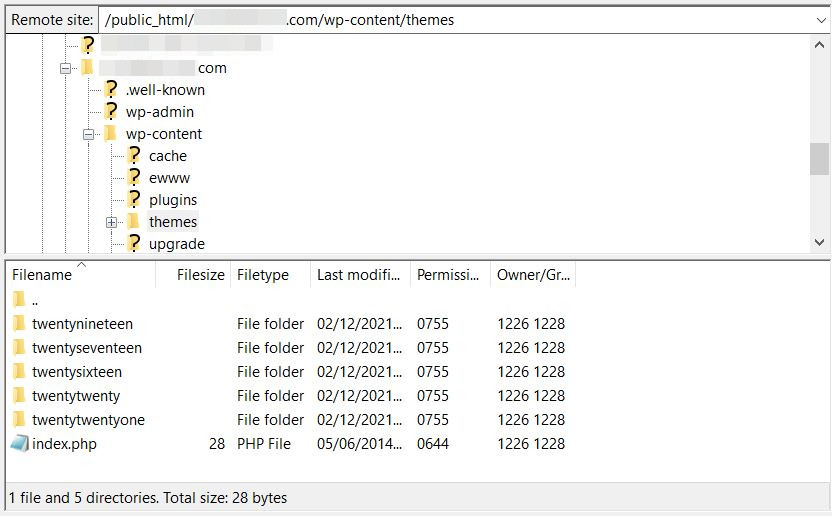
Exporting theme files helps in safe changes. Go to the dashboard. Click on “Appearance”. Then select “Editor”. Here, you can find your theme files. Copy them to your computer. Use an FTP client for this. FileZilla is a good option. It’s simple and free. Keep these files safe. They are your backup.
Accessing Theme Files
Access the WordPress dashboard. Find the Appearance tab. Click on Theme Editor. This opens the theme files. Be careful here. Changes affect the website. Look for the file you need. It might be functions.php or header.php. Click to open it. Add your code snippet. Save the changes. Check your site for errors. Fix them if needed.
First, download an FTP client. FileZilla is a good choice. Connect to your server. Use your login details. Look for the wp-content folder. Open it. Go to themes. Find your theme folder. Look for the right file. Open it with a text editor. Add your code snippet. Save the file. Upload it back to the server. Check your site to see the changes.
Adding Code Snippet Manually
Open the WordPress dashboard. Go to Appearance and click on Theme Editor. On the right side, find functions.php. Click to open it. Add your code at the end. Be careful. A wrong code can break the site. Always backup your files first. After adding the code, click Update File. This saves the changes. Check your site to see if it works.
Open the Theme Editor again. On the right side, find header.php or footer.php. Choose where you want the code. Add your code snippet there. Make sure to place it correctly. Check your site to see if it looks right. Always backup before making changes. Click Update File to save.
Using A Plugin For Code Snippets
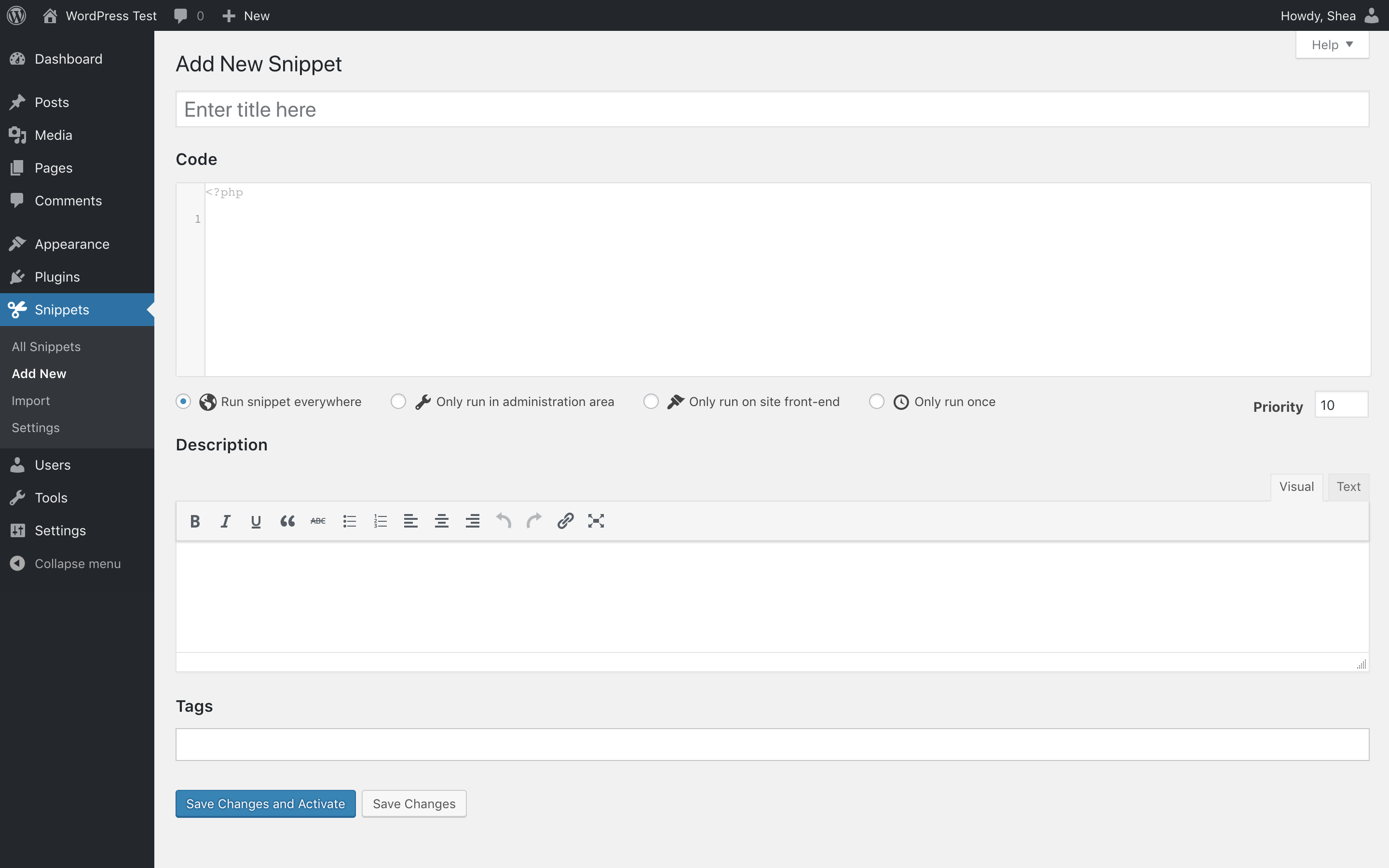
Choosing the right plugin is important. Look for plugins with good reviews. Check if the plugin gets updated often. Popular plugins have many users. This shows they are trusted. Make sure the plugin is easy to use. Read the description carefully. It helps you understand the features. Compare plugins before deciding.
After installing the plugin, open the settings page. You can find it in the dashboard. Some plugins have simple settings. Others might need more steps. Follow the instructions given. Adjust settings to suit your needs. Save changes before leaving. Test if the plugin works. Check your site to see changes. Make adjustments if needed.
Credit: managewp.com
Testing And Troubleshooting
After adding a code snippet, check for errors. Open your website and look for problems. Broken pages mean there’s an issue. Use the browser’s developer tools. They help find errors in the console. Fix errors by removing or editing the code. Test again after changes. Repeat this until your site works well.
Sometimes code causes issues. It’s okay to go back to old code. Always back up before adding new code. If needed, use the backup to revert changes. This restores the site to its previous state. Keep backups safe for future use. This way, your site stays safe and working.
Ensuring Code Security
Always check the source of any code. Use trusted websites and authors. Unknown sources can be dangerous. They might harm your website. Look for reviews or comments about the code. This can help you decide. Stay safe by choosing the right code. Avoid code from shady websites.
Keep your WordPress updated. Updates fix security issues. Use a child theme for changes. This protects your main theme. Install a security plugin. Plugins can stop malicious attacks. Always back up your site. Backups keep your data safe. Make sure your passwords are strong. Strong passwords protect your site.
Credit: www.isitwp.com
Monitoring Performance Impact
Adding code snippets to a WordPress theme can affect site performance. Optimize your website by carefully monitoring changes and impacts. Evaluate loading speed and functionality after each snippet insertion to ensure smooth operation.
Using Performance Testing Tools
Tools help in checking website speed. Google PageSpeed Insights is one such tool. GTmetrix is another option. These tools show how fast your site loads. They also point out issues. Fixing these issues can improve speed. Faster websites make users happy. They also help in better search rankings.
Analyzing Load Times
Check how long your site takes to load. Use tools to measure load times. Slow load times can frustrate users. They might leave your site. Aim for faster load times. This keeps users engaged. It also improves user experience. A faster site is a happier site. Make sure your site loads quickly.
Frequently Asked Questions
How Do I Safely Add Code Snippets?
To safely add code snippets, use a child theme or the Code Snippets plugin. Avoid editing core theme files directly. This ensures that your changes are preserved during updates and minimizes risks of breaking your site. Always back up your site before making any modifications.
Can I Add Snippets Without A Plugin?
Yes, you can add snippets without a plugin by using a child theme’s functions. php file. This method is suitable for small, straightforward code changes. Ensure that your code is clean and tested to prevent issues. Remember to back up your site before making changes.
What Are Common Code Snippet Mistakes?
Common mistakes include editing core theme files, neglecting backups, and using outdated snippets. These can lead to site crashes or loss of customizations during updates. Always use a child theme or plugins, test snippets in a staging environment, and back up your site regularly to avoid these issues.
Why Use A Child Theme For Snippets?
Using a child theme is recommended because it protects your customizations during theme updates. It allows you to safely add and manage code snippets without altering core theme files. This method ensures that your site remains functional and your customizations are preserved.
Conclusion
Adding code snippets to your WordPress theme is simple. Follow the steps carefully, and you’ll succeed. Remember to back up your theme before changes. This ensures safety if anything goes wrong. Use a child theme to avoid losing changes during updates.
Also, keep your code snippets organized for easy management. Practice regularly to improve your skills. This will boost your confidence in customizing your site. With patience and practice, you’ll enhance your WordPress skills. Happy coding!


