
Are you looking to customize your WordPress website without losing your changes during updates? Adding a child theme is your solution.
This powerful tool not only preserves your customizations but also ensures your website stays up-to-date and secure. Imagine having the flexibility to tweak your site’s design and functionality to perfectly match your vision, all while maintaining the stability of the original theme.
Sounds great, right? By the end of this article, you’ll know exactly how to create and add a child theme to your WordPress site. Let’s dive in and transform your website with ease.
Credit: elementor.com
What Is A Child Theme
A child theme is a copy of another theme. This other theme is called the parent theme. It lets you change the look of your site. You can do this without changing the parent theme. If the parent theme updates, your changes stay safe.
Child themes are very useful. They help you keep your site unique. You can change colors, fonts, and layouts. This means you can make your site look just how you like it. But you won’t lose your changes if the theme updates.
Benefits Of Using A Child Theme
A child theme lets you make changes without harming the main theme. This means your updates are safe. You can keep your site’s look even with theme updates. This makes your site stable and consistent. Changes in a child theme are easy to fix. Mistakes don’t break the main theme. You can experiment with new designs. Feel free to try new things.
Child themes make customization easier. They help you add new features. You can make your site unique. Your site will look different from others. Child themes support learning. You learn more about coding. You understand how WordPress works. You build skills for future projects.
Preparing For Child Theme Installation
Always backup your website before making changes. It keeps your data safe. Use a plugin or manual method for backup. A backup ensures you can restore your site. It is like a safety net for your website. You don’t want to lose your work.
Pick a parent theme that suits your needs. The parent theme affects your website’s look. Make sure it is well-coded. It should receive regular updates. Check its reviews and ratings. A good parent theme makes a good child theme. Choose wisely and thoughtfully.
Creating A Child Theme
Make a new folder in your WordPress themes directory. This folder is for your child theme. It should have a clear name. Something like mytheme-child works well. This helps you know which theme it belongs to.
In the new folder, make a file named style.css. This file tells WordPress about the child theme. Add this text at the top:
        /
        Theme Name: My Theme Child
        Template: mytheme
        /
The Template is the parent theme’s folder name. This is important.
Make another file in the child theme folder. Name it functions.php. This file helps add new features. Copy this code to it:
php
        function mytheme_child_enqueue_styles() {
            wp_enqueue_style('parent-style', get_template_directory_uri() . '/style.css');
        }
        add_action('wp_enqueue_scripts', 'mytheme_child_enqueue_styles');
        ?
This code makes sure both parent and child styles load. It keeps your site’s design correct.
Activating The Child Theme
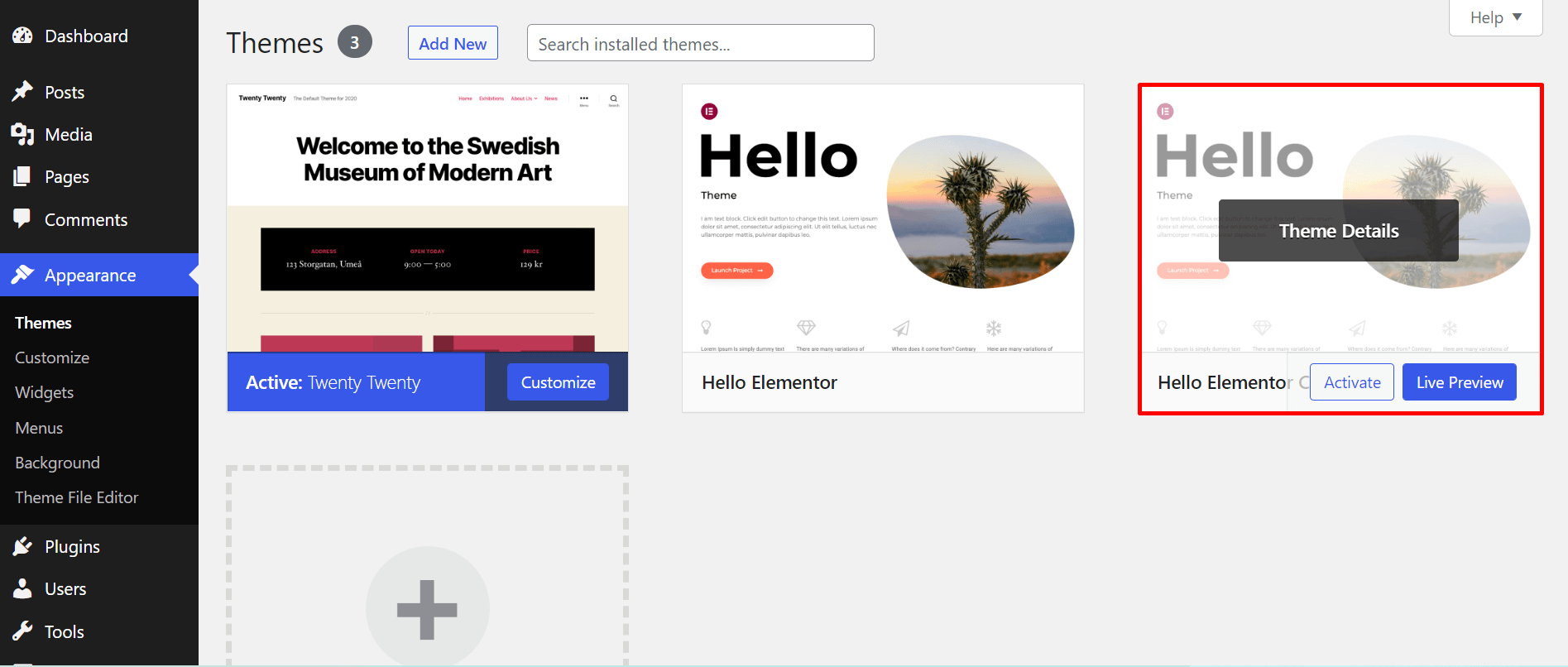
Open your WordPress dashboard. Go to Appearance and click on Themes. Find the Add New button at the top. Click it. Now, select Upload Theme. Choose your child theme file and click Install Now. Wait for the upload to complete. Once done, activate the theme. Your child theme is now live. Easy, right?
First, connect to your website using FTP. Navigate to the wp-content folder. Find the themes folder. Upload the child theme folder here. Once uploaded, return to your WordPress dashboard. Go to Appearance and select Themes. Find your child theme. Click Activate. Your child theme is now active. Simple steps make it easy.
Customizing Your Child Theme
Explore the ease of adding a child theme to WordPress. Customize your website safely by creating a child theme. Enhance your site with unique styles and features without altering the parent theme.
Editing Css Styles
Want to change the look of your site? Start with CSS. CSS styles control colors, fonts, and spacing. You can edit the style.css file in your child theme. This file allows you to make changes safely. Parent theme updates won’t erase your edits. Use a simple text editor to update the file. Try changing the font size or color. Save your file and refresh your browser to see changes.
Adding New Functions
Add new features to your site with functions. Open the functions.php file in your child theme. This file lets you add custom code. Want a special widget or shortcode? Add the function here. Use simple PHP code. Always test your code to avoid errors. Functions in this file will run with your site.
Overriding Parent Theme Templates
To change layout, override parent templates. Copy the template file from the parent theme. Paste it into your child theme folder. Edit the file as needed. Want a new header or footer? This method lets you change it. Keep the original file structure. This ensures everything works smoothly. Your changes will not affect the parent theme.
Testing Your Child Theme
Adding a child theme to WordPress is simple and essential for customizing your site without altering the main theme. Test your child theme by ensuring it inherits the parent theme’s features while allowing unique modifications. This approach safeguards your customizations during updates.
Checking For Errors
Activate your child theme. Check for any error messages on the screen. Use the WordPress Debugging Tool. It helps find errors. Fix any problems found. Check your site’s appearance. Ensure all elements display correctly. Look at menus, headers, and footers. Ensure they work properly. Navigate through different pages. Ensure links and buttons are functional.
Ensuring Mobile Responsiveness
Open your site on a mobile device. Check if the site adjusts to different screen sizes. Test on both phones and tablets. Ensure text is readable. Buttons should be easy to click. Images must fit well on screens. Use browser tools to simulate mobile views. Adjust any CSS issues. Make sure your site looks great on all devices.

Credit: developer.wordpress.org
Troubleshooting Common Issues
Adding a child theme to WordPress can fix issues without altering the original theme. Start by creating a new folder in your WordPress theme directory. Copy the style. css and functions. php files from the parent theme. These steps help maintain custom changes during theme updates.
Styles Not Applying
Styles might not show due to incorrect CSS file paths. Check the paths in your child theme. Ensure they point to the right files. Missing @import rule in the stylesheet could be another reason. Add it to link the parent theme’s styles. Also, clear your browser cache. Sometimes old styles get stuck there. Refreshing helps load the new ones.
Function Conflicts
Function conflicts can happen between parent and child themes. Check your functions.php file. Ensure there are no duplicate functions. Rename any conflicting ones to avoid issues. It’s also wise to check for plugin conflicts. Deactivate plugins one by one. Find out if any cause the problem. Lastly, always keep both themes updated. Updates fix bugs and improve compatibility.
Maintaining Your Child Theme
Creating a child theme in WordPress safeguards your customizations. Start by copying your parent theme’s files. Then, add a style. css and functions. php to your new child theme folder. Now, modify without losing changes during updates.
Updating The Parent Theme
Always update the parent theme to keep your site secure. This ensures you get new features and fixes. Before updating, check if the child theme works well with the update. Sometimes, updates can break custom changes. Check your site after each update. If something is wrong, you might need to fix it. Be careful, and test your site after changes.
Regular Backups
Make regular backups of your site. This includes your child theme and any important files. Backups help you restore your site if something goes wrong. Use a backup plugin or your hosting service. Always keep a recent backup before making changes. This way, you can easily go back to a working version. Backing up is a simple way to protect your work.
Credit: happyaddons.com
Frequently Asked Questions
What Is A WordPress Child Theme?
A child theme in WordPress is a sub-theme that inherits the functionality and styling of the parent theme. It allows you to modify or add to the parent theme’s features without altering the original files, ensuring updates won’t erase your customizations.
Why Use A Child Theme In WordPress?
Using a child theme in WordPress protects your customizations from being overwritten during theme updates. It provides a safe way to add new features and tweak styles while ensuring the original theme remains intact and updatable.
How Do You Create A Child Theme?
To create a child theme, make a new folder in the themes directory. Add a style. css and functions. php file. In style. css, include the parent theme name using the Template directive. Enqueue the parent theme styles using functions.
php to maintain styling continuity.
Can Child Themes Slow Down WordPress?
Child themes generally don’t slow down WordPress. They inherit functionality from the parent theme, so performance is mostly unchanged. However, poorly coded customizations might affect load times. Always ensure your modifications are efficient and optimized for best results.
Conclusion
Creating a child theme in WordPress is simple. It protects your site’s customization. First, set up the folder. Next, create the style. css and functions. php files. Finally, activate your child theme. That’s it! Your original theme stays safe. Child themes help you make changes without losing updates.
They offer flexibility. Plus, they’re easy to manage. Remember, backup your site before changes. Experiment and learn. Your site deserves a unique touch. Enjoy customizing your WordPress site with confidence. Happy blogging!


