

Are you looking to organize your WordPress site better and make it easier for visitors to find what they want? Adding categories is one of the simplest yet most powerful ways to do this.
When you use categories effectively, your content becomes clearer, your site looks professional, and your readers keep coming back for more. In this guide, you’ll learn step-by-step how to add categories in WordPress quickly and easily — no tech skills needed.
Keep reading, and by the end, you’ll have your site perfectly organized to attract and engage your audience like never before.

Credit: www.youtube.com
Why Use Categories In WordPress
Categories organize your WordPress site clearly. They help both visitors and search engines understand your content. Using categories improves site navigation and keeps related posts grouped together.
Categories also boost your SEO by creating clear content themes. Search engines find your site easier to crawl and index. This can increase your site’s visibility in search results.
Improved User Experience
Visitors find content faster with categories. They can explore topics they like without confusion. Clear categories reduce bounce rates and keep readers engaged longer.
Better Content Organization
Categories structure your blog logically. This makes managing posts simpler for you. Grouping similar posts helps you plan future content effectively.
Enhanced Seo Performance
Search engines favor well-organized sites. Categories create focused content clusters. This helps your pages rank higher for specific keywords.
Easier Site Navigation
Menus and widgets use categories to guide users. Visitors can jump to topics quickly. This smooth navigation boosts overall site usability.
Credit: make.wordpress.org
Accessing The WordPress Dashboard
Accessing the WordPress dashboard is the first step to managing your website. The dashboard is the control center. It lets you add posts, pages, and categories. You can also change settings and install plugins here.
Logging into your dashboard is simple. You need your website URL and login details. Once logged in, you see the main menu on the left. This menu helps you navigate through different options.
Logging Into Your WordPress Site
Start by typing your website URL in the browser. Add /wp-admin at the end of the URL. For example, www.yoursite.com/wp-admin. This opens the login page.
Enter your username and password. Then, click the login button. If details are correct, you reach the dashboard homepage.
Understanding The Dashboard Layout
The dashboard has several sections. The left sidebar contains menus like Posts, Pages, and Categories. The main area shows recent activity and updates. The top bar has quick links and notifications.
Familiarize yourself with these sections. This knowledge helps you find options faster.
Securing Your Dashboard Access
Always use strong passwords to protect your site. Avoid using public computers for login. Log out after finishing your work. These steps keep your website safe from hackers.
Navigating To The Categories Section
Finding the Categories section in WordPress is simple. It helps organize your posts clearly. Categories group your content and make your site easier to browse.
Start by logging into your WordPress dashboard. The dashboard is the main control panel. It shows all the tools to manage your website.
Open your browser and enter your website’s login URL. Usually, it ends with /wp-admin. Enter your username and password. Click the login button to enter the dashboard.
Locating The Posts Menu
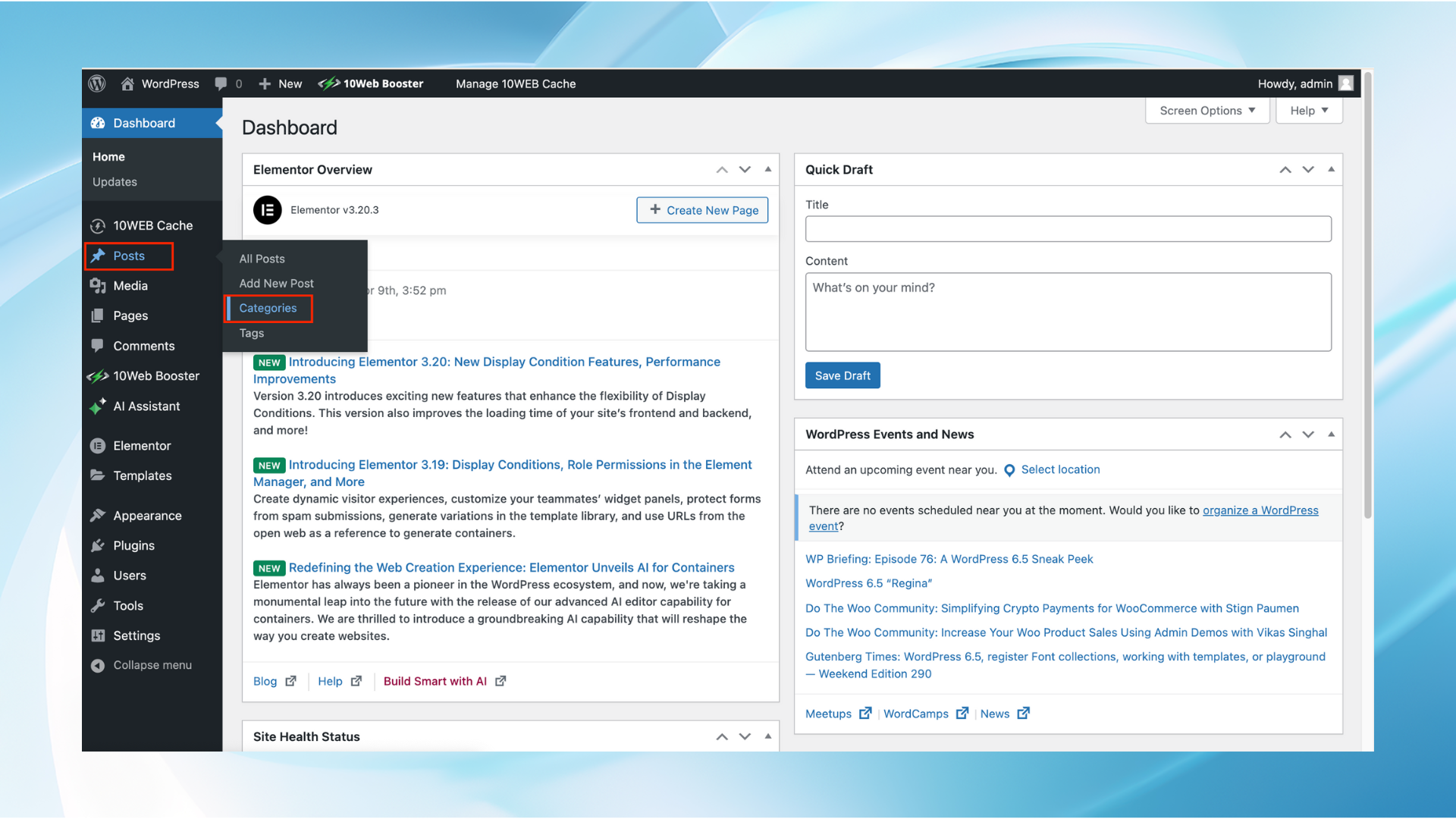
Once inside the dashboard, look at the left sidebar. Find the menu labeled “Posts.” This menu holds all post-related options. Click on “Posts” to open its submenu.
Opening The Categories Section
In the Posts submenu, find and click “Categories.” This opens the Categories page. Here you can add, edit, or delete categories for your posts.
Creating A New Category
Creating a new category in WordPress helps organize your content better. Categories make it easy for visitors to find related posts. Setting up a new category is simple and takes just a few steps. Follow these steps to create a clear and useful category for your blog.
Naming Your Category
Choose a name that clearly describes the topic. Keep it short and simple for easy reading. Avoid using special characters or long phrases. The name appears on your site, so make it user-friendly. Good names improve site navigation and SEO.
Adding A Slug
The slug is the URL part for your category page. Use lowercase letters and hyphens between words. Avoid spaces or special characters. A clean slug helps search engines and visitors understand the page. It also looks neat in the browser address bar.
Setting A Parent Category
Select a parent category if your new category belongs under a bigger topic. This creates a hierarchy and keeps your site organized. If your category stands alone, leave this option as “None.” Parent categories help group related content and improve navigation.
Writing A Description
Add a short description to explain the category’s purpose. This helps visitors and search engines understand your content better. Keep the description clear and straightforward. Use simple words and avoid long sentences. A good description enhances your site’s SEO and user experience.
Assigning Categories To Posts
Assigning categories to posts helps organize content on your WordPress site. Categories group similar topics, making it easier for readers to find related posts. Proper categorization improves site navigation and SEO. It also helps search engines understand your content better.
Using The Post Editor
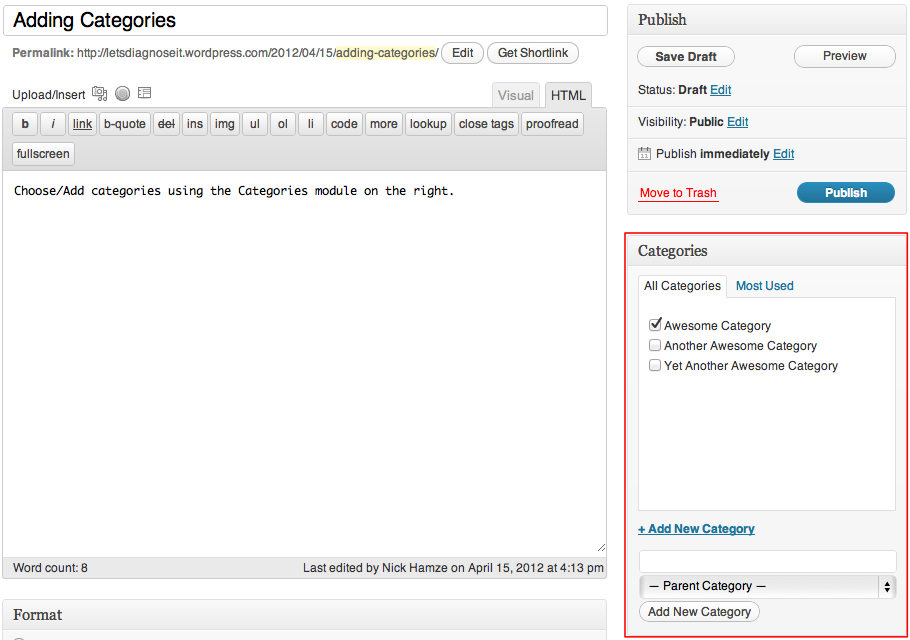
Open the WordPress post editor for the post you want to categorize. Look for the “Categories” box on the right side. You will see a list of existing categories here. Check the box next to the category you want to assign to the post. You can select multiple categories if needed. To add a new category, click “Add New Category,” enter the name, and click “Add.” Save or update the post to apply the changes.
Bulk Assigning Categories
Bulk assigning saves time when editing many posts. Go to the WordPress dashboard and click “Posts” to see all posts. Select the posts you want to categorize by checking their boxes. From the “Bulk Actions” dropdown, choose “Edit” and click “Apply.” In the bulk edit options, find the “Categories” section. Check the categories you want to assign to all selected posts. Click “Update” to save your changes. This method quickly organizes many posts at once.
Credit: 10web.io
Editing And Deleting Categories
Editing and deleting categories keeps your WordPress site organized. Categories help group related posts. Sometimes, you need to change a category name or remove one you no longer use.
Managing categories is simple and quick. This section shows how to edit and delete categories safely.
Edit A Category
Go to your WordPress dashboard. Click on “Posts” and then “Categories.” Find the category you want to edit.
Hover over the category name and click “Edit.” Change the name or slug to what you prefer. Save your changes by clicking the “Update” button. The new name appears across your site.
Delete A Category
Access the same “Categories” page from your dashboard. Locate the category you want to delete. Hover over it and click “Delete.”
WordPress asks for confirmation. Confirm to remove the category permanently. Posts in this category will move to the default category automatically.
Quick Edit A Category
On the “Categories” page, hover over the category name. Click “Quick Edit” to change the name or slug fast. This method is faster than the full edit screen.
Make changes and click “Update Category.” The updates happen immediately on your site.
Displaying Categories On Your Site
Displaying categories on your WordPress site helps visitors find content easily. Categories organize posts by topics. Showing them on your site improves navigation and user experience. You can display categories in different ways. Two common methods are using widgets and adding categories to menus.
Using Widgets
Widgets let you show categories in your site’s sidebar or footer. Go to the WordPress dashboard and open the Appearance section. Select Widgets and find the Categories widget. Drag it to your sidebar or footer area. Customize the title and display options. Save your changes. Visitors can now see and click categories to explore posts.
Adding Categories To Menus
Menus are another way to show categories clearly. Open Appearance and then Menus in your dashboard. Choose the menu to edit or create a new one. Find the Categories box on the left side. Select categories you want to add and click Add to Menu. Arrange the order by dragging items. Save the menu to display it on your site. This method puts categories in your main navigation for easy access.
Best Practices For Managing Categories
Managing categories in WordPress helps keep your site organized. Clear categories guide visitors to find content fast. Proper use of categories improves your site’s SEO and user experience.
Good category management makes your blog look neat. It also helps search engines understand your content better. Follow these best practices to manage your categories effectively.
Use Clear And Simple Category Names
Choose category names that are easy to read and understand. Avoid long or complex words. Names should describe the content inside the category clearly. This helps visitors find topics quickly.
Limit The Number Of Categories
Keep the number of categories small and focused. Too many categories can confuse readers. Focus on main topics related to your blog’s theme. This makes your site easier to navigate.
Assign Posts To Relevant Categories Only
Each post should fit well into one or two categories. Avoid assigning posts to unrelated categories. This keeps your content organized and relevant. It also helps visitors find related posts easily.
Use Subcategories For Better Structure
Create subcategories to group similar topics under a main category. This adds layers to your site structure. Subcategories help organize content without cluttering the main menu.
Regularly Review And Update Categories
Check your categories often to keep them useful. Remove or merge categories that are no longer needed. Update names to match new content trends or topics. This keeps your site fresh and relevant.
Frequently Asked Questions
How Do I Add A New Category In WordPress?
To add a category, go to your WordPress dashboard. Click Posts > Categories. Enter the category name and slug, then click Add New Category.
Can I Assign Multiple Categories To One WordPress Post?
Yes, WordPress allows multiple categories per post. While editing a post, check all relevant categories in the Categories box to assign them.
How Do I Edit Or Delete A WordPress Category?
Navigate to Posts > Categories. Find the category, then click Edit to change details or Delete to remove it permanently.
What Is The Difference Between Categories And Tags In WordPress?
Categories group broad topics, while tags describe specific details. Both improve site organization but serve different SEO and navigation purposes.
Conclusion
Adding categories in WordPress helps organize your content clearly. It makes your site easier to navigate for visitors. Categories also improve SEO by grouping related posts together. You can create, edit, or delete categories anytime from the dashboard. Keep your category names simple and relevant.
This way, readers find what they need quickly. Start adding categories today to keep your WordPress site neat and user-friendly. It’s a small step with big benefits for your website’s structure and traffic.


