
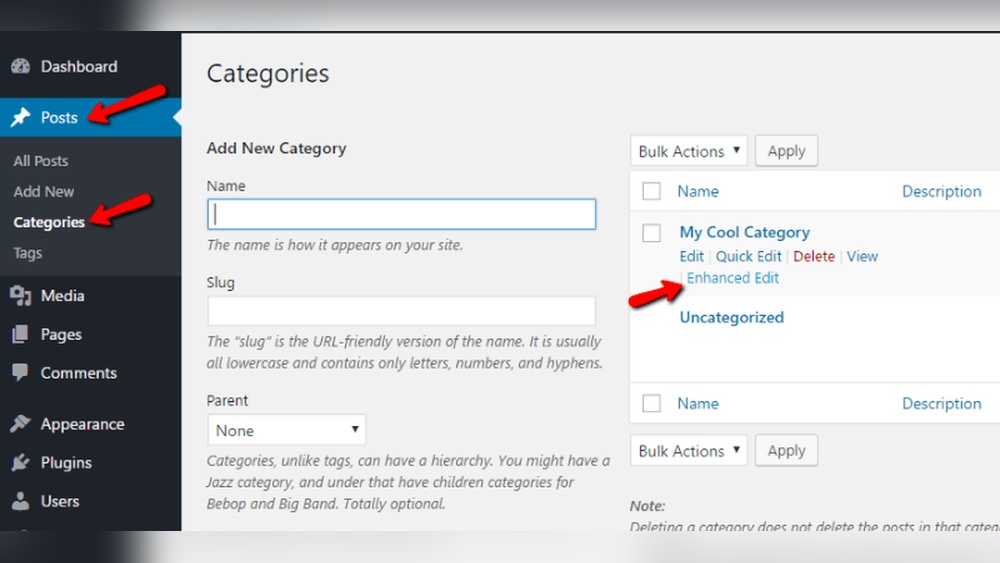
Are you struggling to organize your WordPress website effectively? Adding categories to your pages can make a huge difference in how your visitors find and navigate your content.
If you want to boost your site’s clarity and improve user experience, learning how to add categories to your WordPress pages is a smart move. You’ll discover simple, step-by-step instructions that anyone can follow—no technical skills needed. Keep reading, and you’ll unlock a powerful way to keep your website neat, organized, and easy to explore.
Credit: pagely.com
Why Categories Matter
Organizing pages with categories helps visitors find content faster. It also improves site structure for better search engine ranking. Adding categories makes your WordPress site easier to use and navigate.
Categories help organize your website content clearly. They group similar pages or posts together. This makes your site easier to use and understand.
Visitors find what they want faster with well-set categories. Clear categories reduce confusion and improve the user experience. They guide people through your site smoothly.
Categories also help search engines understand your site better. Search engines show your pages more often when content is organized. This can increase your website traffic naturally.
Improve Site Navigation
Categories create a clear path for visitors. People can jump to topics that interest them. This keeps visitors on your site longer.
Good navigation lowers bounce rates. Users return to your site more often. Simple menus with categories are easy to follow.
Boost Seo Performance
Search engines use categories to index your site. Clear categories help search engines find and rank content. This improves your search rankings.
Relevant categories connect related content. This builds topical authority for your site. More authority means better visibility online.
Organize Content Efficiently
Categories keep your content tidy and easy to manage. They help you find and update pages quickly. You avoid duplicate or overlapping content.
Organized content saves time and effort in the long run. It helps maintain a professional website appearance. Visitors trust sites that look well-managed.

Credit: wpsites.net
Default WordPress Category Settings
WordPress comes with default category settings to organize your content. Categories help group similar posts. They make it easier for visitors to find related content.
By default, WordPress has a category named “Uncategorized.” This category is assigned to posts without a specific category. You can change the default category in your settings to better fit your site.
What Is The Default Category In WordPress?
The default category is the one WordPress assigns automatically. If you do not select a category for a post, it goes here. “Uncategorized” is the standard default category name.
Changing The Default Category
Go to your WordPress dashboard. Find Settings and then click on Writing. Look for the Default Post Category option. Choose a new category from the dropdown menu. Save your changes to update the default.
Why Change The Default Category?
Changing the default category helps keep content organized. It prevents posts from being grouped under “Uncategorized.” This improves the site’s professionalism and user experience.
Can Pages Have Categories By Default?
Pages do not have categories by default in WordPress. Categories are mainly for posts. To add categories to pages, you need extra plugins or custom code.
Adding Categories To Posts Vs Pages
Adding categories to posts and pages in WordPress helps organize your content. Categories group related topics, making it easier for visitors to find information. WordPress treats posts and pages differently. Understanding this difference helps you manage your site better.
Categories For Posts
Posts are meant for blog entries or news updates. WordPress allows categories for posts by default. You can create many categories to sort your posts. Visitors can browse posts by these categories easily. Categories improve site navigation and SEO for posts.
Categories For Pages
Pages are usually for static content like About or Contact. WordPress does not support categories for pages by default. Pages are meant to stand alone without grouping. This keeps your site simple and clear. You can still organize pages using other methods, like menus.
How To Add Categories To Pages
To add categories to pages, you need a plugin or custom code. Plugins can enable category support for pages. Use simple plugins to avoid site issues. After activation, you can assign categories to pages like posts. This method helps if your site needs page grouping.
Enable Categories For Pages
By default, WordPress does not allow categories for pages. Categories help organize your content into groups. They make it easier for visitors to find related pages. Enabling categories for pages expands your site’s organization options.
You can enable categories for pages in two simple ways. One way is by adding code snippets. The other way is by using plugins. Both methods work well. Choose the one that fits your comfort level.
Using Code Snippets
Adding a small code snippet to your theme’s functions.php file enables categories for pages. This method is quick and does not require extra plugins. The snippet tells WordPress to apply categories to the page post type.
Here is an example of the code to add:
function add_categories_to_pages() { register_taxonomy_for_object_type('category', 'page'); } add_action('init', 'add_categories_to_pages'); After adding this code, you will see category options on your page editor screen. You can assign categories as you do for posts. This method keeps your site light without adding extra tools.
Using Plugins
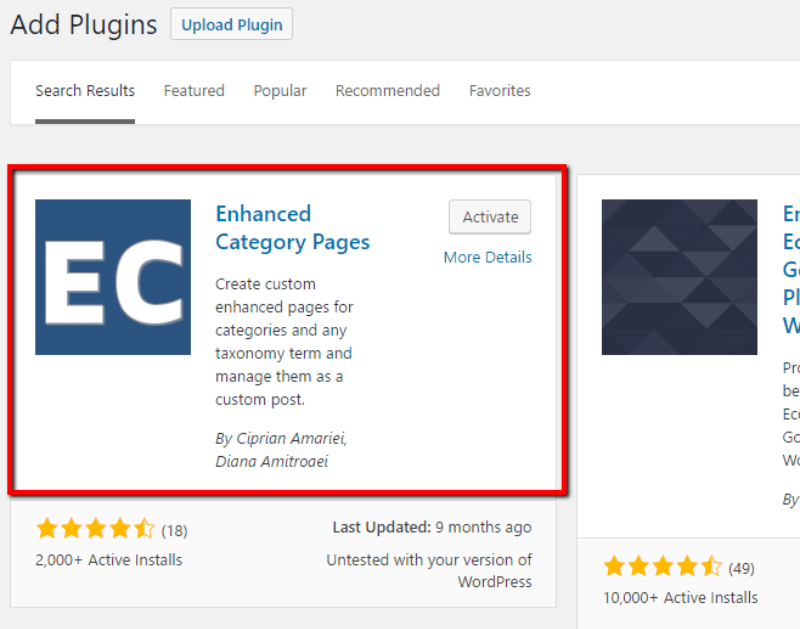
Some plugins enable categories for pages with no coding needed. These tools are user-friendly and safe. Just install and activate the plugin, then configure settings to enable categories for pages.
Popular plugins for this task include “Category Tag Pages” and “Post Types Order.” They add category support and sometimes extra features. This option is perfect for beginners or those who prefer a graphical interface.
Using plugins also helps manage categories easily from the WordPress dashboard. Choose a plugin that is well-rated and updated regularly for best results.
Creating And Assigning Categories
Creating and assigning categories helps organize your WordPress pages. Categories group similar pages together. This makes your website easier to navigate. Visitors find content faster. Search engines also understand your site better. Follow simple steps to create and assign categories.
Creating New Categories
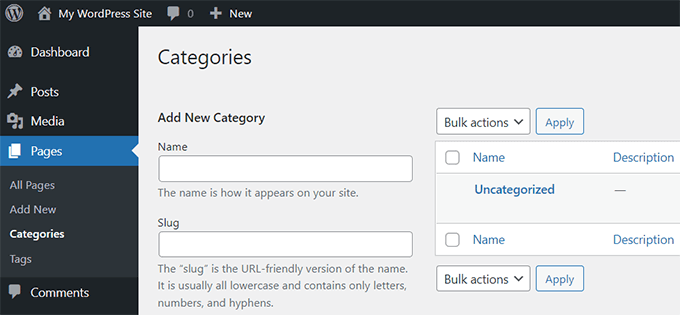
Go to your WordPress dashboard. Find the “Pages” section and click it. Look for “Categories” or “Page Categories.” Click “Add New Category.” Enter a name for your category. Choose a parent category if needed. Click “Add New Category” to save it. Your new category appears in the list. You can create many categories this way. Each category helps sort your pages clearly.
Assigning Categories To Pages
Open the page you want to categorize. On the right sidebar, find the “Categories” box. Check the box next to the category name. You can select more than one category. After selecting, click “Update” or “Publish.” Your page now belongs to the chosen categories. Visitors see pages grouped by these categories. This improves site structure and user experience.
Displaying Categories On Your Site
Displaying categories on your WordPress site helps visitors find content easily. Categories organize your posts and pages by topic. Showing them clearly improves user experience and site navigation. Visitors can click on a category to see related content. This keeps your site neat and structured.
Using Widgets
Widgets are simple tools to show categories in sidebars or footers. Go to Appearance > Widgets in your WordPress dashboard. Find the Categories widget and drag it to a widget area. You can choose to show it as a list or dropdown. This method is quick and requires no coding.
Adding Categories To Menus
Menus help visitors browse your site easily. You can add categories to menus via Appearance > Menus. Select the categories you want and click Add to Menu. Arrange them by dragging to reorder. Save the menu to display categories in your site’s navigation bar.
Customizing Templates
For more control, edit your theme’s templates to show categories. Use WordPress functions like the_category() to display categories on pages. This requires basic knowledge of PHP and WordPress theme files. Custom templates let you style categories to match your site design.
Best Practices For Category Management
Managing categories well keeps your WordPress site clear and user-friendly. Good category management helps visitors find content fast. It also improves your site’s SEO by organizing topics logically.
Here are some best practices to handle categories effectively.
Choose Clear And Simple Category Names
Use short names that describe the content well. Avoid complex or vague terms. Clear names help users understand what to expect.
Limit The Number Of Categories
Too many categories can confuse visitors. Keep the list small and focused. This makes navigation easier and cleaner.
Use Categories To Group Related Content
Place posts or pages in categories that share a common theme. This improves site structure and user experience.
Keep Categories Consistent Over Time
Do not change category names often. Consistency helps search engines and visitors recognize your site better.
Avoid Overlapping Categories
Each category should cover a unique topic. Avoid having categories that mean almost the same thing.
Assign Only Relevant Categories To Pages
Do not assign unrelated categories to a page. Stay focused on the page’s main topic to avoid confusion.
Credit: www.wpbeginner.com
Frequently Asked Questions
How Can I Add Categories To Pages In WordPress?
By default, WordPress doesn’t allow categories for pages. You can add this feature using plugins like “Add Category to Pages. ” Install, activate the plugin, then assign categories to your pages from the editor.
Why Add Categories To WordPress Pages?
Adding categories to pages improves site organization and navigation. It helps visitors find related content quickly and boosts SEO by structuring your website effectively.
Can I Use Default Categories For Both Posts And Pages?
No, WordPress separates posts and pages by default. Categories apply to posts only. To use categories on pages, you must enable this feature via custom code or plugins.
Does Adding Categories To Pages Affect Seo Positively?
Yes, organizing pages with categories enhances user experience and site structure. This can lead to better crawlability and improved SEO rankings for your website.
Conclusion
Adding categories to pages in WordPress helps keep your site organized. It makes it easier for visitors to find content they want. You can follow simple steps to add categories quickly. This improves your website’s structure and user experience. Keep categories clear and relevant for best results.
Regularly update categories as your site grows. Small changes like this can make a big difference. Try it today and see how your site feels more organized. Easy to do, and worth the effort.


