
Are you looking to make your WordPress site easier to navigate? Adding categories to your sidebar is a simple way to help your visitors find exactly what they want.
When your content is organized clearly, your readers stay longer and explore more. In this post, you’ll learn step-by-step how to add categories to your WordPress sidebar quickly and without any hassle. By the end, you’ll have a cleaner, more user-friendly site that keeps your audience engaged.
Let’s dive in and make your website work better for you!

Credit: www.webnots.com
Why Add Categories To Sidebar
Adding categories to your WordPress sidebar helps organize your website. It shows visitors the main topics easily. This simple step guides users to find content fast. Categories also break down your site into clear sections. This makes your website neat and simple to browse.
Boosting Site Navigation
Categories in the sidebar act like a map for your site. Visitors can jump to topics they want. This reduces time spent searching for posts. Better navigation keeps users on your site longer. Easy access to content encourages visitors to explore more pages.
Enhancing User Experience
Well-organized categories make your site user-friendly. Visitors can see the structure of your content. They feel more comfortable browsing your website. Clear categories reduce confusion and frustration. Happy visitors are more likely to return and share your site.
Improving Seo
Search engines use categories to understand your site better. Categories create a logical structure for your content. This helps search engines index your pages correctly. Proper indexing can improve your search rankings. More visibility means more visitors from search results.

Credit: www.youtube.com
Preparing Your WordPress Site
Preparing your WordPress site is the first step to adding categories in the sidebar. This stage helps ensure everything works smoothly. You will check your theme and create categories before adding them.
Checking Theme Compatibility
Not all WordPress themes support sidebar widgets. Some themes have fixed layouts without sidebars. Check your current theme to see if it allows widgets. Go to Appearance > Widgets in your dashboard. Look for a Sidebar area. If it is there, your theme supports sidebars. If not, consider switching to a theme with widget support.
Creating Categories
Categories organize your posts and help visitors find content. Create clear and simple categories for your site. Go to Posts > Categories in the WordPress dashboard. Enter a name for each category. Add a short description if needed. Save each category to build your list. These categories will later appear in your sidebar.
Using WordPress Widgets
Using WordPress widgets is a simple way to add categories to your sidebar. Widgets let you place different content blocks in your site’s side areas. You do not need any coding skills. Just drag and drop the widget you want.
Accessing The Widgets Area
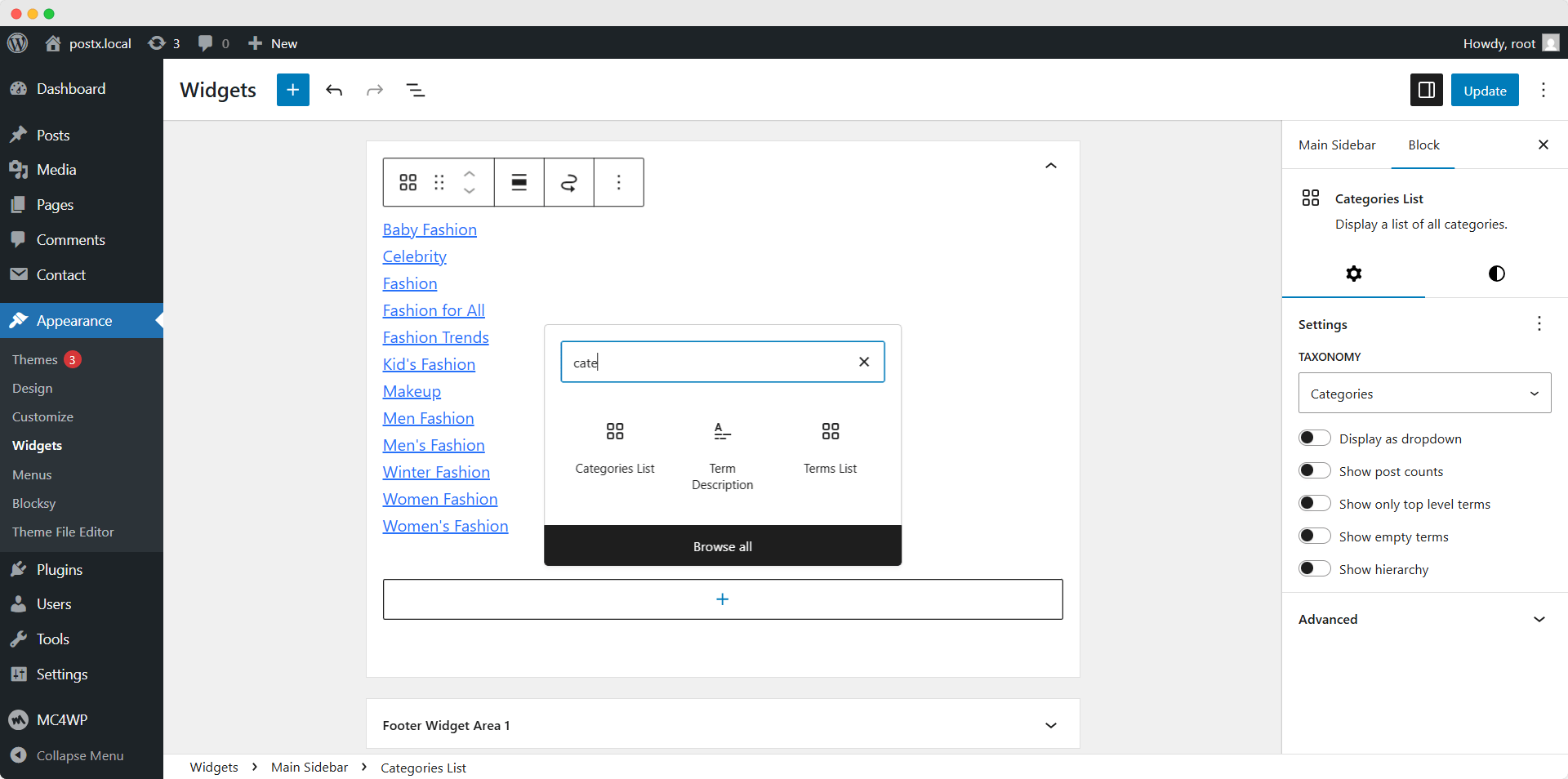
Log in to your WordPress dashboard first. Go to Appearance in the left menu. Click on Widgets. You will see a list of available widgets and the widget areas on your site. The sidebar is one of these areas where you can add widgets.
Adding Categories Widget
Find the Categories widget in the list. Click on it or drag it to the Sidebar area. This will add the categories list to your sidebar. You can move it up or down to change where it appears. It will show all your post categories to visitors.
Customizing Widget Settings
After adding the Categories widget, click the down arrow on it. You can change the title that appears above the categories list. Choose if you want to show the post count next to each category. You can also decide if categories should display in a dropdown menu. Save your changes when done.
Using Plugins For Advanced Options
Using plugins for advanced options lets you customize your WordPress sidebar easily. Plugins add extra features beyond the default category widget. They help you organize, display, and style categories in many ways.
Plugins are helpful if you want more control over how categories appear. You can show category images, descriptions, or even create dropdown menus. This section explains how to use plugins for better category management.
Popular Category Plugins
Several plugins are popular for enhancing category display. Category Posts Widget shows recent posts from chosen categories. WP Categories Widget offers custom styles and layouts. List category posts shortcode is good for inserting category lists in posts or pages. These plugins add flexibility to your sidebar categories.
Installing And Activating Plugins
Go to your WordPress dashboard and click Plugins > Add New. Type the plugin name in the search box. Click Install Now on the plugin you want. After installing, click Activate. The plugin is ready to use and configure.
Configuring Plugin Settings
Each plugin has its own settings page. Find it under the Settings or Appearance menu. Adjust options like category order, display style, and number of posts. Save changes and check your sidebar. Make small changes to fit your site’s look and feel.
Customizing Sidebar With Code
Customizing the sidebar with code allows more control over your WordPress site. You can show exactly what you want. This method helps create a unique look. It also improves site navigation for visitors. Coding the sidebar requires editing theme files and adding PHP code. Some CSS styling enhances the appearance of your categories.
Editing Sidebar Template
First, find the sidebar template file in your theme folder. It is usually named sidebar.php. Open this file using a code editor. Make a backup before editing to avoid mistakes. You can add or remove elements here. This file controls what shows in the sidebar area.
Locate the place where you want to add the category list. Usually, it is inside a or tag. Add your PHP code here to display categories.
Adding Category List With Php
Use the WordPress function wp_list_categories() to list categories. This function outputs a list of all your categories. You can customize its parameters for style and order.
php wp_list_categories(array( 'orderby' = 'name', 'show_count' => true, 'title_li' => 'Categories
' )); ?> Place this code inside the sidebar template where you want the list. This shows category names and post counts. Visitors can click categories to see related posts.
Styling Categories With Css
Add CSS rules to style the category list. Target the ul and li tags generated by wp_list_categories(). Change font size, color, and spacing to match your site.
Example CSS:
.widget_categories ul { list-style-type: none; padding: 0; } .widget_categories li { margin-bottom: 8px; font-size: 16px; } .widget_categories a { color: 0073aa; text-decoration: none; } .widget_categories a:hover { text-decoration: underline; } Add this CSS to your theme’s style.css file or a custom CSS section. This styling improves readability and user experience.
Testing And Troubleshooting
Testing and troubleshooting are key steps after adding categories to your WordPress sidebar. These steps help ensure your sidebar shows the right content. They also fix issues that stop the sidebar from working well. This section guides you through checking and solving common problems.
Verifying Sidebar Display
Check your website on different devices and browsers. Make sure the categories appear in the sidebar. Refresh the page to see any updates. Use the WordPress Customizer to preview changes live. Confirm the sidebar is visible on all pages where you want it. If the sidebar is missing, check your theme settings. Some themes allow sidebar control per page or post.
Fixing Common Issues
Clear your browser cache to avoid old versions showing. Disable caching plugins temporarily to test sidebar updates. Look for conflicts with other plugins by deactivating them one at a time. Ensure your WordPress and theme are up to date. Check widget settings to confirm the categories widget is active. If categories do not list, verify you have assigned posts to categories. Review sidebar widget areas in Appearance > Widgets for correct placement.
Credit: www.wpxpo.com
Frequently Asked Questions
How Do I Add Categories To A WordPress Sidebar?
Go to Appearance > Widgets in your WordPress dashboard. Drag the “Categories” widget to your sidebar area. Configure the settings and save to display categories.
Can I Customize The Category List In The Sidebar?
Yes, you can customize the category list by choosing options like displaying as a dropdown, showing post counts, or hiding empty categories.
Why Aren’t My Categories Showing In The Sidebar?
Ensure you added the Categories widget to the correct sidebar. Clear your cache and check if the theme supports sidebar widgets.
How To Reorder Categories In WordPress Sidebar?
WordPress does not offer direct drag-and-drop for categories order. Use a plugin like “Category Order and Taxonomy Terms Order” for custom sorting.
Conclusion
Adding categories to your WordPress sidebar helps visitors find content easily. It organizes your site and improves user experience. The process is simple and takes just a few steps. You can customize the sidebar to fit your website’s style. Keep your categories clear and relevant for best results.
Regular updates keep your site fresh and useful. Start adding categories today to make your site more user-friendly.


