
Are you looking to enhance the visual appeal of your WordPress site? Adding a carousel could be your perfect solution.
Imagine capturing your visitors’ attention instantly with a dynamic display of your best content or products. Carousels can provide a seamless, interactive experience that keeps users engaged longer. But how do you integrate this eye-catching feature into your WordPress theme without breaking a sweat?
This guide is crafted just for you. Discover the straightforward steps to incorporate a carousel and transform your website from ordinary to extraordinary. Whether you’re a seasoned developer or just starting, you’ll find everything you need to know right here. Stay with us, and let’s elevate your website’s design together!
Choosing The Right Carousel Plugin
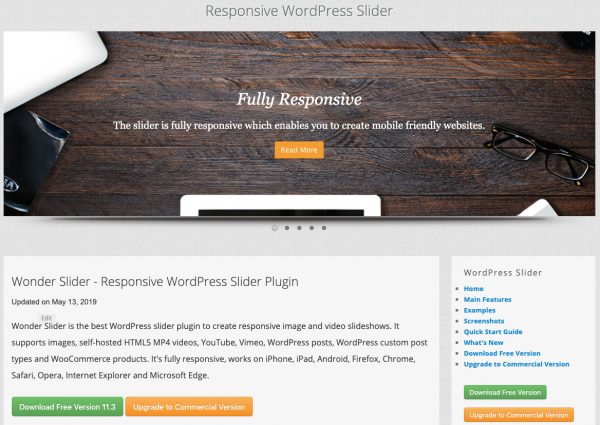
Carousel plugins make your website look lively. They display images in a fun way. Some plugins are popular because they are easy to use. MetaSlider and Smart Slider 3 are two well-known options. These plugins have many features. You can add images, videos, or text.
Criteria for Selection is important. Look for plugins that are simple. They should have good reviews. Check if the plugin updates often. This is important for security. Make sure it works well with your theme. A good plugin should also be fast. Slow plugins make websites hard to use.
Credit: www.wonderplugin.com
Installing The Carousel Plugin
Accessing the WordPress Dashboard is the first step. Open your browser and enter your site’s URL. Add “/wp-admin” at the end. Log in with your username and password. You will see the dashboard. This is where you manage your site.
Searching for the Plugin comes next. Look for “Plugins” in the sidebar menu. Click on “Add New.” Type “carousel” in the search box. Many plugins will appear. Read the descriptions. Pick one that suits your needs.
Installing and Activating the Plugin is easy. Click “Install Now” next to your chosen plugin. Wait a few seconds. Click “Activate.” The plugin is ready to use. Check your dashboard for new options. Follow instructions to set it up.
Setting Up The Carousel
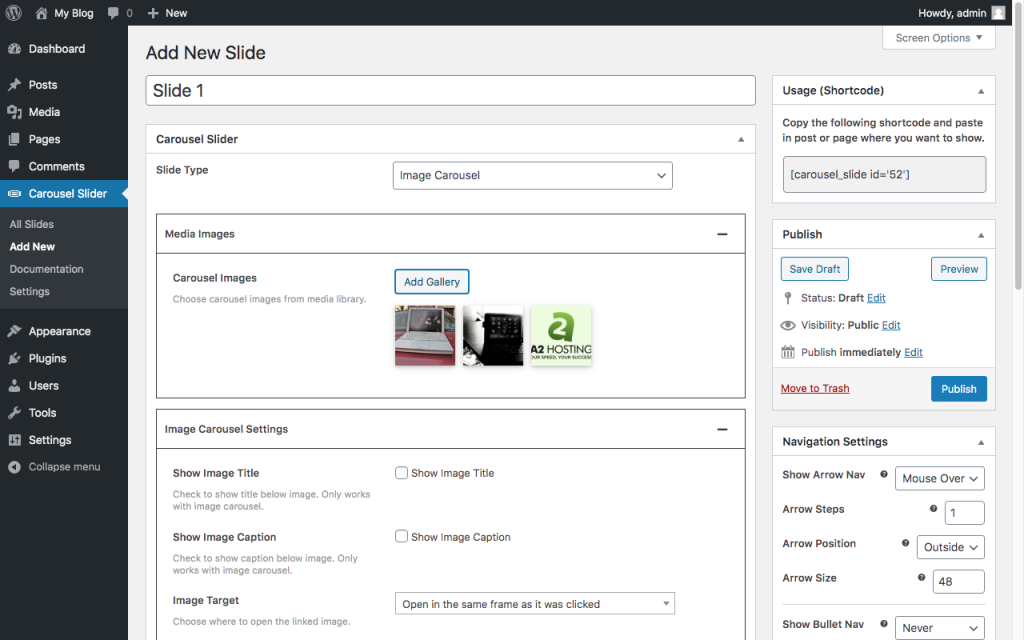
Start by uploading your images to the media library. Ensure your images are of good quality and have the same dimensions. This helps in a smoother display. Next, select the images you want in the carousel. Add them to your carousel plugin. Most plugins offer a simple way to add images. Follow their instructions carefully. Check your image order. Adjust if necessary. This ensures the right flow.
Choose how many images to show at once. This is important for both large and small screens. Decide on the transition effect. Some popular effects are slide and fade. Set the speed of the transition. Fast speeds can be exciting. Slow speeds can be calming. Make sure to preview changes often. This helps in finding the perfect balance.
Pick a theme that matches your site. Colors and fonts should blend well. Use arrows or dots for navigation. This helps users move through images. Enable autoplay if you like. This lets images change on their own. Be mindful of your audience. Not everyone likes autoplay. Test on different devices. Ensure everything looks good everywhere.
Credit: kb.hosting.com
Embedding Carousel In Theme
Shortcodes help to add a carousel quickly. Copy the shortcode from the carousel plugin. Place it in the post editor. Your carousel will appear there. Remember to update or publish the post. This makes changes live. Shortcodes are easy to use. They save time and work well.
To add a carousel to a page template, open the template file. Find the place you want the carousel. Insert the PHP function for the shortcode. This helps in displaying the carousel. Make sure to save changes. Check the page in your browser. Your carousel should now show up on the page.
Widgets make it easy to add carousels to sidebars. Go to the Widgets section in the WordPress admin. Drag a Text widget to the sidebar area. Paste the shortcode into the widget. Save changes to see the carousel. It’s a good way to show important images or content in sidebars.
Testing And Troubleshooting
Adding a carousel in a WordPress theme involves testing and troubleshooting various plugins. Ensure compatibility with your theme by checking settings and configurations. Adjust image sizes and transition effects for a seamless display.
Previewing The Carousel
Always check how the carousel looks before finalizing. Use the preview feature in WordPress. This helps to spot errors early. Make sure all images load properly. Check that navigation buttons work. Verify the carousel on different browsers. It should appear the same everywhere. If something looks off, adjust settings or code. This ensures a smooth user experience.
Common Issues And Fixes
Some issues might arise with the carousel. Images might not appear correctly. Check if the file paths are correct. Navigation buttons might not work. Ensure JavaScript is enabled. The carousel might not start automatically. Adjust auto-play settings. If the carousel doesn’t resize, check responsive settings. These fixes often solve the problem.
Responsive Design Considerations
Responsive design is crucial for carousels. They must look good on all devices. Check how the carousel appears on phones. Ensure it fits well on small screens. Adjust image sizes for better display. Use flexible layouts. This helps the carousel adapt to different screen sizes. A well-designed responsive carousel improves user engagement.
Enhancing Carousel Functionality
Boost your WordPress theme with a carousel feature by adding a plugin. Customize image slides to enhance user experience. Follow easy steps to integrate and display content beautifully.
Incorporating Videos
Carousels can show videos. Adding a video is easy. First, find the video URL. Next, use a plugin. Plugins help display videos smoothly. Some themes support video carousels. Check your theme settings. Make sure videos are short. Long videos slow load times. Fast loading keeps users happy. Look for video formats your theme supports. Always test on mobile devices.
Adding Links And Captions
Links make carousels interactive. Clicking links can lead users to new pages. Adding captions helps explain images. Captions should be clear. Keep them short and simple. Use bold for important words. Place links in the image settings. Check if links work correctly. Broken links frustrate users. Captions improve understanding. Users appreciate helpful information. Test on different browsers.
Utilizing Animation Effects
Animations make carousels lively. Simple animations work best. Too many effects can distract users. Fade and slide are popular choices. Choose effects that suit your theme. Animations should be smooth. Rough animations can look unprofessional. Adjust speed for better viewing. Slow speeds might bore users. Fast speeds can confuse. Test animations before going live. Ensure effects work on mobile.
Best Practices For Carousel Usage
To add a carousel in a WordPress theme, start by selecting a reliable plugin. Install and activate it through the WordPress dashboard. Customize settings to suit your design needs, ensuring smooth navigation and mobile responsiveness. Regularly update and test the carousel for optimal performance and user experience.
Optimizing Image Size
Reducing image size is crucial. Large images slow down websites. Use tools to compress images. Ensure image quality remains high. Blurry images can frustrate users. Smaller images load faster. This improves user experience.
Ensuring Accessibility
Carousels should be easy to use. Add text descriptions to images. Blind users rely on these. Use clear buttons for navigation. Make sure the carousel stops on hover. This helps users read content easily. Accessibility improves website inclusivity.
Balancing Content And Speed
More content can slow down pages. Use fewer slides for speed. Test the website loading time. Ensure quick transitions between slides. Fast websites keep users happy. Avoid too many animations. They can distract users from content.

Credit: imranhsayed.medium.com
Frequently Asked Questions
How Do I Add A Carousel To WordPress?
To add a carousel, install a carousel plugin from the WordPress repository. Activate it and configure settings. Use shortcodes or widgets to insert the carousel in your theme. Customize the appearance and functionality as needed, ensuring compatibility with your theme’s design and layout.
What Is The Best Carousel Plugin For WordPress?
The best carousel plugin depends on your needs. Popular options include “MetaSlider,” “Smart Slider 3,” and “Owl Carousel. ” Each offers unique features, such as responsive designs and customization options. Evaluate these plugins based on your theme requirements and the features you desire for optimal performance.
Can I Customize Carousel Settings In WordPress?
Yes, most carousel plugins allow customization. You can adjust slide speed, transition effects, and navigation styles. Access the plugin settings through your WordPress dashboard. Tailor these options to match your theme’s aesthetic and user experience preferences, ensuring a seamless integration.
Are Carousels Mobile-friendly In WordPress Themes?
Yes, most modern carousel plugins are mobile-friendly. They automatically adapt to different screen sizes and orientations. Ensure you choose a responsive plugin. Test it across devices to confirm seamless operation and maintain a consistent user experience for mobile visitors.
Conclusion
Adding a carousel to your WordPress theme is simple and effective. It enhances your site’s visual appeal. Visitors enjoy interactive elements. Carousels showcase multiple images or content. They keep the audience engaged. Use plugins or built-in features for ease. Follow the steps carefully.
Customize the carousel to fit your style. Test functionality before going live. Ensure mobile responsiveness. This boosts user experience. Regular updates help maintain performance. Enjoy the benefits of a dynamic and attractive website. Engage your audience and keep them coming back for more.


