

Are you tired of spam flooding your WordPress site? Adding a CAPTCHA is one of the simplest and most effective ways to protect your forms from bots and keep your site secure.
But if you’ve never done it before, the process might seem confusing or technical. Don’t worry—this guide will walk you through each step clearly and quickly. By the end, you’ll know exactly how to add a CAPTCHA that stops unwanted traffic and keeps your visitors happy.
Ready to take control of your site’s security? Let’s dive in.

Credit: wp101.com
Why Add Captcha To WordPress
Captcha helps keep your WordPress site safe and clean. It stops unwanted bots from causing trouble. Adding Captcha improves site security and user trust. It is a small step that brings big benefits.
Protecting Against Spam
Spam fills your site with fake comments and messages. It wastes your time and lowers site quality. Captcha blocks bots from sending spam automatically. It keeps your site’s content real and useful.
Enhancing Login Security
Login pages are common targets for hackers. Bots try to guess passwords and break in. Captcha adds a shield to your login form. It makes sure only real people can enter.
Improving User Experience
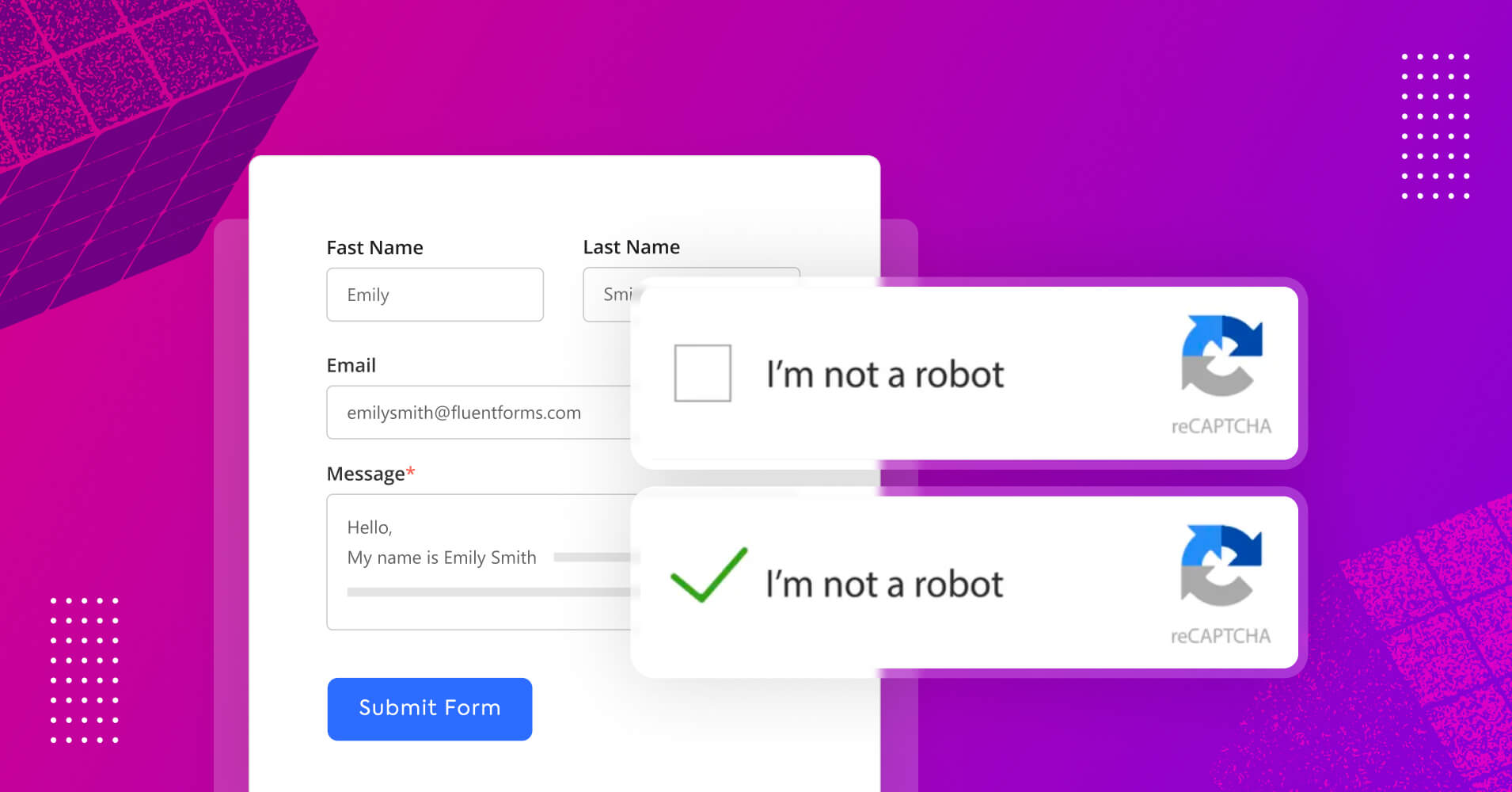
Captcha stops annoying spam and fake accounts. It keeps your site safe without slowing real users. Simple Captcha tests take just seconds to complete. This helps users trust your site more.
Credit: fluentsmtp.com
Types Of Captcha Available
Captcha helps protect websites from spam and bots. It makes sure that real people use the site. Different types of Captcha serve different needs. Some are simple, while others use advanced technology. Understanding these options helps you pick the right one for your WordPress site.
Traditional Text-based Captcha
This type asks users to type letters or numbers shown in a distorted image. It is simple and widely used. Many bots struggle to read these images correctly. It works well for basic protection on forms and comments.
Image And Puzzle Captcha
Users solve puzzles or select certain images to prove they are human. This method is more interactive and harder for bots to solve. It improves user experience by being clear and engaging. Common examples include choosing pictures with traffic lights or animals.
Recaptcha By Google
Google’s reCAPTCHA is popular and very effective. It uses advanced risk analysis to stop bots. Users may only need to click a checkbox or solve a challenge. This system adapts to user behavior and blocks suspicious activity.
Invisible Captcha Options
Invisible Captchas work silently in the background. Users do not see any challenge unless the system suspects a bot. It offers smooth user experience without interruptions. This type is great for sites wanting strong security with no hassle.
Choosing The Right Captcha Plugin
Choosing the right captcha plugin is important for your WordPress site’s security and user experience. The plugin should stop spam but not annoy visitors. The right choice balances protection with ease of use. This section helps you find a plugin that fits your needs.
Popular Captcha Plugins For WordPress
Several captcha plugins are widely used by WordPress users. Google reCAPTCHA is very popular and free to use. It offers simple challenges that most users solve quickly. Another option is hCaptcha, known for privacy and good spam protection. WPForms also includes built-in captcha features, useful for contact forms. Each plugin has strengths and fits different site types.
Features To Consider
Look for plugins that offer easy setup and strong spam blocking. Some provide invisible captchas that do not require user interaction. Others use image or math challenges, which can slow down visitors. Choose plugins with flexible settings. Support for multiple forms and languages is helpful. Also, check if the plugin lets you customize the look to match your site.
Compatibility And Updates
Check that the plugin works with your WordPress version. Regular updates are important to fix bugs and improve security. Read reviews to see if users report conflicts with themes or other plugins. A well-maintained plugin means fewer problems and better protection. Always pick plugins from trusted sources or the official WordPress repository.
Credit: www.wpbeginner.com
Step-by-step Guide To Adding Captcha
Adding captcha to your WordPress site helps stop spam and fake sign-ups. This guide breaks down the process into clear steps. Follow each part carefully to secure your forms easily.
Installing The Plugin
First, log in to your WordPress dashboard. Navigate to the “Plugins” menu and click “Add New”. In the search bar, type “captcha”. Choose a popular plugin like “Google Captcha (reCAPTCHA)”. Click “Install Now” and then “Activate”. The plugin is ready to use.
Configuring Captcha Settings
Go to the plugin settings page in your dashboard. Enter the site key and secret key provided by the captcha service. Choose the type of captcha you want, such as checkbox or invisible captcha. Save the changes to apply the settings.
Adding Captcha To Login And Registration Forms
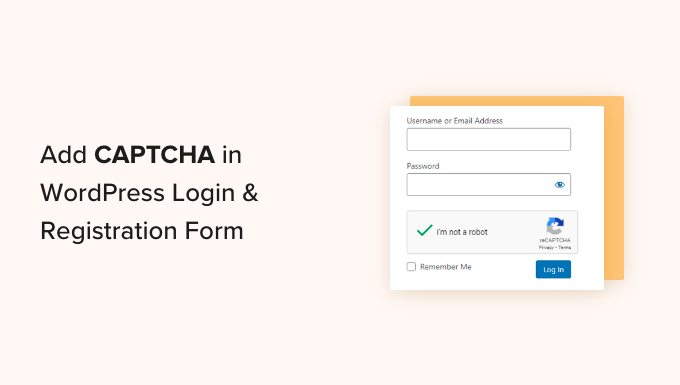
Find the options to add captcha to login, registration, and password reset forms. Enable captcha on the forms where you want extra security. Some plugins allow adding captcha to comment forms too. Save your settings once you finish.
Testing Captcha Functionality
Log out from your WordPress admin area. Try to log in or register on your site. Check if the captcha appears and works correctly. Submit the form to see if it blocks automated bots. Make sure it does not stop real users.
Troubleshooting Common Issues
Adding a captcha to WordPress helps stop spam and bots. Sometimes, captcha does not work as expected. Troubleshooting common issues saves time and frustration. This guide covers frequent problems and easy fixes.
Captcha Not Displaying
Captcha may not show up on your form or page. Check if the captcha plugin is active in the WordPress dashboard. Clear your browser cache to remove old data. Make sure your site’s theme supports the captcha plugin. Some themes block scripts needed for captcha. Also, verify your site key and secret key are correct in the plugin settings.
User Experience Complaints
Users might say captcha is too hard or confusing. Use simple captcha types like image or checkbox captchas. Avoid captchas that require typing difficult letters or numbers. Test the captcha on different devices and browsers. Keep captcha steps quick to avoid losing visitors. Offer a clear error message if users fail captcha.
Plugin Conflicts
Captcha plugins can conflict with other WordPress plugins. Disable other plugins one by one to find the conflict. Pay attention to caching and security plugins as common culprits. Update all plugins to the latest versions. Use a plugin compatibility checker if available. Switching to a different captcha plugin can also help.
Best Practices For Captcha Use
Adding Captcha to your WordPress site helps protect it from spam and bots. Using Captcha correctly keeps your site safe without annoying visitors. Follow these best practices for the best results.
Balancing Security And Usability
Captcha must block bots but stay easy for users. Choose simple Captcha types, like image or checkbox ones. Avoid complex puzzles that make users leave your site. Test your Captcha on different devices and browsers. Find the right balance to keep visitors happy and safe.
Regularly Updating Plugins
Keep your Captcha plugins updated to fix bugs and improve security. Old versions may have weaknesses hackers exploit. Set reminders to check for updates often. Use plugins from trusted developers to ensure support. Updated plugins run smoothly and protect your site better.
Monitoring Site Activity
Watch your website traffic to spot suspicious actions. Use tools to track failed login attempts and spam entries. If Captcha fails to stop spam, adjust its settings or try another type. Monitoring helps catch problems early. It keeps your site clean and secure.
Frequently Asked Questions
What Is The Easiest Way To Add Captcha In WordPress?
The easiest way is using plugins like Google Captcha (reCAPTCHA). Install, activate, then configure settings in your WordPress dashboard. No coding needed, making it user-friendly and quick for beginners.
How Does Captcha Improve WordPress Site Security?
Captcha blocks automated bots from spamming forms and comments. It verifies human users, reducing fake registrations and spam, thus enhancing overall website security and user experience.
Can I Add Captcha To WordPress Login Page?
Yes, many plugins allow you to add Captcha on login pages. This protects against brute force attacks by requiring human verification before login attempts.
Which Captcha Plugin Is Best For WordPress?
Google Captcha (reCAPTCHA) by BestWebSoft is popular and reliable. It offers easy setup, multiple Captcha types, and strong spam protection for WordPress sites.
Conclusion
Adding a captcha to your WordPress site helps stop spam and fake users. It keeps your site safe and running smoothly. The process is simple and does not need much time. Just pick the right plugin and follow the steps.
This small change makes a big difference in protecting your site. Keep your visitors happy by reducing unwanted messages. Try adding captcha today to improve your WordPress security easily.


