

Want to make it easier for your visitors to reach you right away? Adding a call button to your WordPress site can do just that.
But what if you don’t want to rely on plugins that slow down your site or complicate things? You’re in the right place. This guide will show you exactly how to add a simple, effective call button to your WordPress site without using any plugins.
By the end, you’ll have a fast, clean way for your visitors to contact you with just one click. Keep reading—you’re about to make your website more user-friendly and boost your chances of connecting with potential customers.
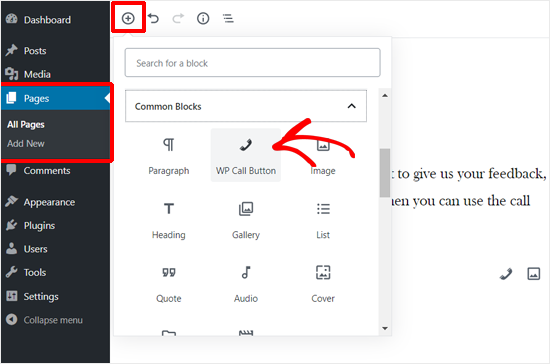
Credit: www.wpbeginner.com
Why Add A Call Button
Adding a call button to your WordPress site makes it easy for visitors to reach you fast. It helps customers connect with your business without any hassle. This simple feature can improve your site’s usability and increase customer trust.
Benefits For Mobile Users
Most people browse websites on their phones. A call button lets them call you with one tap. No need to remember or type your number. It saves time and effort for users. This ease improves their experience on your site. Mobile users are more likely to contact you right away.
Boosting Customer Engagement
A call button invites visitors to speak directly with you. It makes your business feel more personal and approachable. People trust brands that offer quick support. This direct contact can lead to more questions and sales. It also helps solve problems faster. Overall, it encourages visitors to take action immediately.
Preparing Your Phone Number
Before adding a call button to your WordPress site, prepare your phone number carefully. A correctly formatted number ensures visitors can reach you easily. It helps avoid confusion and dialing errors.
Preparation includes choosing the right format and using international codes. These steps make your phone number clear and accessible worldwide.
Choosing The Right Format
Use a simple and clear phone number format. Separate groups of digits with spaces or dashes for easy reading. Avoid long strings of numbers without breaks. Example: 123-456-7890 or 123 456 7890.
Keep the format consistent across your website. This builds trust and professionalism. Visitors find it easier to recognize your contact number.
Using International Codes
Include the country code before your phone number. This helps international visitors call you without confusion. Start with a plus sign (+) followed by the country code. Example: +1 123 456 7890 for the USA.
Omitting the country code can cause dialing errors. It limits your reach to local users only. Using international codes makes your site user-friendly worldwide.
Adding Call Button With Html
Adding a call button with HTML in WordPress is simple and fast. You do not need any plugin. Just a small piece of code can create a clickable phone link. This link helps visitors call you directly from their phone or device. It improves user experience and can increase your calls.
The call button works by using an anchor tag with a special phone number format. You can customize the text on the button to make it clear and inviting. This method keeps your site clean and loads faster.
Using The Anchor Tag
Start by opening your WordPress editor. Switch to the HTML or text view. Use the anchor tag like this:
Call UsReplace +1234567890 with your actual phone number. The tel: part tells the device to dial the number. Visitors can tap the link on mobile phones to call you directly. On desktops, it may open a calling app.
Customizing The Button Text
You can change the text inside the anchor tag to match your style. For example:
Call NowOr use:
Speak to SupportChoose short and clear words. This helps visitors understand the button’s purpose quickly. You may also add simple CSS to style the link as a button. This keeps your site neat and user-friendly.
Styling The Call Button With Css
Styling the call button with CSS makes it look attractive and easy to use. A well-styled button grabs attention and encourages clicks. Simple styles create a clean, professional look that fits your website. You can change colors, size, and shape with just a few lines of CSS.
Good styling also improves user experience. Visitors can see the button clearly and know it is clickable. Small effects like color changes on hover make the button interactive. This guide shows how to style your call button with basic CSS rules.
Basic Button Styles
Start with a simple background color that stands out. Use a color that matches your website’s theme. Add padding to make the button bigger and easier to tap on phones. Rounded corners give the button a modern look. Set the font size to make the text clear and readable. Use bold text to highlight the call to action. Add a border to define the button edges.
Hover Effects For Better Ux
Hover effects show users that the button is clickable. Change the background color slightly when the mouse is over the button. This small effect makes the button feel alive. You can also change the text color on hover for contrast. Adding a shadow or slight movement improves the look. Keep hover effects smooth with a transition. This makes the button change softly, not suddenly.
Placing The Call Button On Your Site
Placing a call button on your WordPress site helps visitors reach you fast. Choose the best spot to catch attention without disturbing the site’s look. The button should be easy to find on every page.
Many sites put the call button in the header or footer. Others add it inside posts or pages. Each place has its benefits and suits different needs.
Adding To Header Or Footer
The header and footer appear on all pages. Adding a call button here means visitors can call anytime. Edit your theme’s header.php or footer.php file to add the button code. Use a simple Call Us link. Place it inside a or to style it easily with CSS.
Make sure to back up files before editing. The button in the header often shows near the logo or menu. The footer is good for a smaller call button or phone number.
Inserting In Posts Or Pages
Add the call button directly in your content for specific pages. Use the WordPress editor to switch to the text mode. Paste the same Call Now code where you want the button.
This method works well for contact pages or special offers. Visitors reading your content can call without scrolling. Style the link with inline CSS or add a CSS class for better design.
Placing the call button inside posts or pages gives control on where it appears. It fits naturally with your message and invites action.
Testing The Call Button
Testing the call button is key to ensure it works well for your visitors. A call button must connect users to your phone number quickly and without errors. This step confirms the button functions correctly across different devices and browsers.
Checking On Mobile Devices
Mobile devices are the main platform for call buttons. Open your website on various smartphones and tablets. Tap the call button to see if it starts dialing your number. Test on both Android and iOS for best results. Make sure the button is easy to find and responsive to touch.
Also, check the button’s appearance on different screen sizes. It should remain visible and clickable. A well-tested call button boosts user experience and increases contact chances.
Troubleshooting Common Issues
Sometimes the call button might not work as expected. The phone may not dial, or the button might not respond. First, verify that the phone number is in the correct format. Use the format tel:+1234567890 for best compatibility.
Clear your browser cache and try again. Some browsers block call links in desktop mode. Test in mobile view or on real devices. If the button still fails, check your website’s code for errors. Fix broken links or misplaced tags. Testing solves issues before users find them.
Advanced Tips For Call Buttons
Adding a call button to your WordPress site is simple. But to make it stand out, use advanced tips. These tips help your visitors see and use the call button easily. They also improve user experience and increase calls.
Using Icons For Visual Appeal
Icons catch the eye quickly. A phone icon on your call button shows its purpose clearly. Use simple HTML to add an icon next to your text. You can use Unicode characters like &128222; or SVG icons for better quality. This small touch makes your button look professional and easy to find.
Making The Button Sticky
A sticky call button stays visible when users scroll your page. Use CSS to fix the button at the bottom or side of the screen. This keeps the call option always ready. Visitors don’t need to scroll back up to find it. Sticky buttons increase the chance of calls by keeping the button in view.
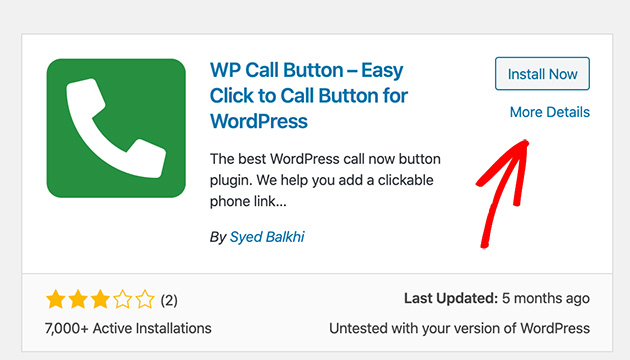
Credit: www.seedprod.com
Credit: www.wpbeginner.com
Frequently Asked Questions
How Do I Add A Call Button In WordPress Without Plugins?
You can add a call button by inserting HTML code with a tel: link. Edit your theme or widget, and add Call Us. This method is simple, lightweight, and doesn’t require extra plugins.
Can I Customize The Call Button Style Manually?
Yes, you can style the call button using CSS. Add custom CSS to your theme or in the WordPress Customizer. You can change colors, size, font, and hover effects to match your website design.
Is Adding A Call Button Without Plugins Seo Friendly?
Adding a call button via HTML and CSS is SEO friendly. It improves user experience and mobile usability. It also helps search engines recognize your contact information easily.
Will The Call Button Work On Mobile Devices?
Yes, call buttons with tel: links work on most mobile devices. When tapped, they prompt the device to initiate a phone call. This enhances mobile user interaction and convenience.
Conclusion
Adding a call button to your WordPress site is simple and quick. It helps visitors contact you fast. No need to install extra plugins or tools. Just use basic HTML and a little style. This keeps your website light and easy to manage.
Visitors will appreciate the easy way to reach you. Try this method to improve user experience today. Keep your site clean and functional with this easy tip.


