
Are you looking to make your WordPress posts clearer and easier to read? Adding bullet points is one of the simplest ways to organize your content and grab your readers’ attention.
But if you’re unsure how to do it or want to learn some quick tips, you’re in the right place. This guide will show you exactly how to add bullet points in WordPress, step by step. By the end, your posts will look cleaner, more professional, and keep your audience hooked from start to finish.
Let’s get started!
Credit: www.youtube.com
Bullet Points Basics
Bullet points help make text clear and easy to read. They break long paragraphs into small pieces. Readers can scan the content quickly. Bullet points highlight key information. They organize ideas in a simple list format. Using bullet points improves the look of your posts. It makes your message stronger and cleaner.
Why Use Bullet Points
Bullet points catch the reader’s eye. They make important facts stand out. Lists are easier to remember than long text blocks. Bullet points reduce reading time. They help readers find key points fast. Using bullets improves content flow. It guides readers through your ideas step-by-step.
Types Of Bullet Points
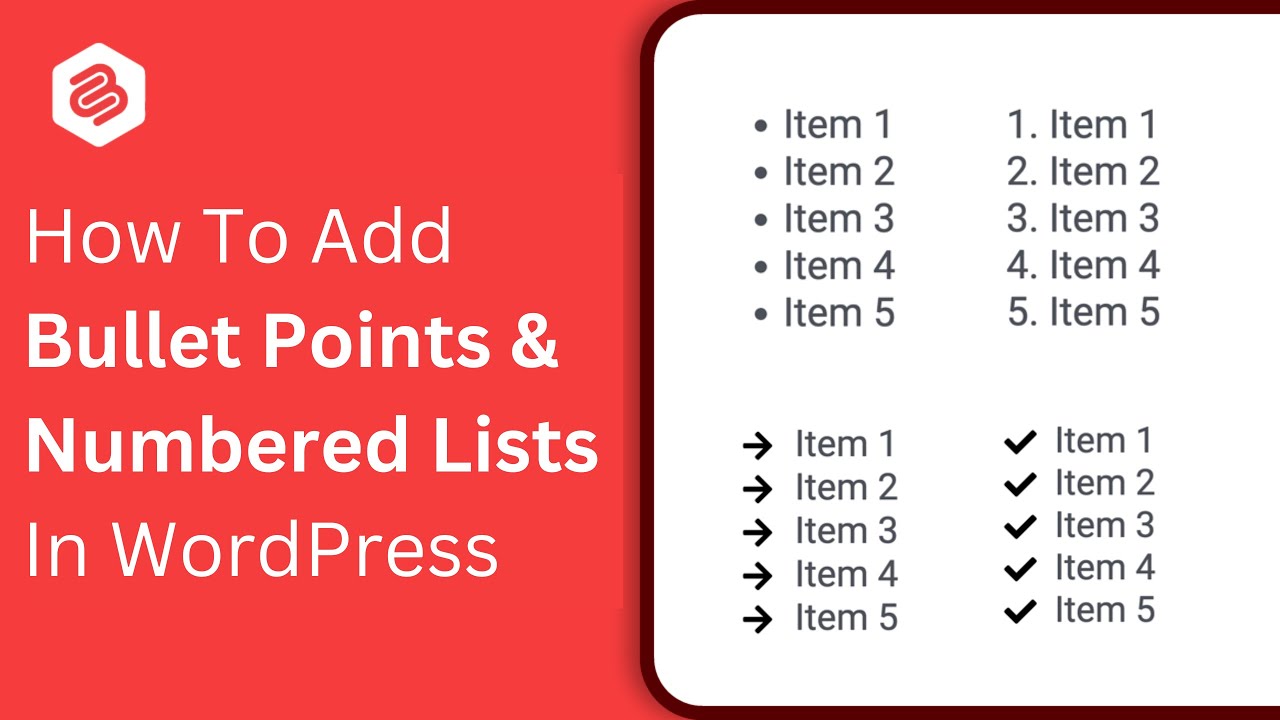
Standard round bullets are the most common type. They work well for general lists. Square bullets offer a modern look. They add variety to your content. Custom bullets can use icons or images. These add style but should stay simple. Numbered lists show order or ranking. Use them for steps or priorities.
Using The WordPress Block Editor
The WordPress Block Editor makes adding bullet points simple and quick. It uses blocks to organize content. Each block has a specific function, like text, images, or lists. Using the block editor helps keep your content neat. You can easily add bullet points without coding. This section explains how to do it step-by-step.
Adding A List Block
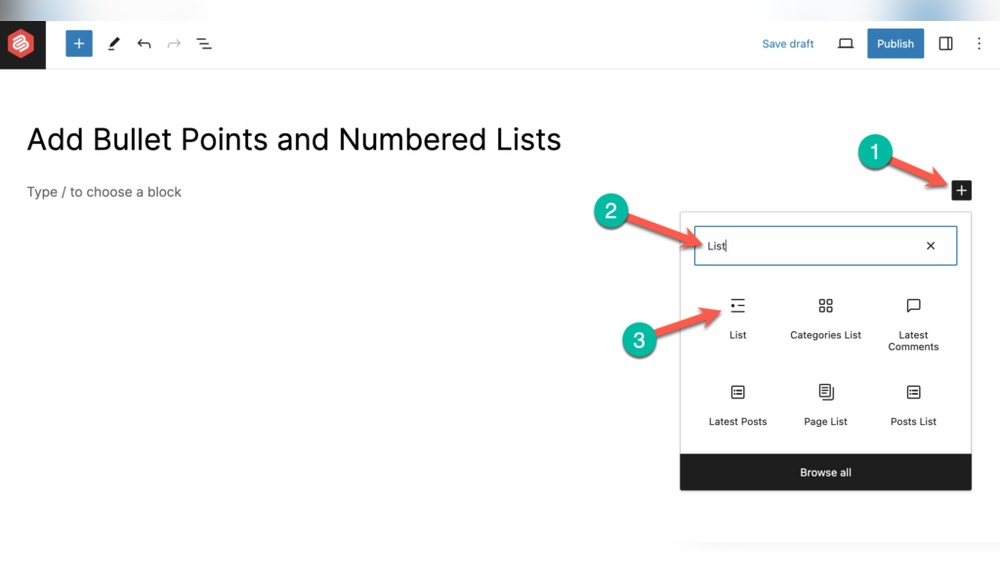
First, click the plus (+) icon to add a new block. Search for the “List” block and select it. This block lets you create bullet or numbered lists. Type your first item and press Enter to add more. The editor adds bullet points by default. You can switch to numbers if needed. This method works well for clear, organized lists.
Customizing Bullet Styles
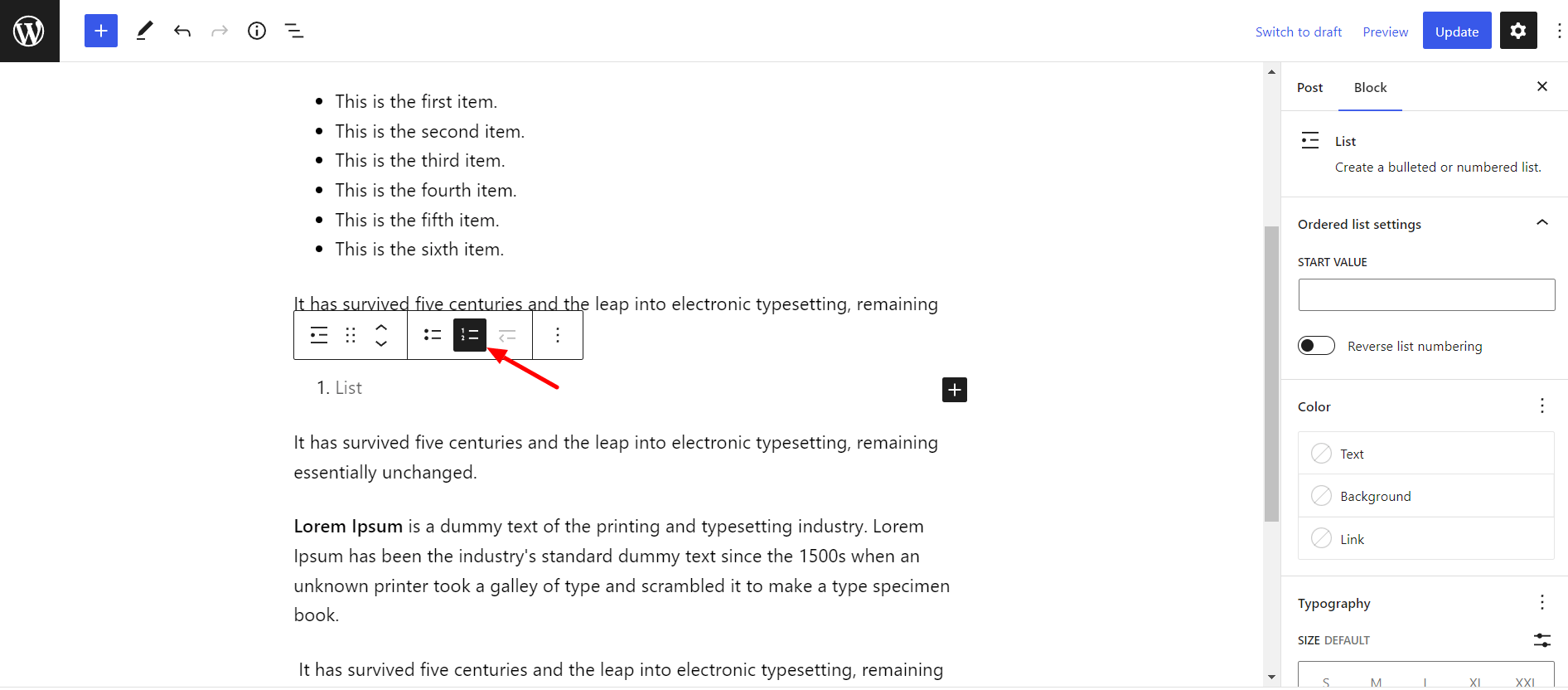
The WordPress Block Editor offers basic bullet style options. Select your list block, then open the block settings on the right. Here, you can choose between bullet points or numbers. Some themes may allow custom bullet styles. You can change bullet colors or sizes using custom CSS. Keep bullet styles simple for better readability.
Converting Text To Bullet Points
You can turn existing text into bullet points quickly. Highlight the text you want to change. In the toolbar above, click the list icon. The text converts into a list with bullet points. This saves time if you already wrote your content. Adjust the list format in the block settings if needed. This trick helps organize text fast and easily.
Classic Editor Methods
The Classic Editor in WordPress offers simple ways to add bullet points. It uses a familiar text editor layout. This makes creating lists quick and easy. You can use toolbar buttons or keyboard shortcuts. Both methods help organize content clearly. Bullet points improve readability and make posts more attractive.
Toolbar List Options
The toolbar in the Classic Editor has list buttons. These buttons create unordered (bulleted) or ordered (numbered) lists. Highlight the text you want to list. Click the bullet list button to add bullet points. The numbered list button adds numbers instead. You can also start typing with the bullet list active. Press Enter to add new bullets. Use the toolbar for fast, visual list creation.
Keyboard Shortcuts For Lists
Keyboard shortcuts speed up list creation. To start a bullet list, type an asterisk () and a space. The editor converts it to a bullet point. Press Enter to add more bullets. To end the list, press Enter twice. For numbered lists, type “1.” and a space. The editor changes this into a numbered list. These shortcuts save time and keep your hands on the keyboard.
Using Html For Custom Bullets
Using HTML for custom bullets in WordPress gives more control over how lists look. You can create simple bullet points or use icons and images to make your list stand out. This method works well for users who want to go beyond the default bullet styles available in the WordPress editor.
Writing HTML code directly allows you to customize each bullet point. It also helps keep your content clean and organized. Below are some basic ways to use HTML for bullet points in WordPress.
Basic Html List Tags
HTML uses two main tags for lists: for list items. The browser shows default bullets for tag.
Example:
- First item
- Second item
- Third item
This code creates a simple bulleted list. You can add as many items as needed.
Adding Custom Icons Or Images
To add custom icons or images as bullets, use CSS along with HTML. Replace the default bullet by setting the list style to none. Then insert icons or images before each list item.
Example with an image:
- First item
- Second item
This code hides the default bullet and shows an image instead. Adjust the padding to make space for the icon.
You can also use Unicode characters for custom bullets, like stars or arrows, by placing them inside the tags.
Plugins For Enhanced Lists
Plugins make bullet points more creative and easier to manage in WordPress. They offer extra styles and control. These tools help your lists stand out and improve readability. You can choose icons, colors, and animations for your bullet points. This makes your content more appealing and organized. Using plugins saves time. You don’t need to write custom code.
Top Plugins For Bullet Points
Several plugins work well for bullet points. “List Icon” adds icons to your lists easily. “Ultimate Blocks” offers many list styles and customization options. “Shortcodes Ultimate” includes bullet point shortcodes with different designs. “WP List Icons” lets you pick from many icons for bullets. These plugins are popular and often updated. They fit well with most WordPress themes.
How To Install And Use Plugins
Go to your WordPress dashboard. Click “Plugins” then “Add New.” Type the plugin name in the search box. Find the plugin and click “Install Now.” After installation, click “Activate.” To use the plugin, open a post or page. Look for the plugin’s block or shortcode. Add it where you want your bullet points. Customize the style and icons if available. Save or update your post to see changes. Easy steps make your lists attractive fast.
Credit: www.wpbeginner.com
Tips For Effective Lists
Lists make your content easier to read and understand. They break down information into small pieces. This helps readers find key points quickly. Using bullet points in WordPress can improve your blog’s clarity and user experience.
Good lists are short and to the point. They avoid extra details that confuse readers. Clear lists keep people interested and make your message stronger.
Keeping Lists Clear And Concise
Use simple words in your lists. Each bullet should show one idea only. Avoid long sentences or complex phrases. Keep bullets short—around one line if possible.
Limit the number of bullets to five or six. Too many points can overwhelm readers. Group related items together for better flow.
Using Bullets To Improve Seo
Search engines like content that is easy to scan. Bullet points help by organizing your text well. Use keywords naturally in your bullet points.
Place important terms near the start of bullets. This helps search engines understand your topic better. Clear lists improve your site’s ranking and user engagement.
Credit: wpspectra.com
Frequently Asked Questions
How Do I Add Bullet Points In WordPress Editor?
To add bullet points in WordPress, use the block editor’s “List” block. Simply click the “+” icon, select “List,” and start typing your items. Each new line creates a bullet point automatically, making it easy to organize content clearly and attractively.
Can I Customize Bullet Points In WordPress?
Yes, you can customize bullet points using CSS or plugins. CSS lets you change bullet style, color, and size. Plugins offer more design options without coding. This helps match your bullet points to your site’s branding and improve visual appeal.
What Is The Difference Between Bullet And Numbered Lists?
Bullet lists use symbols like dots to highlight items without order. Numbered lists show a sequence, using numbers or letters. Choose bullets for unordered points and numbers for steps or ranked information to improve content clarity.
Are Bullet Points Seo Friendly In WordPress Content?
Yes, bullet points improve SEO by enhancing readability and user experience. They break content into digestible parts, helping visitors scan information quickly. This can reduce bounce rates and increase engagement, positively impacting search rankings.
Conclusion
Adding bullet points in WordPress makes your content clear and easy to read. You can highlight key ideas quickly. Use the built-in editor tools to create lists without trouble. Remember, bullet points help break up large text blocks. This keeps readers interested and improves your site’s look.
Try adding bullet points to organize your posts better. It takes just a few clicks to make your writing more effective. Start using bullet points today and see the difference in your content’s clarity. Simple steps can lead to better engagement and understanding.


