

Are you ready to make managing appointments simple and stress-free? Adding a booking system to your WordPress site can save you hours and keep your customers happy.
Imagine letting your visitors book services anytime, without endless back-and-forth emails or missed calls. In this guide, you’ll discover easy steps to set up a powerful booking system that fits your needs perfectly. Keep reading, and by the end, you’ll have a smooth, professional booking process ready to impress your clients.
Choosing The Right Booking Plugin
Choosing the right booking plugin is important for your WordPress site. It affects how easy customers can book your services. The plugin must fit your needs and be simple to use. It should also work well with your website design and other tools. This guide helps you find the best plugin for your business.
Popular Booking Plugins For WordPress
Many booking plugins work well with WordPress. Some popular options include Bookly, Amelia, and WP Simple Booking Calendar. These plugins offer different features and styles. Each plugin has a unique way to manage bookings and payments. Choose one that matches your business type and size.
Key Features To Look For
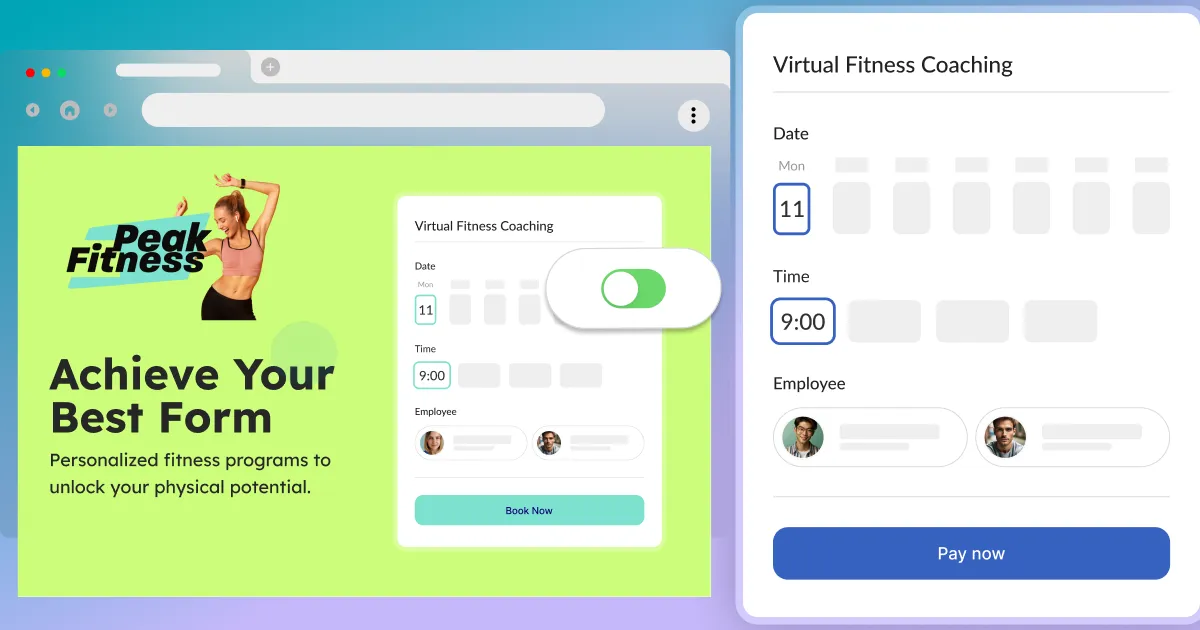
Look for features that make booking easy. A good plugin should support online payments and calendar syncing. It must allow customers to choose dates and times clearly. Mobile-friendly design is important for users on phones. Also, check if it sends email reminders to reduce no-shows.
Free Vs Premium Options
Free plugins offer basic booking tools for simple needs. They can work well for small businesses with few bookings. Premium plugins provide advanced features like multiple staff booking and detailed reports. Premium options come with support and regular updates. Choose based on your budget and the features you need.
Installing The Booking Plugin
Installing a booking plugin on WordPress is the first step to add a powerful booking system. It helps you manage appointments and reservations easily. This process is quick and simple. Follow the instructions below to get started and make your site ready for bookings.
Accessing The WordPress Plugin Directory
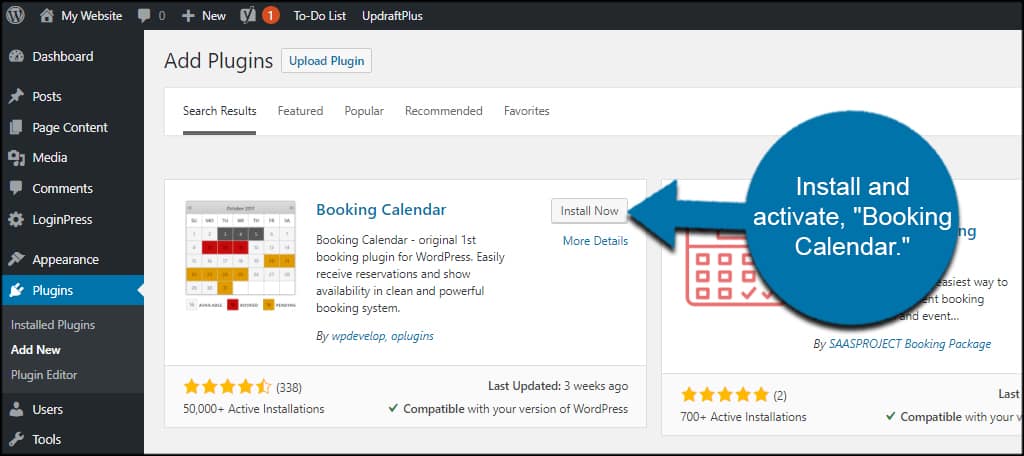
Log in to your WordPress dashboard. Look for the “Plugins” menu on the left side. Click on “Add New” under the Plugins section. You will see the WordPress Plugin Directory. It has thousands of plugins to choose from. Use the search bar to find a booking plugin that fits your needs.
Step-by-step Installation Guide
Type the name of the booking plugin in the search bar. Find the plugin from the results list. Click the “Install Now” button next to it. Wait a few moments for the plugin to download and install. The process usually takes less than a minute. Avoid closing the page during installation.
Activating The Plugin
After installation, click the “Activate” button. The plugin will now be ready to use on your site. You can find its settings in the WordPress dashboard. Configure the plugin to match your booking preferences. Your site is now set up to accept bookings.
Configuring Booking Settings
Configuring your booking settings is a key step to make your system work smoothly. This process lets you control how customers book appointments or services on your site. Proper settings improve user experience and reduce booking errors. You can adjust availability, booking forms, and payment options to fit your needs.
Setting Up Availability And Time Slots
Start by defining when your services are available. Set specific days and hours for bookings. Avoid overlaps by limiting the number of bookings per time slot. Many plugins let you create buffer times between appointments. This prevents double bookings and helps manage your schedule better.
Customizing Booking Forms
Booking forms collect important information from customers. Customize forms to ask only necessary questions. Use simple fields like name, email, and phone number. Add dropdowns or checkboxes for service options. Clear and short forms increase booking completion rates. You can also include terms and conditions for clarity.
Payment Integration Options
Integrate payment methods to secure bookings instantly. Choose from popular gateways like PayPal, Stripe, or bank transfer. Enable partial or full payment options. Secure payment boosts customer trust and reduces no-shows. Always test payment flows to avoid issues later.
Adding Booking System To Your Site
Adding a booking system to your WordPress site lets visitors book services easily. It improves user experience and helps manage appointments smoothly. You can choose different methods to place booking forms on your site. Each way fits different needs and layouts.
Using Shortcodes To Embed Booking Forms
Shortcodes are small pieces of code from booking plugins. They let you add booking forms inside posts or pages. Copy the shortcode from the plugin settings. Paste it where you want the form to appear. This method keeps your site clean and simple. Visitors see the form directly without extra clicks.
Placing Booking Widgets In Sidebars Or Footers
Widgets are blocks you can add to sidebars or footers. Most booking plugins offer widgets for quick access. Go to the WordPress dashboard and open Appearance > Widgets. Drag the booking widget to your chosen area. This keeps booking visible on every page. Visitors can book anytime without searching.
Creating Dedicated Booking Pages
Create a full page just for booking to give focus. Use the booking plugin to add the form on this page. Name the page clearly, like “Book an Appointment.” Link this page in your menu for easy access. This setup works well for services needing detailed info. Visitors get a smooth, focused booking experience.
Managing Bookings Efficiently
Managing bookings efficiently is key to running a smooth online reservation system. It helps avoid confusion and keeps customers happy. Good management means quick access to reservations, clear communication, and easy changes. WordPress booking plugins offer tools to handle these tasks simply and effectively.
Viewing And Editing Reservations
Access your booking list from the WordPress dashboard. Each reservation shows important details like date, time, and customer name. Click on any booking to edit its information. You can change dates, times, or customer contact details. This flexibility helps fix mistakes and update bookings with ease.
Sending Confirmation Emails
Automatic emails confirm bookings right after customers reserve. These messages reassure clients their spot is saved. Customize email templates to include booking details and your contact info. Make sure emails send quickly to reduce customer worries. Clear confirmations build trust and improve user experience.
Handling Cancellations And Reschedules
Allow customers to cancel or reschedule bookings through your site. Update the booking status in the system to keep records accurate. Notify customers about changes via email to avoid confusion. Easy cancellation and rescheduling options improve satisfaction and reduce no-shows.
Credit: www.greengeeks.com
Optimizing Booking Experience
Optimizing the booking experience is key to keeping visitors happy. A smooth, easy-to-use system helps customers book faster and with less stress. It also cuts down on errors and missed appointments. Simple steps can make your booking system more effective. Focus on making the process clear and accessible on all devices. Keep users informed with timely messages. Connect booking details to calendars to avoid confusion and double bookings.
Mobile-friendly Booking Interfaces
Many users book using phones or tablets. A mobile-friendly interface fits small screens perfectly. Buttons and text should be large and easy to tap. The booking flow must be simple and fast. Avoid clutter and long forms. Responsive design adjusts the layout automatically. This ensures a smooth experience on any device. Mobile-friendly booking keeps users engaged and reduces drop-offs.
Enhancing User Notifications
Notifications keep users informed about their bookings. Send confirmation messages right after booking. Reminders help reduce no-shows and last-minute cancellations. Use clear, simple language in all messages. Allow users to choose email or SMS notifications. Timely alerts build trust and improve communication. Avoid too many messages to prevent annoyance.
Integrating With Calendar Apps
Connecting bookings with calendar apps improves organization. Users see their appointments directly in Google Calendar or Outlook. This reduces missed bookings and double entries. Sync booking data automatically in real-time. Provide easy options for users to add events. Calendar integration saves time and keeps schedules clear. It also helps businesses manage appointments smoothly.
Troubleshooting Common Issues
Adding a booking system to WordPress can sometimes lead to issues. These problems may stop the system from working right. Troubleshooting helps fix these issues quickly. It keeps your booking system smooth and reliable. Below are common problems and how to solve them.
Fixing Plugin Conflicts
Plugins can clash and cause errors. They may slow down your site or break features. Start by deactivating all plugins except the booking system. Check if the problem still exists. Reactivate plugins one by one. This finds the plugin causing conflict. Update all plugins to their latest versions. Use plugins from trusted sources only.
Resolving Payment Gateway Errors
Payment gateways often face connection or authorization issues. Verify your API keys are correct and active. Check your payment gateway settings in the booking plugin. Ensure your website has a valid SSL certificate for secure payments. Look for error messages during checkout. Contact your payment provider if problems persist.
Improving Booking Form Performance
Slow booking forms may lose customers. Optimize images and remove unnecessary fields. Use caching plugins to speed up loading times. Minimize the use of heavy scripts or animations. Test your form on different devices and browsers. A fast, simple form improves user experience and bookings.
Credit: calendesk.com
Credit: www.booknetic.com
Frequently Asked Questions
What Is The Best WordPress Booking System Plugin?
The best plugin depends on your needs. Popular options include Bookly, Amelia, and WP Simple Booking Calendar. They offer easy setup, customizable features, and seamless integration with WordPress to manage appointments efficiently.
How Do I Integrate A Booking System Into WordPress?
Install a booking plugin from the WordPress dashboard. Activate it, then configure settings like services, availability, and payment options. Embed the booking form on any page using shortcodes or blocks for easy client access.
Can I Accept Payments With WordPress Booking Plugins?
Yes, many booking plugins support payment gateways like PayPal and Stripe. This allows clients to pay securely during booking, streamlining your appointment process and improving cash flow.
Are Booking Plugins Mobile-friendly On WordPress?
Most modern WordPress booking plugins are mobile-responsive. They ensure your booking forms work well on smartphones and tablets, providing a smooth user experience across all devices.
Conclusion
Adding a booking system to WordPress makes managing appointments easier. It saves time and reduces scheduling errors. Visitors can book services directly on your website. This improves customer experience and grows your business. Many plugins offer simple setup and useful features.
Choose one that fits your needs and budget. Test it well before launching to avoid issues. Keep your system updated for smooth operation. Start today and see how it helps your site.


