
Are you looking to organize your WordPress blog so your readers can find content faster? Adding blog categories is the easiest way to do that.
When you group your posts into clear categories, your site looks more professional and keeps visitors engaged longer. In this guide, you’ll learn exactly how to add blog categories in WordPress step-by-step, even if you’re new to blogging. By the end, you’ll have a neat, well-structured blog that your audience will love to explore.
Let’s get started!
Why Categories Matter
Categories play a key role in managing your WordPress blog. They help group posts with similar topics. This makes your blog easier to understand for readers. Categories also support search engines in finding your content. Organizing posts by category improves the overall site experience.
Organize Your Content
Categories keep your blog neat and tidy. They separate topics into clear sections. This stops your blog from looking messy. Readers can find posts about a specific subject quickly. Each category acts like a folder for related posts.
Improve User Navigation
Categories guide visitors through your blog smoothly. Visitors see links to topics they like. This makes it easier to explore related articles. Good navigation keeps readers on your site longer. Visitors enjoy finding more posts on their favorite themes.
Boost Seo Benefits
Search engines use categories to understand your blog. Proper categories help search engines find relevant content. This can improve your blog’s ranking in search results. Clear categories increase the chance of attracting more visitors. SEO-friendly categories make your blog more visible online.
Accessing WordPress Dashboard
Accessing the WordPress dashboard is the first step to managing your blog. This control panel lets you add categories, create posts, and adjust settings. Knowing how to get here saves time and makes your work easier.
Logging In
Open your web browser and go to your WordPress login page. Usually, it is your website URL followed by /wp-admin. Enter your username and password in the fields provided. Click the “Log In” button to enter the dashboard. Keep your login details safe to protect your site.
Navigating To Posts Section
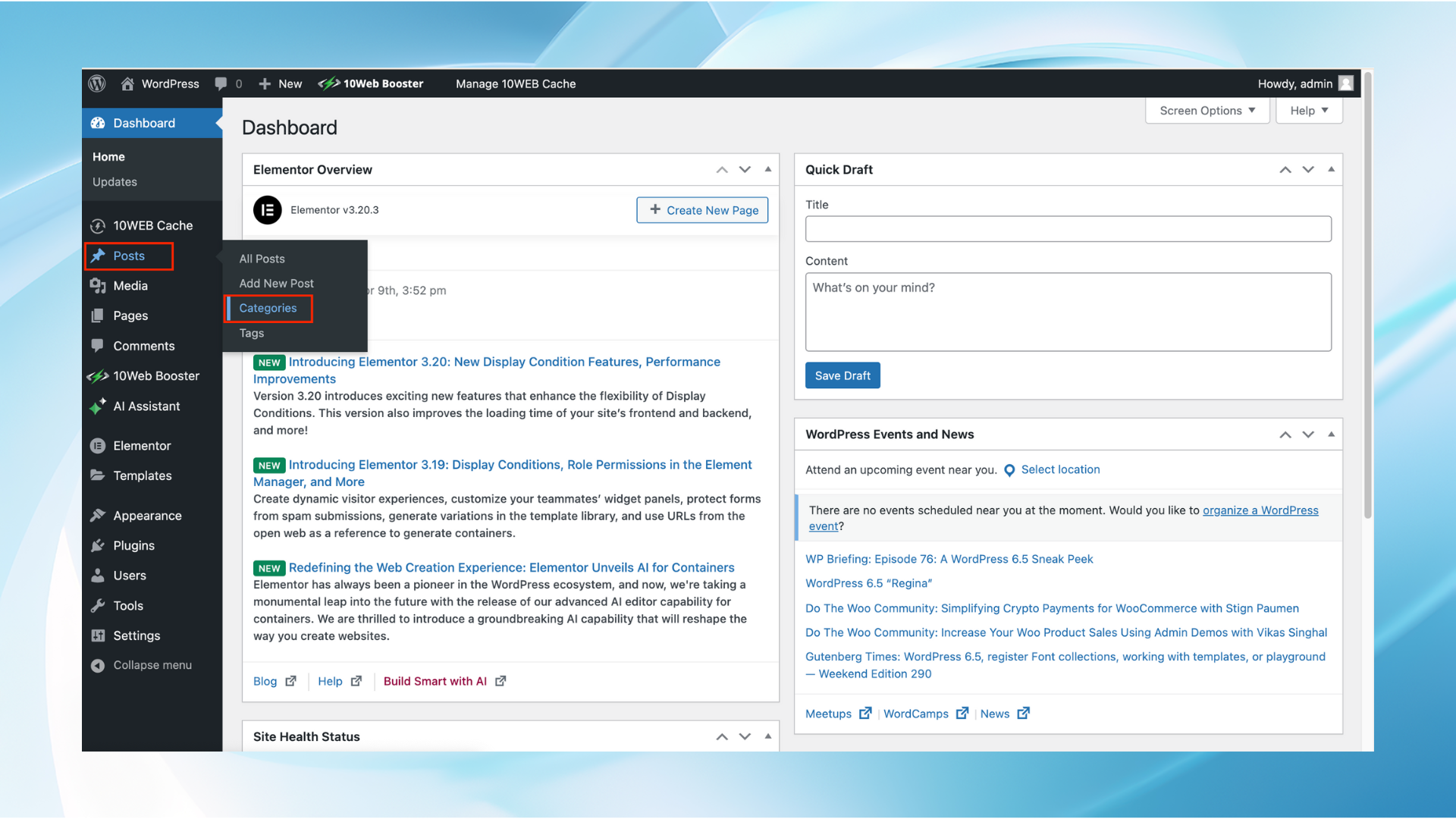
Once inside the dashboard, find the menu on the left side. Look for the “Posts” option and click it. This section shows all your blog posts and categories. You can add new posts or edit categories here. This area helps you organize your blog content easily.
Adding A New Category
Adding a new category to your WordPress blog helps organize your posts. Categories group similar content, making it easier for readers to find topics. Creating categories also improves site navigation and SEO.
Follow simple steps to add categories quickly. This guide explains how to find the categories menu, fill out details, and set parent categories.
Finding The Categories Menu
Log in to your WordPress dashboard. Look for the “Posts” section on the left menu. Click on “Categories” under this section. This opens the categories page where you manage all your blog categories.
Filling Out Category Details
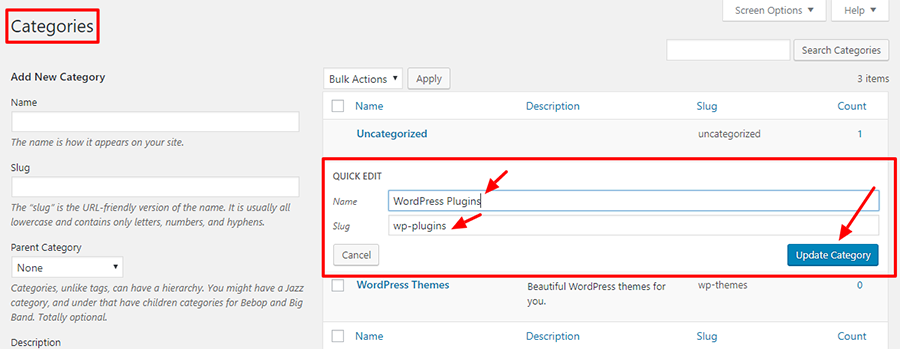
Start by entering the category name. Use clear, simple names that match your blog topics. Add a slug, which is the URL-friendly version of the name. Keep the slug short and lowercase. You can also write a brief description. The description helps explain the category, but it is optional.
Setting Parent Categories
Categories can have parent or child relationships. Choose a parent category if your new category fits under a broader topic. Leave this blank if it is a main category. Setting parent categories creates a clear structure. This makes your blog easier to browse and improves SEO.
Credit: wpdatatables.com
Assigning Categories To Posts
Assigning categories to posts helps organize your content. It makes your blog easier to navigate. Readers find topics quickly. Categories also improve your site’s SEO. Search engines use categories to understand your content better.
Editing Existing Posts
Open the WordPress dashboard. Go to the Posts section. Click on All Posts. Find the post you want to edit. Click Edit under the post title. On the right side, look for the Categories box. Check the boxes for the categories you want. Uncheck any categories to remove them. Click Update to save changes. The post now belongs to the selected categories.
Selecting Categories During Post Creation
Create a new post by clicking Add New in Posts. Write your content as usual. On the right panel, find the Categories box. Select one or more categories by ticking the boxes. You can also add new categories here. Click Add New Category, type a name, and press Enter. The new category appears in the list. Publish or save the post as a draft. Your post now has the chosen categories assigned.
Managing And Editing Categories
Managing and editing blog categories in WordPress keeps your site organized and user-friendly. Categories help group similar posts together. They also improve navigation for visitors. Regularly updating categories ensures your content stays relevant and easy to find.
WordPress offers simple tools to rename or delete categories. These options let you keep your blog tidy and focused. You can make changes quickly without affecting your posts.
Renaming Categories
To rename a category, go to the WordPress dashboard. Click on “Posts” then “Categories.” Find the category you want to rename. Hover over it and select “Edit.”
Change the name in the text box. You can also update the slug, which is the URL part. Click “Update” to save your changes. The new name will appear across your blog.
Deleting Unused Categories
Deleting unused categories helps keep your blog clean. Go to the “Categories” page in your dashboard. Find categories with no posts or those you no longer need.
Hover over the category and click “Delete.” WordPress will ask for confirmation. After deleting, posts in that category move to the default category. This prevents any posts from being lost.
Credit: 10web.io
Using Plugins For Category Management
Managing blog categories in WordPress can be easier with plugins. These tools help organize and display categories without coding. Plugins provide extra features to customize how categories work on your site. They save time and improve your blog’s navigation.
Popular Category Plugins
Several plugins help manage WordPress categories effectively. “Category Order and Taxonomy Terms Order” lets you reorder categories easily. “WP Category Widget” displays categories with more style options. “Ultimate Category Excluder” hides categories from specific parts of your site. These plugins offer simple interfaces for better control.
Benefits Of Plugin Use
Plugins enhance category management with more options. They let you sort and display categories in new ways. No coding skills are needed, making it beginner-friendly. Plugins also update categories automatically in menus or widgets. They improve user experience by keeping content organized.
Tips For Effective Category Use
Using categories well helps readers find posts fast. It also improves your website’s structure. Clear categories make your blog easier to navigate. They help search engines understand your content better.
Follow these tips to use categories effectively. Good categories boost user experience and SEO.
Keep Categories Relevant
Choose categories that match your blog topics. Avoid broad or vague labels. Relevant categories guide readers to the right content. They keep your site organized and focused.
Limit Number Of Categories
Too many categories confuse visitors and search engines. Use a small set of main categories only. This keeps your blog simple and neat. It helps visitors find posts quickly.
Use Descriptive Names
Name categories clearly and simply. Use words that describe the content well. Avoid short or unclear terms. Descriptive names help readers and search engines understand your topics easily.

Credit: www.youtube.com
Frequently Asked Questions
How Do I Add A Blog Category In WordPress?
To add a blog category, go to your WordPress dashboard. Click on Posts > Categories. Enter the category name and slug, then click “Add New Category. ” Your new category is now ready for use in your posts.
Can I Edit Or Delete Existing WordPress Blog Categories?
Yes, you can edit or delete categories anytime. Navigate to Posts > Categories. Hover over a category to see the “Edit” or “Delete” option. Make changes or remove the category as needed.
How Do Blog Categories Improve WordPress Seo?
Blog categories organize your content logically. They help search engines understand your site structure. Proper use of categories improves user experience and boosts SEO rankings.
Can I Assign Multiple Categories To One Blog Post?
Yes, WordPress allows multiple categories per post. When editing a post, check all relevant categories in the “Categories” box. This increases content visibility and improves navigation.
Conclusion
Adding blog categories in WordPress helps organize your content well. It makes your site easier to navigate for visitors. Categories also improve your site’s SEO by grouping related posts. You can add new categories anytime from the WordPress dashboard. Just follow simple steps, and your blog will look professional.
Keep your categories clear and relevant to your topics. This small change can help readers find what they want fast. Start organizing your blog today and enjoy a better user experience.



