
Are you managing a WordPress site and wondering how to add authors easily? Giving multiple people the ability to contribute can boost your content and save you time.
But if you’re not sure where to start, it might feel confusing. This guide will walk you through simple steps to add authors to your WordPress site quickly. By the end, you’ll have everything set up to collaborate smoothly with your team.
Keep reading—you’re just a few clicks away from making your site more dynamic and engaging!
Set Up User Roles
Setting up user roles in WordPress is a key step when adding authors. It controls what each author can see and do on your site. Choosing the right roles helps keep your website safe and organized.
User roles limit access to important features. This way, authors only work on what they need. It also prevents mistakes by users who should not edit certain parts of your site.
Choose The Right Role
WordPress offers several roles for users. Each role fits different tasks and permissions. For authors, pick the role that matches their job.
The “Author” role lets users write and publish their own posts. They cannot edit others’ posts. The “Editor” role has more power and can manage all posts.
For simple contributions, the “Contributor” role works well. Contributors can write posts but cannot publish them. An admin should review and publish these posts.
Differences Between Roles
Roles differ mainly in what users can edit and publish. Administrators have full control over the website. They can add plugins, change themes, and manage users.
Editors can manage all posts and pages but not site settings. Authors can publish and manage only their posts. Contributors write posts but cannot publish them.
Subscribers have the least access. They can only manage their profiles and leave comments. Understanding these differences helps assign roles correctly.
Credit: www.wpbeginner.com
Add New Authors
Adding new authors to your WordPress site helps share content creation tasks. It also brings fresh ideas and voices to your blog. The process is simple and takes just a few steps.
Create User Accounts
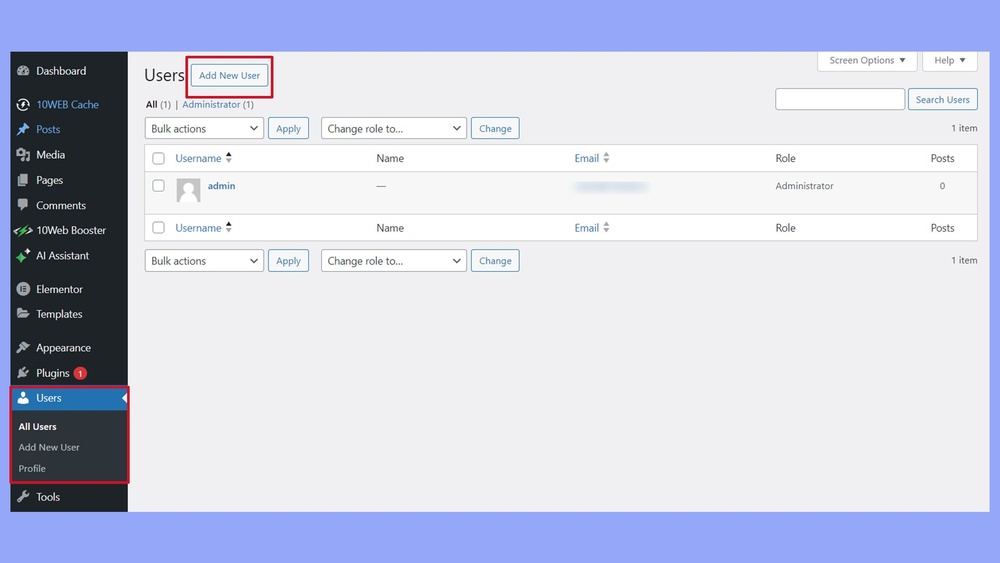
Start by opening your WordPress dashboard. Go to the “Users” section and click “Add New.” Fill in the required details like username and email. Use a valid email to ensure the author receives notifications. You can also set a password or let WordPress generate one. This step creates a new user account for the author.
Assign Roles To Authors
After creating the account, assign the correct role. Choose “Author” to give permission to write and publish posts. This role limits access to only content creation and editing. Avoid giving full admin rights to maintain site security. Setting roles properly keeps the site organized and safe.
Manage Author Profiles
Managing author profiles in WordPress helps keep your site organized and professional. Each author can have a unique profile that shows their work and personality. This section explains how to edit user information and add biographies with photos.
Edit User Information
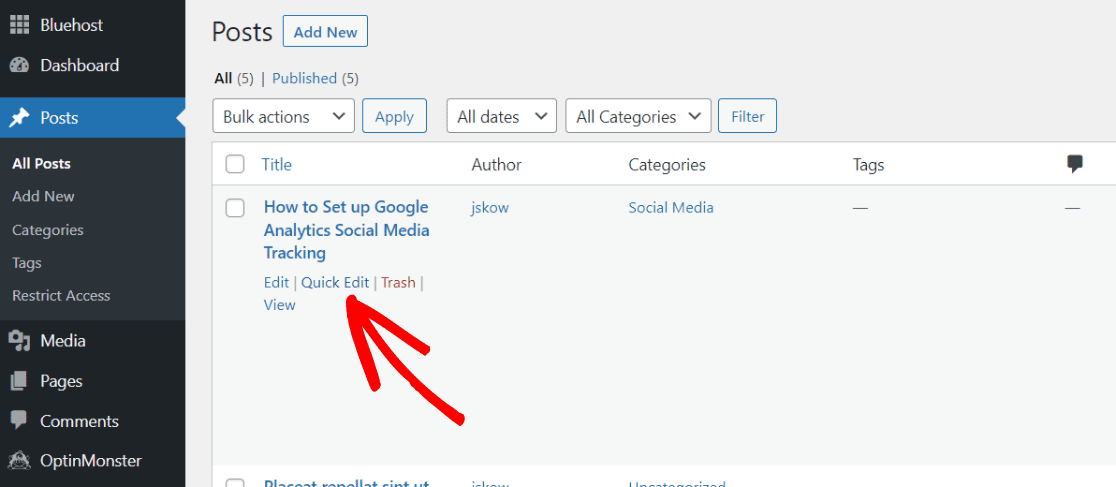
To edit user information, go to the WordPress dashboard. Click on “Users” and then “All Users.” Find the author you want to update and click “Edit.”
You can change the author’s name, email, and role here. Make sure the role fits the tasks they will do. Save changes to update the profile immediately.
Add Biographies And Photos
Adding biographies makes author profiles more personal and engaging. In the user edit screen, scroll down to the “Biographical Info” box. Write a short and clear bio that describes the author’s background and interests.
To add a photo, use a service like Gravatar. The author can upload their photo there, which links automatically to WordPress. This photo will show beside their posts and comments.
Credit: www.monsterinsights.com
Enable Author Attribution
Enable author attribution to show who wrote each post on your WordPress site. This helps readers trust your content and recognize the writer. It also adds credibility and improves engagement.
WordPress allows easy attribution by linking posts to specific user accounts. Each author gets proper credit, which builds their reputation on your site.
Display Author Names On Posts
To display author names, go to your WordPress dashboard. Navigate to Settings and then to General or Reading. Look for options to show the author name on posts. Some themes automatically display author names below post titles or at the end of posts.
If your theme does not show author names, use a plugin or edit the theme files. Adding the_author() function in the post template file helps display the name. This small step lets readers know who wrote the content.
Customize Author Byline
Author bylines give posts a personal touch. Customize the byline to match your site’s style. You can add the author’s bio, photo, or social media links. Many themes offer built-in options for this.
Use CSS to change the font, color, or placement of the author byline. Customizing makes the author stand out and improves the post’s look. Clear attribution makes your site feel professional and trustworthy.
Use Plugins For Multi-author Support
Adding multiple authors to your WordPress site can be tricky without the right tools. Plugins help manage authors easily and keep your site organized. They allow you to assign posts, set permissions, and display author information neatly.
Using plugins for multi-author support saves time and reduces errors. They offer features beyond the default WordPress settings, making collaboration smoother. Choosing the right plugin depends on your site’s needs and the number of authors.
Popular Multi-author Plugins
Several plugins are trusted for multi-author support. “Co-Authors Plus” lets you assign multiple authors to a single post. It shows author names clearly on posts and archives.
“Author Avatars List” displays author pictures and names in a stylish way. “WP Author Box” adds an author bio box under each post. These plugins improve author visibility and engagement.
Plugin Setup And Configuration
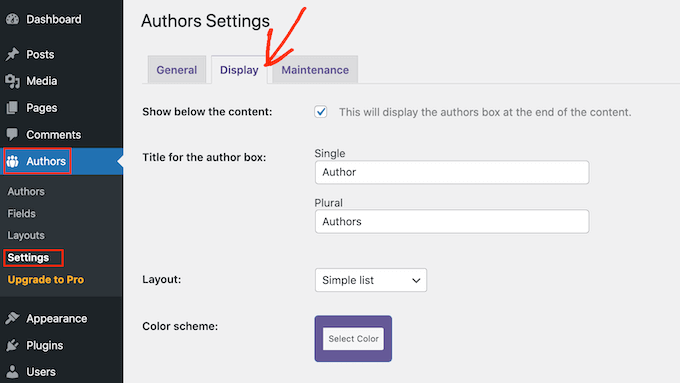
After installing a plugin, activate it from the WordPress dashboard. Go to the plugin settings page to configure options. Set author display styles and permissions as needed.
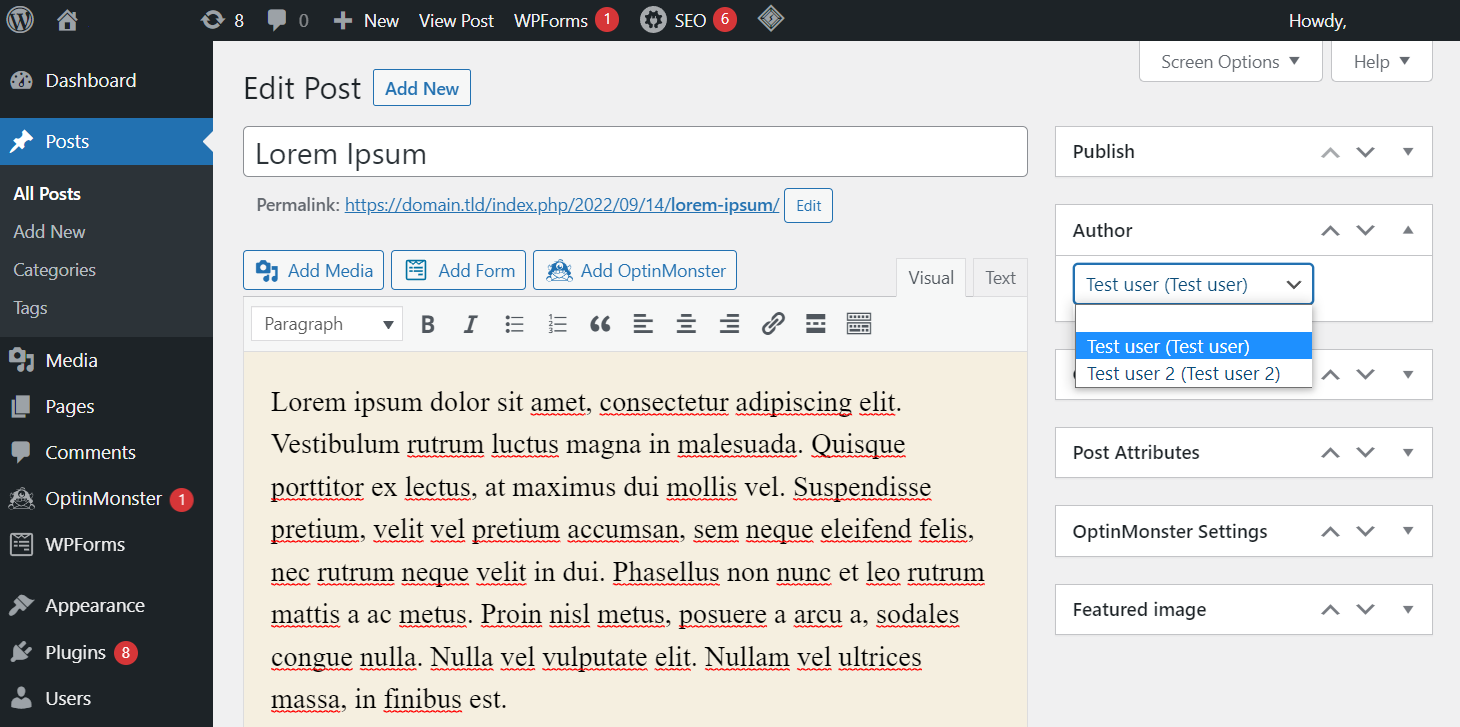
Assign authors to posts easily from the post editor screen. Check that author information shows correctly on your site’s front end. Test by creating posts with different authors to ensure smooth operation.
Handle Multiple Authors On A Single Post
Handling multiple authors on a single WordPress post can improve collaboration. It helps give credit to everyone who worked on the content. This process is simple with the right tools and steps. You can assign co-authors and display their names clearly on your posts. This adds transparency and builds trust with your readers.
Assign Co-authors
WordPress does not support multiple authors by default. Use a plugin like “Co-Authors Plus” to assign more than one author. After installing, open your post editor. You will see an option to add co-authors. Search for the user you want to add. Select their name and save the post. Now, multiple authors are linked to the same article.
Display Multiple Author Credits
Showing multiple authors on a post is important for recognition. The “Co-Authors Plus” plugin automatically displays all authors on the post page. You can customize the author list in your theme files. Edit the template to show the names in one line or a list. Display their names with links to their author pages. This helps readers find more content by each author.
Manage Author Permissions
Managing author permissions is important for any WordPress site. It helps keep your content safe and organized. You decide who can do what. This way, each author has the right access without risking your site’s security.
Control Access Levels
WordPress lets you assign different roles to authors. Each role has specific permissions. For example, authors can write and edit their own posts. Editors can manage all posts, including others’ content. Administrators have full control over the site.
Set the correct role for each author. This keeps tasks clear and prevents mistakes. You can change roles anytime in the user settings. Keep roles simple to avoid confusion.
Prevent Unauthorized Changes
Not all users should change site settings. Limit access to critical parts of your WordPress dashboard. Avoid giving full admin rights unless necessary. This stops accidental or harmful changes.
Use plugins to add extra control. Some tools allow you to customize permissions further. They help block unwanted actions and protect your content. Regularly review user permissions to keep your site secure.
Credit: www.hostinger.com
Tips For Multi-author Blog Success
Running a multi-author blog brings fresh ideas and diverse voices. It also needs clear rules and teamwork. Following simple tips helps keep the blog smooth and readers happy.
Focus on style and workflow to make sure every post fits well. Good planning saves time and keeps quality high.
Maintain Consistent Writing Style
Each author has a unique way of writing. Yet, posts should feel part of the same blog. Set clear style guidelines on tone, voice, and format. Share examples of good posts for reference. Ask authors to follow these rules strictly. This keeps the blog easy to read and professional.
Coordinate Editorial Workflow
Organize how posts move from ideas to publication. Use a calendar to plan topics and deadlines. Assign editors to review and approve content. Keep communication open through comments or messages. Track progress so no post is missed or late. A smooth workflow cuts stress and boosts output.
Frequently Asked Questions
How Do I Add A New Author In WordPress?
Go to your WordPress dashboard, click “Users,” then “Add New. ” Fill in the details and assign the “Author” role. This grants posting permissions without admin access.
Can I Assign Multiple Authors To One Post?
WordPress doesn’t support multiple authors natively. However, you can use plugins like Co-Authors Plus to add multiple author credits easily.
What Roles Should I Assign To New WordPress Authors?
Assign the “Author” role for writing and managing their posts only. Avoid giving “Editor” or “Admin” roles unless necessary for security.
How To Manage Author Profiles On WordPress?
Authors can edit their profiles under “Users” > “Your Profile. ” You can customize author bios and display pictures for better user engagement.
Conclusion
Adding authors to WordPress helps share your website’s workload. It lets multiple people create and manage content easily. You control what each author can do, keeping your site safe. This guide shows simple steps to add authors quickly. Try it now to improve teamwork on your site.
Keep your blog fresh with new voices and ideas. It’s a smart way to keep your content growing.


