
Imagine this: You’ve crafted a compelling blog post, your content is spot-on, and your readers are engaged. But something’s missing—your author image.
It’s more than just a picture; it’s your digital handshake, a personal touch that builds trust and connects with your audience. If you’re using the Newspaper theme on WordPress, you might be wondering how to add that all-important author image seamlessly.
Don’t worry, you’re not alone in this. In this guide, you’ll discover straightforward steps to add an author image in the Newspaper theme, enhancing your blog’s credibility and drawing your readers in. Get ready to make your blog more personal and inviting, compelling your audience to stay and interact with your content. Let’s dive into the details and make your author image shine!
Why Author Images Matter
An author image helps readers connect with the writer. It adds a personal touch. People love seeing who wrote the content. It builds trust.
Readers feel closer to the author. It shows the writer is real. It’s not just words on a screen. This image can make readers stay longer. They may read more articles.
Adding an author image is simple. It makes a big difference. It can increase reader engagement. It’s a small change but very effective. Don’t forget to add it in your posts.
Choosing The Right Image
High-quality images look better. They make your blog more attractive. Always choose clear images. Blurry images don’t look good. Images should be the right size. Too large images slow down your site. Small images lose detail. Find a balance between size and quality. Your site will look great and work fast.
Decide the style of your photo. Professional photos create a serious image. Casual photos make you seem friendly. Think about your audience. What do they expect? A professional photo can help if you are in business. A casual photo is good for lifestyle blogs. Choose what fits your brand best. Your photo should tell your story.
Preparing Your Image
Choose a good image editing tool for your author image. Popular options include Photoshop and GIMP. These tools help you change image size and quality. Use simple tools like Canva for quick edits. They are easy for beginners to use.
Optimizing images makes websites faster. Use the JPEG format for photos. PNG is better for graphics. Keep image size under 100 KB to load fast. Adjust dimensions to fit your theme. For Newspaper theme, try 150×150 pixels.
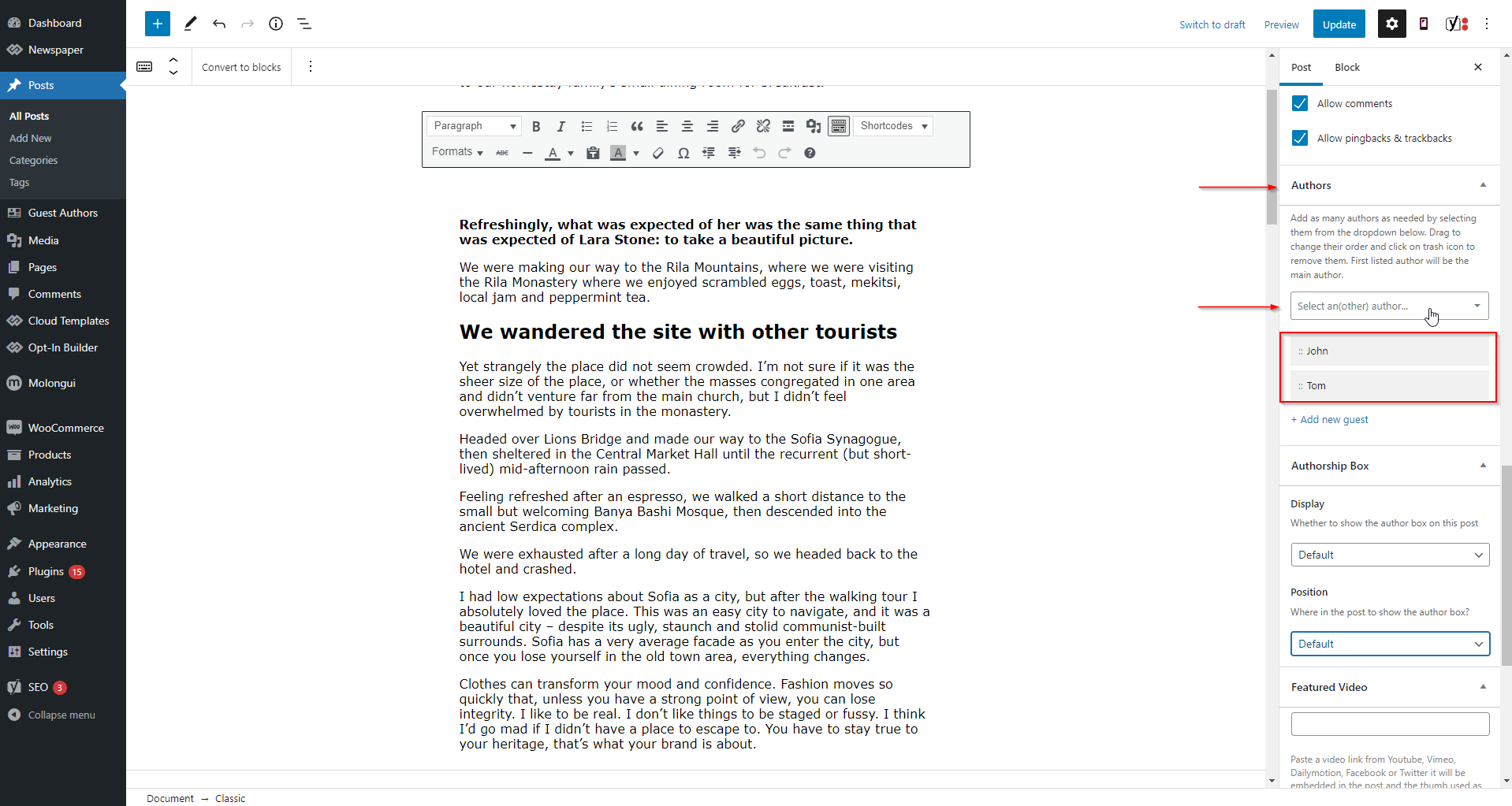
Credit: forum.tagdiv.com
Using WordPress Dashboard
First, log into your WordPress Dashboard. On the left side, find the Users menu. Click on it. Then, select Your Profile. This page shows your user information. You can change details here.
Scroll down the profile page. Find the Profile Picture section. Here, you can upload an image. Click on the Upload button. Choose your author image. Make sure it’s the right size. Save your changes.
Configuring Newspaper Theme
Start with the Newspaper theme dashboard. Look for Theme Panel options. Click on it to explore settings. Find the Author Box section. This is where you can add details.
Go to the User Profile section in WordPress. Upload your author image here. Use a clear and good-quality picture. Save changes to update the profile. Return to the Newspaper Theme panel. Ensure the image reflects correctly in the author box. Enjoy a personalized touch to your posts.
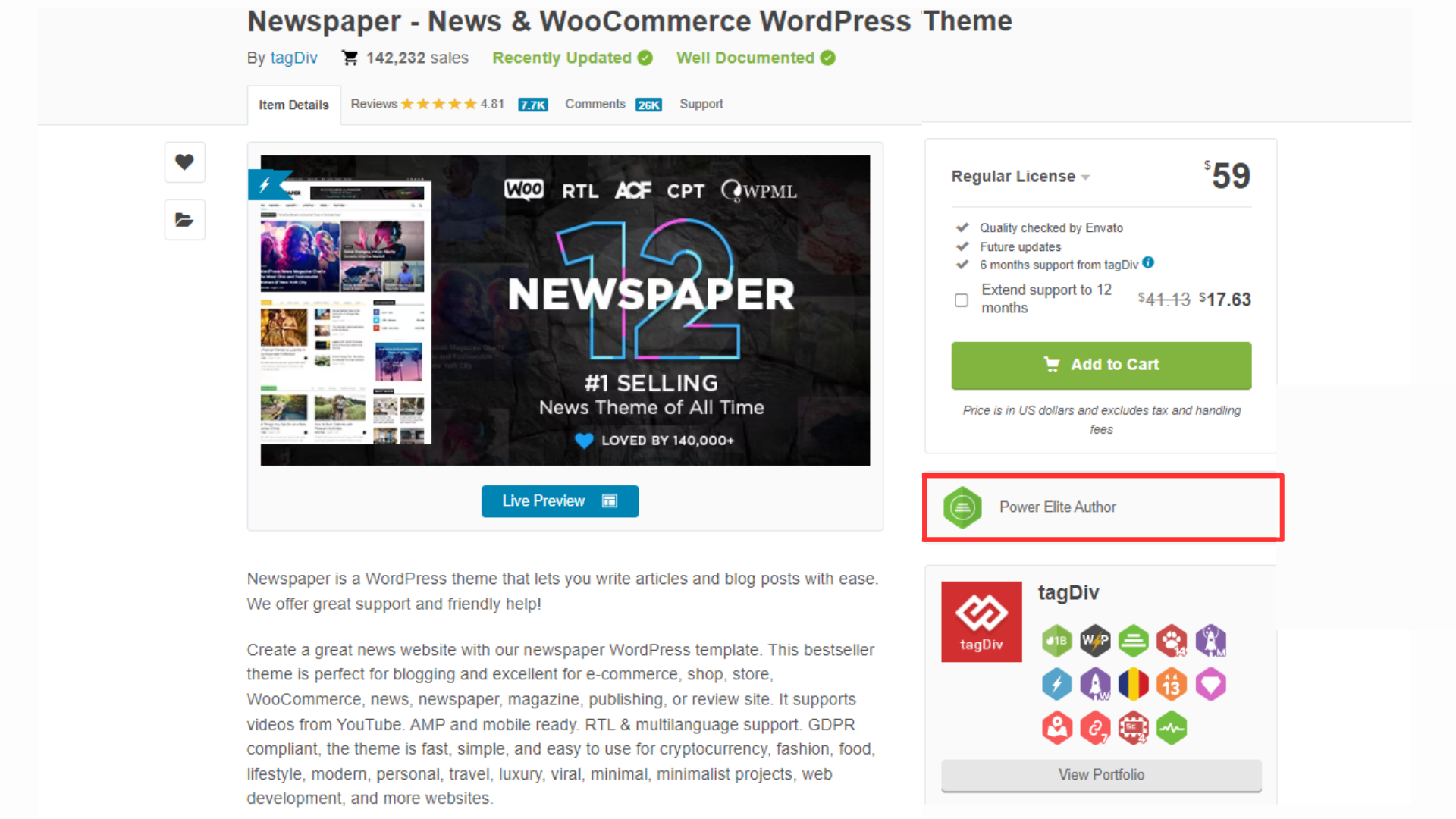
Credit: tagdiv.com
Customizing Author Box
Adding an author image in the Newspaper Theme on WordPress is straightforward. Navigate to the user profile settings to upload a photo. This enhances your blog’s credibility and personal touch by showcasing the author’s identity.
Using Shortcodes
Shortcodes are small bits of code. They help you add features easily. To add an author image, use a shortcode. First, find the correct shortcode. Next, copy it. Then, paste it in the author box. This will show the author’s picture. Shortcodes make it simple. You don’t need to know coding. They save time and effort.
Styling With Css
CSS is like clothes for your webpage. It makes things look nice. To style the author image, use CSS. First, find the CSS file. Then, add some CSS rules. You can change the size and shape of the image. You can also add borders. CSS makes your author box look better. Try different styles and see what you like.
Troubleshooting Common Issues
Easily add author images in the Newspaper theme on WordPress by navigating to the author box settings. Customize image options for better user engagement and visual appeal. Ensure the image is the correct size to maintain a professional look.
Image Not Displaying
Sometimes, the author image does not show up. This can be frustrating. First, check if the image is uploaded correctly. Ensure the file is not corrupted. Also, verify the image format. It should be in JPEG, PNG, or GIF. Check if the URL link is correct. Sometimes, broken links cause display issues.
Next, clear your browser cache. Old data can stop new images from showing. Try refreshing the page. It can help load the image properly.
Theme Compatibility Problems
Some themes do not support author images. The Newspaper theme usually works well. But, there might be conflicts. Check if the theme is updated. An outdated theme may cause issues. Also, look at the plugins used. Incompatible plugins can stop images from displaying. Try deactivating them one by one. See if the image appears.
If problems persist, reach out to the theme support. They can offer specific solutions. Remember, keeping everything updated helps prevent issues.
Enhancing Author Profiles
Show your author’s social side. Readers love to connect. Add social media links to each author’s profile. This makes it easy for readers to follow them. Find the social media settings in your WordPress. Add links to Facebook, Twitter, or LinkedIn. Choose what works best. Add these links next to the author’s name or image. Make sure the links are easy to see. This simple step can make your authors more relatable. Boost their online presence with just a few clicks.
A good author bio tells a story. It shares who the author is. Add a short paragraph about each author. Include their hobbies, work, or interests. This helps readers know them better. Use simple words. Keep it friendly and light. An interesting bio can grab attention. Add it below the author’s name or image. Make sure it’s easy to find. Updating this bio can keep it fresh. Readers like knowing about the person behind the words.
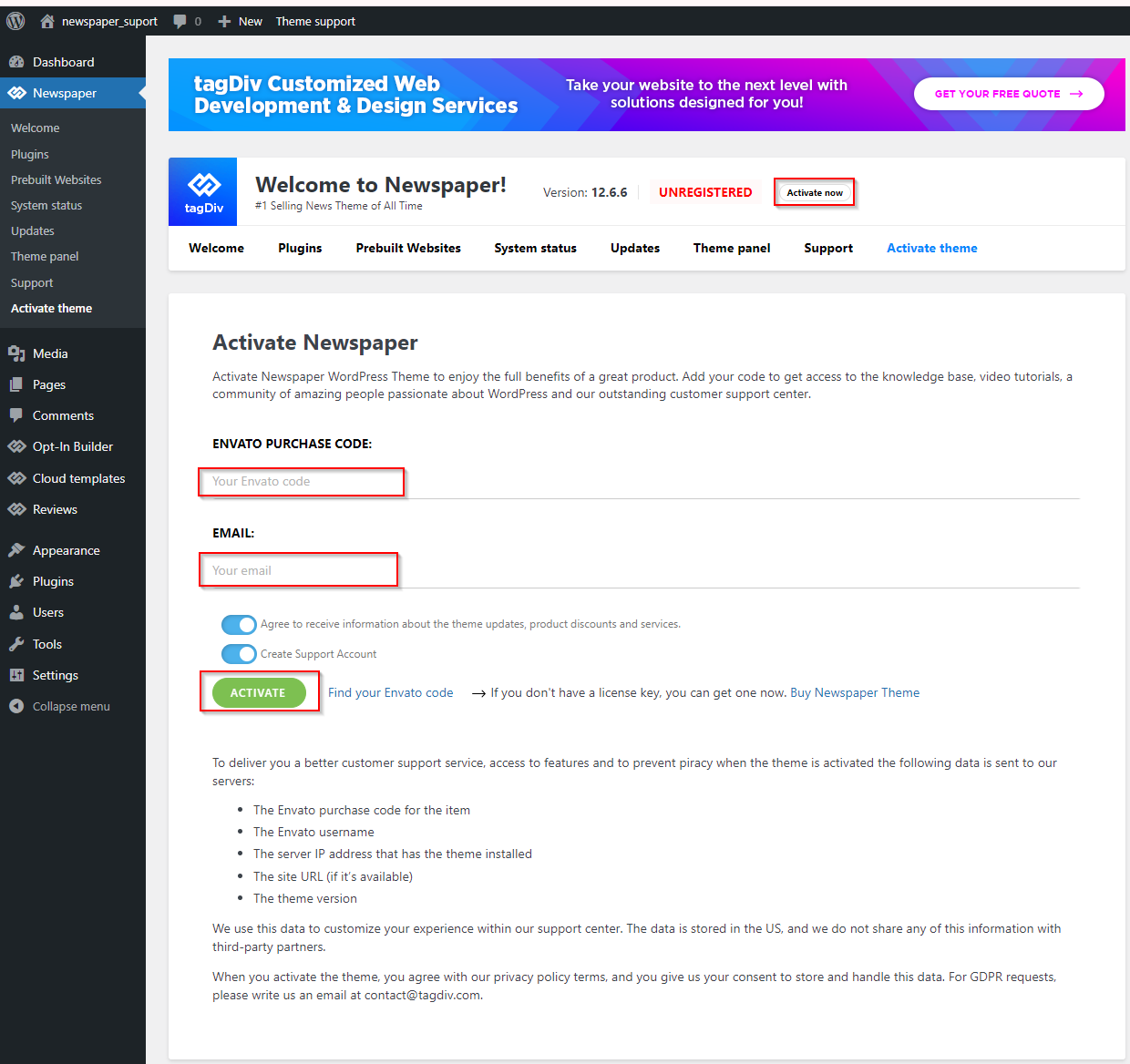
Credit: forum.tagdiv.com
Frequently Asked Questions
How To Upload Author Image In Newspaper Theme?
To upload an author image in the Newspaper theme, navigate to the WordPress dashboard. Select ‘Users’, then ‘Profile’. Here, you can upload the desired image as your profile picture. Ensure the image is high-quality and appropriately sized for optimal display.
Can You Change Author Image Size?
Yes, you can change the author image size in the Newspaper theme. Access the theme’s settings and look for image customization options. Adjust the dimensions according to your preference, ensuring it fits well within the layout without compromising quality.
What File Format Is Best For Author Images?
JPEG and PNG are the best file formats for author images in WordPress. They offer high-quality visuals and are widely supported. JPEG is ideal for photos, while PNG works well for graphics. Ensure the file size is optimized for faster loading times.
Why Is Author Image Not Showing?
An author image might not show due to incorrect file format or upload errors. Ensure the image is in JPEG or PNG format and properly uploaded. Check theme settings to confirm the author image feature is enabled. Clear your browser cache and refresh the page.
Conclusion
Adding an author image enhances your blog’s personal touch. Readers connect better with visuals. Follow these steps for a seamless experience. Start by uploading the image in your WordPress media library. Navigate to the author settings in the Newspaper theme.
Select the image from the library. Save changes to see the image live. Simple, right? Now your posts have a personal feel. Your readers will appreciate the effort. A recognizable author face builds trust. Keep your site engaging. Happy blogging!


