

Are you looking to make your WordPress site more powerful and personalized? Adding attributes to your posts, pages, or products can give you exactly that edge.
Whether you want to organize content better, improve user experience, or boost your site’s SEO, knowing how to add attributes in WordPress is a skill you don’t want to miss. In this guide, you’ll discover simple, step-by-step methods to add attributes quickly and effectively—no confusing jargon, just clear instructions.
Ready to take your WordPress site to the next level? Let’s dive in!
Credit: www.wpexplorer.com
Why Add Attributes In WordPress
Adding attributes in WordPress helps organize your content clearly. Attributes give more details about your posts, products, or pages. They improve how users find and use your site. These small pieces of information make your website smarter and easier to navigate.
Benefits For Seo And Usability
Attributes help search engines understand your content better. They add relevant keywords that improve your site’s ranking. Users can filter and sort content using these attributes. This makes finding the right information faster and simpler. A well-structured site keeps visitors longer and lowers bounce rates.
Common Attribute Types
WordPress uses different attribute types for various content. For products, common attributes include color, size, and material. For blog posts, attributes might be author, date, or category. These types help group similar items and improve site navigation. Each attribute type adds value to your content’s clarity.
Preparing Your WordPress Site
Preparing your WordPress site is the first step to adding attributes effectively. A well-prepared site ensures smooth customization and better performance. It helps you avoid errors and saves time during the setup. Focus on choosing the right theme and installing essential plugins for the best results.
Choosing The Right Theme
Select a theme that supports attributes and product variations. Themes built for WooCommerce work well for online stores. Check if the theme is responsive and mobile-friendly. This ensures your site looks good on all devices. Avoid themes that are too complex or slow. A simple, clean design often works best for customization.
Installing Essential Plugins
Plugins add extra features to your WordPress site. Install WooCommerce for managing products and attributes easily. Use plugins that help with SEO, security, and backups. Choose plugins with good ratings and regular updates. Too many plugins can slow down your site. Activate only the plugins you really need.
Adding Attributes To Posts And Pages
Adding attributes to posts and pages in WordPress helps organize your content better. Attributes control how your posts or pages appear and behave. Setting these attributes improves site structure and user experience.
Attributes can include parent pages, templates, or order numbers. These options are easy to set using WordPress editors. Both the Block Editor and Classic Editor allow adding attributes.
Using The Block Editor
Open the post or page in the Block Editor. On the right side, find the “Page” or “Post” settings panel. Scroll down to the “Page Attributes” or “Post Attributes” section.
Select a parent page if needed. This helps group related pages. Choose a template from the dropdown to change the layout. Set the order number to arrange pages in lists.
Save or update your post or page. The new attributes now affect how it appears on your site.
Using The Classic Editor
Edit your post or page in the Classic Editor. Look for the “Page Attributes” box on the right side. If not visible, enable it via “Screen Options” at the top.
Pick a parent page from the dropdown menu. Choose a template to change the design style. Enter a number in the order field to set display order.
Click “Update” or “Publish” to apply the changes. Your page or post will follow the new attribute settings.
Credit: woovina.com
Adding Attributes To Products In Woocommerce
Adding attributes to products in WooCommerce helps organize and display product details. Attributes show product features like size, color, or material. They help customers find the right product quickly. Attributes also improve your store’s search and filter options. Understanding how to add and assign attributes is essential for managing your WooCommerce products effectively.
Creating Custom Product Attributes
Start by going to the WooCommerce dashboard. Navigate to Products, then click on Attributes. Here, you can create new attributes for your products. Enter the attribute name, such as “Size” or “Color.” Choose whether to make the attribute visible on the product page. Click the Add Attribute button to save it.
After creating the attribute, click the Configure terms link. Add terms that belong to the attribute, like Small, Medium, and Large for Size. Each term represents a specific option customers can choose. Save each term after adding it.
Assigning Attributes To Products
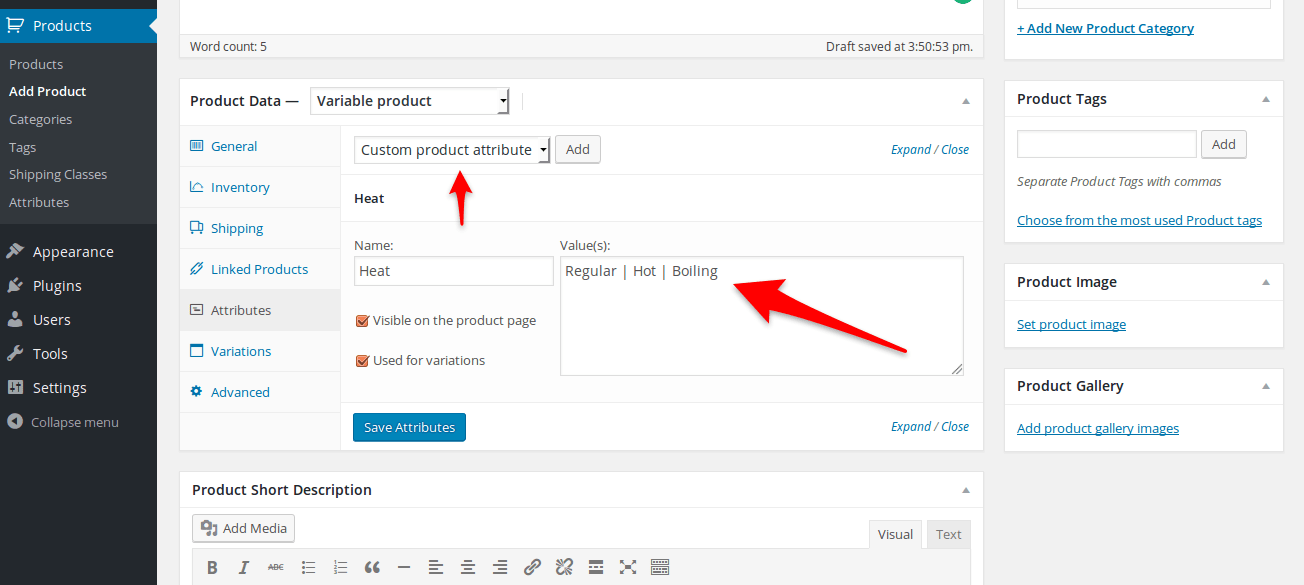
Open the product you want to edit in WooCommerce. Scroll down to the Product Data section and click on the Attributes tab. Select the attribute you created from the dropdown menu. Click Add to assign it to the product.
Choose the terms that apply to the product, such as Medium or Blue. Check the Visible on the product page box if you want customers to see the attribute. Save or update the product to apply the changes. The product now displays the attributes for buyers to view and select.
Using Custom Fields For Advanced Attributes
Using custom fields in WordPress lets you add detailed attributes to your posts and pages. These fields store extra information beyond the usual content. You can use them to show special details like product specs, event dates, or author info.
This method gives you control over how content appears. It works well for advanced attributes that need precise input and display. Custom fields fit many needs without extra plugins.
Enabling Custom Fields
By default, WordPress hides the custom fields option. To enable it, open the post editor screen. Click on the three-dot menu at the top right. Choose “Preferences” from the menu. Then select “Panels” and check the box for “Custom Fields”.
Now, you will see the custom fields box below the editor. You can add new fields or edit existing ones here. This step is quick and does not need coding.
Adding And Displaying Custom Field Data
Start by entering a name for your custom field. This name is the attribute label. Next, add the value or information related to this attribute. Click “Add Custom Field” to save it.
To display the data on your site, edit your theme files. Use PHP code like get_post_meta() to retrieve the value. Insert this code where you want the attribute to appear. This shows the custom field data on the front end.
Custom fields give you flexibility. You can add text, numbers, URLs, or other data types. This helps create rich, detailed content for your visitors.
Managing Attributes With Plugins
Managing attributes in WordPress can be easier with plugins. Plugins help you create, edit, and organize attributes without coding. They save time and reduce errors. Plugins also offer extra features to make attribute management smooth.
Using plugins lets you add attributes to products or posts quickly. Many plugins come with user-friendly interfaces. They allow bulk editing and better control over attribute display. This improves your website’s usability and SEO.
Top Plugins For Attribute Management
Several plugins help manage attributes well. WooCommerce is popular for product attributes. It allows custom attributes and variations. Another good option is Advanced Custom Fields. This plugin works for posts and pages. It supports many field types, including text and dropdowns. Product Add-Ons is useful for extra product options. It helps create custom attribute fields easily.
Configuring Plugin Settings
After installing a plugin, set it up carefully. Start by enabling attribute options you need. Adjust settings for attribute display on your site. Check if the plugin supports bulk editing. Enable this for faster changes. Review permissions to control who can edit attributes. Save settings and test changes on your site. Make sure attributes show correctly on products or posts.
Troubleshooting Common Issues
Troubleshooting common issues with attributes in WordPress helps keep your site running smoothly. Problems may stop attributes from showing or cause compatibility errors. Fixing these quickly improves your user experience and site performance.
Attributes Not Showing
Attributes sometimes do not appear on product pages. This often happens if you forget to assign the attributes to product variations. Check that each product variation uses the correct attribute values.
Clear your site cache after adding attributes. Caching plugins can prevent new data from showing immediately. Also, verify that your theme supports product attributes. Some themes hide attributes by default.
Compatibility Problems
Compatibility issues arise when plugins or themes conflict with attribute functions. Disable all plugins except WooCommerce and check if attributes show properly. Reactivate plugins one by one to find the conflict.
Keep WordPress, themes, and plugins updated. Outdated software often causes attribute errors. Use a child theme to customize attributes safely without breaking updates.

Credit: woocommerce.com
Tips For Optimizing Attributes
Optimizing attributes in WordPress helps improve your site’s structure and user experience. Well-organized attributes make it easier for visitors to find products or content. They also help search engines understand your site better. Follow these tips to get the most from your attributes.
Consistent Naming Conventions
Use clear and simple names for your attributes. Keep names consistent across your site. For example, use “Color” instead of switching between “Color” and “Shade.” This consistency helps users and search engines. Avoid special characters or spaces in attribute names. Use lowercase letters and hyphens if needed. Consistent naming makes your site look professional and organized.
Using Attributes For Better Navigation
Attributes can improve site navigation significantly. Use them to create filters or sorting options. This helps visitors find what they want faster. For example, filter products by size or color using attributes. This reduces the time users spend searching. Clear navigation also reduces bounce rates. Make sure attributes are visible and easy to use in menus or sidebars.
Frequently Asked Questions
What Are Attributes In WordPress?
Attributes in WordPress define extra details for posts, products, or elements. They help organize and filter content efficiently. Commonly used in WooCommerce, attributes describe product features like size or color.
How Do I Add Attributes To WordPress Products?
Go to your WordPress dashboard, navigate to Products, then Attributes. Add a name and slug for the attribute. Configure terms and save. Finally, apply these attributes to individual products for better categorization.
Can I Add Custom Attributes To WordPress Posts?
Yes, you can add custom attributes using custom fields or plugins. Custom fields allow extra metadata for posts. Plugins offer user-friendly interfaces to add and manage attributes easily.
Why Use Attributes In WordPress Seo?
Attributes improve content organization and user experience. They help search engines understand your site’s structure better. This can increase your chances of ranking higher in relevant searches.
Conclusion
Adding attributes in WordPress helps organize your products clearly. It makes your site easier to use and improves shopping experience. You can add different types of attributes like size, color, or material. These details help visitors find what they want faster.
Keep your attributes simple and relevant to your products. Regularly update them to match your inventory changes. This small step can make a big difference in how your site works. Try adding attributes today and see how your WordPress site improves.


