
Are you looking to make your WordPress site easier to navigate? Adding anchor links is a simple trick that can transform your pages.
With anchor links, your visitors can jump straight to the exact section they want without endless scrolling. This not only improves user experience but also keeps readers engaged longer. In this guide, you’ll learn step-by-step how to add anchor links in WordPress quickly and easily—even if you’re not tech-savvy.
Keep reading, and you’ll be able to create smooth, clickable links that guide your audience exactly where you want them to go.
What Are Anchor Links
Anchor links are special links that take you to a specific part of the same webpage. They help visitors find information quickly without scrolling. These links are useful for long posts or pages with many sections.
Using anchor links improves user experience and site navigation. Visitors can jump directly to the content they want. This makes your website easier to use and keeps visitors engaged longer.
What Is An Anchor Link?
An anchor link points to a specific spot on a webpage. It uses an HTML ID to mark that spot. When clicked, the page scrolls down or up to that location.
Why Use Anchor Links?
Anchor links save time for readers. They help visitors reach important parts fast. This reduces frustration and improves site usability.
How Anchor Links Work In WordPress
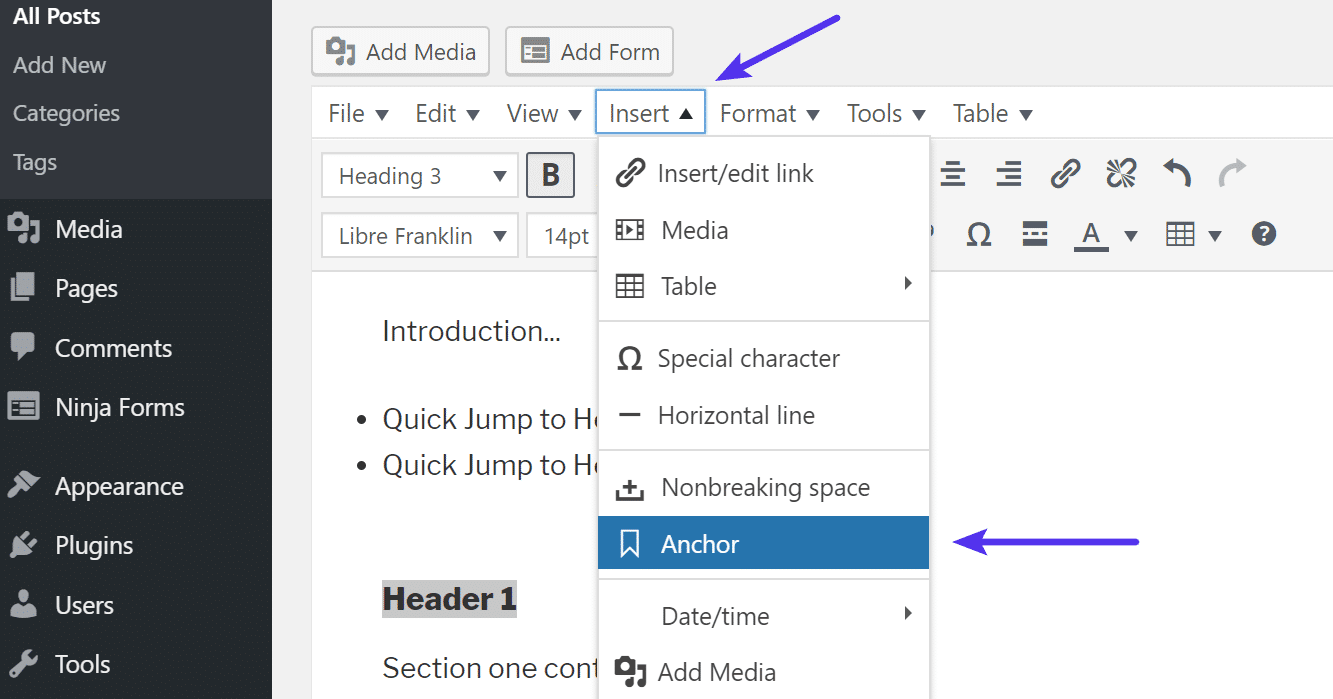
In WordPress, you add anchor links using block editor or HTML. You set an ID to a heading or section. Then, create a link that refers to that ID.
Credit: kinsta.com
Benefits Of Anchor Links
Anchor links improve user experience by making navigation simple. They let readers jump to specific parts of a page quickly. This saves time and keeps visitors engaged longer.
Search engines favor well-structured pages with easy navigation. Anchor links help organize content clearly. This can improve your site’s SEO and ranking.
Improved User Experience
Anchor links help visitors find information fast. They avoid endless scrolling and confusion. Users feel more satisfied and likely to stay on your site.
Better Content Organization
Anchor links break long pages into sections. This makes content easier to read and follow. Clear structure helps both users and search engines understand your page.
Enhanced Seo Performance
Search engines use anchor links to index content. They highlight important sections on your page. This can boost your site’s visibility in search results.
Increased Page Engagement
Anchor links encourage users to explore more content. Visitors click through different parts easily. This lowers bounce rates and raises interaction time.
Preparing Your WordPress Page
Preparing your WordPress page is the first step to add anchor links. This step ensures your page is ready for smooth navigation. A well-prepared page helps visitors find information fast. It improves user experience and keeps readers engaged.
Organizing your content into clear sections is important. Each section should have a heading. These headings act as points where anchor links can jump. Proper preparation saves time when creating anchor links later.
Creating Clear Headings
Start by writing your content with clear headings. Use headings that describe each section well. WordPress lets you set headings from H1 to H6. Choose the right heading size for each part of your content.
Headings break content into smaller parts. This makes reading easier. Anchor links work best with these headings. They guide readers to exact points on the page.
Switching To Text Editor
Open your WordPress editor and switch to the text or code editor. This view shows the HTML of your content. It helps to add anchor IDs directly to headings.
Adding anchor IDs in the visual editor can be tricky. The text editor offers better control. You can see and edit the exact code for each heading. This step prepares your page for precise anchor linking.
Adding Unique Ids To Headings
Each heading needs a unique ID attribute. This ID acts as the anchor point. Use simple words or phrases without spaces. For example, use id=”section1″ for the first section.
Unique IDs prevent conflicts between links. They help the browser jump to the right spot. Assign IDs only to headings you want to link to. This keeps your page clean and organized.
Creating Anchor Links In The Block Editor
Creating anchor links in the WordPress Block Editor lets you guide visitors quickly. Anchor links jump to specific parts of a page. This improves navigation and user experience. The process is simple and does not need extra plugins.
Adding Anchor Ids To Blocks
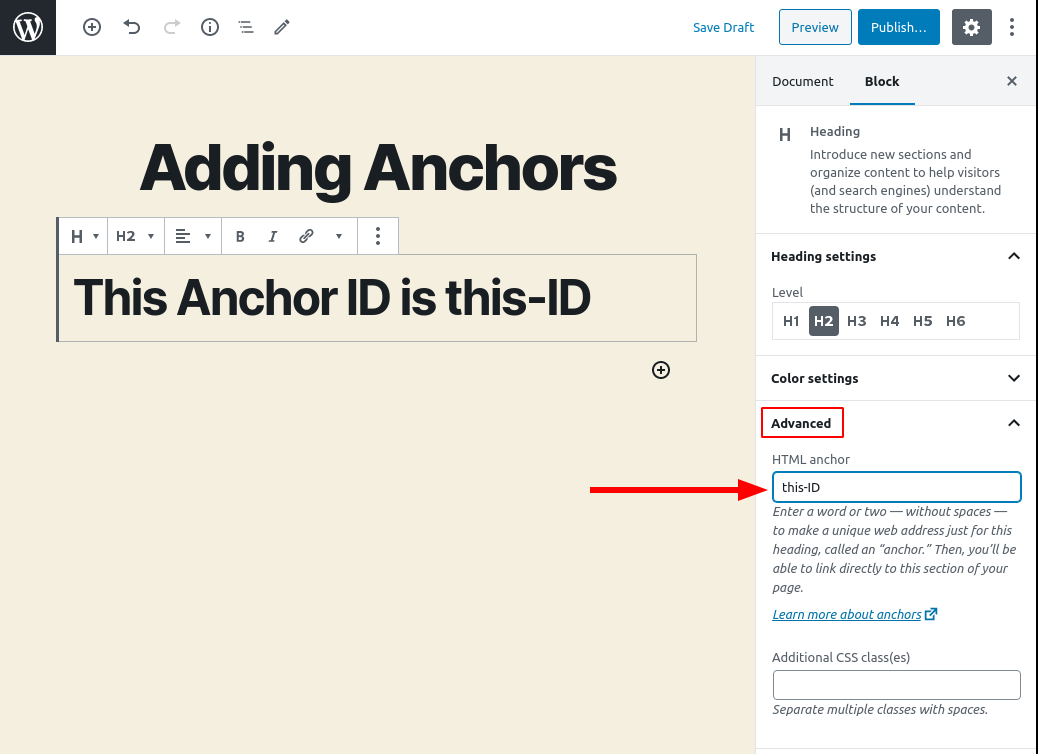
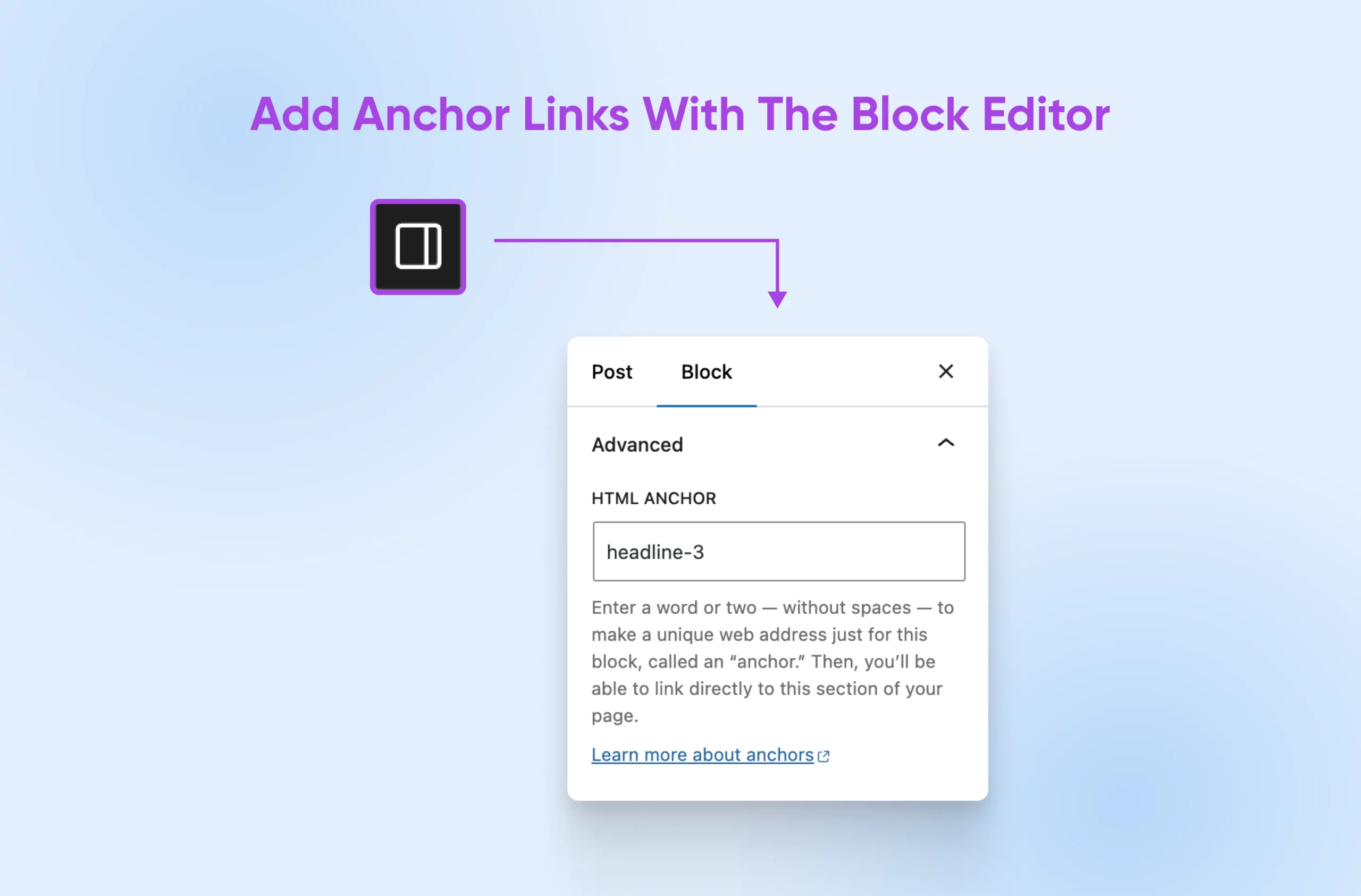
Select the block you want to link to. In the block settings on the right, find the “Advanced” section. Here, you see the “HTML Anchor” field. Type a unique ID here. Use only letters, numbers, and hyphens. No spaces allowed. This ID acts as the anchor point on your page.
Linking To Anchor Points
Highlight the text or button you want as a link. Click the link icon in the toolbar. Type the anchor ID with a before it. For example, section1. Press enter to set the link. Now, clicking this link jumps to the block with the matching ID.
Using Anchor Links With Classic Editor
Using anchor links with the Classic Editor in WordPress helps users navigate long posts easily. Anchor links allow visitors to jump to specific sections of a page. This feature improves user experience and keeps readers engaged.
The Classic Editor does not have a built-in button for anchors. You must add them manually. This method requires simple HTML knowledge but works well for all users.
Inserting Anchor Tags Manually
First, switch to the Text tab in the Classic Editor. This view shows the HTML code of your content.
Find the heading or section where you want to place the anchor. Add an id attribute inside the tag. For example, Section Title
The id value should be unique and easy to remember. Avoid spaces and special characters in the anchor name.
Linking To Anchors
Next, highlight the text you want to turn into a link. Click the Insert/Edit Link button in the toolbar.
In the URL field, type a hash symbol () followed by the anchor name. For example, section1.
Save the link. When visitors click it, the page scrolls to the anchored section instantly.
Credit: www.boldgrid.com
Adding Anchor Links In Menus
Adding anchor links in menus helps visitors jump to specific sections on your page fast. This improves user experience and keeps the site easy to navigate. Menus with anchor links work well for one-page sites or long posts. They guide readers without needing to scroll endlessly.
Creating anchor links in your WordPress menu is simple. You only need to know the right steps to link menu items to page sections. The process uses anchor IDs and custom links in the menu editor.
Add Anchor Ids To Page Sections
First, assign an anchor ID to the section you want to link. Open the page editor in WordPress. Find the block or element for the section.
In the block settings, look for the “Advanced” tab. Enter a unique ID in the HTML anchor field. Use simple names without spaces or special characters.
This ID will act as the anchor link target in your menu.
Create Custom Links In The Menu
Go to Appearance > Menus in your WordPress dashboard. Choose the menu to edit or create a new one. Select “Custom Links” from the menu options.
In the URL box, type the anchor with a hashtag. For example, use about for the “about” section. In the Link Text box, write the menu label visitors will see.
Click “Add to Menu” to include the link in your menu structure.
Save And Test Your Menu
After adding all desired anchor links, click “Save Menu.” Visit your website and test each menu link. The page should jump to the correct section smoothly.
Check on different devices to ensure the menu works well everywhere.
Testing Anchor Links For Functionality
Testing anchor links ensures they work correctly on your WordPress site. Broken links can frustrate visitors and harm your site’s usability. Check each link after creating it. Confirm it takes users to the exact section on the page.
Test anchor links on different devices and browsers. Some links may behave differently on mobile phones or tablets. Make sure the link scrolls smoothly to the target section. No sudden jumps or blank screens.
How To Click And Verify Anchor Links
Click the anchor link inside your WordPress editor or on the live page. Watch the page scroll down or jump to the linked section. The target header or paragraph should be visible at the top or center of the screen. If not, adjust the anchor ID or link.
Testing Anchor Links On Mobile Devices
Open your site on a smartphone or tablet. Tap the anchor links and observe the behavior. Check if the page scrolls correctly and the section appears clearly. Mobile screens are smaller. Ensure the link does not hide behind fixed headers or menus.
Using Browser Tools To Inspect Anchor Links
Right-click the anchor link and choose “Inspect” in your browser. Check the link’s href attribute. It should start with a hash () followed by the ID of the target section. Confirm the target section has the correct ID attribute. Fix any mismatches to avoid errors.
Credit: www.dreamhost.com
Common Issues And Fixes
Adding anchor links in WordPress can sometimes cause issues. These problems may stop the links from working correctly. Knowing common issues and how to fix them helps keep your site user-friendly and easy to navigate.
Some issues arise from incorrect link setup. Others come from conflicts with themes or plugins. Fixes often involve simple steps that anyone can follow.
Incorrect Anchor Link Syntax
Anchor links must use the right format. The link should start with a hash () followed by the ID name. For example, section1. The target element must have the same ID. Without this match, the link will not work.
Missing Or Duplicate Ids
Each anchor link points to an ID on the page. If the ID is missing, the link breaks. Duplicate IDs cause confusion and may jump to the wrong spot. Always ensure every ID is unique and exists where the link points.
Theme Or Plugin Conflicts
Some themes or plugins change how links behave. They can stop anchor links from scrolling smoothly or working at all. Disable plugins one by one to find the problem. Switching to a default theme can also help test conflicts.
Smooth Scroll Not Working
Smooth scroll makes the page glide to the anchor. Without it, the jump is sudden and jarring. Some themes have built-in smooth scroll. If missing, add a plugin or custom script to enable it.
Anchor Links Not Working On Mobile
Mobile devices sometimes ignore anchor links. This happens due to touch settings or page layout. Test anchor links on different devices. Adjust your theme or plugins if problems show only on mobile.
Best Practices For Anchor Links
Using anchor links properly improves user experience and SEO. They help visitors navigate long pages quickly. Correct anchor links keep your site organized and clear.
Follow some simple rules for best results. Good anchor links boost your site’s usability and search rankings.
Use Clear And Descriptive Anchor Text
Anchor text should describe the linked section well. Avoid vague words like “click here” or “read more.” Clear text helps users and search engines understand the link’s purpose.
Keep Anchor Links Short And Simple
Short anchor links are easier to manage. Long or complex anchors can confuse users and cause errors. Use simple words and avoid special characters.
Place Anchors In Logical Locations
Put anchors near related content. This placement helps users find information quickly. Logical anchors improve page flow and keep readers engaged.
Test Anchor Links Regularly
Check anchor links often to avoid broken links. Broken links frustrate visitors and harm SEO. Use tools or manual checks to ensure all anchors work well.
Frequently Asked Questions
What Is An Anchor Link In WordPress?
An anchor link in WordPress directs users to a specific section on the same page. It improves navigation and user experience by allowing quick access to content.
How Do I Create An Anchor Link In WordPress Block Editor?
To create an anchor link, select a block, open its settings, and enter a unique ID in the “HTML anchor” field. Then link to it using “ID” in your URL.
Can Anchor Links Improve Seo On WordPress Sites?
Yes, anchor links enhance SEO by improving site structure and user experience. They help search engines understand content hierarchy and boost page engagement.
Are Anchor Links Compatible With All WordPress Themes?
Most modern WordPress themes support anchor links. However, some older or custom themes might require additional adjustments or plugins for full compatibility.
Conclusion
Adding anchor links in WordPress helps visitors find content fast. It makes your site easier to use and improves navigation. Use simple steps to create clear, clickable links. This small change can boost user experience on your pages. Keep practicing to add anchors smoothly in your posts.
Your readers will thank you for it.


