

Are you looking to understand how visitors interact with your WordPress site? Adding analytics is the key to unlocking valuable insights about your audience.
Without analytics, you’re missing out on knowing which pages attract the most attention, where your visitors come from, and what keeps them engaged. This guide will walk you through simple, step-by-step methods to add analytics to your WordPress site—no technical skills required.
By the end, you’ll have the tools to make smarter decisions that grow your website and keep your visitors coming back. Ready to take control of your site’s performance? Let’s dive in.
Credit: www.hostinger.com
Choosing The Right Analytics Tool
Choosing the right analytics tool is important for your WordPress site. It helps you understand your visitors and improve your content. The right tool gives clear data and fits your needs. You want a tool that is easy to use and reliable. Also, it should work well with WordPress and your budget.
Popular Analytics Options
Google Analytics is the most popular choice. It offers deep insights and is free to use. Another option is Matomo, which focuses on privacy. Jetpack Analytics is good for beginners and integrates well with WordPress. There is also Clicky, which shows real-time data. Each tool has unique strengths to consider.
Free Vs Paid Tools
Free tools work well for small sites and basic data. They provide essential reports and are easy to set up. Paid tools offer more detailed insights and extra features. They often include support and better data privacy options. Choose based on your site’s size and data needs.
Key Features To Consider
Look for easy installation on WordPress. Real-time visitor tracking is helpful for quick decisions. Custom reports help focus on the data you need. Privacy compliance is important to protect user data. Also, check if the tool supports mobile devices and integrates with other plugins.

Credit: wpcode.com
Setting Up Google Analytics
Setting up Google Analytics is essential for tracking your WordPress website’s performance. It helps you understand your visitors and improve your site. The process involves creating an account, generating a tracking ID, and adding the tracking code to WordPress. Follow these steps to get started easily.
Creating A Google Analytics Account
Go to the Google Analytics website. Click on the “Start for free” button. Sign in with your Google account or create one. Fill in your website details like name, URL, and industry. Choose your reporting time zone. Agree to the terms and conditions. Your account is now ready to use.
Generating Tracking Id
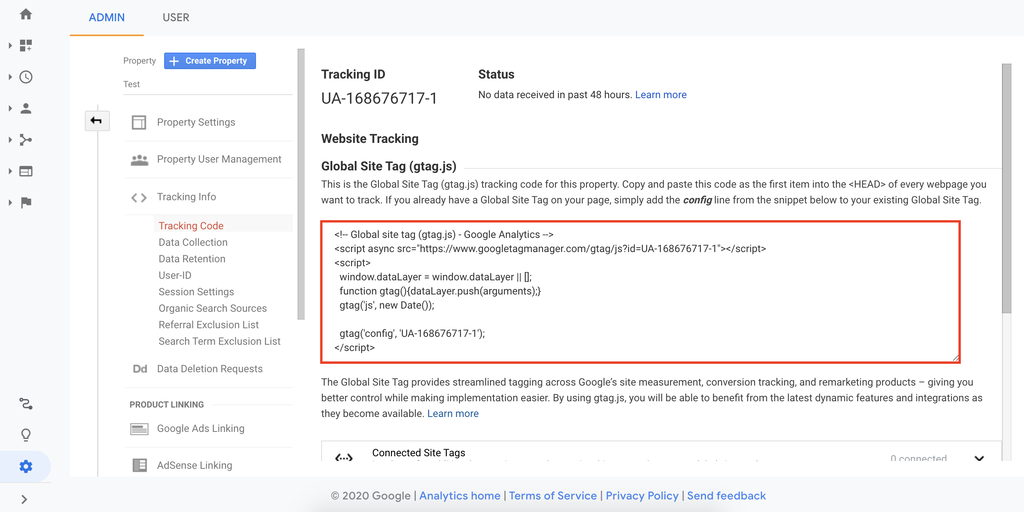
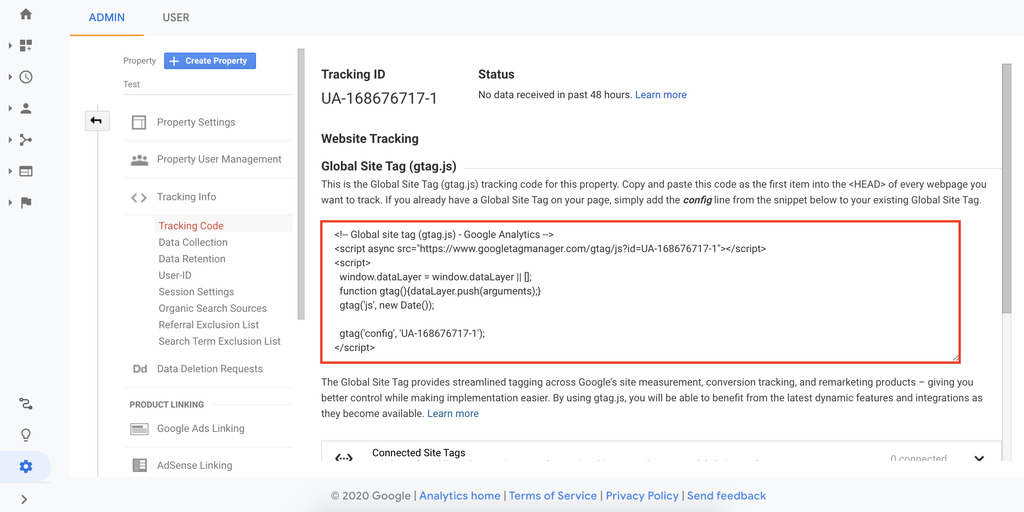
After creating the account, find the “Admin” tab. Click on “Create Property” to add your website. Enter your website name and URL again. Select your industry category and reporting time zone. Click “Create” to generate the tracking ID. This ID starts with “UA-” and is unique to your site.
Adding Tracking Code To WordPress
Copy the tracking code provided by Google Analytics. Log in to your WordPress dashboard. Go to “Appearance” and select “Theme Editor.” Find the header.php file in your theme files. Paste the tracking code before the closing tag. Save the changes. Your website is now connected to Google Analytics.
Using WordPress Plugins For Analytics
Using WordPress plugins for analytics simplifies tracking your website’s performance. These plugins connect your site with analytics tools without coding. They offer clear reports on visitors, traffic sources, and user behavior.
Plugins work inside your WordPress dashboard. This makes it easy to check data and improve your site. You can choose from many plugins based on your needs and skill level.
Top Analytics Plugins
Several WordPress plugins help you add analytics quickly. Google Site Kit links your site with Google Analytics and Search Console. MonsterInsights offers detailed reports with simple setup. ExactMetrics provides real-time stats and user-friendly dashboards. Each plugin has unique features to fit different users.
Installing And Configuring Plugins
Go to your WordPress dashboard and click “Plugins” then “Add New.” Search for your chosen analytics plugin. Click “Install Now” and then “Activate.” Follow the setup guide inside the plugin settings. Usually, you need to connect your Google Analytics account. Enter your tracking ID or sign in through the plugin.
Tracking Data Through Plugins
Once installed, plugins start collecting visitor data automatically. You can view reports inside WordPress without visiting Google Analytics. These reports show page views, user locations, and traffic sources. Use this data to understand your audience and improve content. Plugins update data regularly, giving fresh insights every day.
Verifying Analytics Installation
Verifying the installation of analytics on your WordPress site is key to tracking visitor data accurately. Without confirmation, you might miss out on important insights. This step ensures the tracking code is working correctly and capturing user activity.
Verification is simple and takes just a few minutes. It helps you avoid errors that can affect your site’s data. Below are easy methods to check if your analytics setup is successful.
Testing Tracking Code
Start by visiting your website in a new browser tab. Open the page source or use browser developer tools. Look for the Google Analytics tracking code snippet. The code should match the one from your Google Analytics account.
Another way is to check real-time reports in Google Analytics. If you see your own visit, the tracking code works. This is a quick way to confirm the setup.
Using Google Tag Assistant
Google Tag Assistant is a free browser extension. It helps verify Google Analytics tags on your site. After installing it, open your website and click the extension icon.
The tool will show if the tags are installed correctly. It also points out any errors or warnings. Use this feedback to fix problems quickly.
Troubleshooting Common Issues
Sometimes, the tracking code does not send data properly. Check if the code is placed in the right spot on your WordPress theme. Usually, it belongs in the header section.
Clear your site cache and browser cache before testing again. Also, disable any plugin that might block scripts. Make sure your Google Analytics property ID is correct in the code.
Use Google Tag Assistant for detailed error messages. Fixing these common issues ensures your analytics data is reliable and complete.
Analyzing Traffic Data
Analyzing traffic data is essential for any WordPress site owner. It helps understand how visitors find and use your site. This insight guides better decisions to improve content and user experience. Regularly checking traffic data reveals what works and what needs change. It also shows which parts of your site attract the most attention.
Key Metrics To Monitor
Start by tracking basic numbers like page views and sessions. Page views show how often a page loads. Sessions represent the total visits to your site. Monitor bounce rate to see how many leave quickly. A high bounce rate means visitors leave without exploring.
Look at average session duration. It tells how long visitors stay. More time usually means better engagement. Also, check traffic sources. Know if visitors come from search engines, social media, or direct links.
Interpreting Visitor Behavior
Visitor behavior reveals how users interact with your site. See which pages they visit first. Notice the path they take through your content. Identify where visitors drop off or exit the site.
Use heatmaps or click tracking tools if possible. They show where users click most often. Understand what attracts attention and what is ignored. This data helps improve navigation and layout.
Identifying Top Content
Find your best-performing pages by analyzing traffic data. Look for pages with high views and long visit times. These pages bring the most value to your audience.
Identify content that keeps visitors engaged. Use this information to create similar posts or update old ones. Focus on topics that your audience prefers to boost site growth.
Credit: www.hostinger.com
Optimizing Site Based On Analytics
Optimizing your WordPress site using analytics helps improve its performance. Analytics show how visitors interact with your site. This data guides changes that make your site better. You can enhance the user experience, create stronger content, and increase conversions. Let’s explore how to use analytics for these goals.
Improving User Experience
Analytics reveal where users spend the most time. They also show where visitors leave your site. Use this data to fix navigation issues or slow pages. Simplify menus and make buttons clear. A smooth experience keeps visitors longer and lowers bounce rates. Testing changes based on analytics ensures you meet user needs.
Enhancing Content Strategy
Check which posts get the most views and shares. Analytics highlight popular topics and keywords. Focus on creating more content like this. Remove or update pages that get little traffic. Use visitor data to find gaps in your content. Tailored content attracts more readers and keeps them engaged.
Boosting Conversion Rates
Track user actions like sign-ups, purchases, or downloads. Analytics show which pages lead to conversions and which don’t. Optimize calls to action and forms on low-performing pages. Test different headlines or layouts to see what works best. Small changes can increase conversions and grow your audience.
Frequently Asked Questions
How Do I Add Google Analytics To WordPress?
To add Google Analytics, sign up on Google Analytics, get your tracking ID, and install a plugin like MonsterInsights. Then, enter the ID in the plugin settings to connect your WordPress site with Google Analytics easily.
Which Plugin Is Best For WordPress Analytics?
MonsterInsights is the most popular and user-friendly plugin. It simplifies Google Analytics integration and provides detailed reports inside WordPress. Other options include Analytify and ExactMetrics, but MonsterInsights offers the best balance of features and ease of use.
Can I Track User Behavior Without Coding?
Yes, using analytics plugins like MonsterInsights requires no coding. These plugins automatically insert tracking scripts for you. You only need to configure settings through the WordPress dashboard, making it easy even for beginners to track user activity.
Is Google Analytics Free To Use With WordPress?
Yes, Google Analytics is completely free. You can connect it to your WordPress website without any cost. However, some premium plugins for easier integration may have paid versions with additional features.
Conclusion
Adding analytics to WordPress helps track your website’s visitors easily. You learn what content works best and what needs improvement. Setting it up takes only a few steps and little time. Use the data to make smart choices for your site.
Keep checking your analytics often to stay updated. This simple tool supports your website’s growth every day. Start now and watch your site improve bit by bit.


