

Are you looking to give someone full control over your WordPress site? Adding an admin can help you share the workload, manage your site better, and keep everything running smoothly.
But if you’re unsure how to do it safely and correctly, it can feel a bit confusing. Don’t worry—this guide will walk you through every simple step to add an admin to your WordPress site. By the end, you’ll know exactly what to do to keep your site secure while giving the right person the access they need.
Ready to get started? Let’s dive in.
Access WordPress Dashboard
Accessing the WordPress dashboard is the first step to managing your website. This area lets you control everything on your site. You can add new users, edit pages, and change settings here.
Knowing how to get to the dashboard quickly saves time. It also helps you keep your site secure and organized. Follow these simple steps to reach your WordPress dashboard easily.
Open Your Web Browser
Start by opening any web browser on your computer or phone. Chrome, Firefox, Safari, or Edge all work well. The browser lets you visit your WordPress login page.
Enter Your Website Url
Type your website address in the browser’s address bar. Add “/wp-admin” at the end of your URL. For example, www.yoursite.com/wp-admin.
This will take you to the WordPress login screen. The login page is where you enter your username and password.
Login To Your WordPress Account
Type your username or email in the first box. Enter your password in the second box. Click the “Log In” button to continue.
If your details are correct, WordPress will open the dashboard. You can now manage your website from this control panel.
Credit: yoast.com
Navigate To User Management
Navigating to User Management in WordPress is the first step to adding a new admin. This section controls who can access your site and what they can do. Finding it is simple and quick.
Start by logging into your WordPress dashboard. This is the main control panel for your website. From here, you will see different menus on the left side.
Locate The Users Menu
Look for the menu labeled “Users.” It is usually near the bottom of the list. Click on it to open the user options.
Select All Users Or Add New
After clicking “Users,” you will see a list of current users. To add a new admin, click the “Add New” button at the top.
Access User Roles And Permissions
In the “Add New User” section, find the dropdown for user roles. This controls the permissions of the new user. Choose “Administrator” to give full access.
Add New User
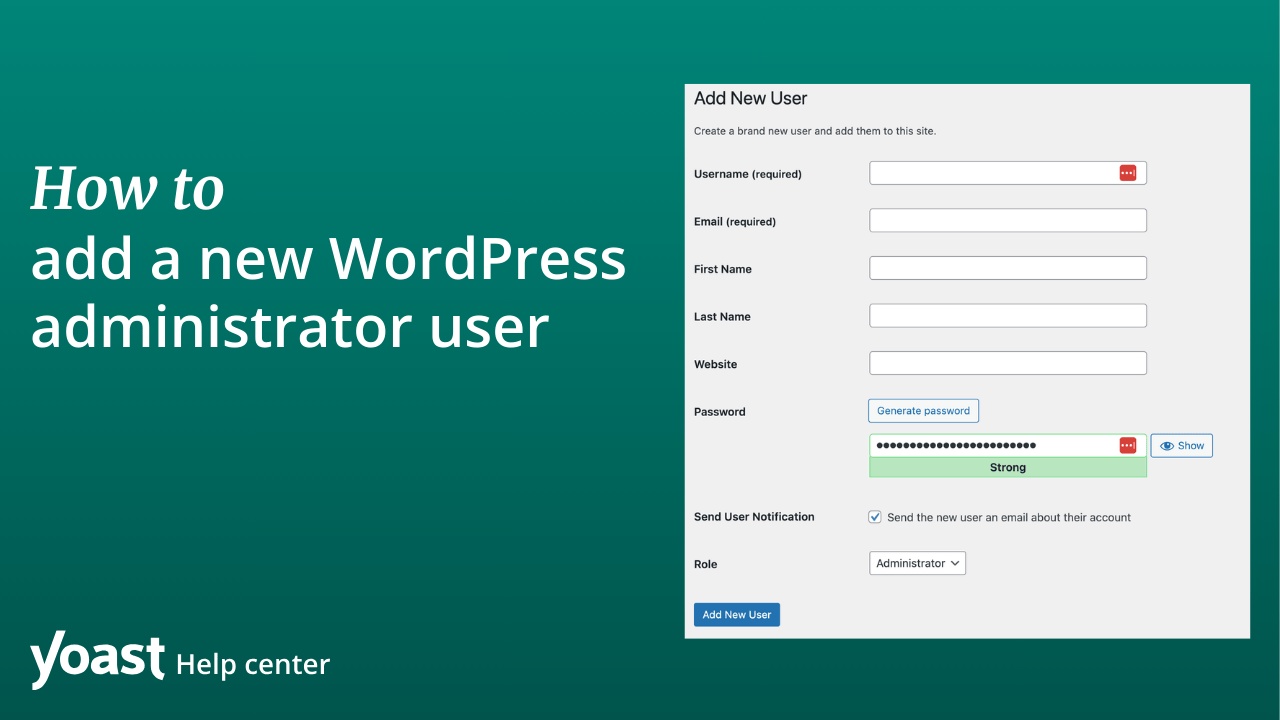
Adding a new user to WordPress is simple and quick. It allows you to share site management with others. This step is important when you want someone else to help with your website. Follow the steps below to add a new admin user safely.
Enter User Details
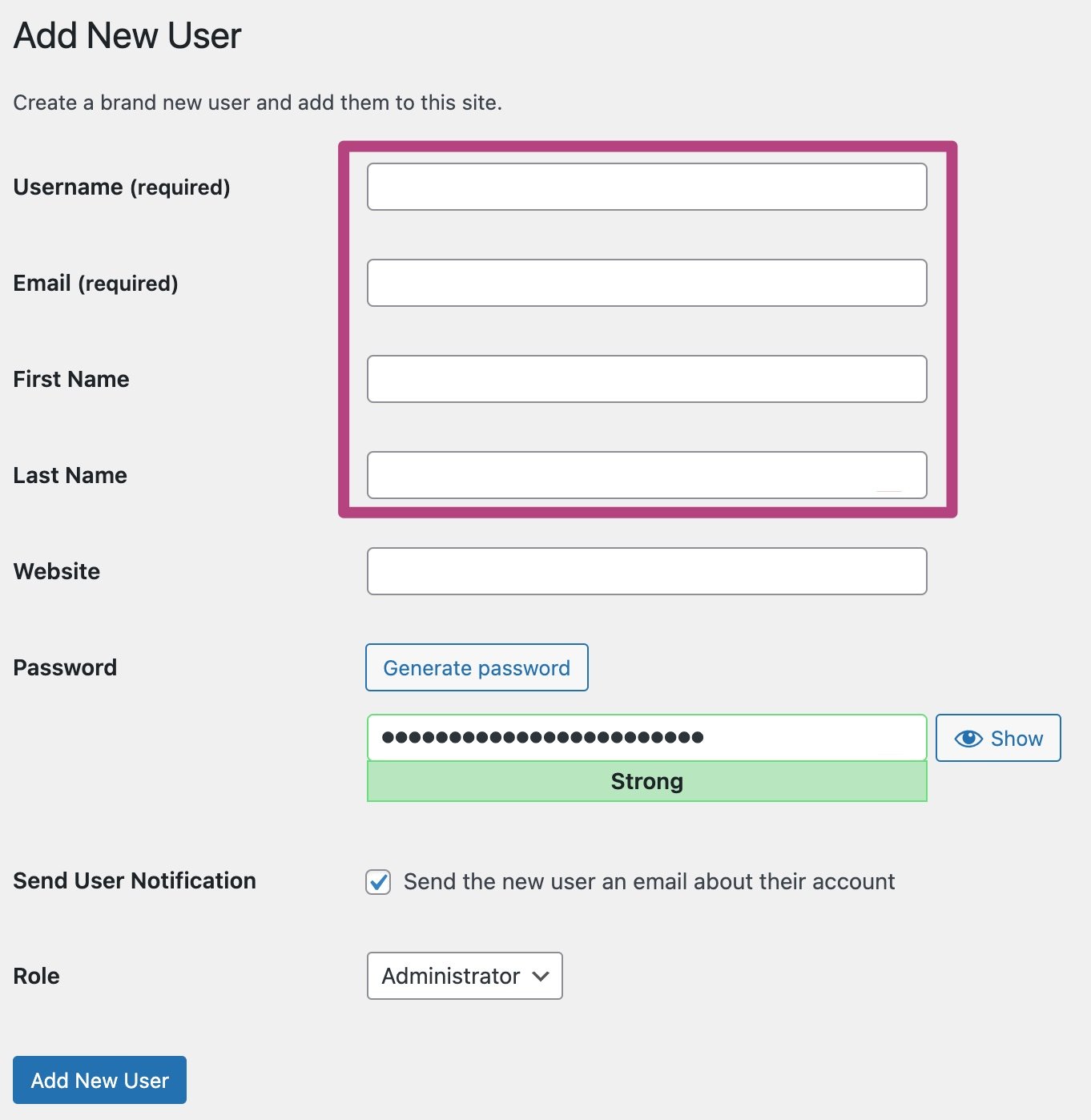
Start by going to your WordPress dashboard. Find the “Users” menu on the left side and click “Add New.” Enter the new user’s username and email address. You must fill in these fields for the user to log in. You can also add the first and last name to keep things clear. Set a strong password or let WordPress generate one automatically. Make sure you save this password and share it securely with the user.
Set User Role To Admin
Scroll down to the “Role” dropdown menu. Click it and select “Administrator.” This role gives full access to the site. Only assign this role to people you trust. Wrong settings can cause security problems. After choosing the role, click “Add New User” at the bottom. The user will now appear in your list with admin rights.
Credit: yoast.com
Save And Notify User
After setting the new admin details, saving the changes is important. This step ensures the new user account is created and ready to use.
Notifying the user is helpful. It lets them know they now have admin access. They receive an email with login details and instructions.
How To Save The New Admin Details
Click the “Add New User” button at the bottom of the form. This saves the information you entered. The new admin account will appear in the user list.
What Happens When You Notify The User
WordPress sends an automatic email to the new admin. The email includes a welcome message and login link. It also provides a way to reset the password if needed.
Why Saving And Notifying Is Essential
Saving keeps the new admin data secure in WordPress. Notification helps the user start managing the site quickly. Both steps work together for a smooth process.
Verify New Admin Access
Verifying new admin access is a key step after adding someone to your WordPress site. This step ensures the new user has the right permissions. It helps protect your website from errors or security risks.
Checking access also confirms that the admin can manage the site smoothly. It avoids confusion and keeps your site running well.
Log Out And Test Login
First, log out of your WordPress account. Then, ask the new admin to log in with their username and password. This test shows if their account works correctly.
If they cannot log in, check the username and password again. Reset the password if needed.
Check Admin Dashboard Access
Once logged in, the new admin should see the WordPress dashboard. This area allows them to manage posts, pages, and settings.
Verify if they can access all admin menus. Limited menus mean the user might not have full admin rights.
Test Key Admin Functions
Ask the new admin to try editing a post or page. They should also try adding a new user or changing a plugin setting.
Successful tasks confirm that admin privileges work properly. If tasks fail, review their user role in WordPress settings.
Manage Admin Permissions
Managing admin permissions is key to keeping your WordPress site safe and organized. Admins have full control over your website, so control who gets these rights. Adjusting permissions helps protect your site from mistakes or misuse.
You can change user roles or remove admin rights when needed. This keeps your site secure and running smoothly. Let’s explore how to manage these permissions effectively.
Edit User Roles
Editing user roles lets you change what a user can do. Go to the WordPress dashboard and open the Users section. Find the user you want to edit, then click “Edit.”
Scroll to the “Role” dropdown menu. Select a new role for the user, like Editor, Author, or Subscriber. Each role has different permissions. Choose a role that fits the user’s needs and trust level.
Save changes by clicking the “Update User” button. This updates their access immediately. Changing roles helps limit access without deleting users.
Remove Admin Privileges
Removing admin rights is simple and important for security. Access the Users list in your WordPress dashboard. Find the admin you want to change.
Edit their profile and change their role from “Administrator” to another role. This action removes their full admin powers. Save the changes to apply them.
Only assign admin rights to trusted users. Removing these privileges prevents accidental site damage. It also helps control who can install plugins or change settings.
Credit: www.wpexplorer.com
Frequently Asked Questions
How Do I Add A New Admin In WordPress?
To add a new admin, go to your WordPress dashboard. Navigate to Users > Add New. Fill in the user details, assign the role as “Administrator,” and click “Add New User. ” The new admin will receive an email with login details.
Can I Assign Multiple Admins On One WordPress Site?
Yes, WordPress allows multiple admins. You can add several users with the Administrator role. Each admin has full access to all site features and settings, enabling collaborative website management.
Is It Safe To Add An Admin To WordPress?
Adding an admin is safe if you trust the person. Admins have full control, so only assign this role to trusted users. Always use strong passwords and enable two-factor authentication for better security.
How To Change A User’s Role To Admin In WordPress?
Go to Users in your dashboard. Find the user you want to promote. Click “Edit,” change their role to “Administrator,” and save the changes. The user will gain admin privileges immediately.
Conclusion
Adding an admin to WordPress is simple and quick. You just need to follow clear steps. This helps share website control with trusted people. Make sure to choose the right role for each user. Always check permissions to keep your site safe.
Managing users well improves your website’s teamwork. Keep your site secure by reviewing admin accounts regularly. Now, you can confidently add admins and manage your WordPress site better.


