
Are you looking to improve your WordPress site’s accessibility and boost your SEO at the same time? Adding alt text to your images is one of the simplest, most effective ways to do both.
But if you’re not sure where to start or how to add alt text correctly, you’re in the right place. You’ll discover clear, step-by-step instructions that make adding alt text easy—no tech skills needed. Keep reading, and you’ll learn how this small change can make a big difference for your website’s visibility and user experience.

Credit: wordpress.stackexchange.com
Importance Of Alt Text
Alt text is a short description of an image on your website. It tells search engines and users what the image shows. This small detail plays a big role in your site’s success. Adding good alt text helps your site in many ways. It improves search engine rankings, makes your site accessible, and creates a better user experience.
Enhancing Seo
Alt text helps search engines understand your images. This boosts your site’s visibility in search results. Search engines cannot see images but read alt text. Clear, relevant descriptions improve your chances of ranking higher. Using keywords wisely in alt text can attract more visitors.
Improving Accessibility
Alt text makes your website usable for all people. Screen readers rely on alt text to describe images aloud. This helps visually impaired users understand your content. Without alt text, these users miss important information. Adding alt text shows you care about accessibility.
User Experience Benefits
Alt text helps visitors when images fail to load. Users still get the message even without pictures. It also clarifies image content for all users. Good alt text supports faster page loading times. This keeps visitors happy and encourages them to stay longer.
Credit: www.boisestate.edu
Where To Add Alt Text In WordPress
Alt text is important for images on your WordPress site. It helps search engines understand your pictures. It also improves accessibility for people using screen readers. You can add alt text in different places within WordPress. Knowing where to put alt text makes your site better optimized and user-friendly.
Media Library
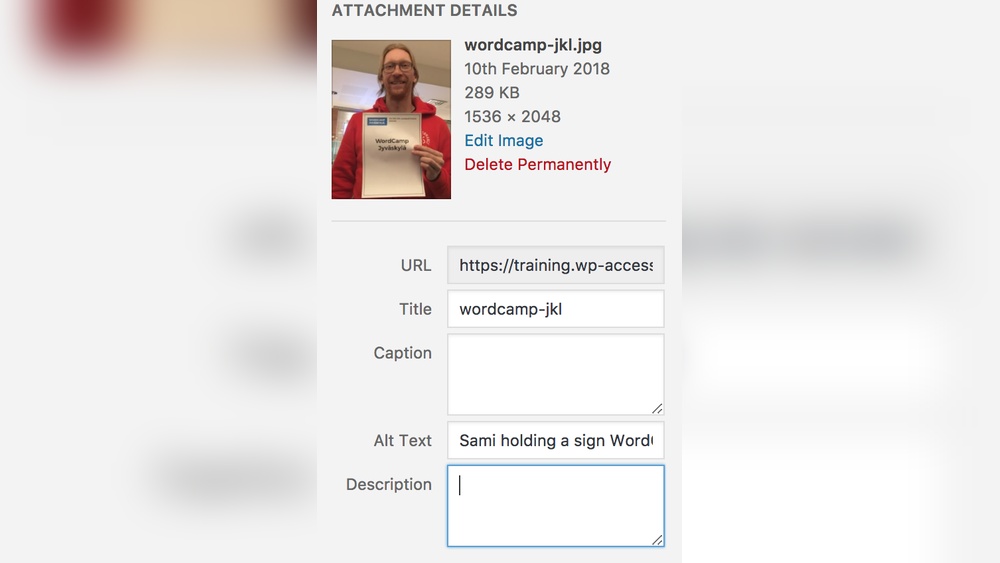
The Media Library holds all your images and files. To add alt text here, open the Media Library from the WordPress dashboard. Click on an image to open its details. You will see a field labeled “Alt Text” on the right side. Type a clear description of the image in this box. Save the changes before closing. This method adds alt text for images used anywhere on your site.
Image Block In Gutenberg
The Gutenberg editor uses blocks for content. When you add an image block, select your image. On the right sidebar, find the “Alt Text” field under the block settings. Enter a short, descriptive alt text here. This text applies only to the image in this block. It improves SEO and accessibility for that specific image on the page.
Classic Editor
The Classic Editor shows a simple text and visual interface. After inserting an image, click on it and select the pencil icon to edit. A popup window appears with image details. Find the “Alternative Text” box and type your description. Click “Update” to save the alt text. This ensures your image has alt text even in the older editor style.
Steps To Add Alt Text
Adding alt text to images in WordPress helps improve website accessibility and SEO. Alt text describes the image for search engines and users who cannot see it. Follow simple steps to add alt text while uploading or editing images in WordPress.
Uploading Images
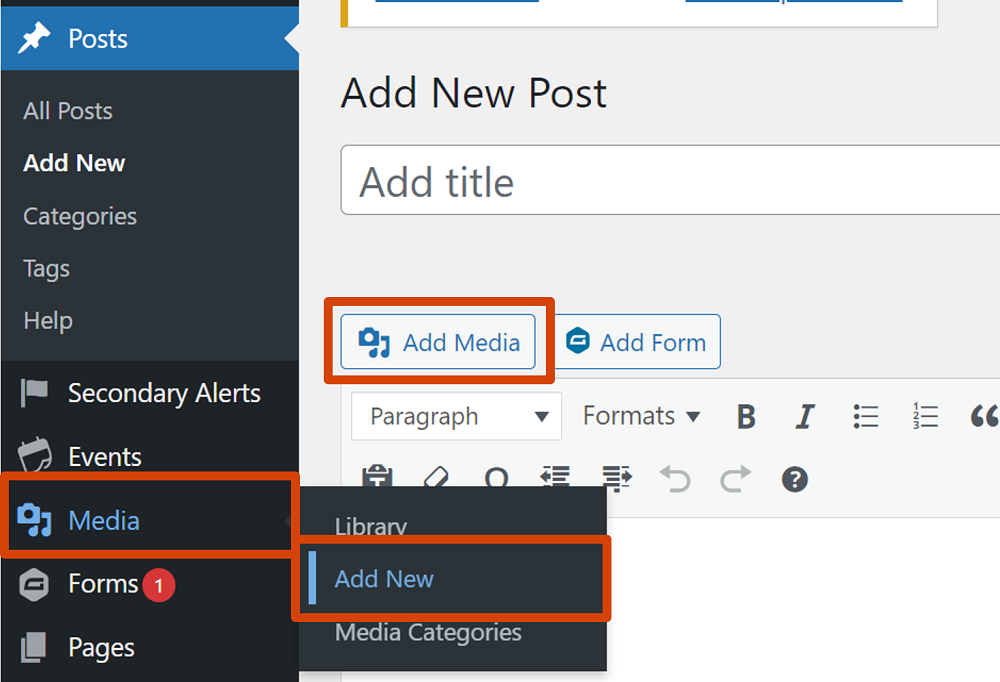
Start by opening the WordPress editor. Click the “Add Media” button to upload images. Select the image file from your computer. Once uploaded, you will see the image details on the right side.
Editing Alt Text
Locate the “Alt Text” field in the image details panel. Type a brief description of the image here. Use clear and specific words that explain the image content. Keep it simple and direct to help users and search engines.
Saving Changes
After typing the alt text, click the “Insert into post” button. This adds the image with alt text to your post. To update alt text for existing images, open the Media Library. Select the image, edit the alt text, and save your changes.
Best Practices For Writing Alt Text
Writing good alt text improves website accessibility and SEO. Alt text helps search engines understand images. It also assists users who use screen readers. Follow these best practices to write effective alt text that works well on WordPress.
Be Descriptive And Concise
Describe the image clearly but keep it short. Use simple words that explain what the image shows. Avoid long sentences that confuse readers. A good alt text gives a quick idea of the image.
Include Keywords Naturally
Use keywords that relate to your content. Add them in a way that sounds natural. This helps search engines connect your images to the page topic. Do not force keywords where they don’t fit.
Avoid Keyword Stuffing
Do not repeat keywords many times in alt text. Keyword stuffing looks spammy and lowers your SEO value. Keep the focus on describing the image, not on adding extra keywords.
Use Contextual Descriptions
Think about the image’s role on the page. Write alt text that matches the surrounding content. Provide details that add meaning to the image within its context. This helps users and search engines understand your content better.
Tools To Check Alt Text
Alt text helps search engines and users understand images on your site. It improves SEO and makes content accessible. Checking alt text ensures every image has a clear description. Various tools can help you find missing or weak alt text quickly.
Seo Plugins
SEO plugins scan your WordPress site for missing alt text. They show which images need descriptions. Plugins like Yoast SEO and Rank Math offer alt text analysis. They provide simple tips to improve your image SEO. These plugins run checks automatically as you add images.
Accessibility Checkers
Accessibility checkers review your site for alt text and other accessibility features. Tools like WAVE and Axe highlight images without alt text. They help make your site usable for all visitors. These checkers focus on compliance with accessibility standards.
Browser Extensions
Browser extensions let you check alt text directly while browsing your site. Extensions such as Alt Text Tester and Web Developer Toolbar are easy to use. They show alt text of images on any page instantly. These tools help catch missing alt text during site reviews.
Common Mistakes To Avoid
Adding alt text to images in WordPress helps improve website accessibility and SEO. Many beginners make simple mistakes that reduce these benefits. Avoiding these errors ensures your alt text works well for all users and search engines.
Leaving Alt Text Blank
Empty alt text means screen readers miss important information. It also hurts your SEO ranking. Always write a short, clear description of the image. This helps users who cannot see the image understand its content.
Using Generic Phrases
Phrases like “image” or “picture” do not describe the photo. They add no value for accessibility or SEO. Describe what is in the image instead. For example, say “red apple on table” rather than “image.”
Overloading With Keywords
Stuffing alt text with many keywords looks spammy. It confuses readers and search engines. Use natural language and include only relevant keywords. Keep the description simple and focused on the image.
Advanced Tips For Alt Text
Adding alt text to images improves website accessibility and SEO. Basic alt text is good, but advanced tips make it better. These tips help create clear, useful descriptions. They also save time and improve user experience.
Automating Alt Text With Ai
AI tools can generate alt text automatically. This saves time on large image collections. Some plugins integrate AI with WordPress. They analyze images and suggest alt text. Always review AI suggestions for accuracy. AI helps, but human checks keep quality high.
Using Descriptive File Names
Descriptive file names support alt text and SEO. Name files with clear, relevant words. Avoid generic names like “image1.jpg.” Use words that describe the image content. For example, “red-apple-on-table.jpg” is better. This practice improves search engine understanding. It also helps users who see file names.
Optimizing For Different Image Types
Different images need different alt text approaches. Photos need detailed descriptions. Icons require short, clear labels. Informational graphics need explanation of data shown. Decorative images can have empty alt text. This avoids confusion for screen readers. Tailor alt text to each image type for best results.

Credit: wpmudev.com
Frequently Asked Questions
What Is Alt Text In WordPress?
Alt text is a brief description added to images in WordPress. It helps search engines understand the image content. Alt text also improves accessibility for users with screen readers. Proper alt text boosts SEO and enhances user experience on your site.
How Do I Add Alt Text To Images In WordPress?
To add alt text, upload or select an image in the WordPress editor. Then, fill in the “Alt Text” field in the image details panel. Finally, save or update your post to apply the changes. This process is quick and essential for SEO.
Why Is Alt Text Important For Seo In WordPress?
Alt text improves image SEO by helping search engines index images. It increases your website’s visibility in image search results. Alt text also enhances page relevance and user engagement. This leads to better rankings and more organic traffic.
Can I Edit Alt Text For Existing WordPress Images?
Yes, you can edit alt text anytime in WordPress. Navigate to the Media Library, select the image, and update the “Alt Text” field. Save changes to improve SEO and accessibility without altering the image itself. Regular updates keep your content optimized.
Conclusion
Adding alt text in WordPress helps improve website accessibility and SEO. It makes images clear to search engines and users with disabilities. Use simple, descriptive words that match the image. Keep alt text short but meaningful. Regularly check your images and update alt text when needed.
This small step boosts your site’s reach and user experience. Start adding alt text today to make your WordPress site better for everyone.


