

If you want your website to stand out and rank higher on search engines, adding alt text to your images is a simple but powerful step you can’t afford to miss. Not only does alt text improve your site’s SEO, but it also makes your content accessible to everyone, including people using screen readers.
In this guide, you’ll discover exactly how to add alt text to images in WordPress—quickly and easily. By the end, you’ll know how to boost your site’s visibility and create a better experience for all your visitors. Ready to take your WordPress site to the next level?
Let’s dive in!
Why Alt Text Matters
Alt text is a small but powerful part of web images. It describes the image content in simple words. This helps many users and improves your website in several ways. Understanding why alt text matters can change how you use images on WordPress.
Accessibility Benefits
Alt text makes images clear for people with vision problems. Screen readers read the alt text aloud. This lets users know what the image shows. It helps users who cannot see images well. Good alt text makes your website more inclusive.
Seo Advantages
Search engines cannot see images but can read alt text. Clear alt text helps search engines understand your content. This can improve your website ranking in search results. It brings more visitors to your site. Using keywords wisely in alt text helps SEO without overdoing it.
Improved User Experience
Alt text shows up if an image fails to load. Visitors still get the image’s meaning. It keeps your site looking professional and complete. Alt text helps users stay longer on your site. It makes your content easier to understand for everyone.
Locating The Alt Text Field
Finding the alt text field is the first step to improve your images’ accessibility and SEO. Alt text describes images for visitors who cannot see them. It also helps search engines understand your content better. Different WordPress editors and tools place this field in different spots.
Using The WordPress Block Editor
Open your post or page in the Block Editor. Click on the image block you want to edit. Look to the right sidebar under “Image settings.” You will find the “Alt text (alternative text)” box. Type your description here. Make sure it clearly explains the image content.
Classic Editor Method
In the Classic Editor, click the image inside your content. Press the pencil icon to edit it. A popup window appears with image details. Find the “Alternative Text” field. Enter your description in this box. Click “Update” to save your changes.
Media Library Access
Go to your WordPress dashboard and open the Media Library. Select the image you want to edit. On the right side, locate the “Alt Text” field. Write a short and clear description there. Click “Update” to save your work.
Writing Effective Alt Text
Adding alt text to images in WordPress helps describe pictures for users and search engines. Keep descriptions clear and concise to improve accessibility and SEO. Use simple words to explain what the image shows.
Keep It Descriptive And Concise
Effective alt text describes the image clearly and briefly. Use simple words to explain what the image shows. Keep the description short, usually under 125 characters. This length fits screen readers and improves user experience. Avoid vague terms like “image” or “photo.” Instead, focus on the main subject and important details.
Avoid Keyword Stuffing
Do not fill alt text with keywords to trick search engines. This harms your SEO and confuses users. Write naturally and focus on describing the image honestly. Use keywords only if they fit smoothly in the description. The main goal is to help users understand the image, not to rank higher.
Focus On Image Context
Consider how the image relates to your content. Alt text should match the topic and purpose of the page. Describe the image in a way that supports the surrounding text. This helps users who rely on screen readers get the full message. Think about why the image is there and what it adds to your post.
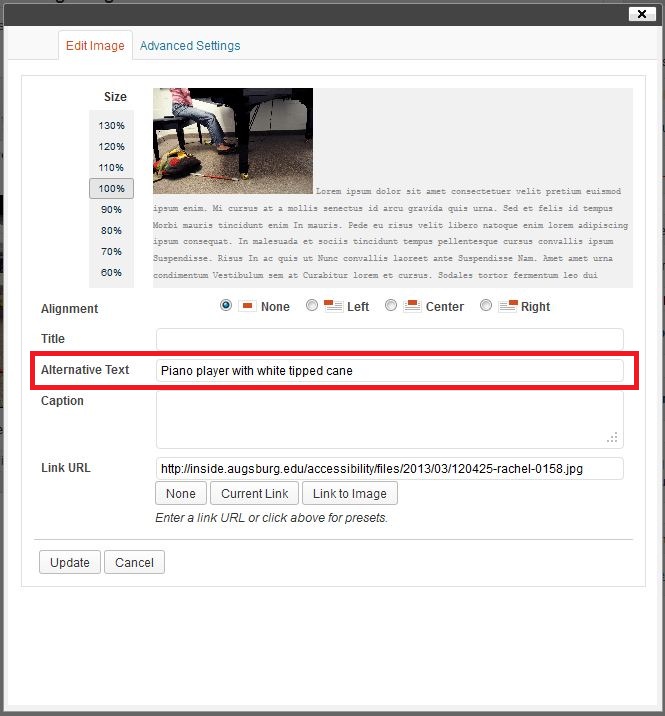
Credit: support.augsburg.edu
Adding Alt Text To New Images
Adding alt text to new images in WordPress helps improve accessibility and SEO. Alt text describes what the image shows for screen readers and search engines. You can add alt text during the upload process or before inserting the image into a post.
This section explains how to add alt text to images you upload to WordPress. Clear instructions make the process simple and quick.
Uploading Images With Alt Text
Start by uploading your image through the WordPress media library. Click the “Add New” button and select the image file. Once uploaded, you will see an option to enter the alt text. Write a short, clear description of the image. Keep it relevant to the content. This alt text will be saved with the image and used whenever it is inserted into posts or pages.
Editing Before Inserting
You can also add or change alt text before inserting the image into a post. In the post editor, click “Add Media” and select your image. On the right side, find the alt text field. Type a description that fits the post’s topic. This step ensures every image has useful alt text. It helps search engines understand your content better. It also improves the experience for visitors using screen readers.
Updating Alt Text For Existing Images
Updating alt text for images already on your WordPress site improves SEO and accessibility. It helps search engines understand your images better. It also makes your site easier to use for people with disabilities.
You can update alt text in two main ways. Either through the Media Library or directly in your posts and pages. Both methods are simple and quick.
Editing Through Media Library
Go to your WordPress dashboard and click on Media. Here, you see all your uploaded images. Click on the image you want to update. A window will open on the right side.
Look for the field labeled “Alt Text.” Enter a clear, short description of the image. This text should describe the image’s content accurately. After typing the alt text, click the “Update” button to save your changes.
This method works well if you want to update many images in one place. It also helps keep your media organized with proper descriptions.
Changing Alt Text In Posts And Pages
Edit the post or page where the image is used. Click on the image inside the editor. An options toolbar will appear above or near the image.
Click the “Edit” or “Replace” icon, then find the alt text field. Enter your descriptive alt text here. After adding the text, save or update the post/page to keep changes.
This way lets you add context-specific descriptions for images in each post or page. It helps improve the relevance of your content for readers and search engines.
Using Plugins To Manage Alt Text
Managing alt text for images is crucial for website accessibility and SEO. Plugins make this task easier by providing tools to add and edit alt text efficiently. They help save time and reduce errors, especially for sites with many images.
Plugins also offer automation features. These can generate alt text based on image content or file names. This way, you ensure every image has some descriptive text without doing it manually.
Popular Alt Text Plugins
Several plugins stand out for managing alt text. “Yoast SEO” offers basic alt text reminders. “SEO Friendly Images” automatically adds alt and title attributes to images. “Auto Image Attributes From Filename” creates alt text from image file names. These plugins are easy to use and work well with most WordPress themes.
Automating Alt Text Generation
Some plugins use artificial intelligence to create alt text. They analyze the image and suggest descriptions. This helps with bulk image uploads and large galleries. Automation ensures no image is left without alt text. It also reduces manual work and speeds up SEO tasks.
Common Mistakes To Avoid
Adding alt text to images in WordPress is important for SEO and accessibility. Many users make mistakes that reduce these benefits. Avoiding common errors helps your site perform better and serves all visitors well.
Leaving Alt Text Blank
Some skip alt text completely. This hurts SEO and accessibility. Screen readers cannot describe the image to users. Every image should have a clear alt text, even if simple.
Using Generic Descriptions
Descriptions like “image” or “photo” add no value. They do not explain the image content. Write specific and relevant alt text. This helps search engines and visitors understand the picture.
Overloading With Keywords
Stuffing many keywords into alt text looks spammy. It can lower your search rankings. Keep alt text natural and focused on describing the image. Use keywords only if they fit naturally.
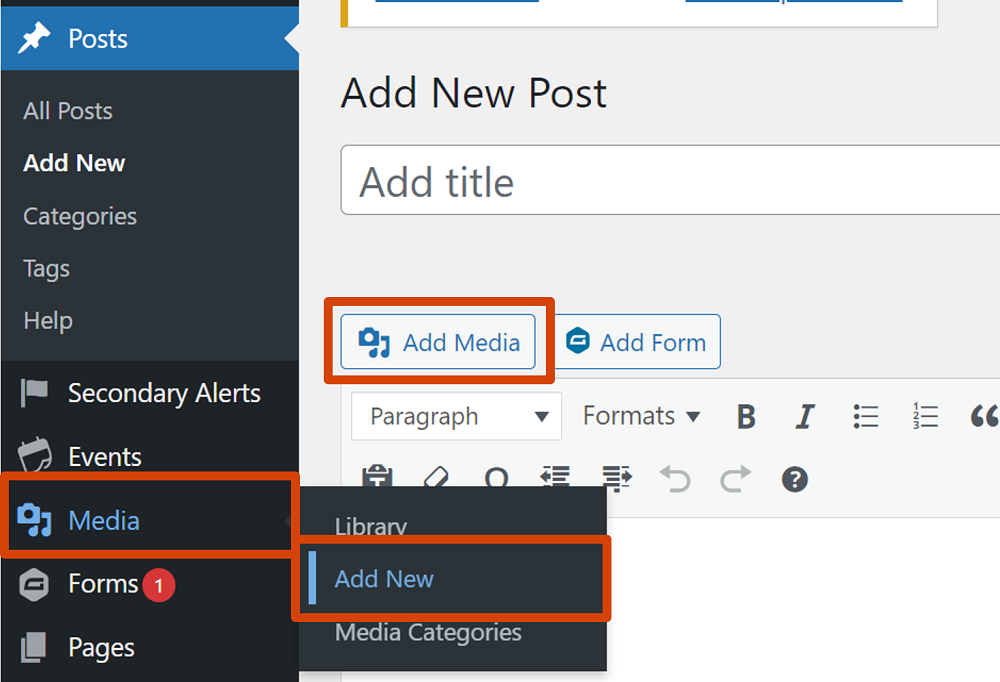
Credit: www.boisestate.edu

Credit: wpmudev.com
Frequently Asked Questions
What Is Alt Text And Why Is It Important?
Alt text describes an image for search engines and accessibility. It improves SEO and helps visually impaired users understand content.
How Do I Add Alt Text To Images In WordPress?
Go to the WordPress media library, select the image, and fill in the “Alt Text” field. Save changes to update.
Can Alt Text Improve My WordPress Seo Rankings?
Yes, alt text helps search engines understand images, boosting page relevance and improving SEO rankings when used correctly.
Should Alt Text Describe The Image Or Include Keywords?
Alt text should accurately describe the image while naturally including relevant keywords. Avoid keyword stuffing for best results.
Conclusion
Adding alt text to images in WordPress helps improve website accessibility. It also boosts your site’s search engine ranking. Alt text describes images for users who cannot see them. This simple step makes your content clearer and easier to find.
Remember to keep alt text brief and relevant. Use clear words that explain the image well. Regularly adding alt text can make your site more user-friendly. Start adding alt text today to help both visitors and search engines. Small changes like this make a big difference over time.


