
If you want your website to stand out and rank higher on search engines, adding alt tags to your images is a simple but powerful step you can’t skip. Alt tags not only improve your site’s accessibility but also help search engines understand your content better.
If you’re wondering how to add alt tags in WordPress without any hassle, you’re in the right place. Keep reading, and by the end of this post, you’ll know exactly how to boost your site’s SEO and make your images work harder for you.

Credit: wpmudev.com
Why Alt Tags Matter
Alt tags are short descriptions added to images on your website. They explain what the image shows. Alt tags help search engines and users understand your content better. They play a key role in making your site more visible and easier to use for everyone.
Boosting Seo Rankings
Search engines cannot see images like humans do. They rely on alt tags to understand images. Well-written alt tags include keywords related to your content. This helps your page rank higher in search results. Adding alt tags improves your website’s SEO performance.
Improving Accessibility
Some users use screen readers to browse the web. Screen readers read alt tags aloud to describe images. This helps people with visual impairments understand your site. Alt tags make your content accessible to a wider audience. Accessibility shows your site cares about all users.
Enhancing User Experience
Sometimes images do not load due to slow internet or errors. Alt tags appear in place of missing images. They tell users what the image should show. Clear alt tags keep users informed and reduce confusion. A better user experience helps keep visitors on your site.

Credit: wordpress.stackexchange.com
Where To Find Alt Tags In WordPress
Alt tags help describe images on your website. They improve SEO and accessibility. Knowing where to find and edit alt tags in WordPress is important. WordPress offers several places to manage these tags depending on the editor and tools you use.
Media Library
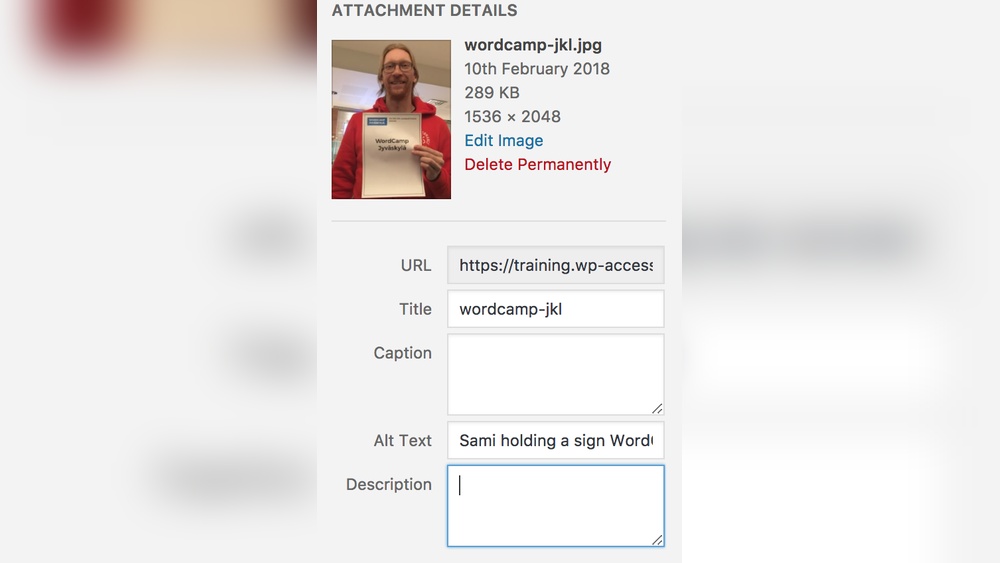
The Media Library stores all images uploaded to your site. To find alt tags here, open the Media Library from your dashboard. Click on an image to open its details. On the right side, you see a field labeled “Alt Text.” This is where you enter or edit the alt tag. Save changes to update the image’s alt text across the site.
Image Block In Gutenberg Editor
The Gutenberg Editor uses blocks to add content. When you select an Image Block, a panel appears on the right. This panel includes an “Alt Text” field. Type the description of the image here. This alt text only applies to that specific image block. It helps screen readers and improves SEO for the page.
Classic Editor
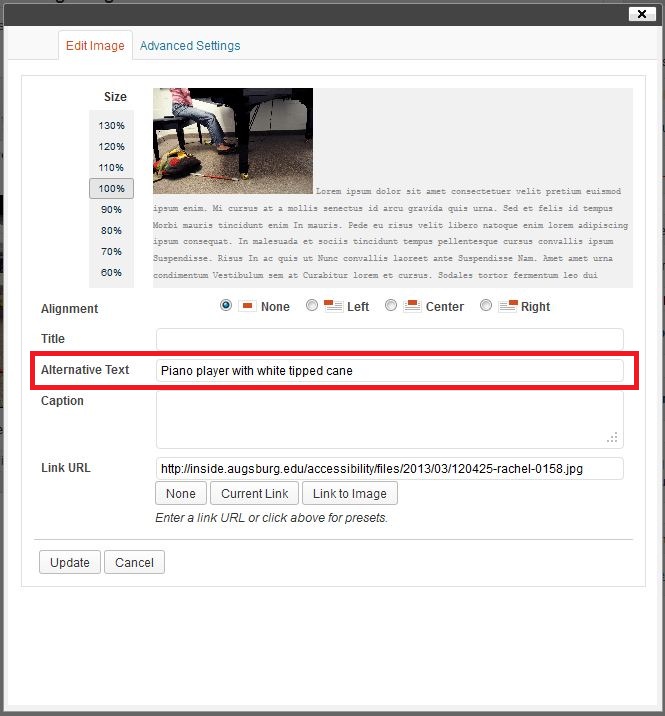
The Classic Editor looks like a simple text editor. When you insert an image, a popup appears. This popup contains an “Alternative Text” box. Write your alt tag here before inserting the image into your post. You can also edit it later by clicking the image and choosing the edit option.
Step-by-step Guide To Adding Alt Tags
Adding alt tags to images in WordPress helps improve website accessibility and SEO. Alt tags describe images for search engines and visually impaired users. This guide shows easy steps to add alt text in WordPress.
Follow these instructions for different WordPress editors. Each method is simple and quick. Adding alt tags will boost your site’s performance and user experience.
Adding Alt Text Via Media Library
Go to your WordPress dashboard and open the Media Library. Find the image you want to edit. Click on the image to open its details.
Look for the “Alt Text” field on the right side. Type a short, clear description of the image here. Save your changes by clicking the “Update” button.
Now the image has an alt tag that search engines can read. This method works well for images used multiple times.
Inserting Alt Tags In Gutenberg Editor
Open the post or page with the Gutenberg editor. Click on the image block to select it. The block settings appear on the right side.
Find the “Alt Text (Alternative Text)” box in the settings panel. Enter a clear description that explains the image. The alt text helps screen readers and SEO.
Update or publish the post to save the changes. This method adds alt text directly while editing content.
Using Classic Editor For Alt Text
Edit your post or page in the Classic Editor. Click on the image inside the editor window. A small popup with image options appears.
Click the pencil icon to edit the image details. In the popup, find the “Alternative Text” field. Write a simple description of the image here.
Click “Update” to save the alt text. Then save or update your post. The alt tag will now be part of the image code.
Best Practices For Writing Alt Tags
Writing good alt tags helps search engines understand images. It also improves website accessibility for users with disabilities. Clear and well-written alt tags make your content more useful and SEO-friendly. Follow these best practices to create effective alt tags.
Keep It Descriptive And Concise
Describe the image clearly in a few words. Avoid long sentences or too much detail. Focus on what the image shows or its purpose. This helps screen readers explain the image quickly and accurately.
Include Relevant Keywords
Use keywords that relate to the content and image. This can boost your page’s SEO. Make sure keywords fit naturally in the description. The alt tag should still make sense to readers and users.
Avoid Keyword Stuffing
Do not overload alt tags with many keywords. It can look spammy to search engines. Keep the tag natural and easy to read. One or two keywords are enough for each alt tag.
Tools To Optimize Alt Tags
Optimizing alt tags improves your website’s SEO and accessibility. Using the right tools makes this task easier. These tools help you create clear, descriptive alt text for images. They also save time by streamlining the editing process. Below are some useful tools to optimize alt tags on WordPress.
Seo Plugins For WordPress
SEO plugins offer built-in features to manage alt tags. Plugins like Yoast SEO and Rank Math provide guidance on image optimization. They suggest improvements for alt text during content editing. These plugins often include bulk editing options. They help fix missing or empty alt tags quickly. Using SEO plugins ensures your images follow best SEO practices.
Image Optimization Tools
Image optimization tools focus on improving image size and alt attributes. Tools like Smush and ShortPixel compress images without losing quality. They also let you add or edit alt tags easily. Some tools offer automatic alt tag generation based on file names. These tools enhance page speed and SEO by optimizing images and alt text together.
Common Mistakes To Avoid
Adding alt tags to images in WordPress helps improve SEO and accessibility. Many users make common mistakes that reduce these benefits. Avoid these errors to ensure your images help your site perform well.
Leaving Alt Tags Empty
Some users skip alt tags entirely or leave them blank. This hurts SEO and makes your site less accessible. Every image should have an alt tag describing its content. Even simple images need meaningful descriptions.
Using Generic Descriptions
Alt tags like “image” or “photo” do not help search engines. Generic phrases do not explain the image clearly. Write specific descriptions that match the image and page topic. This helps search engines understand your content better.
Ignoring Image Context
Alt tags should relate to the image and the surrounding text. Ignoring context can confuse users and search engines. Describe how the image fits the page content. Keep alt tags relevant to improve user experience and SEO.
Credit: support.augsburg.edu
Frequently Asked Questions
How Do I Add An Alt Tag To Images In WordPress?
To add an alt tag, click on the image in the WordPress editor. Then, fill in the “Alt Text” field in the image settings sidebar. This helps search engines understand your image content and improves SEO.
Why Are Alt Tags Important For WordPress Seo?
Alt tags improve accessibility and help search engines index images. They boost your site’s SEO by providing context to images, making your content more discoverable in image search results.
Can I Edit Alt Tags For Existing WordPress Images?
Yes, you can edit alt tags anytime. Go to the Media Library, select an image, and update the “Alt Text” field. Save changes to improve SEO without re-uploading images.
Should Alt Tags Include Keywords In WordPress?
Yes, include relevant keywords naturally in alt tags. This enhances SEO by helping search engines associate your images with specific topics or search queries. Avoid keyword stuffing to keep it user-friendly.
Conclusion
Adding alt tags in WordPress helps improve your website’s SEO and accessibility. It makes images easier to find on search engines. Plus, it helps people who use screen readers understand your content. Alt tags are simple to add and take little time.
Keep your descriptions clear and relevant to the images. Regularly updating alt text can boost your site’s performance. Start adding alt tags today to make your site better for everyone. Small steps lead to big improvements in your website’s reach.


