
Are you looking to boost your website’s revenue effortlessly? Adding Adsense to your WordPress 2016 theme header can be a game-changer.
Imagine turning your site traffic into a steady stream of income without compromising user experience. Sounds enticing, right? You might think it’s a daunting task, but fear not! This guide is tailored just for you. With simple steps and clear instructions, you’ll have those ads up and running in no time.
Get ready to unlock the potential of your WordPress site and maximize your earnings. Let’s dive in and transform your site into a revenue powerhouse!
Setting Up An Adsense Account
Start by visiting the Google AdSense website. Click on the “Sign Up Now” button. Fill in your details like name and email. Make sure to use a valid email. Choose your website’s language. Accept the terms and conditions. Then, click “Submit.”
You will get an email from Google. This email will have further steps. Follow them carefully to finish your setup.
Google needs to check your website. This is to ensure it’s real and follows rules. You will get a code from Google. This code is called an HTML verification code. Copy this code carefully.
Paste the code in your website’s header. Save your changes. Google will take some time to verify. Wait for their confirmation email. This email will tell you if your website is approved.
Generating Adsense Code
Selecting the right Ad Type is important. You can choose text, display, or rich media ads. Each type has its own benefits. Text ads are simple and easy to read. Display ads are colorful and can grab attention. Rich media ads are interactive and fun.
Choosing Ad Size is crucial for visibility. Popular sizes include 300×250, 728×90, and 160×600. The 300×250 fits well in most spaces. The 728×90 is a banner style. The 160×600 is a tall rectangle. The right size helps your ad stand out.
Customizing Ad Appearance
Colors make ads look nice. Choose colors that match your site. This helps ads blend in. Font style should be clear. Pick a font that’s easy to read. Border style gives ads a neat look. Borders can be thin or thick. Thin borders are simple. Thick borders are bold. Adjusting these settings makes ads more appealing.
Accessing WordPress 2016 Theme Files
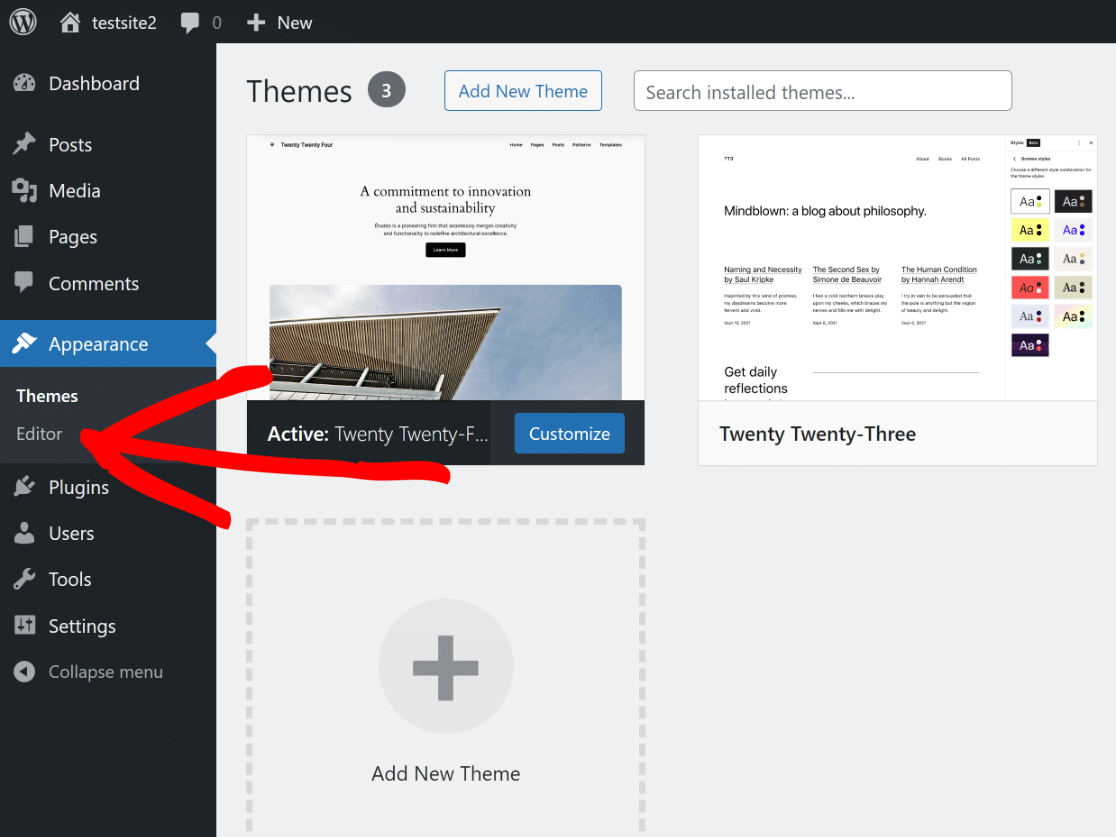
Start by logging into your WordPress dashboard. This is where all the magic happens. Look for the Appearance option on the left. Click on it. You will see a list of options. Select Editor. This is where you can edit your theme files. Be careful here. Any changes affect your whole site. Always make a backup before making changes. It keeps your site safe.
Inside the theme editor, you can see many files. Look for the file named header.php. This file controls the top part of your site. Open it by clicking on it. Now you can add your Adsense code. Place it where you want the ads to appear. Save the changes when done. Preview your site to check if everything looks good.
Inserting Adsense Code In Theme Header
Find the header file in your theme folder. Go to your WordPress dashboard. Select Appearance and then Editor. Look for a file named header.php. This is where you’ll add the AdSense code. Ensure you have a backup before making changes. Mistakes can break your website.
Copy the AdSense code from your AdSense account. Open the header.php file. Paste the code before the closing tag. Save the changes. Refresh your website to see the ads. If the ads do not appear, check your code for errors.
Testing Ad Placement
Ads should be visible to your readers. Check that ads appear in the right places. Make sure they do not block important content. Ads should be in a spot where visitors can see them. You can put ads at the top of your page. This is often a good spot.
After placing the ad, preview your website. This helps you see if the ad looks good. Click around to check if ads show properly. Ensure ads do not disrupt the user experience. Adjust sizes or positions if needed. This helps in maintaining a neat look.
Ensuring Ad Visibility
Ads should be clear and easy to see. Test them on different devices. Check both mobile and computer screens. Ads should load fast. Slow ads can lose viewers. Ensure ads do not hide behind menus. They should be part of the page layout.
Credit: wpforms.com
Adsense Policy Compliance
Google’s policies are very important. They help keep the internet safe. Every website must follow these rules. No fake clicks or tricks. This is very important. Your website should be family-friendly. No bad content allowed. Keep your site clean and simple. Easy to read and understand. This makes Google happy.
Good content is key. Write clear and useful articles. No copying from other sites. Original content is a must. Images should be clear. No blurry pictures. Update your site often. This keeps visitors coming back. Happy visitors mean more clicks. More clicks mean more money.
Troubleshooting Common Issues
Struggling with adding Adsense to your WordPress 2016 theme header? Ensure your Adsense code is copied correctly into the header. php file. Check for any missing tags or misplaced code lines to prevent display issues.
Resolving Code Errors
Adsense code might show errors sometimes. Double-check the code you copied. Ensure every character is correct. Errors happen with missing or extra symbols. Look at your theme’s functions file. It should support JavaScript. Some themes block scripts. If blocked, contact your theme’s support. They might have a solution.
Addressing Visibility Problems
Ads might not show up. First, check your AdSense account. Make sure it’s active. Ads won’t appear if the account is inactive. Then, check your theme settings. Some themes hide header ads. Adjust settings if needed. Try clearing your browser cache. Sometimes, cache prevents ads from showing. Refresh the page after clearing. Ads should appear now.

Credit: srmehranclub.com

Credit: ladder.io
Frequently Asked Questions
How To Place Adsense In WordPress Header?
To add Adsense to your WordPress header, use the header. php file. Edit the theme’s header file in Appearance > Editor. Insert the Adsense code within the header tags. Save the changes, and your ads will appear in the header section.
Can I Use Adsense On Any WordPress Theme?
Yes, Adsense can be integrated into most WordPress themes, including the 2016 theme. Ensure that your theme supports custom code placement. Some themes may require additional plugins or widgets for seamless integration.
Is It Safe To Modify Theme Files For Ads?
Modifying theme files is generally safe if done correctly. Always back up your theme before making changes. Use child themes to prevent losing modifications during updates. Follow guidelines to avoid breaking your site.
Why Add Adsense To The Header?
Adding Adsense to the header increases visibility, leading to more clicks. The header is a prominent area, ensuring your ads get noticed. Proper placement can enhance user engagement and revenue potential.
Conclusion
Adding Adsense to your WordPress 2016 theme header is straightforward. Begin by accessing your WordPress dashboard. Navigate to the header section. Insert your Adsense code there. Save your changes. Your ads should appear now. Experiment with different placements. Test and optimize for the best results.
Keep your content engaging and relevant. This attracts more visitors and maximizes ad revenue. Follow these steps, and you’ll see improvement. Remember, consistent updates enhance your site’s performance. Now, you’re ready to monetize your WordPress theme effectively. Enjoy the benefits of your efforts.


