
Are you looking to monetize your WordPress site with Google AdSense but unsure where to start? Adding AdSense code to your WordPress theme can seem daunting at first, but it’s simpler than you might think.
Imagine turning your blog into a revenue-generating machine, effortlessly transforming each visitor into potential income. By learning how to properly integrate AdSense, you can unlock a steady stream of passive earnings that grow as your audience expands. This guide will walk you through the process step-by-step, ensuring you feel confident and empowered to make the most out of your content.
Ready to tap into the potential of your website? Let’s dive in and get your AdSense set up seamlessly.
Credit: www.namecheap.com
Choosing The Right Adsense Code
Selecting the right Adsense code is important for your site. There are different types of ads available. Text ads, display ads, and link units are common. Text ads show words only. Display ads show images. Link units show topics. Each type works in its own way. Think about what fits your site best.
For websites with more visual content, display ads might be better. Sites with a lot of reading might do well with text ads. It’s also important to consider the size of the ads. Bigger ads can grab more attention. But they can also be annoying if too large. Choose a size that fits your website’s design.
Credit: kinsta.com
Preparing Your WordPress Site
Backing up your site is very important. It keeps your data safe. Use a backup plugin for easy backups. You can find many plugins online. Choose one that fits your needs. Make sure the plugin is updated.
Updating WordPress is necessary. It keeps your site secure. Old versions can have bugs. Check for updates in your dashboard. Update all plugins too. Updated plugins work better. They fix bugs and add new features.
Locating Theme Files
To add Adsense code to a WordPress theme, find the theme files in your dashboard. Access these by navigating to “Appearance” and then “Theme Editor. ” Carefully locate the header. php or footer. php file where you can insert the Adsense code.
Always back up files before making changes.
Accessing The Theme Editor
Begin by logging into your WordPress dashboard. Find the Appearance menu on the left side. Click on it, then select Theme Editor. A warning might appear. It reminds you to be careful. Theme files control how your site looks. Mistakes can break your site. Always back up your files before changes.
Identifying Key Theme Files
Look for the file called header.php. This file usually contains the section of your site. It is the perfect place to add the Adsense code. Another important file is footer.php. You can also add code here. This file affects the bottom of your site. Both files are crucial for layout. They help determine your site’s overall structure.
Inserting Adsense Code
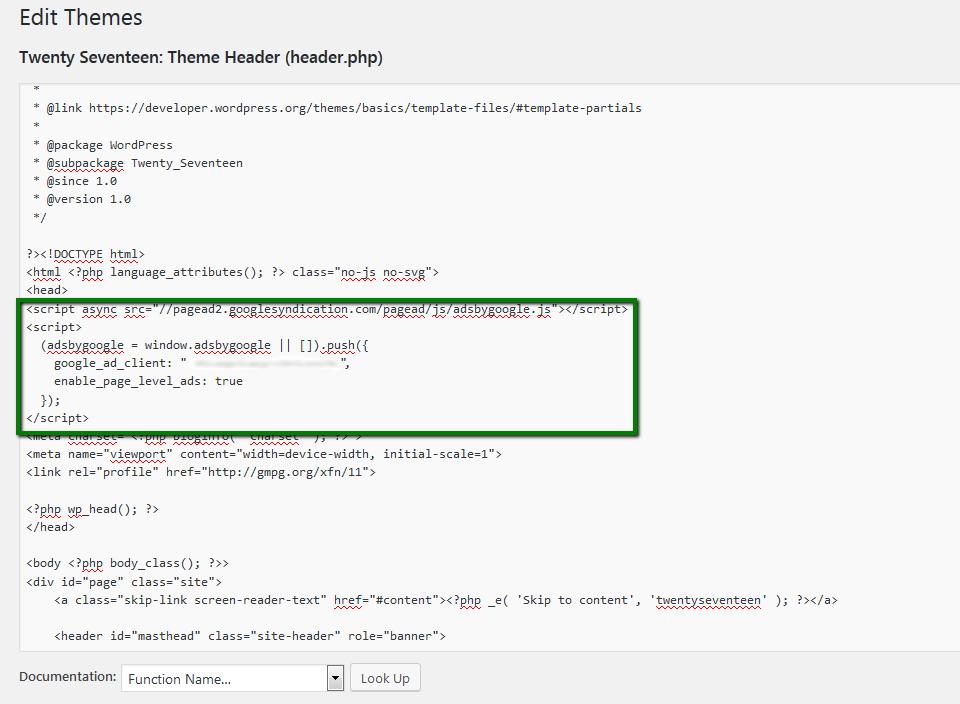
To add Adsense to your site, place code in the header. Go to your WordPress dashboard. Click on “Appearance.” Then select “Theme Editor.” Find the file named header.php. Open it. Paste your Adsense code just before the closing tag. Save your changes. This makes the code appear on all pages.
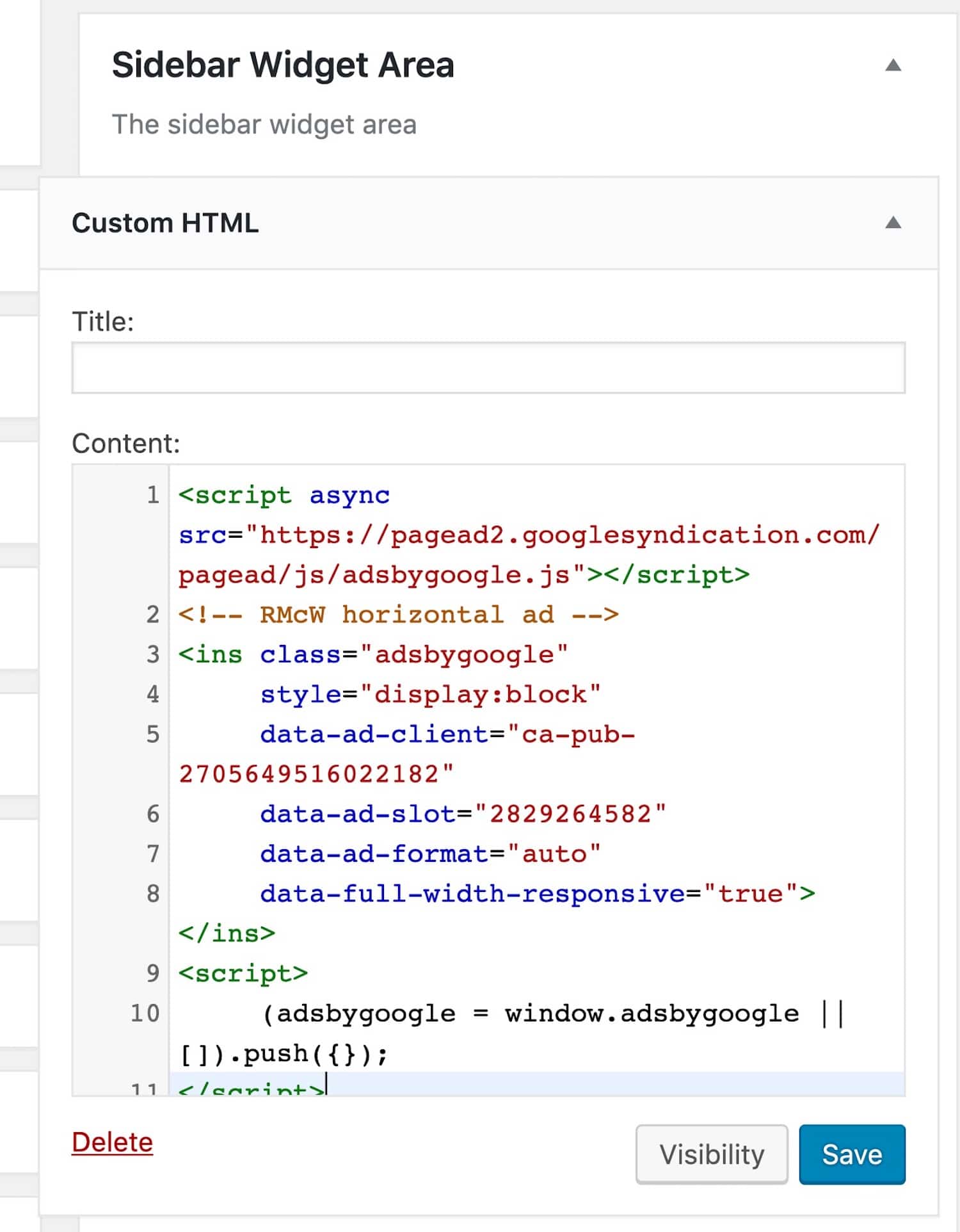
Use widgets for this task. Go to “Appearance” and select “Widgets.” Find the Text widget. Drag it to your sidebar area. Paste the Adsense code inside. Save the widget. Now, your ads will show in the sidebar. This placement is great for visibility.
Install a plugin to insert ads in posts. Search for a plugin like Ad Inserter. Install and activate it. Go to its settings. Paste your Adsense code. Choose where to show ads. For example, before or after the content. Save the settings. This helps show ads within posts.
Using Plugins For Adsense
Plugins help to add Adsense code easily. WordPress offers many plugins for Adsense. Pick a plugin with good reviews. Look for plugins with easy setup. Check if the plugin updates often. This ensures it works well. Free plugins are available. Some plugins offer extra features for a fee. Choose based on needs and budget.
Settings in plugins are important. Open the plugin settings page. Find the spot to add Adsense code. Copy your Adsense code. Paste it in the correct box. Save the settings. Check if ads appear on your site. Adjust settings if needed. Make sure ads don’t disturb readers. Test on different devices. Ensure ads look right on phones and tablets.

Credit: www.youtube.com
Testing And Verifying Ads
Before saving changes, always use the preview option. This helps you see the ad’s placement. It ensures the ads fit well on your page. If ads look odd, adjust the placement. Double-check the layout and the ad size. This makes your site look nice and neat. Never leave ads in awkward spots.
Visit your site on different devices. A phone, a tablet, and a computer. This helps in checking ad display across all devices. Ads should load quickly without breaking the page layout. If any ad does not show, revisit the code. Make sure you copied it correctly. Inspect the ad code for any errors.
Troubleshooting Common Issues
Adding Adsense code to a WordPress theme can present various challenges. Users often face issues with incorrect placement or code errors. Correct theme file editing and code insertion are essential for successful integration.
Resolving Display Errors
Ads might not show on your page. This can happen if the code is incorrect. Check the code for errors. Make sure it matches the Adsense instructions. Clear the browser cache and refresh the page. Also, check your theme settings. Some settings may block ads. Disable plugins that might interfere with ads. Ensure your theme supports Adsense. If the problem persists, contact Adsense support for help.
Ensuring Compliance With Policies
Ads must follow Google’s rules. Check the policy for ad placement. Avoid placing ads near images or other clickable content. Ensure your website content follows Adsense guidelines. Violating these rules may lead to a ban. Review your site regularly. Keep content family-friendly and safe. This helps keep your Adsense account active. Always update your theme and plugins. This ensures proper ad function and compliance.
Frequently Asked Questions
How Do I Insert Adsense Code In WordPress?
To add Adsense code, navigate to your WordPress dashboard. Go to “Appearance” and select “Editor”. Find your theme’s “header.php” file. Paste the Adsense code right before the closing tag. Save changes and verify on your site.
Can I Use Plugins For Adsense Integration?
Yes, plugins like “Ad Inserter” simplify Adsense integration. They allow you to manage ad placements without editing theme files. Install the plugin, configure settings, and paste your Adsense code. This method is user-friendly and recommended for beginners.
Is Adding Adsense To WordPress Safe?
Adding Adsense is safe if done correctly. Ensure you paste the code in the correct theme file and avoid altering essential code. Back up your site before making changes. Use trusted plugins to minimize risks. Regularly update WordPress and plugins for security.
Does Adsense Affect Website Speed?
Adsense can impact speed slightly. Optimize your site to reduce this effect. Use caching plugins and optimize images. Ensure your theme and plugins are updated. Consider lazy loading for better performance. Regularly monitor site speed to maintain a positive user experience.
Conclusion
Adding Adsense code to your WordPress theme is quite simple. It boosts your site’s earning potential. Follow the steps carefully for best results. Always ensure your theme is compatible. Double-check your code placement. Avoid cluttering your site with too many ads.
This keeps your visitors happy. Regularly monitor your ad performance. Adjust settings as needed. Optimizing your Adsense strategy is important. It helps increase revenue effectively. Take time to refine your approach. Success comes with patience and diligence. Keep learning and stay updated.
Your efforts will pay off in the long run. Enjoy the rewards of your hard work!


